April 1, 2026Kalika Kharkar Sharma/7 min read

Preparing an Illustrator File for Animation

Master Illustrator to After Effects Animation Workflow

Before You Begin

This tutorial assumes you have Adobe Illustrator and After Effects installed. You'll be working with the Noble Logo file from previous exercises.

Topics Covered in This After Effects Tutorial:

Resizing Artboards & Vector Graphics, Setting up Layers for After Effects

Animation Workflow Overview

1

Color Mode Conversion

Convert Illustrator files from CMYK to RGB for video compatibility

2

Artboard Resizing

Match artboard dimensions to your After Effects composition size

3

Layer Separation

Break elements into individual layers for independent animation control

Exercise Overview

Successfully preparing vector graphics designed in Illustrator for After Effects animation requires far more than simply converting from CMYK to RGB. Professional motion graphics workflows demand precise artboard sizing to match your target composition dimensions, strategic scaling of vector elements for optimal visual impact, and—critically—the systematic separation of design elements into individual layers for granular animation control.

This comprehensive exercise walks you through the exact preparation workflow used for the Noble Logo animation project, demonstrating industry-standard techniques that will elevate your motion graphics output. You'll learn to anticipate common import issues and establish a reliable preprocessing pipeline that saves hours of troubleshooting later in your After Effects timeline.

Before vs After Preparation

FeatureOriginal FilePrepared File
Color ModeCMYKRGB
Artboard Size201.85 x 127.74 px1920 x 1080 px
Layers1 layer with nested paths21 individual layers
Scale FactorOriginal550% enlarged
Recommended: Prepared files provide complete control over individual element animation in After Effects

Resizing Artboards & Vector Graphics

When importing Illustrator files into After Effects, the artboard dimensions directly determine your composition size—a fundamental relationship that catches many designers off guard. Mismatched dimensions create scaling issues, resolution problems, and unnecessary complications in your animation workflow. Establishing the correct artboard size upfront prevents these downstream issues and ensures your vector graphics maintain crisp edges at any scale.

  1. On the Desktop, navigate into Class Files > After Effects Class > Noble Logo > Assets and double–click noble-logo-to-prepare-CMYK.ai to open it in Adobe Illustrator.

    Make sure you are opening the to-prepare file in the Assets folder, not the similar one that's outside that folder!

  2. To convert the file, go to File > Document Color Mode and choose RGB Color.

  3. In the Tools panel on the left, choose the Artboard tool artboard tool.

  4. In the docked panels at the right of the screen, if you don't see the Properties panel, click on the Properties tab or go to Window > Properties.

  5. In the Properties panel, notice that the Width (W) is 201.85 px and Height (H) is 127.74 px. These dimensions are significantly smaller than our target composition size, requiring immediate adjustment to prevent quality issues during animation.

  6. We don't need to maintain its aspect ratio, so in between the W and H dimensions, make sure Maintain Width and Height proportions maintain proportions off is unlinked.

  7. Set W to 1920 px and H to 1080 px, the standard size for HD video (and the size of the composition we want to create in After Effects).

    TIP: You could also use the HDTV 1080 preset to set this size. For 4K projects, consider using 3840 x 2160 dimensions to maintain maximum quality for high-resolution deliverables.

  8. To see the entire artboard on-screen, go to View > Fit Artboard in Window.

  9. The dramatically larger artboard makes the logo appear insignificant—a common scaling challenge when adapting print designs for video formats. In the Tools panel, switch to the Selection tool ai selection tool.

  10. Press Cmd–A (Mac) or CTRL–A (Windows) to select all the art.

  11. Go to Object > Transform > Scale and:

    • In the field next to Uniform, type 550. (You'll need to experiment with this scaling factor based on your specific design and intended visual hierarchy.)
    • At the bottom, check on Preview to see how this change will look and ensure the logo maintains appropriate visual weight within the frame.
  12. Click OK.

With your artboard properly sized and graphics scaled appropriately, you're ready to tackle the crucial step of layer organization—the foundation that determines how flexibly you can animate individual elements.

Standard Video Dimensions

1,920px
pixels width for HD video
1,080px
pixels height for HD video
550%
percent scale increase needed
Artboard Tool Selection

Always use the Artboard tool from the Tools panel when adjusting canvas dimensions. The Properties panel will show current width and height values for precise adjustments.

Artboard Setup Checklist

0/5

Setting up Layers to Individually Animate Elements in After Effects

Layer structure in Illustrator directly translates to your animation capabilities in After Effects. A single consolidated layer might look clean in Illustrator, but it severely limits your animation options—you can only transform, fade, or effect the entire group as one unit. Professional motion graphics work demands the ability to animate individual elements independently, creating sophisticated sequences where letters appear sequentially, shapes animate in choreographed patterns, and complex reveals unfold over time.

The following workflow demonstrates how to systematically convert grouped paths into individual layers while maintaining proper stacking order and visual relationships.

  1. On the right of the screen, click on the Layers tab to switch to that panel. (If you can't find it, go to Window > Layers.)

  2. Expand Layer 1 by clicking its triangle to reveal the nested structure beneath.

  3. With Layer 1 selected, begin breaking up the nested <Group> elements by going to Object > Ungroup. This process separates grouped elements while maintaining their individual properties.

  4. Complex illustrations often require multiple ungrouping passes. Press Cmd–Shift–G (Mac) or CTRL–Shift–G (Windows) twice more to fully flatten the group hierarchy.

  5. With Layer 1 still selected, at the top right of the Layers panel click on the panel menu ai panel menu.

  6. From the menu that appears, choose Release to Layers (Sequence). This powerful command automatically creates individual layers from each path or shape, establishing the foundation for independent animation control.

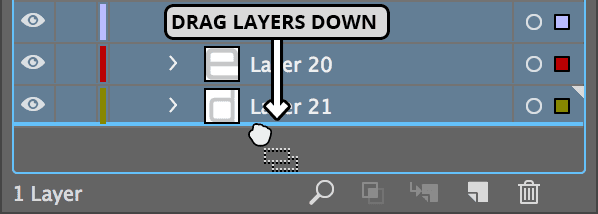
  7. The panel now shows 21 layers, though initially only the first is a true layer—the others remain as sublayers. To convert sublayers into independent layers that After Effects can recognize, select multiple sublayers in the Layers panel:

    • Click on Layer 2
    • Hold Shift and click on Layer 21 to select the entire range.
  8. Drag any selected layer name (such as Layer 21) down until a thick blue line appears at the bottom of the layer stack, as shown below. Release to convert all sublayers into independent layers that will import correctly into After Effects.

    ai unindent layers

  9. Select the now-empty Layer 1.
  10. At the bottom of the Layers panel, click the Trash button trash button to remove the empty container layer.

  11. Since After Effects displays layers by name rather than thumbnail content, strategic naming becomes crucial for efficient animation workflow. In the Layers panel, double–click on the Layer 9 name to edit it.
  12. Rename it to black square and press Return (Mac) or Enter (Windows) to apply the change.
  13. The top layers (2–8) contain colored rectangles that will animate in sequence. Click on the circle (visibility toggle) next to each layer name to identify its position in the artboard and understand the visual hierarchy.

    Notice that some rectangles have bounding boxes larger than their visible shapes, indicating overlapping elements. For the sequential animation we're planning—where rectangles appear clockwise starting with blue—we need to maintain the current layer order to preserve these visual relationships.

  14. Rename Layers 2–8 to reflect their intended animation sequence, using descriptive names that indicate both color and timing order:

    Layer 2: red-05 (it will be 5th in the sequence)
    Layer 3: yellow-03
    Layer 4: darkOrange-06
    Layer 5: green-02
    Layer 6: blue-01
    Layer 7: gold-07
    Layer 8: orange-04
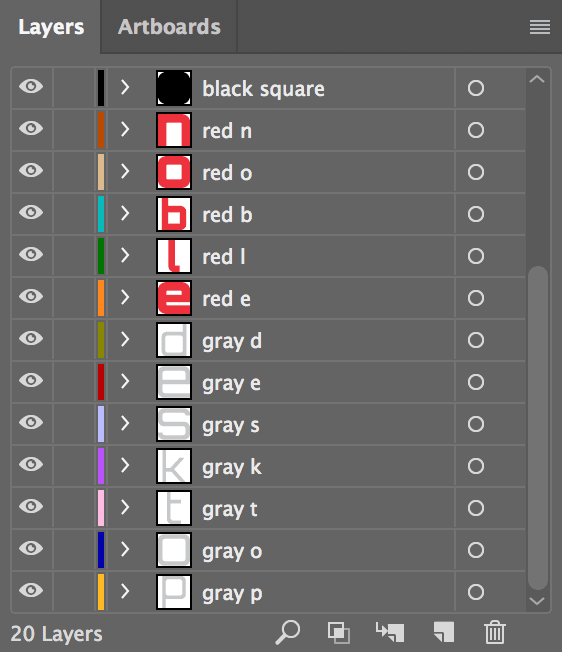
  15. The remaining layers contain individual letters from "Noble Desktop" that are currently out of logical order. Proper sequencing now will streamline your animation workflow later. Drag layers up or down to reorder them, being careful not to accidentally nest one layer inside another. Simultaneously rename each layer with descriptive identifiers like red n or blue o. Your final layer structure should match this organization:

    ai reorder rename Noble Desktop layers

  16. Your file is now optimally prepared for professional After Effects animation workflows. Save your work by going to File > Save As and:

    • Navigate into Desktop > Class Files > After Effects Class > Noble Logo > Assets.
    • Name the project yourname-noble-logo-prepared-RGB.ai to distinguish it from the original source file.
    • Click Save.
  17. In the dialog that appears, ensure Version is set to match your After Effects version (Illustrator 2024 or later for current CC subscriptions) and click OK. Version compatibility prevents import issues and ensures all layer data transfers correctly.

  18. Quit Illustrator to free up system resources for the intensive After Effects work ahead.

Layer Structure Impact

Each Illustrator layer becomes a separate After Effects layer. Without proper layer separation, you cannot animate individual elements independently.

Layer Separation Process

Step 1

Ungroup Elements

Break apart grouped elements three times using Object > Ungroup

Step 2

Release to Layers

Convert paths to individual sublayers using panel menu option

Step 3

Promote Sublayers

Drag sublayers to main level to create true layers

Step 4

Clean and Rename

Delete empty layers and rename for animation sequence

Layer Count Transformation

Original Layers
1
After Ungrouping
21
Final True Layers
20

Naming Convention Strategy

Colored Rectangles

Named by animation sequence order: blue-01, green-02, yellow-03, orange-04, red-05, darkOrange-06, gold-07. Numbers indicate clockwise animation timing.

Letter Elements

Descriptive names like 'red n' help identify individual letters for the Noble Desktop text animation. Color coding matches the visual appearance.

Background Elements

Simple descriptive names like 'black square' for foundational elements that provide context but may not require complex animation.

File Ready for Import

Save as yourname-noble-logo-prepared-RGB.ai with Illustrator 2020 version compatibility to ensure smooth After Effects import.

Key Takeaways

1Always convert Illustrator files from CMYK to RGB color mode before importing into After Effects for video projects
2Artboard dimensions must match your intended After Effects composition size, typically 1920x1080 for HD video
3Vector graphics often need significant scaling (like 550%) after artboard resizing to maintain visual impact
4Each Illustrator layer becomes a separate After Effects layer, so proper layer separation is crucial for independent animation
5Use Release to Layers (Sequence) to convert grouped paths into individual layers for granular animation control
6Strategic naming conventions help organize layers for complex animations, especially when indicating sequence order
7Ungrouping elements multiple times may be necessary to fully separate nested groups before layer conversion
8Save prepared files with version compatibility matching your After Effects installation for seamless workflow integration

RELATED ARTICLES