April 1, 2026Kalika Kharkar Sharma/12 min read

Particle Skateboards: Using 3D Cameras

Master 3D Camera Techniques for Dynamic Motion Graphics

Core Skills You'll Master

3D Camera Control

Learn to create realistic depth and movement in 2D compositions using After Effects' camera layers. Master positioning and parenting techniques for smooth animations.

Text Animation Presets

Apply and customize professional text animations using Adobe Bridge presets. Modify properties like tracking, position, and color for unique effects.

Light Sweep Effects

Add professional polish with CC Light Sweep effects that create dynamic sparkle and movement across your text and graphics.

Topics Covered in This After Effects Tutorial:

Master advanced 3D techniques by adding a Camera Layer, applying and modifying Text Animation Presets, combining multiple Text Animators, and creating the dynamic Light Sweep Effect that adds professional polish to your motion graphics.

Exercise Preview

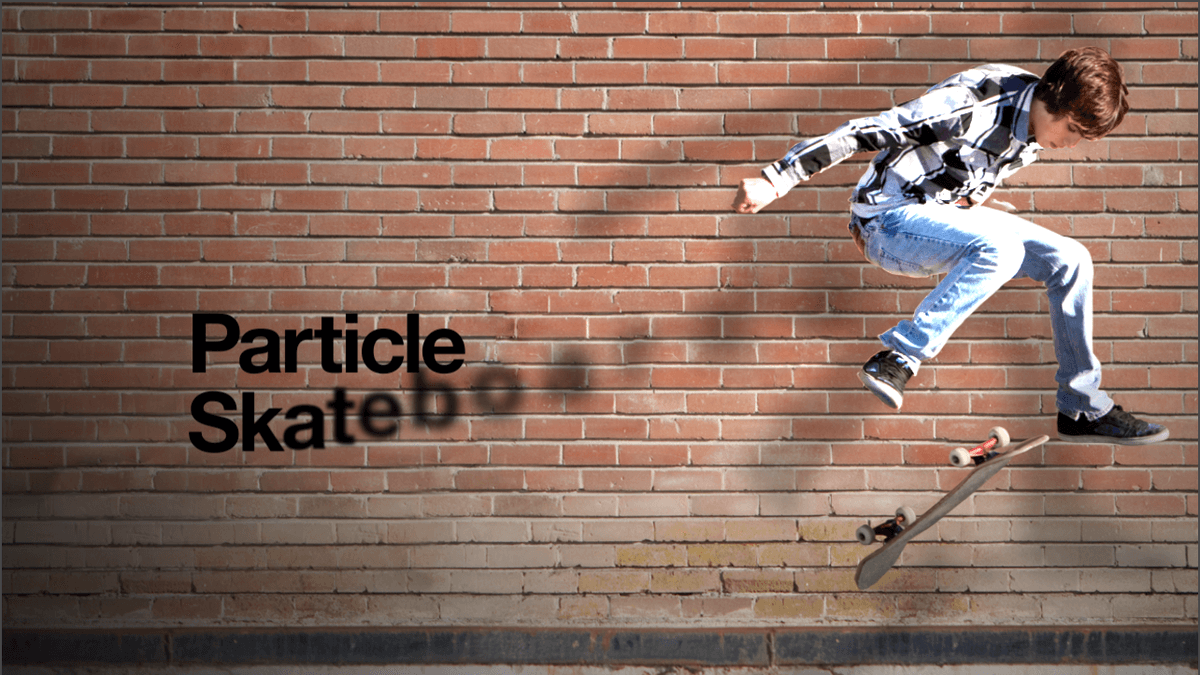
Exercise 5B preview

Exercise Overview

In real-world cinematography, objects closer to the camera exhibit more dramatic perspective shifts than distant elements—the skateboarder in our composition should move at a different rate than the background wall to create authentic depth perception. 3D Cameras transform flat compositions into dimensionally convincing scenes, making scaling and movement feel natural rather than mechanical. In this exercise, we'll implement a 3D camera system to achieve realistic parallax motion, then integrate our final branding element: the company name, which will respond dynamically to our camera movements for a cohesive, professional result.

Understanding 3D Depth

In real life, the skateboarder would move toward the camera at a faster rate than the wall would, because he's in front of the wall. 3D Cameras can create this realistic depth in a two-dimensional image.

Adding a Camera Layer

  1. Ensure yourname-Particle Skateboards.aep remains open in After Effects. If you've closed the project, reopen it now. We strongly recommend completing the previous exercise (B1) before proceeding, as this builds directly on that foundation. If you haven't finished the previous exercise:

    • Open Particle Skateboards-Ready for 3D Camera.aep (located in Particle Skateboards > Finished AE Projects folder)
    • Save the file as yourname-Particle Skateboards.aep in the Particle Skateboards folder
  2. Now we'll create an animatable camera that will bring dimensional depth to our composition. Navigate to Layer > New > Camera.

  3. In the Camera Settings dialog, verify that Type is set to One-Node Camera, Preset reads 50mm (mimicking a standard lens focal length), and Enable Depth of Field remains OFF (unchecked) for maximum clarity. Click OK to proceed.

    Camera Setup Process

    1

    Create Camera Layer

    Go to Layer > New > Camera with One-Node Camera type and 50mm preset

    2

    Configure Settings

    Ensure Enable Depth of Field is OFF (unchecked) for optimal performance

    3

    Apply to Project

    Click OK to add the camera layer to your composition timeline

Using a Camera Layer to Control 3D Layers

Camera layers primarily influence 3D layers, though they can affect 2D layers when specific effects are applied. Think of the Camera layer as your virtual cinematographer—manipulating its properties changes how 3D elements appear within the composition frame. Moving the camera is typically more intuitive than individually repositioning multiple 3D layers, especially when creating complex parallax effects or perspective shifts that would be cumbersome to achieve layer by layer.

  • To streamline our animation workflow, we'll parent the camera to a null object. This technique simplifies complex camera movements by allowing us to animate a single control object rather than juggling multiple camera properties. Go to Layer > New > Null Object.

  • In the Timeline, select [Null 1] and rename it to Camera Move for clear project organization.

  • Enable the 3D Layer switch 3D layer switch to the right of Camera Move, transforming it into a 3D object.

  • Select Camera Move and press P to reveal the Position property. Verify the coordinates read 640,360,0 (the composition center).

  • Collapse all layer properties in the Timeline to maintain a clean workspace.

  • In the Timeline, locate the Parent & Link dropdown to the right of Camera 1 and set it to 1. Camera Move. This creates a parent-child relationship—wherever the null object moves, our camera follows automatically.

  • Expand Camera Move > Transform to access its animation properties.

  • Position the playhead at 0:00 to set our starting keyframe.

  • Click the stopwatch stopwatch next to Position to enable keyframe animation.

  • Move the playhead to 9:29 to establish our end point.

  • Set the Position coordinates to 650,347,120 by either dragging the colored axis controls in the Composition panel or entering values manually in the Timeline. This creates a subtle push-in movement with slight repositioning.

  • Return the playhead to 0:00 to review from the beginning.

  • In the Composition panel, switch to 1 View for a clearer preview.

  • Press Spacebar to preview your work. The movement should feel somewhat mechanical and linear—we'll refine this next.

  • Let's add professional easing to our camera movement. Ensure Camera Move > Transform remains expanded.

  • Click the word Position to select all keyframes on that property, then navigate to Keyframe Assistant > Easy Ease. This creates smooth acceleration and deceleration, mimicking natural camera movement.

  • Collapse the layers in the Timeline to maintain organization as we move to the next phase.

  • Professional Tip: Use Null Objects

    Rather than factor in all the various camera properties, it will be far easier to animate a null object. Parent your camera to a null object for simplified control.

    Camera Animation Setup

    1

    Create Null Object

    Add a null object and rename it 'Camera Move', then enable 3D Layer switch

    2

    Parent Camera

    Set Camera 1's Parent & Link menu to the Camera Move null object

    3

    Set Keyframes

    Animate position from 640,360,0 at 0:00 to 650,347,120 at 9:29

    4

    Apply Easy Ease

    Select position keyframes and apply Easy Ease for smooth camera movement

    Applying a Text Animation Preset

    With our 3D camera system established, we'll now integrate dynamic text animation using After Effects' built-in presets—professional-quality animations that can be customized for your specific needs.

    1. At the bottom of the Composition panel, click the Choose grid and guide options button grid and guides options icon and select Title/Action Safe. These guides ensure your text remains visible across different display formats and platforms.

    2. Convert your text to editable After Effects text by CTRL–clicking (Mac) or Right–clicking (Windows) the text layer name and selecting Create > Convert to Editable Text. This unlocks advanced text animation capabilities.

    3. Text Animation Presets offer professional-grade animations without manual keyframing. These presets, included with After Effects, provide sophisticated text treatments used throughout the motion graphics industry.

    4. Position your playhead at 4:00, then press the left bracket key [ to trim the Particle Skateboards text layer to begin at this point.

    5. Navigate to Animation > Browse Presets to launch Adobe Bridge, your gateway to After Effects' extensive preset library. The animation will automatically begin from your current playhead position, so ensure you're positioned at 4:00 before applying any preset.

    6. If prompted about importing preferences from a previous Bridge version, click Yes to maintain your customizations.

    7. If asked about Creative Cloud Libraries access, click Dismiss to continue.

    8. Go to Window > Workspace and ensure Essentials is checked for optimal interface layout.

    9. In Bridge, double–click the Text folder to explore available categories.

    10. Double–click the Blurs folder to access blur-based text animations.

    11. Single-click any effect to preview it in the right panel (ensure you're in the Preview tab). Sample several effects to understand the range of available options before making your selection.

    12. We'll implement the Evaporate preset for its dramatic reveal effect. Click it once to preview, then CTRL–click (Mac) or Right–click (Windows) and select Place > In Adobe After Effects. Bridge will automatically apply the effect to your selected text layer. If After Effects displays a reference error dialog, click OK to dismiss it—this is normal behavior.

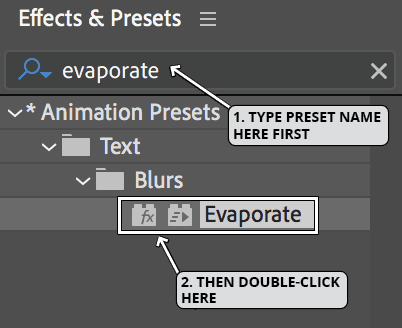
    13. Close Bridge—we've completed our preset selection. Professional Tip: Recent Bridge versions may experience performance issues with text animator playback. For reliable previews, reference Motion Island's comprehensive GIF collection at tinyurl.com/motion-island-text-gifs. Alternatively, access presets directly within After Effects via the Effects and Presets panel (Window menu > Effects & Presets):

      fxPresets

    14. Return to After Effects to customize our animation.

    15. Press UU (U key twice rapidly) to reveal all modified properties and new keyframes—a time-saving technique for complex projects.

    16. Navigate to the layer's start point by pressing i, then press B to set the Timeline work area to begin at this point.

    17. Press Spacebar to preview this section. Notice how the text quickly evaporates away—the opposite of our intended reveal effect, and the letters animate randomly rather than sequentially.

    18. Under the Particle Skateboards text layer, locate Shape (within Evaporate Animator > Range Selector 1 > Advanced) and change the dropdown from "Ramp Down" to Ramp Up. This reverses the animation direction.

    19. In the same section, find Randomize Order and change it from "On" to Off for sequential letter animation.

    20. Preview with Spacebar again. The improvement is significant, but we can add more sophisticated behavior.

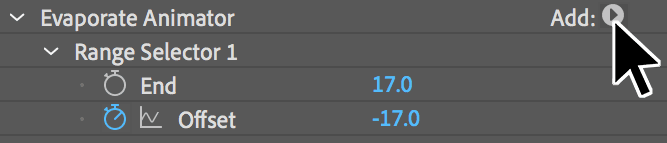
    21. Text animators support multiple properties simultaneously. Locate the Add flyout menu next to the Evaporate Animator, shown below:

    click add flyout

    1. Click the Add flyout and select Properties > Tracking to add letter spacing control.

    2. When adding properties to text animators, changes affect the transformed state of text during animation. Position your playhead at 5:00 to view the animation in progress.

    3. Scroll down and change Tracking Type to After and set Tracking Amount to 150. This creates wider initial letter spacing that contracts as letters settle into position.

    4. Add vertical movement by clicking the Add flyout again and choosing Position.

    5. Set the Position value to (0.0, -240.0) to make letters drop in from above.

    6. Save your project now. The next section involves advanced modifications, and having a stable checkpoint allows easy reversion via File > Revert if needed.

    Bridge Compatibility Note

    The latest versions of Bridge, on some computers, have been unreliable and slow in playing back text animators. Alternative GIF previews are available at Motion Island's blog.

    Text Animation Workflow

    1

    Prepare Text Layer

    Convert to editable text and position playhead at 4:00, then trim layer start point

    2

    Browse Presets

    Use Animation > Browse Presets to launch Adobe Bridge and navigate to Text > Blurs folder

    3

    Apply Evaporate Effect

    Preview and place the Evaporate preset into After Effects from Bridge

    4

    Customize Animation

    Change Shape from Ramp Down to Ramp Up, and turn Randomize Order to Off

    Optional Bonus: Modifying and Troubleshooting a Text Animation Preset

    Advanced text animation often requires combining multiple animators and troubleshooting property conflicts. This section demonstrates professional techniques for complex text treatments.

    1. Let's add color transformation as letters animate in. Click the Add flyout menu and choose Property > Fill Color RGB. Set the Fill color to White by clicking the color chip in the Timeline.

    2. Preview the animation—you may notice no visible change. This common issue requires systematic troubleshooting. First, navigate to the Particle Skateboards text layer's Material Options and ensure both Accepts Lights and Accepts Shadows are disabled.

    3. Property conflicts can mask color changes. Try removing conflicting properties by selecting Blur, then Cmd-click (Mac) or CTRL-click (Windows) on Opacity, and press Delete.

    4. You'll notice letters to the right appear grayish, indicating premature color change timing. We need precise control over when the color transformation occurs. Go to File menu > Revert to restore our previous state.

    5. Select the Evaporate Animator in your Timeline and go to Edit menu > Duplicate to create a second animator.

    6. Rename the duplicated Evaporate Animator 2 to Color Animator for clarity.

    7. Under Color Animator, select from Position through Blur (Shift-click to select the range) and press Delete to remove these properties.

    8. Next to Color Animator, click the Add flyout and choose Property > Fill Color > RGB.

    9. Click the color chip and select White from the color picker.

    10. Now we'll offset our color animation for perfect timing. Press U (or UU for all modified properties) to reveal keyframes.

    11. The Range Selector controls animation timing and progression. In the second Range Selector 1 section, click the word Offset to select all its keyframes.

    12. Move the current time indicator to 4:15, then drag the selected keyframes (hold Shift to snap) to this position—half a second after the main Evaporate Animator begins.

    13. Preview with Spacebar and fine-tune as needed. Experiment with additional properties or explore other Bridge presets to expand your animation toolkit.

    Adding Properties to Text Animators

    Pros
    Tracking property creates spacing effects between letters
    Position property allows vertical and horizontal offset control
    Fill Color RGB enables dynamic color changes during animation
    Multiple animators can be duplicated and offset for complex effects
    Cons
    Color changes may be hidden by other properties like Blur and Opacity
    Material Options settings can interfere with color visibility
    Timing adjustments require careful keyframe offset management
    Multiple properties can create conflicting visual results

    Optional Bonus #2: Adding a Light Sweep

    Professional motion graphics often include subtle "sparkle" effects that add visual interest without overwhelming the design. The CC Light Sweep effect creates elegant light reflections that enhance the perceived quality of your animation.

    1. Position the Timeline at 6:17 for optimal light sweep timing.

    2. Select the Particle Skateboards text layer.

    3. In the Effects & Presets window, type light sweep in the Search field.

    4. Double-click CC Light Sweep to apply it to your text layer.

    5. Configure the following settings for optimal light behavior:
      Center: 154.0,558
      Sweep Intensity: 60
      Edge Intensity: 15
      Edge Thickness: 2
      Light Color: White
    6. Enable the stopwatch next to Center at 6:17 to begin keyframe animation.

    7. Advance to 8:08 in the timeline.

    8. Move the Center to the text's far right edge: (1360,133).

    9. To create a cohesive light sweep across multiple elements, position the playhead at 7:03.

    10. Drag and drop the CC Light Sweep effect from the Effects & Presets window onto the skateboarder PSD layer.

    11. Set the skateboarder's CC Light Sweep Center to (706,452) and change the Light Color to White.

    12. Enable the stopwatch next to Center for this layer as well.

    13. Move to 8:24 and set the Center value to (1360,133).

    14. The light sweep now travels seamlessly across the text and continues over the skateboarder, creating a unified lighting effect.

    CC Light Sweep Settings

    Text Layer Settings

    Center at 154,558 with Sweep Intensity 60, Edge Intensity 15, and Edge Thickness 2. Animate from 06:17 to 08:08.

    Skateboarder Layer Settings

    Center at 706,452 starting at 07:03, animating to 1360,133 at 08:24 for seamless sweep continuation.

    Rendering

    Professional delivery requires proper export settings that maintain quality while ensuring compatibility across platforms. We'll use Adobe Media Encoder for optimal results and future-proof encoding options.

    1. In the Timeline, ensure you're viewing the Skateboarder-MAIN composition tab.

    2. Navigate to Composition menu > Add to Render Queue.

    3. In the Render Queue panel (appears at the bottom), click on the file name or Not yet specified next to Output To.

    4. Navigate to Desktop > Class Files > After Effects Class > Particle Skateboards > Renders, name the file Particle-Skateboards.mov, and click Save.

    5. Click the Queue in AME button in the top right of the Render Queue panel. This launches Adobe Media Encoder—Adobe's dedicated encoding application that provides superior compression algorithms and background processing capabilities.

    6. Establish a consistent workspace by going to Window > Workspaces > Default Workspace.

    7. Reset to factory settings via Window > Workspaces > Revert Workspace.

    8. Verify that skateboarder-MAIN appears in the right-side Queue panel.

    9. Under the Format column, click the small arrow media encoder arrow and select H.264 if not already chosen. H.264 remains the industry standard for high-quality web and broadcast delivery.

    10. Under the Preset column, click the arrow media encoder arrow and choose Match Source-High Bitrate.

    11. Click the preset name Match Source-High Bitrate to access detailed encoding settings.

    12. In the Export Settings window, ensure you're viewing the Video tab.

    13. Click Match Source to maintain your composition's original dimensions and frame rate.

    14. Scroll down and enable Render at Maximum Depth for highest quality color processing.

    15. In the Bitrate Settings section, set Bitrate Encoding to VBR, 2 pass. Variable Bit Rate with 2-pass encoding optimizes file size while maintaining quality by analyzing the footage twice.

    16. Under Advanced Settings, enable Key Frame Distance and set it to 30 to match your project's frame rate, ensuring smooth playback across platforms.

    17. At the bottom, check Use Maximum Render Quality for the highest possible output quality.

    18. Click OK to confirm your export settings.

    19. Verify the Output File path points to your Renders folder. If incorrect, click the blue filepath text and navigate to Desktop > Class Files > After Effects Class > Particle Skateboards > Renders.

    20. To begin rendering, click the green play button in the top right of the Queue window. Media Encoder will process your composition in the background, allowing you to continue working on other projects while your video exports.

    Export Process

    1

    Add to Render Queue

    Use Composition > Add to Render Queue and set output location to Renders folder

    2

    Configure Adobe Media Encoder

    Choose H.264 format with Match Source-High Bitrate preset for optimal quality

    3

    Optimize Export Settings

    Enable Maximum Render Quality, set VBR 2-pass encoding, and 30-frame key distance

    4

    Start Rendering

    Click Start Queue button and monitor progress until completion

    Export Quality Checklist

    0/4

    Key Takeaways

    13D cameras only affect 3D layers and require proper layer switches to be enabled for functionality
    2Parenting cameras to null objects simplifies animation by reducing the number of properties to manage
    3Text animation presets from Adobe Bridge provide professional results but can be customized with additional properties
    4Easy Ease keyframes create more natural and professional-looking camera movements compared to linear motion
    5Shape and Randomize Order properties in text animators control the direction and sequence of letter animations
    6Multiple text animators can be duplicated and offset to create complex layered animation effects
    7CC Light Sweep effects add professional polish and can be synchronized across multiple layers for continuity
    8Proper export settings including VBR 2-pass encoding and maximum render quality ensure professional output results

    RELATED ARTICLES