April 1, 2026Kalika Kharkar Sharma/12 min read

Noble Logo: Masking Layers & Parenting

Master Advanced After Effects Animation Techniques

Core Techniques You'll Master

Pre-Composing

Bundle layers into manageable groups like folders in Photoshop. Apply effects and animations uniformly to multiple layers contained within.

Masking

Create invisible boundaries to control layer visibility. Hide elements until they animate into view for professional reveal effects.

Parenting

Link child layers to parent layers for coordinated movement. Child layers inherit Position, Scale, and Rotation from their parent.

Topics Covered in This After Effects Tutorial:

Pre-Composing, Using Masks, Using Parenting

Exercise Preview

preview noble logo masking layers

Exercise Overview

In this exercise, we'll orchestrate an animated sequence where the Noble Desktop letters rise with dynamic enthusiasm. Just as the sun remains hidden until it crests the eastern horizon, we'll conceal our letters before their grand entrance. We'll achieve this cinematic effect using masks—invisible barriers that control visibility with surgical precision. You'll also master two fundamental After Effects concepts: pre-composing (which bundles layers into manageable groups) and parenting (which creates hierarchical relationships between elements for coordinated movement).

Animation Sequence Breakdown

Frame 32

Rectangle Scaling Complete

Gold-07 layer finishes scaling up at frame 32

Frame 42

Letter Animation Peak

Letters overshoot their final positions

Frame 47

Final Letter Position

Noble Desktop letters settle into place

Frame 53

Logo Reaction

Logo moves upward when touched by letter K

Re-Previewing the Final Movie

  1. You should still have yourname-Noble Logo.aep open in After Effects. If you closed it, re-open it now by going to File > Open Project then Desktop > Class Files > After Effects Class > Noble Logo. We strongly recommend completing the previous exercise (2A) before proceeding, as this exercise builds directly upon those foundations. If you haven't finished it, follow the instructions in the sidebar below.

If You Did Not Do the Previous Exercise (2A)

  1. If a project is open in After Effects, go to File > Save, then File > Close Project.
  2. Go to File > Open Project and navigate to Desktop > Class Files > After Effects Class > Noble Logo > Finished AE Projects.
  3. Double–click on Noble Logo-Ready for Masking Layers.aep.
  4. Do a File > Save As > Save As. Name the file yourname-Noble Logo.aep and save it back into the Noble Logo folder.
  • If you don't already have the final movie (Noble-Logo-Animated.mp4) open, re-open it from the Desktop > Class Files > After Effects Class > Noble Logo > Final Movie folder.

  • Play the video, paying careful attention to these key animation principles:

    • The words "Noble Desktop" emerge character-by-character with theatrical flair, appearing to rise from an invisible boundary below which they remain hidden. Notice how they overshoot their final positions before settling—this creates natural, organic movement that feels alive rather than mechanical.
    • When the top of the "k" in "Desktop" makes contact with the Noble logo, the logo reacts defensively by retreating upward from its settled position. The seven rectangles move in perfect unison with the black square background, demonstrating coordinated group animation.
  • Keep the video open for reference throughout this exercise—you'll want to compare your work against this polished result.

  • Now that you've analyzed the final animation, let's dive into creating these sophisticated motion graphics techniques step by step.

    Project Setup Recovery Steps

    1

    Close Current Project

    Save and close any open After Effects project to start fresh

    2

    Open Ready File

    Navigate to Finished AE Projects folder and open Noble Logo-Ready for Masking Layers.aep

    3

    Save As New Version

    Use Save As to create yourname-Noble Logo.aep in the Noble Logo folder

    Making the Letters Rise up Using Position Keyframes

    Each Noble Desktop letter will begin its journey from near the bottom of the composition frame, creating anticipation before the reveal. They'll overshoot their final positions with energetic enthusiasm before settling into place—a technique called "ease and overshoot" that's essential for professional motion graphics. We'll animate all letters simultaneously first, then stagger their timing for a cascading effect that feels natural and engaging.

    1. Switch to After Effects, where yourname-Noble Logo.aep is open.

    2. We want the letters to begin their upward journey precisely when the last rectangle in the logo completes its scaling animation. To find this exact timing, go to the gold-07 layer and locate the final keyframe keyframe end easy ease in (if keyframes aren't visible, select the gold-07 layer and press S).

      Hover over the final keyframe keyframe end easy ease in to reveal a gray tooltip displaying the frame number and its value. The frame number should read 32—this is our synchronization point.

    3. Move the playhead to frame 32.

    4. Clean up your workspace by collapsing the logo layers:

      • Select layer 1
      • Shift–Click layer 7
      • Click the down arrow down arrow menu to collapse.
    5. In the Timeline, select all the letter layers (distinguished by their blue color) by clicking layer 9 (red n) and Shift–Clicking layer 20 (gray p).

    6. Now we'll synchronize all letter layers to start at frame 32. Press Opt–[ (Mac) or ALT–[ (Windows) to trim the layer in-points to the current time. You'll see all the layer bars crop to this position—a powerful time-saving technique for batch layer management.

    7. Professional animators often work backwards when creating position animations, as it's easier to establish the end state first. Move the playhead to frame 47, where the Noble Desktop letters will complete their animation sequence.

    8. To quickly reveal the Position property for all 12 selected layers, press the P key—one of After Effects' most useful shortcuts.

    9. Create position keyframes for all selected layers by clicking the stopwatch stopwatch next to any layer's Position property. This action applies to all selected layers simultaneously.

    10. To help with precise positioning, we'll enable visual guides. At the bottom left of the Composition panel, click the Choose grid and guide options button grid and guides options icon, and select Title/Action Safe.

      These guides are crucial for professional video work, ensuring your content displays properly across all viewing devices. For more comprehensive information on title and action safety standards, visit tinyurl.com/safety-guides

    11. Move the playhead to frame 42, where the text will reach its overshoot position—this creates the bouncy, energetic feel that makes animation engaging.
    12. We'll move all layers up by 80 pixels by modifying the second Position value (the vertical y-axis). With all layers still selected, note the red n layer's second Position value: 805.2.
    13. Press Shift–Up Arrow to move all selected layers upward in 10-pixel increments.
    14. Continue pressing Shift–Up Arrow while monitoring the red n layer's second Position value until it reaches 725.2—this represents our overshoot position.
    15. Now we'll establish the starting position for our letter animation. Press the i key to jump the playhead to the selected layers' in point (frame 32)—another time-saving shortcut every motion graphics professional should know.

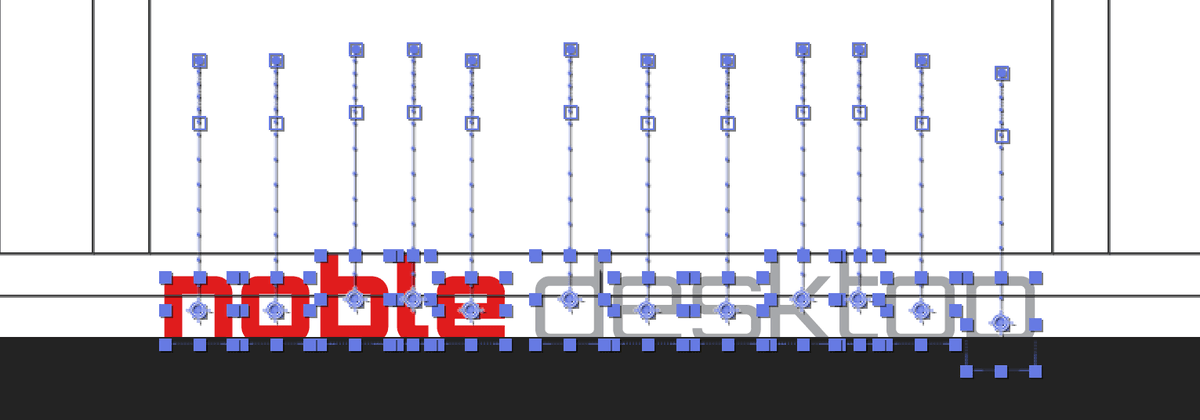
    16. With all layers still selected, press Shift–Down Arrow repeatedly until the tops of the taller letters sit just below the dark gridline, as shown in the reference image:

      noble logo move letters to start position

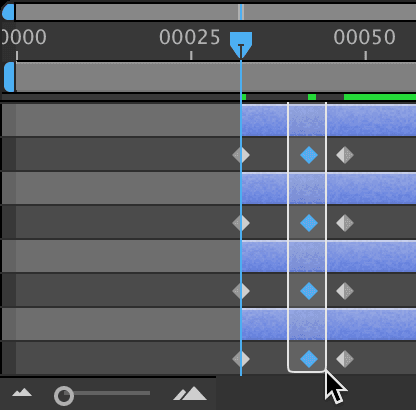
    17. To create smooth, professional animation curves, we'll add easing to the second keyframe keyframe middle at frame 42. Select all these keyframes by dragging a selection box around them:

      noble logo select column of keyframes

    18. Apply Easy Ease to create natural deceleration and acceleration around these keyframes by pressing F9 (on some laptops, press fn–F9). This transforms linear motion into organic, lifelike movement.

    19. Deselect all layers by clicking in an empty Timeline area or using Cmd–Shift–A (Mac) or CTRL–Shift–A (Windows).

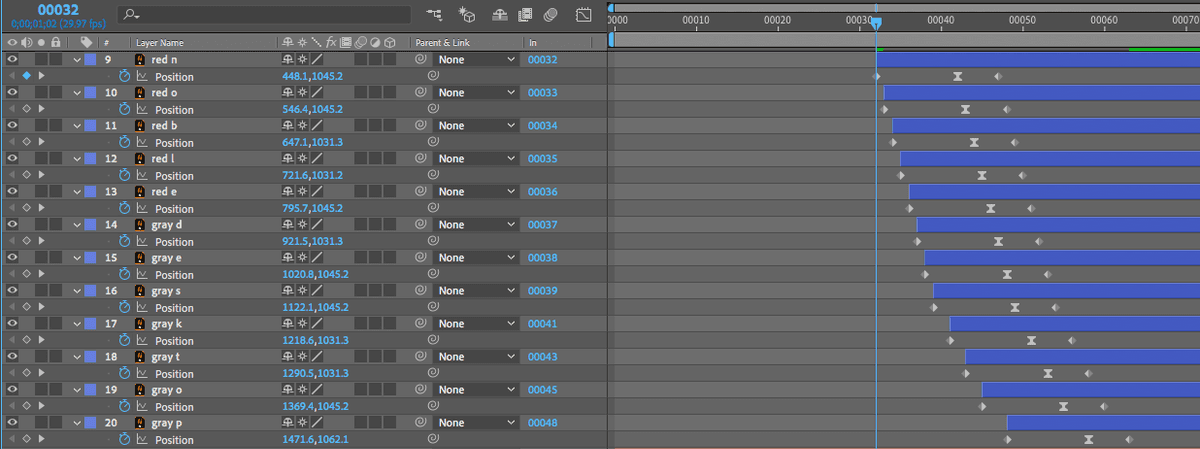
    20. Now for the choreography—we'll stagger the letter animations to create a cascading reveal effect. Adjust each layer's in point by clicking the In column value, entering the new frame number, and clicking OK:

      red o: frame 33
      red b: frame 34
      red l: frame 35
      red e: frame 36
      gray d: frame 37
      gray e: frame 38
      gray s: frame 39
      gray k: frame 41 (increased stagger signals the animation's conclusion)
      gray t: frame 43
      gray o: frame 45
      gray p: frame 48
    21. Your timeline should now display this cascading pattern:

      noble logo letters offset

    22. Press the Spacebar to preview your animation work.

      The letter sequencing creates excellent visual rhythm, but the letters emerging from the very bottom of the composition frame feels unpolished. Professional motion graphics require more sophisticated reveals—this is where masks become essential, creating that invisible horizon effect we analyzed in the reference video.

    Animation Strategy

    When animating Position property, it's easiest to animate backwards. Start with the final position, add the overshoot, then create the starting position.

    Letter Staggering Timeline

    red n
    32
    red o
    33
    red b
    34
    red l
    35
    red e
    36
    gray d
    37
    gray e
    38

    Pre-Composing Layers

    To apply a mask to all these letter layers simultaneously, we need to bundle them into a single pre-composition (or pre-comp)—think of it as a smart folder that behaves like a single layer. This concept parallels group folders in Photoshop or nested sequences in Premiere Pro. The pre-comp acts like a transparent envelope: you can apply effects, masks, and transform animations to the envelope itself, while still retaining full control over the individual layers inside. This hierarchical approach is fundamental to professional After Effects workflows, enabling complex compositions to remain organized and manageable.

    1. Select all the letter layers (layers 9–20) that need to move together:

      • Click the red n layer.
      • Shift–click the gray p layer.
    2. Navigate to Layer > Pre-compose and configure these critical settings:

      • Name: Noble Letters-PC (the "PC" suffix helps identify Pre-Compositions in complex projects).
      • Check Adjust composition duration to the time span of the selected layers—this optimizes the pre-comp's timeline.
      • Check Open New Composition—this immediately opens the pre-comp for inspection.
      • Click OK to create the pre-composition.
    3. After the pre-comp opens, press the Home key (or Fn–Left Arrow on Mac laptops) to jump to the composition's start.

    4. Notice the timeline begins at frame 32 rather than frame 0—this is intentional.

      When you enabled "Adjust composition duration to the time span of the selected layers," After Effects intelligently trimmed the pre-comp to match your letter layers' timing. This keeps projects organized and prevents confusion. However, remember that changing the pre-comp layer's position in the main composition won't affect the internal timeline numbering—a common source of confusion for beginners.

    5. Click the yourname-noble-logo-RGB tab at the top left of the Timeline to return to your main composition.

    With your letters now organized into a manageable pre-comp, we can apply sophisticated masking techniques that would be impossible with individual layers.

    Pre-Composition Benefits

    Pre-composing is like creating a group folder that you can treat as a single layer. You can add Effects, Masks, and Transform animations that apply uniformly to all contained layers.

    Pre-Compose Setup Checklist

    0/4

    Hiding the Letters Before They Animate Using Masks

    Masks in After Effects provide pixel-perfect control over layer visibility, functioning like digital stencils that reveal or conceal specific portions of your content. We'll create a rectangular mask on our Noble Letters-PC pre-comp to establish that invisible horizon line—the letters will remain hidden until they cross this boundary. This technique is essential for creating professional reveal animations that feel polished and intentional rather than haphazard.

    1. Move the playhead to frame 47, where the top of the gray d reaches its closest point to the Noble logo—this represents our optimal masking reference point.

    2. In the Tools panel at the top of the screen, select the Rectangle tool rectangle tool.

    3. Critical step: In the Timeline, select the [Noble Letters-PC] layer before drawing. Without a layer selected, the Rectangle tool creates a shape layer instead of a mask—a common mistake that can derail your workflow.

      NOTE: Shape Layers are powerful vector-based elements with their own uses. For comprehensive information on Shape Layer workflows, visit tinyurl.com/ae-shape-layers

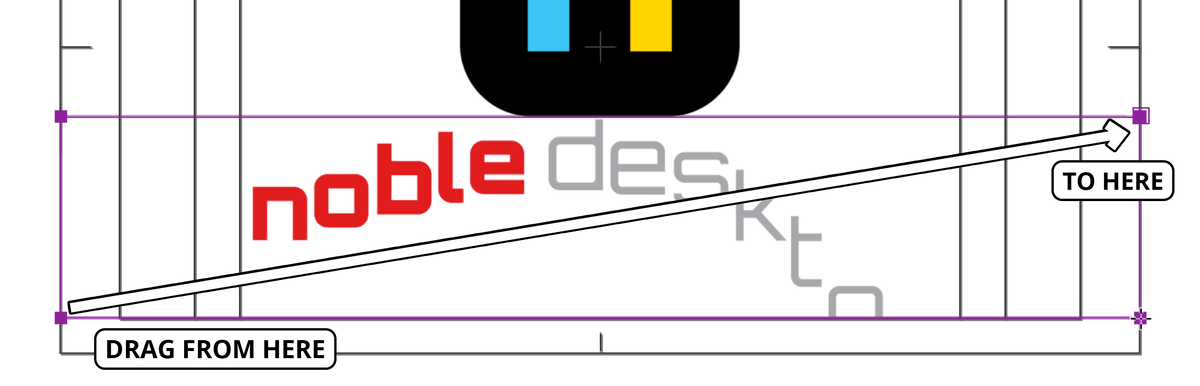
    4. Draw a rectangular mask as demonstrated in the reference image:

      draw noble letters mask

      NOTE: Observe how the mask immediately hides any layer elements falling outside its boundaries—this is the default behavior for After Effects masks, creating an "inside reveals, outside hides" effect.

      TIP: If your mask needs adjustment, switch to the Selection tool selection tool in the Tools panel. Double–click any of the four square handles to enter edit mode, drag handles to resize, then press Return/Enter to confirm your changes.

    5. Test your mask by scrubbing the playhead from around frame 32 forward. Perfect—the letters remain invisible until they cross your mask boundary, creating that professional reveal effect.

    Your masking work has transformed a simple animation into a sophisticated reveal sequence. Now let's add the final touch: making the logo react to the approaching letters with hierarchical animation control.

    Mask Tool Selection

    If no layers are selected, the Rectangle tool creates a shape layer. Always select your target layer first to create a mask instead.

    Masking vs Other Hiding Methods

    Pros
    Fine-tuned control over visibility boundaries
    Non-destructive - can adjust anytime
    Works with any layer type
    Smooth reveal animations
    Cons
    Requires pre-composing for multiple layers
    Can be complex for irregular shapes
    May impact render performance

    Moving the Entire Logo Away from the Rising Letters Using Parenting

    In professional motion graphics, elements should react to each other in believable ways. From the black square's perspective, the rising letters represent an invasion of its personal space—it needs to retreat, and quickly. But we want all seven logo rectangles to move as a cohesive unit with the black square. This is where parenting becomes invaluable: by establishing the black square as the parent, all child elements (the colored rectangles) will automatically follow its movements while retaining their individual animation capabilities.

    1. Organize your workspace by collapsing any expanded layers—click their down arrows down arrow menu in the Timeline.

    2. Locate the Parent & Link column on the left side of the Timeline, positioned to the right of the switches timeline switches.

      NOTE: If this column isn't visible, CTRL–click (Mac) or Right–click (Windows) on any column header (such as Layer Name). Navigate to the Columns submenu and enable Parent & Link.

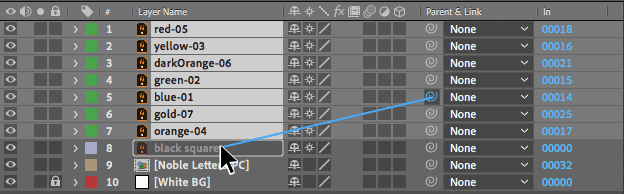
    3. Select the logo rectangle layers (layers 1–7)—these are the elements that will become children of the black square.

    4. Create the parent-child relationship by dragging the pick whip pick whip icon from any selected layer's Parent & Link column toward the black square layer name:

      pick whip drag child to parent

    5. After releasing, verify in the Parent & Link column that "8. black square" now appears as the parent for all selected layers—this confirms your hierarchical relationship is established.

      Setting Up Parent-Child Relationships

      1

      Collapse All Layers

      Click down arrows to collapse layers for cleaner parenting workflow

      2

      Locate Parent & Link Column

      If not visible, right-click column headers and enable Parent & Link

      3

      Select Child Layers

      Select layers 1-7 (the green Noble n rectangle layers)

      4

      Drag Pick Whip

      From any selected layer's Parent column, drag to black square layer name

    Parent & Child Layers

    Parent-child relationships in After Effects function like invisible tethers: child layers can move independently, but they're also carried along with any parent movement. This creates sophisticated coordinated animations with minimal keyframing. It's crucial to understand that child layers inherit only transform properties (Position, Scale, Rotation) from their parent—Opacity and Effects remain independent.

    NOTE: Recent After Effects versions have expanded the Parent column into Parent & Link, adding the ability to connect any property to any other property using Expressions (After Effects' JavaScript-based scripting system). For traditional parenting workflows, ensure layers are collapsed before using pick whips or the Parent & Link column to avoid accidentally creating expression links.

  • Position the playhead at frame 53, where we'll place the black square's final keyframe—this represents the settled position after the logo's retreat.
  • Select the black square layer and press P to reveal its Position property.
  • Click the stopwatch stopwatch next to Position to enable keyframe animation.
  • Create an overshoot keyframe to convey the logo's urgent retreat from the advancing letters. Move the playhead to frame 49.
  • Set the logo's overshoot position 30 pixels above its final settle point. Change Position to 960, 396.2—this creates that energetic bounce effect.
  • Establish the contact point between logo and letters by moving the playhead to frame 43.
  • Set Position to 960, 511—this represents the moment when the black square "kisses" the top of the advancing letter "d" stem, triggering the retreat animation.
  • Select the middle keyframe keyframe middle at frame 49 to add natural motion curves.
  • Press F9 (or fn–F9 on some laptops) to apply Easy Ease, transforming mechanical motion into organic movement.
  • Scrub through the timeline to witness your complete animation sequence—letters rising with staggered timing, masks creating clean reveals, and coordinated logo movement through parenting relationships.
  • Save your professional motion graphics work with File > Save and keep this project open for the next exercise.

  • Parent vs Child Layer Properties

    FeatureInheritedNot Inherited
    PositionYes
    ScaleYes
    RotationYes
    OpacityNo
    EffectsNo
    Recommended: Child layers move with parents but maintain independent opacity and effects
    Modern After Effects Parenting

    Recent versions use Parent & Link column for both traditional parenting and advanced Expression connections via JavaScript. Collapse layers before pick-whipping for traditional parenting.

    Key Takeaways

    1Pre-composing bundles multiple layers into a single manageable unit, similar to group folders in Photoshop
    2Masks create invisible boundaries to control layer visibility, perfect for creating professional reveal animations
    3Parent-child relationships allow coordinated movement where children inherit Position, Scale, and Rotation from parents
    4Animating backwards (final position first) is more efficient when working with Position keyframes
    5Easy Ease (F9) adds natural deceleration to keyframes for smoother, more professional animations
    6Staggered layer timing creates sequential animation effects that guide viewer attention
    7The Parent & Link column supports both traditional parenting and advanced Expression-based connections
    8Child layers maintain independence for Opacity and Effects while following parent transformations

    RELATED ARTICLES