April 1, 2026Jerron Smith/14 min read

Motion Tracking – Screen Replacement

Master Professional Screen Replacement with Motion Tracking

Core Technologies in This Tutorial

MochaAE Integration

Professional planar tracking software built into After Effects. Provides industry-standard motion tracking capabilities for complex screen replacement projects.

Planar Surface Tracking

Advanced tracking method that follows flat surfaces through 3D space. Essential for realistic screen replacements that maintain perspective and distortion.

Corner Pin Technology

Four-point tracking system that maps corners of screens. Enables precise positioning and realistic motion blur for professional results.

Topics Covered in This After Effects Tutorial:

Planar Tracking, Screen Replacement, Planar Surface, Refining a Track

Exercise Preview
preview 5b

Exercise Overview

In this comprehensive exercise, you'll master the art of planar tracking using Mocha AE to seamlessly replace device screens with custom content. This technique is essential for modern motion graphics work, allowing you to transform mundane device footage into compelling visual narratives. Whether you're creating marketing materials, educational content, or cinematic sequences, screen replacement remains one of the most requested skills in professional post-production workflows.

Project Scope

This exercise demonstrates tracking device screens in Mocha AE for replacement with images or video files. You'll work with both laptop and mobile phone footage to master different tracking scenarios.

Previewing the Final Video

  1. Before diving into the technical process, let's examine the end result you'll achieve. If you're currently in After Effects, keep the application open but switch to your Desktop to review the preview files.
  2. On the Desktop, navigate to Class Files > After Effects Advanced Class> Motion Tracking—Screen Replacement > Preview Movie and double–click Laptop Screen Replacement.mp4.
  3. Also preview Person Using Mobile Phone.mp4 to see the mobile device variation.
  4. As you watch, pay close attention to these key elements:

    • Notice how the replacement content maintains perfect perspective and timing with the device movement, creating a believable integration that would be nearly impossible to achieve manually.
  5. Replay the videos to analyze the tracking quality, then close them when you're ready to begin the hands-on work.

Setting up the Workspace

A properly configured workspace is crucial for efficient tracking work. Let's establish the optimal layout for this complex workflow.

  1. In After Effects, go to Window > Workspace > Standard to ensure we're working from a consistent starting point.

  2. Choose Window > Workspace > Reset "Standard" to Saved Layout to clear any previous customizations that might interfere with the tutorial.

  3. Maximize your After Effects window to utilize your full screen real estate—you'll need every pixel for precision tracking work:

    Mac: At the top left of the window, click the green button (the third button).
    Windows: At to the top right of the window, click the Maximize button (the middle button).

Workspace Setup Requirements

0/3

Getting Started

Now we'll establish our project foundation, ensuring proper file management and version control—essential practices in any professional post-production environment.

  1. In After Effects, if you have a project open, choose File > Save to preserve your current work before switching projects.

  2. Choose File > Open Project and locate the provided starter files:

    • Navigate to Desktop > Class Files > After Effects Advanced Class > Motion Tracking—Screen Replacement.
    • Double–click on Screen Replacement—Started.aep to open it.
  3. Immediately create your working version to avoid overwriting the original:

    • Choose File > Save As > Save As
    • Name the file Your Name—Screen Replacement.aep
    • Save it into Desktop > Class Files > After Effects Advanced Class> Motion Tracking—Screen Replacement.

Project Setup Fundamentals

While this exercise provides a pre-configured project, understanding the setup process is crucial for real-world applications. In professional environments, you'll rarely have the luxury of pre-built compositions, so mastering these fundamentals will serve you well throughout your career.

The critical rule for successful tracking is ensuring dimensional consistency between your source footage and composition settings. Mismatched dimensions can cause tracking drift and compromise your final results.

When creating projects from scratch, follow these essential steps:

  1. Import your primary tracking footage by dragging it into the empty Timeline panel or onto the Create a New Composition create new comp button located at the bottom of the Project panel. This method automatically matches your composition settings to the footage specifications.

  2. Rename the layer with a descriptive name that clearly identifies it as your tracking source—organization becomes critical as projects grow in complexity.

Critical Setup Requirement

When tracking, it is necessary to make sure that the dimensions of the video you are going to track match those of your composition. Mismatched dimensions will cause tracking failures.

Applying the MochaAE Effect

Mocha AE represents one of the most powerful planar tracking tools available within After Effects. Unlike point-based trackers, Mocha's planar tracking technology analyzes texture patterns across entire surfaces, making it ideal for screen replacement tasks where traditional corner-pin tracking might fail.

  1. Select the video layer containing the device screen you want to track. Ensure you're working with the highest quality source footage available—compression artifacts can significantly impact tracking accuracy.

  2. In the Effects & Presets panel, type Mocha into the search field to quickly locate the effect among After Effects' extensive library.

  3. Double–click on the Mocha AE effect to apply it to your selected layer. This creates the bridge between After Effects and the Mocha tracking environment.

  4. In the Effect Controls panel, click on the Mocha logo to launch the dedicated Mocha interface. This opens a separate tracking environment optimized for planar tracking workflows.

MochaAE Application Process

1

Select Video Layer

Choose the layer containing the footage you want to track for screen replacement

2

Apply Mocha AE Effect

Search for and double-click Mocha AE in the Effects & Presets panel

3

Launch Mocha Interface

Click the Mocha logo in Effect Controls to open the dedicated tracking application

Understanding and Dealing with Occlusion

Occlusion presents one of the most common challenges in motion tracking workflows. This occurs when objects pass in front of your tracking surface—such as hands interacting with a device screen, objects moving through the frame, or even temporary lighting changes that obscure your tracking area.

Professional trackers develop strategies to handle occlusion before it becomes problematic. In Mocha, you can create occlusion layers that tell the tracker to ignore certain areas during specific timeframes, or employ techniques like tracking multiple regions and switching between them as needed. Understanding these concepts early will save you countless hours of re-tracking work on complex shots.

Understanding Occlusion

In motion tracking, occlusion describes situations where other elements cover the object you're trying to track. This is common in device tracking when hands, fingers, or other objects move in front of the screen.

Mastering Planar Tracking in MochaAE

Mocha operates fundamentally differently from After Effects, employing its own interface paradigms and terminology. This difference initially confuses many After Effects users, but understanding Mocha's approach will dramatically expand your tracking capabilities.

The essential Mocha workflow follows this proven sequence:

  • Create a tracking spline (similar to an AE mask) which automatically generates a trackable layer
  • Execute the tracking process while monitoring and adjusting parameters in real-time
  • Refine and correct any tracking drift using Mocha's sophisticated adjustment tools

Let's implement this workflow step by step:

  1. Within the Mocha interface, scrub through your timeline to identify the frame where your target screen is most clearly visible and optimally positioned. This frame will serve as your tracking foundation, so choose wisely—avoid frames with motion blur, extreme angles, or partial occlusion.

  2. Create a tracking layer by drawing a spline around your target screen. Your spline should encompass enough surrounding detail for robust tracking while avoiding areas prone to occlusion or significant lighting changes.

  3. Reveal the Planar Surface control and verify it's positioned at the center of your tracking area. This surface represents the 3D plane that Mocha will calculate and track throughout your footage.

  4. Precisely adjust the four corners of the planar surface to align perfectly with your device screen's corners. This alignment is critical—any inaccuracy here will be amplified throughout your entire track.

    NOTE: While your tracking spline should extend beyond the screen edges for stability, the planar surface must match the screen dimensions exactly. This surface defines the geometric foundation for your replacement content.

  5. Evaluate and adjust the Minimum % Pixels Used setting based on your footage characteristics.

    NOTE: Mocha automatically calculates an optimal value, but manual adjustment may be necessary. Higher percentages utilize more pixel data for increased accuracy but require more processing power. For high-contrast screens with clear edges, lower values often suffice. For challenging footage with subtle textures, higher values provide better results.

  6. Execute the tracking process while monitoring for drift—the phenomenon where your tracking layer gradually separates from the intended target.

    NOTE: Minor drift is normal and correctable post-tracking using Mocha's Adjust Track module. However, significant drift during tracking indicates fundamental issues that require immediate attention. Common solutions include refining your spline shape or adjusting the Minimum % Pixels Used value.

  7. Upon completion, preserve your work by choosing File > Save Project. Mocha projects are separate from After Effects projects, so this step is essential for maintaining your tracking data.

MochaAE Tracking Workflow

1

Create Tracking Layer

Draw a spline around the element you want to track, creating a layer in Mocha terminology

2

Position Planar Surface

Align the four corners of the planar surface exactly with the screen corners you want to replace

3

Configure Pixel Usage

Adjust Minimum % Pixels Used for optimal balance between precision and processing speed

4

Execute Tracking

Run the track and monitor for drift, stopping to adjust if the layer moves significantly

Critical Layer Sizing

While the tracking layer can and usually should be larger than the screen you are trying to replace, the planar surface needs to match the screen exactly. The planar surface forms the shape and positioning of the replacement screen.

Refining Your Track with Precision Adjustments

Even excellent tracking often requires subtle refinements to achieve professional-grade results. Mocha's Adjust Track module provides sophisticated tools for correcting drift and improving tracking accuracy without restarting the entire process.

  1. Ensure you're working in Mocha's Classic workspace, which provides optimal access to all tracking refinement tools.

  2. Navigate to the AdjustTrack module, located in the bottom-right panel of the Classic workspace. This module specializes in post-tracking refinement workflows.

  3. Select your tracked layer to activate the adjustment tools for that specific tracking data.

  4. Identify an optimal Reference Frame where your planar surface demonstrates ideal positioning and shape accuracy. This frame becomes your geometric reference point for all adjustments.

    NOTE: Select a frame early in your track where the planar surface accurately represents the screen geometry, before any drift has accumulated. This choice significantly impacts your adjustment quality.

  5. Configure your Transform Type to Perspective and click Set Points. Perspective mode provides four-point corner control, essential for accurate screen replacement tracking.

Understanding Transform Types

Translation: Tracks position changes along X and Y axes using a single reference point. Ideal for locked-off cameras with moving subjects.

Scale/Rotation: Monitors size and rotational changes using two reference points. Suitable for cameras moving closer to or further from subjects.

Shear: Detects vertical and horizontal warping using three reference points. Useful for surfaces viewed at changing angles.

Perspective: Provides complete four-point corner control for full geometric transformation. Essential for screen replacement where devices rotate in 3D space.

Reference points can be repositioned after creation, and additional points can be manually added using the Add New Point button for enhanced tracking precision.

  • Position your Reference Points on distinctive visual features surrounding your screen area. These points must be easily identifiable throughout your footage and don't need to fall within the planar surface boundaries.

  • Advance your playhead to the final frame of your tracked sequence and make precise adjustments to correct any reference point drift that has accumulated.

  • Navigate to the temporal midpoint between your reference frame and end frame, then make additional corrections as needed. This iterative refinement process progressively improves tracking accuracy.

  • Continue this subdivision process—placing adjustment keyframes between existing ones—until you've eliminated visible drift throughout your sequence.

  • Validate your adjustments using the Insert Clip preview option to observe how your planar surface behaves throughout the timeline. This real-time feedback helps identify areas requiring additional refinement.

  • Save your refined project using Cmd–S (Mac) or Ctrl–S (Windows), or through File > Save Project.

  • Close the Mocha interface to return to After Effects, where you'll apply your tracking data to replacement content.

  • Transform Types Comparison

    FeatureTransform TypePoints UsedBest For
    Translation1 pointPosition changes only
    Scale/Rotation2 pointsSize and angle changes
    Shear3 pointsVertical/horizontal warp
    Perspective4 pointsFull corner pin adjustments
    Recommended: Use Perspective transform type for screen replacement projects requiring full 4-point corner pinning.

    Implementing Tracking Data in After Effects

    Successfully tracking in Mocha represents only half the screen replacement equation. The critical next phase involves transferring that tracking data back into After Effects and applying it to your replacement content. This process requires precision to maintain the quality of your tracking work.

    1. Return to the After Effects interface and create a new Solid layer by choosing Layer > New > Solid or pressing Cmd–Y (Mac) or Ctrl–Y (Windows). This solid will serve as a placeholder for your screen content.

    2. In the Solid Settings dialog, click Make Comp Size to ensure proper dimensions, choose any color you prefer (you'll replace this later), and press OK.

    3. With your new solid selected, Ctrl–click (Mac) or Right–click (Windows) and choose Pre–compose from the contextual menu. This creates a nested composition that will house your screen content.

      NOTE: Alternatively, use the keyboard shortcut Cmd–Shift–C (Mac) or Ctrl–Shift–C (Windows) for faster pre-composition.

    4. Configure your pre-composition settings strategically:

      • Rename the composition to something descriptive like Screen Content Comp for easy identification in complex projects
      • Select the Leave all attributes… radio button to preserve your layer properties
      • Click OK to finalize the nested composition.
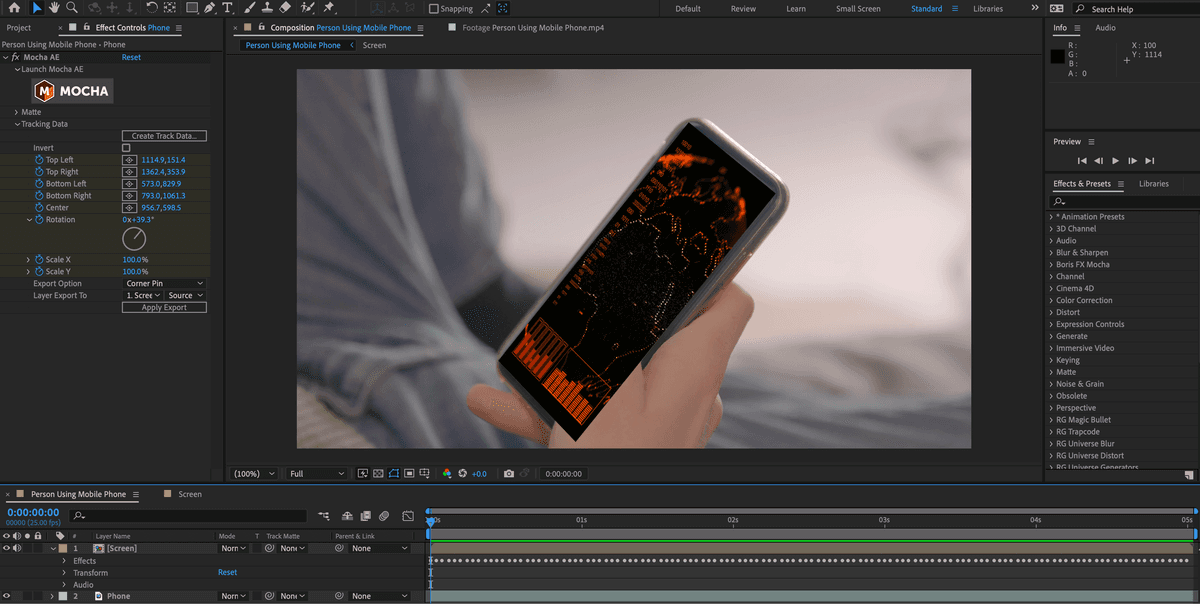
    5. Select your original tracked layer and locate the Tracking Data properties within the Effect Controls panel. This section controls how Mocha's tracking information integrates with After Effects.

    6. Click the Create Tracked Data button, carefully select the correct Mocha layer containing your screen tracking information, and press OK. Verify you're not accidentally selecting occlusion layers if you created them.

      NOTE: Choosing the wrong tracking layer will result in incorrect motion data being applied to your replacement content, potentially requiring you to restart this entire process.

    7. Set your Export Option to either Corner Pin or Corner Pin (Support Motion Blur) depending on your project requirements.

    Corner Pin Options Explained

    Both Corner Pin and Corner Pin (Support Motion Blur) work excellently for screen replacement, but they operate differently under the hood:

    Corner Pin applies Mocha's corner data directly as a Corner Pin effect to your target layer. This approach is computationally efficient and works well for most screen replacement scenarios.

    Corner Pin (Support Motion Blur) goes further by also applying position, scale, and rotation keyframes derived from the planar surface transform data. This additional data enables more accurate motion blur rendering when your footage contains fast camera or subject movement, but requires more processing power.

  • Configure the Layer Export To property to target your pre-composed screen content, ensuring the effect targets the Source properties of that layer.

  • Click Apply Export to transfer the tracking data from Mocha to your After Effects composition. This creates the dynamic link between your tracking and replacement content.

  • Preview your timeline to verify the tracking application. Your pre-composed layer should now follow the device screen movement precisely, maintaining perfect registration throughout the sequence.

    NOTE: If tracking appears incorrect, you can delete the applied Corner Pin effect, return to Mocha for adjustments, and reapply the tracking data. This non-destructive workflow allows for iterative refinement.

  • Customizing Your Screen Content

    The power of pre-composition becomes evident when customizing your screen replacement content. This nested structure allows unlimited flexibility in creating compelling screen graphics while maintaining your tracking accuracy.

    1. Double–click your screen content pre-composition to enter its timeline and begin customizing the replacement content.

    2. Import and position your desired screen graphics, videos, or animations above the placeholder solid you created earlier. This hierarchical structure allows for complex, multi-layered screen content.

    3. Apply Layer > Transform > Fit to Comp to ensure your content completely fills the composition frame, eliminating potential edge artifacts in your final composite.

      NOTE: Ideally, your replacement content should match the aspect ratio of the device screen you're replacing. Don't worry if content appears distorted within the pre-composition—the Corner Pin effect will correct perspective distortion in the parent composition.

    4. Return to your parent composition to evaluate the integrated result. Your custom content should now appear perfectly tracked to the device screen with realistic perspective correction.

    5. Save your After Effects project to preserve all tracking data and composition settings for future revisions or client feedback cycles.

    Advanced Technique: Green Screen Integration

    Modern screen replacement workflows often involve practical elements filmed specifically for keying. When capturing footage with interactive elements like hands touching screens or swiping gestures, filming with a colored reference screen (typically green or blue) enables sophisticated compositing that would be nearly impossible to achieve through rotoscoping alone.

    This technique has become standard practice in professional environments, particularly for advertising and product demonstration videos where realistic interaction is crucial for audience engagement.

    1. Reorganize your layer stack by moving your screen replacement content below the original tracked video layer. This arrangement allows the keyed practical elements to appear in front of your replacement screen.

    2. Select the video layer containing the green screen elements that you want to key out.

    3. In the Effects & Presets panel, search for keylight to locate After Effects' professional-grade keying tools.

    4. Apply the Keylight + Key Cleaner + Advanced Spill Suppresser preset, which provides a comprehensive keying solution optimized for production workflows. This preset includes multiple effects that work together to achieve clean, professional keys.

    5. In the Effect Controls panel, use the Screen Colour eyedropper to sample the green screen color you want to remove. Click on a representative area of the green screen for optimal results.

    6. Fine-tune your key using Screen Gain to control the tolerance of color removal. Higher values remove more similar colors but may affect edge quality.

    7. Adjust Screen Balance if your green screen has uneven lighting or color variations that require compensation.

    8. Switch to Screen Matte or Status preview mode to evaluate your key quality using Keylight's diagnostic views. These modes reveal problem areas that might not be obvious in the final composite.

    9. Open the Screen Matte properties and refine Clip Black, Clip White, and Clip Rollback controls. Your goal is achieving pure white areas for kept elements and pure black for removed areas in the matte view.

    10. Return the View mode to Intermediate Result and use Screen Shrink/Grow to eliminate any remaining color fringing or spill contamination.

    11. Activate the Advanced Spill Suppressor effect to remove subtle green color contamination on foreground elements—particularly important for maintaining natural skin tones on hands or arms.

      NOTE: For comprehensive information about Keylight's extensive parameter set, consult The Foundry's official documentation at: https://learn.foundry.com/nuke/content/reference_guide/keyer_nodes/keylight.html

    12. Save your project file to preserve all keying settings and composite adjustments. Consider creating a backup version before final render in case client revisions require parameter changes.

    Key Takeaways

    1MochaAE provides professional planar tracking capabilities integrated directly into After Effects for accurate screen replacement workflows
    2Proper workspace setup and composition dimension matching are critical prerequisites for successful motion tracking projects
    3The planar surface must match screen corners exactly while the tracking layer can be larger for improved tracking stability
    4Perspective transform type with four reference points delivers the most accurate results for screen replacement applications
    5Precomposition workflow enables easy content swapping and maintains organized project structure for screen replacement elements
    6Corner Pin with Motion Blur support creates more realistic integration compared to standard corner pin application
    7Keylight with greenscreen techniques dramatically reduces masking time when foreground elements interact with replaced screens
    8Minor tracking drift can be corrected using the Adjust Track module with strategic keyframe placement and reference point positioning

    RELATED ARTICLES