April 1, 2026Jerron Smith/11 min read

Masks & Track Mattes

Master professional masking and track matte techniques

Core After Effects Masking Concepts

Layer Masks

Shape-based visibility control that moves with the layer. Perfect for permanent cropping and shape reveals.

Track Mattes

Independent layer transparency control using alpha or luminance values. Ideal for complex animations.

Effect Application

Visual enhancements like drop shadows that can be copied between layers for consistency.

Topics Covered in This After Effects Tutorial:

Advanced layer masking techniques, professional track matte workflows, and strategic effect application for motion graphics

Exercise Preview

preview masks

Exercise Overview

Master the art of selective layer visibility through masks and track mattes—two fundamental techniques that separate novice animators from seasoned motion graphics professionals. This exercise will teach you when to use each method and how to combine them for maximum creative control in your animation workflow.

Masking Workflow Overview

1

Layer Preparation

Set up timeline with proper layer organization and positioning using proportional grids

2

Mask Creation

Apply rectangular masks to control visibility of specific text elements

3

Track Matte Setup

Create solid layers to control transparency and reveal animations

4

Effect Enhancement

Add drop shadows and copy effects across layers for visual consistency

Getting Started

  1. You should still have Your Name—Infographic Animation.aep open in After Effects. If you closed it, re-open it now by going to File > Open Project then Desktop > Class Files > After Effects Class > Infographic Animation.

    If you did not complete the previous exercise (3A) including the optional bonus, follow the recovery steps in the sidebar below to catch up.

If You Did Not Complete the Previous Exercise Including Bonus

  1. If a project is open in After Effects, go to File > Save, then File > Close Project.
  2. Go to File > Open Project and navigate to Desktop > Class Files > After Effects Class > Infographic Animation > Finished Projects.
  3. Double–click on Infographic Animation—Ready for Masks.aep.
  4. Go to File > Save As > Save As and:

    • Name the file Your Name—Infographic Animation.aep
    • Save it to Desktop > Class Files > After Effects Class > Infographic Animation (replacing the file if it's already there).

Animating the Headline

While After Effects seamlessly converts imported Illustrator shape layers into editable After Effects Shape layers, text presents a unique challenge. Unlike Photoshop text layers that maintain their editability when imported, Illustrator text arrives as static artwork. This limitation actually opens up creative opportunities—we'll use masks to surgically divide the headline into independently animated segments.

This technique is particularly valuable in professional workflows where you need granular control over text reveals without recreating typography from scratch.

  1. Move the playhead to the beginning of the Timeline.

  2. At the bottom of the Composition panel, click the Grid & Guide Option button grid and guides options icon and choose Proportional Grid.

    The Proportional Grid serves as your visual anchor for consistent positioning and provides reference points for mask creation—essential for maintaining design precision in professional motion work.

  3. In the Timeline, drag the Headline layer to the top of the layer stack.
  4. Select the Headline layer.
  5. Press P to reveal the Position property.
  6. Move the playhead to 0;10
  7. Click on the Position stopwatch stopwatch.
  8. Move the playhead to the beginning of the Timeline.
  9. Hover the cursor over the second Position value and drag it to the right until the text moves a bit below the first grid line (we made it 260).
  10. It's time to add the overshoot. Move the playhead to 0;06
  11. Hover over the second Position value and drag to the left until the layer is vertically centered in the top row of the grid (we made it 90).
  12. CTRL–click (Mac) or Right–click (Windows) on the new (middle) keyframe and choose Keyframe Assistant > Easy Ease.

  13. Use the Spacebar to preview the animation.

    The headline should quickly move up, overshoot its final position slightly and drop down into the final position. This overshoot creates natural, organic motion that feels more engaging than linear movement.

  14. Move the playhead to any time after the end of the headline animation (so we can see the headline in its final position).
  15. At the bottom of the Composition panel, click the Grid & Guide Option button grid and guides options icon and choose Proportional Grid to hide it.

Animation Timing Best Practice

The overshoot technique at 0;06 creates natural motion by having the headline move past its target position before settling. This mimics real-world physics and makes animations feel more organic.

Headline Animation Sequence

0;00

Initial Position

Headline positioned below first grid line

0;06

Overshoot Peak

Layer vertically centered with Easy Ease keyframe

0;10

Final Position

Headline settles into target position

Adding Masks to Layers

Now we'll implement the core masking technique. By creating precise rectangular masks, we'll transform a single text layer into two independently controllable elements. This approach maintains the original typography while giving us the flexibility to create sophisticated reveal animations.

  1. CTRL–click (Mac) or Right–click (Windows) on the Headline layer and choose Rename.

    • Rename the layer Headline 1 and hit Return (Mac) or Enter (Windows) to apply it.
  2. With the Headline 1 layer selected, hit Cmd–D (Mac) or CTRL–D (Windows) to duplicate it, creating Headline 2.

  3. In the Tools panel, select the Rectangle tool rectangle tool.

    If you don't see the Rectangle tool, click and hold on any visible shape tool to access the full shape tool menu and select Rectangle.

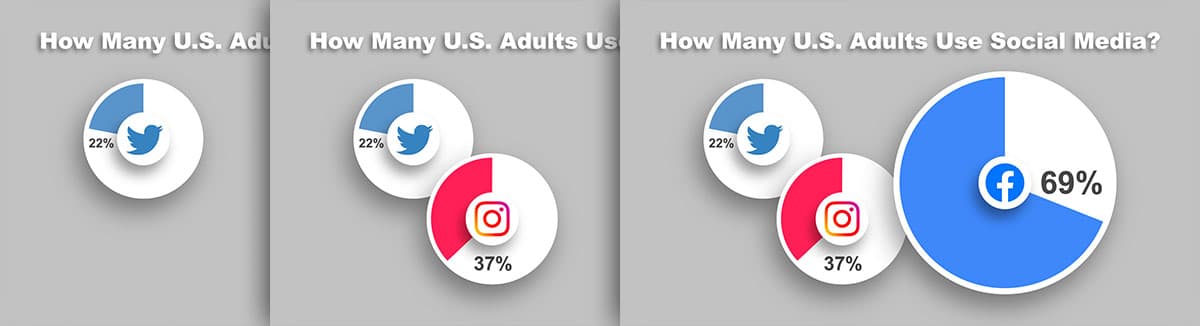
  4. With the Headline 2 layer still selected, draw a rectangle around the words Use Social Media.

  5. Select the Headline 1 layer.
  6. Draw a rectangular mask around the words How Many U.S. Adults.

  7. In the Timeline, click the eye eye icon off and on for both layers to see each layer only shows the words inside its layer mask.
  8. Make sure both layers are visible.
  9. Select both Headline layers (click on one, then Shift–click the other).
  10. Hit Cmd–Tilde (Mac) or CTRL–Tilde (Windows) to hide their visible properties.
  11. Hit Cmd–Shift–A (Mac) or CTRL–Shift–A (Windows) to deselect all layers.

Mask Creation Process

1

Layer Duplication

Rename original to Headline 1 and duplicate to create Headline 2

2

Rectangle Tool Selection

Access shape tools and select Rectangle tool for precise mask creation

3

Targeted Masking

Draw separate masks around 'Use Social Media' and 'How Many U.S. Adults' text

Using Track Mattes

Track mattes represent one of After Effects' most powerful compositing tools. Unlike masks, which are bound to their parent layer, track mattes use one layer's alpha channel or luminance to control another layer's transparency. This independence makes track mattes ideal for complex animations where you need separate control over the matte and the content it's revealing.

Understanding the distinction between alpha and luma mattes is crucial: alpha mattes use transparency information, while luma mattes use brightness values. For most text reveal animations, alpha mattes provide cleaner, more predictable results.

  1. Move the playhead to the beginning of the timeline.

    Notice the text is already visible. For a polished reveal effect, we want to initially hide it and have it appear as it slides up into view. Track mattes will give us this precise control.

  2. Move the playhead to 0;10 (which is after the headline animation is done).

  3. Select the Headline 1 layer.

  4. Choose Layer > New > Solid or press Cmd–Y (Mac) or CTRL–Y (Windows).

    This solid layer will serve as our track matte—think of it as a window that reveals only the portions of the headline layer that lie beneath it.

  5. Do NOT click OK until we tell you to. Uncheck Lock Aspect Ratio.

  6. Click the Make Comp Size button to make the new layer's dimensions match the composition.

  7. We want this layer to be 1/5th of the height of comp. In the Height field type 1080/5 and press Tab.

    After Effects automatically calculates the result—a time-saving feature that works across all Adobe Creative Suite applications. This mathematical capability is invaluable for maintaining proportional designs and consistent spacing.

    NOTE: You can perform calculations in most Adobe input fields using standard operators: plus (+), minus (-), slash (/) for division, and asterisk (*) for multiplication.

  8. Change the Name to Headline Solid.

    NOTE: The solid's color is irrelevant for matte purposes—After Effects only reads the alpha channel information.

  9. Click OK.
  10. In the Tools panel, choose the Selection tool selection tool.
  11. To the right of the Tools panel, check on Snapping.
  12. In the Composition panel, position the cursor at the top of the solid shape and drag it to the top of the composition (it should snap to the top edge).
  13. To the right of the Tools panel, uncheck Snapping.
  14. Click on the Headline Solid layer in the Timeline.
  15. Press Return (Mac) or Enter (Windows) and rename the layer Matte 1.

    Press Return (Mac) or Enter (Windows) again to finalize the change.

  16. If you are currently viewing the layer switches timeline switches, go to the bottom of the Timeline and click the Toggle Switches/Modes button.

  17. For the Headline 1 layer, set the Track Matte menu to Matte 1.

  18. Select the Matte 1 layer.
  19. Press Cmd–D (Mac) or CTRL–D (Windows) to duplicate it.
  20. Drag the new Matte 2 layer above the Headline 2 layer.
  21. For the Headline 2 layer, set the Track Matte menu to Matte 2.
  22. Move the playhead to the beginning of the timeline.

    The text now appears hidden, creating the foundation for our reveal animation. As the headline layers animate upward, they'll become visible only where they intersect with their respective track matte layers.

  23. Use the Spacebar to preview the animation.

    Notice how the headline appears to emerge from nothing as it slides up. This professional reveal technique is widely used in broadcast graphics and corporate presentations because it directs viewer attention precisely when and where you want it.

  24. Choose File > Save or hit Cmd–S (Mac) or CTRL–S (Windows).

Mathematical Operations in After Effects

After Effects allows mathematical calculations in input fields using +, -, /, and * operators. For example, entering '1080/5' automatically calculates to 216 pixels for precise layer sizing.

Track Matte Setup Components

Solid Layer Creation

Create 1/5th height solid layers using composition size with mathematical input for precision.

Snapping Controls

Enable snapping for accurate positioning, then disable to prevent unwanted alignment during fine adjustments.

Adding & Copying Effects

Visual consistency elevates amateur work to professional standards. By applying matching effects across related elements, we create cohesive visual language that viewers unconsciously recognize as polished and intentional. The drop shadow effect we're adding will integrate our animated headlines with the existing infographic elements.

  1. Position the playhead so you can see the headline text.
  2. Select the Headline 2 layer.
  3. If you don't see the Effects & Presets panel on the right of the window, choose Window > Effects & Presets.
  4. In the Effects & Presets panel's search field type drop
  5. Double–click on the Drop Shadow effect (it's under Perspective) to apply it to the selected layer.

  6. In the Effect Controls panel (at the top left of the window) set the following parameters for optimal visual integration:

    • Distance: 13 (creates appropriate separation from background)
    • Softness: 36 (produces realistic shadow blur)
    • Opacity: 40 (subtle enough to enhance without overwhelming)
    • Direction: 0x+224 (matches lighting direction of other infographic elements)
  7. At the top of Effect Controls panel, CTRL–click (Mac) or Right–click (Windows) on the Drop Shadow effect name and choose Copy.

  8. In the Timeline, select the Headline 1 layer.
  9. Hit Cmd–V (Mac) or CTRL–V (Windows) or choose Edit > Paste.
  10. Select the Matte 2 layer.
  11. Hold Shift and click on the Headline 1 layer to select it and all layers in between.
  12. Click on the label color for any of the selected layers and choose Yellow.

    Color coding is an essential organizational practice in complex After Effects projects. It creates immediate visual associations between related layers, dramatically reducing the time spent hunting for specific elements during revisions.

  13. Hit Cmd–Shift–A (Mac) or CTRL–Shift–A (Windows) to deselect all the layers.

Drop Shadow Effect Settings

13px
Distance pixels for shadow offset
36px
Softness for natural blur effect
40%
Opacity percentage for subtlety
224°
Direction angle for consistent lighting

Manually Sequencing Layers

Timing is everything in motion graphics. Strategic sequencing prevents visual overload and guides viewer attention through your content in a logical, digestible flow. Rather than overwhelming audiences with simultaneous animations, professional motion designers carefully choreograph when each element appears.

This approach mirrors principles from film editing and user interface design—the human eye can only process so much information at once. By staggering our animations, we create visual breathing room and ensure each element has its moment to communicate effectively.

  1. In the Timeline, select the Matte 2 layer.
  2. Hold Shift and select the Headline 2 layer.

  3. Move the playhead to 0;03

  4. Hit the [ left bracket key to move the In point of the selected layers to the playhead.

  5. Use the Spacebar to preview the headline animation (the parts are now staggered).

  6. Select the 4 purple X (formerly known as Twitter) layers (click on the first, then Shift–click the last).

  7. Move the playhead to 0;20

  8. Drag the X layers towards the playhead:

    • Press and hold Shift as you drag the layers.
    • Stop dragging when the X Logo layer snaps to the playhead.
    • Press Cmd–Shift–A (Mac) or CTRL–Shift–A (Windows) to deselect all the layers.
  9. Move the playhead to 1;20 (1 second 20 frames).

  10. Select the 4 red Instagram layers.

  11. Drag the Instagram layers towards the playhead:

    • Press and hold Shift as you drag the layers.
    • Stop dragging when the Instagram Logo layer snaps to the playhead.
    • Press Cmd–Shift–A (Mac) or CTRL–Shift–A (Windows) to deselect all the layers.
  12. Move the playhead to 2;20

  13. Select the 4 blue Facebook layers.

  14. Drag the Facebook layers towards the playhead:

    • Press and hold Shift as you drag the layers.
    • Stop dragging when the Facebook Logo layer snaps to the playhead.
    • Press Cmd–Shift–A (Mac) or CTRL–Shift–A (Windows) to deselect all the layers.
  15. Use the Spacebar to preview the animation.

    Each social media chart animation now launches at carefully timed intervals, creating a sophisticated reveal sequence that maintains viewer engagement while delivering information in digestible chunks. This pacing mimics the rhythm of well-produced television graphics and premium digital content.

  16. Choose File > Save or hit Cmd–S (Mac) or CTRL–S (Windows).

Layer Sequencing Schedule

0;03

Headline Stagger

Second headline part starts 3 frames after first

0;20

X Platform Animation

Four purple X layers begin animation sequence

1;20

Instagram Animation

Four red Instagram layers start presentation

2;20

Facebook Animation

Four blue Facebook layers complete the sequence

Layer Snapping Technique

Hold Shift while dragging layers to enable automatic snapping to the playhead position. This ensures precise timing alignment without manual positioning.

Professional Insight: Mask vs. Track Mattes

Understanding when to use masks versus track mattes is a hallmark of experienced After Effects artists. Both techniques control layer visibility, but they serve different strategic purposes in professional workflows.

Masks are integral to their parent layer—they move, scale, and rotate as one unit. This makes them ideal for permanent layer modifications, shape reveals, and any situation where you want the mask to inherit the layer's transform properties. Masks are also more efficient computationally since they don't require additional layers.

Track mattes offer complete independence between the matte layer and the content layer. This separation provides sophisticated control over complex animations where you need different timing, easing, or transform properties for the reveal versus the content. Track mattes excel in scenarios requiring animated reveals, custom wipe transitions, or situations where multiple layers need to share the same matte.

In professional production environments, the choice often comes down to flexibility requirements and revision potential. Track mattes require more layers but offer maximum adjustability—crucial when client feedback demands timing changes or alternative reveal styles.

Key Takeaways

1Layer masks are integrated components that move with their parent layer, making them ideal for permanent cropping and shape-based visibility control
2Track mattes use independent layers to control transparency, offering greater flexibility for complex animation sequences and reveals
3The overshoot animation technique creates natural motion by having elements move past their target before settling into final position
4Mathematical operations can be performed directly in After Effects input fields using standard operators for precise measurements
5Staggered layer timing at 3-frame intervals creates visually appealing sequential animations that are easier for viewers to follow
6Drop shadow effects with specific settings (Distance: 13px, Softness: 36px, Opacity: 40%) can be copied between layers for visual consistency
7Snapping controls should be toggled strategically - enabled for initial positioning, disabled for fine adjustments to prevent unwanted alignment
8Color-coding related layers in the timeline helps organize complex projects and quickly identify layer relationships and dependencies

RELATED ARTICLES