Cellphone Commercial: Animating the Logo & Backgrounds
What This Tutorial Covers
Logo Build-On
Reveal the logo through staged element animation.
Background Layers
Animated backgrounds that complement the logo.
Composition Layering
Pre-comps that organize complex animation hierarchies.
Noble Desktop's Video Editing & Motion Graphics Certificate teaches After Effects alongside Premiere Pro, Cinema 4D, and DaVinci Resolve.
Explore the extensive After Effects tutorial covering topics such as animating logo Z position for continuous zoom, creating a repeated tiling background, and stop-motion graphics, among others, to apply finishing touches to the first four scenes of a Cellphone commercial.
Exercise Preview
Expanding the Cellphone Logo by Animating Its Z Position
In the Timeline, switch to the Cellphone-MAIN tab if you aren’t already there.
Double–click the [1-LogoAnim] layer.
We want to be able to change its styling. CTRL–click (Mac) or Right–click (Windows) on [Tmobile-logo.ai] and choose Create Shapes from Vector Layer. This will convert the Illustrator file into an After Effects shape layer.
At the top right of the Tools panel, click the Fill swatch, change it to white (#FFFFFF), and click OK.
We don’t want any stroke, so to the right of Fill, click the word Stroke.
In the Stroke Options window, click the None button
 and click OK.
Make sure the Toggle Mask and Shape Path Visibility button
 is off (gray) so we can see the preview easier.
To show the title safe grid, press the apostrophe (
') key.If you aren’t already at 0;00, go there now.
Select the Tmobile-logo Outlines layer and press Opt–P (Mac) or ALT–Shift–P (Windows) to add a Position keyframe.
Make the Tmobile-logo Outlines layer 3D by clicking its 3D Layer switch
 .
.Move the playhead to 1;06.
To move it closer to the viewer in 3D space, let’s make the logo’s Z Position more negative. To the right of Position, Shift–drag the Z value (third value) to the left until the logo is larger than the screen.
Notice that as the logo moves closer to the screen, it is going off to the left a bit. To center it, adjust the X (first) value to 960 and the Y (second) value to 540.
Continue dragging the Z value to the left until the screen is completely filled with the white part of one of the letters (Z should be around –2650).
Preview from the beginning. You should see the logo growing and filling the screen. That’s it for the intro logo animation!
Close the 1-LogoAnim tab to return to the Cellphone-MAIN tab.
Importing a Sequence of PNG Images for the Background
In the Cellphone-MAIN comp, double–click [2-Janet-phone].
Let’s import a looping sequence made of a series of PNG files. To ensure they get organized with the other assets, go to the Project panel and select the Assets folder.
Press Cmd–I (Mac) or CTRL–I (Windows).
In the window that appears, navigate to Class Files > After Effects Level 2 Class > Cellphone > Assets > pattern2.
Take a quick look to see that we’ve been provided with 120 images, which we want to bring in as a single sequence.
It’s important that we select the files in the correct order. If you see a Name column at the top of the navigation window, click it to sort the files so they are in numerical order starting from the top.
Select the first file, pattern2,000.png.
Make sure that PNG Sequence is checked on. (Mac users may need to click the Options button.)
Click Open (Mac) or Import (Windows).
In the Project panel’s Assets folder, our new sequence (pattern2-,000-119].png) should be selected. It’s important that this sequence be set to the same frame rate as the rest of our comps. Look at the info section at the top. It should say 29.97 fps. If it doesn’t for some reason, follow the steps in the sidebar to fix it.
Changing a Sequence’s Frame Rate
- In the Project panel, make sure pattern2-,000-119].png is still selected.
- At the bottom left of the panel, click the Interpret Footage button
 .
. - In the window that opens, in the Frame Rate section, choose Assume this frame rate and type in 29.97.
- Click OK.
Creating the Pattern for the Janet Yay Scene
In the Cellphone-MAIN comp, double–click the [4-Janet-yay] layer.
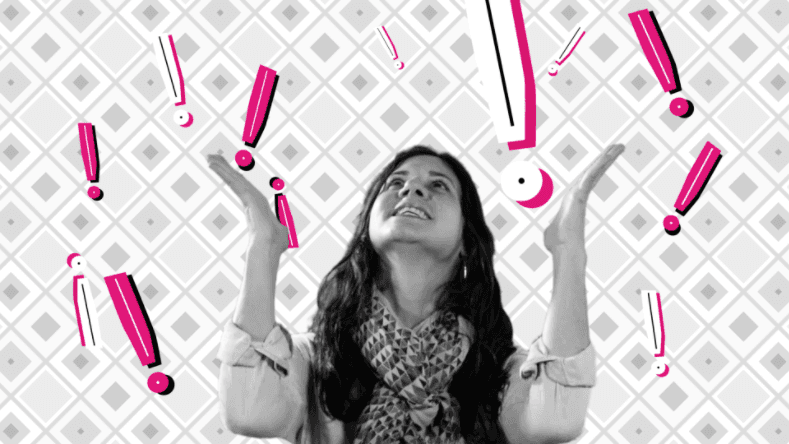
Set the playhead to the beginning. The exclamation mark images have already been imported here.
If any of the layers have been soloed, un-solo them by clicking their Solo switch
 .
.The magenta and gray pattern would distract from the magenta exclamation marks, so let’s import a more subdued pattern for use here. In the Project panel, select the Assets folder then press Cmd–I (Mac) or CTRL–I (Windows).
In the window that appears, navigate to Class Files > After Effects Level 2 Class > Cellphone > Assets > pattern1.
If the files are not listed in sequential order from the top, at the top of the navigation window, click the Name column to sort the files.
Select the first file, pattern1-gray,000.png.
Make sure that PNG Sequence is checked on. (Mac users may need to click the Options button.)
Click Open (Mac) or Import (Windows).
Check in the Project panel that the new sequence is set to 29.97 fps. If it isn’t, do the steps from the Changing a Sequence’s Frame Rate sidebar earlier in this exercise.
From the Project panel, drag pattern1-gray-,000-119].png and drop it in the Timeline below the exclamation layers and above the White Solid.
With the pattern layer selected, set the following Transform properties:
Scale: 30% Rotation: 0x–45° Opacity: 31% With pattern1-gray-,000-119].png still selected, go to the Effects & Presets panel and double–click CC RepeTile.
In the Effect Controls panel, set all Expand settings (Right, Left, Down, and Up) to 3130 and the Tiling to Repeat.
Stop Motion Exclamation Rotation!
Once the exclamations have all scaled up, we want them to continue rotating in random directions. We don’t want them to do so smoothly, as we think that would detract from the childlike amazement in this scene. To give these motion graphics a jerky stop motion animation, let’s use hold keyframes instead of linear ones.
In the Timeline, drag a selection box around all the mark layer keyframes at 0;04.
Go to Animation > Toggle Hold Keyframe so the exclamations will maintain their current rotation values until the playhead reaches the keyframe we’ll create soon.
We don’t want all the exclamation marks to appear all at once. Let’s stagger the marks so they enter the composition anywhere between 0;00 and 0;07. Do so to your liking using one (or both!) of these two methods:
- Drag a selection box around a layer’s four keyframes. Then drag the selected keyframes to a different point in time.
- Make sure the layer’s In column is showing. In that column, click on the value, type the new timecode you want the layer to start at, and click OK.
When you’re finished staggering keyframes, preview to check that things look good.
We want to rotate each of the marks randomly. Set the playhead to 0;11.
Press W to select the Rotation tool
 .
.Select the mark01 layer.
Rotate it on the Composition panel, tilting a little bit to the left or right.
Continue doing this for each of the mark layers that don’t already have a Rotation keyframe at 0;11.
Scrub through and notice that the marks seem to “pop” into their rotation, which we think enhances Janet’s giddiness in this scene.
At 0;17, 0;27, and 1;05, use the Rotation tool
to rotate all the marks as you see fit.When ready to move on, each layer should have hold keyframes at 0;11,0;17,0;27 and 1;05.
Stop Motion Live Footage: Time Remapping with Hold Keyframes
Stop motion animation for motion graphics is pretty intuitive, but what about live footage such as the Janet layer in this scene? We can also make this kind of footage stop motion! We do so by warping the fabric of time, freezing our favorite moments using time remapping and hold keyframes.
Double–click the [Janet-yay.mov] layer to open it in the Layer panel.
We want Janet’s stop motion to be similar to the graphics’ animation, so we only want a few keyframes. That means we need to choose poses that look striking.
Normally you choose your favorite moments that condense the video as a whole down to its basic story arc, but we’ve done this for you to speed things up. Scrub through and notice the frames at 0;08, 0;22, 0;38, 0;58, and 1;10 look nice.
NOTE: This video was shot in slow mo (59.94 fps).
Close the Layer panel and make sure [Janet-yay.mov] is still selected.
Go to Layer > Time > Enable Time Remapping.
In our Composition timeline, we want the freeze frames to happen at 0;00,0;09,0;17,0;27, and 1;05. Set the playhead to 0;00.
To add a Time Remap keyframe, we type the frame number from the original video that we want to be displayed at this point in time. 0;08 was the first frame in the original MOV file we liked, so click into the 0;00;00;04 value, type 8 and press Return/Enter.
We want to add our next keyframe at 0;09, around the time most of the exclamation marks have finished animating. Go there now.
To the right of Time Remap, set it to 0;22 (the next frame we selected).
Move the playhead to 0;17.
Set Time Remap to 0;38. If it’s already at this number, just click the diamond-shaped dip
 .
.Move the playhead to 0;27.
Set Time Remap to 0;58. If it’s already at this number, add a keyframe using the diamond-shaped dip
.Move the playhead to 1;05.
Set Time Remap to 1;10.
We’ve sped up the footage a bit, but it wouldn’t look much different if you were to preview it now. To freeze these frames in time, let’s make them hold keyframes.
Click the word Time Remap to select all the keyframes on this property.
Go to Animation > Toggle Hold Keyframe.
Preview the scene from the beginning to see how Janet’s stop motion style movements match the exclamation marks’ animation. Sweet—now you know how to make real footage move like a cartoon!
We’re done with the 4-Janet-yay tab. Close it to return to the Cellphone-MAIN tab.
To keep track of our progress, let’s color code the scenes that we’ve finished working on. Select the bottom four layers, from [4-Janet-yay] to [1-LogoAnim].
Change the label color for the selected layers to Green (for done).
Collapse the layers in the Timeline and close the tabs other than Cellphone-MAIN.
Save the project and leave it open. We’ll continue working on it in the next exercise.