April 1, 2026Dan Rodney/6 min read

Intro to Auto-Animate

Master Adobe XD Auto-Animate for Dynamic User Interfaces

What You'll Master in This Tutorial

Auto-Animate Fundamentals

Learn the core concepts of Adobe XD's auto-animate feature and how to implement basic motion in your designs.

Animation Easing Types

Explore different easing options like Wind-Up and Bounce to create more natural and engaging animations.

Timed Interactions

Create sophisticated animation sequences that trigger automatically without user interaction.

Topics Covered in This Adobe XD Tutorial:

Master the fundamentals of Auto-Animate, explore sophisticated easing techniques, and implement timed Animation sequences that bring your prototypes to life.

Exercise Preview

preview auto animate

Exercise Overview

In this comprehensive exercise, you'll master Adobe XD's Auto-Animate feature to create compelling, dynamic prototypes that captivate stakeholders and users alike. Auto-Animate transforms static designs into engaging experiences by seamlessly transitioning between artboards, making your prototypes feel like fully functional applications. This skill is essential for modern UX professionals who need to communicate complex interaction patterns and validate design concepts through realistic motion.

File Setup Required

This exercise requires the Auto-Animate.xd file from the Class Files folder. Make sure you have downloaded the course materials before proceeding.

The Basics of Auto-Animate

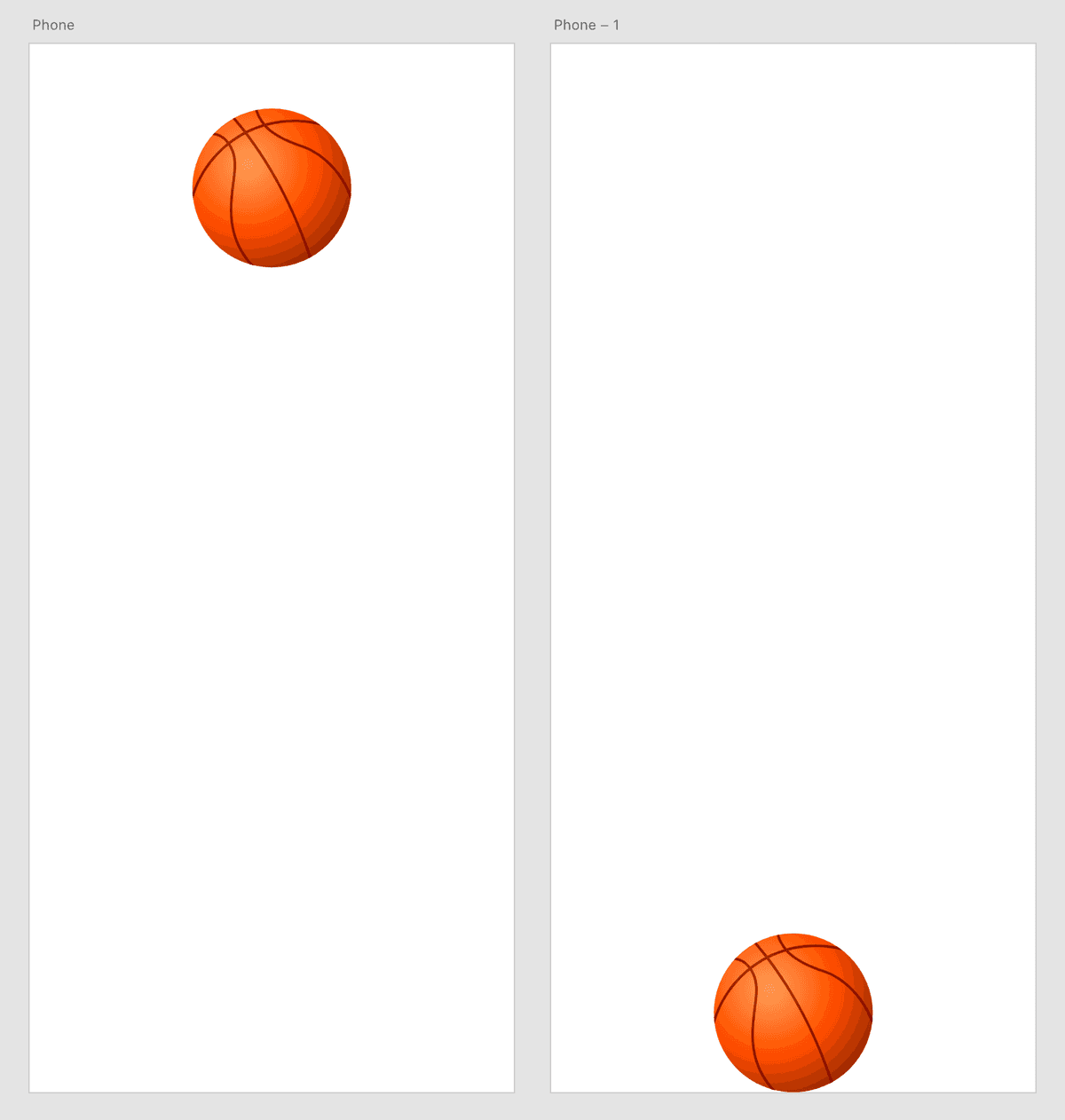
Let's start by setting up a simple animation that demonstrates the core principles of Auto-Animate. You'll create a bouncing ball effect that showcases how XD intelligently interpolates between object states across different artboards.

  1. In Adobe XD, go to File > Open from Your Computer or hit Cmd–Shift–O (Mac) or CTRL–Shift–O (Windows).
  2. Navigate into Desktop > Class Files > Adobe XD Class and double–click on Auto-Animate.xd to open it.
  3. In the Toolbar, choose the Select tool select tool.
  4. Select the artboard by clicking on the artboard name Phone (at the top left of the artboard). This ensures you're duplicating the entire artboard rather than individual elements.
  5. Duplicate it by hitting Cmd–D (Mac) or CTRL–D (Windows). This creates the end state for your animation.
  6. On the new artboard (on the right), drag the ball to the very bottom of the artboard. This establishes the final position that XD will animate toward.
  7. At the top left of the window click Prototype to switch to prototyping mode, where you'll define the interactive behavior.
  8. On the left artboard select the ball. This is your trigger element—the object users will interact with.
  9. A blue arrow will appear on it. Drag the blue arrow to the artboard on the right to create the connection between your start and end states.
  10. In the Property Inspector, set the following parameters to define your animation behavior:

    • Trigger: Tap
    • Type: Auto-Animate
    • Destination: Phone-1 (should already be set)
    • Easing: Ease Out
    • Duration: 1 s
  11. At the top right of the window, click on Desktop Preview desktop preview or hit Cmd–Return (Mac) or CTRL–Enter (Windows) to launch the interactive preview.
  12. Click on the ball to see it animate down to the bottom of the screen. While functional, this linear movement lacks the organic feel that makes animations truly engaging.

Setting Up Your First Auto-Animate

1

Open and Select

Open the Auto-Animate.xd file and select the Phone artboard using the Select tool from the toolbar.

2

Duplicate and Position

Duplicate the artboard with Cmd-D (Mac) or CTRL-D (Windows), then drag the ball to the bottom of the new artboard.

3

Create Prototype Connection

Switch to Prototype mode, select the ball, and drag the blue arrow to connect to the second artboard.

4

Configure Animation

Set Trigger to Tap, Type to Auto-Animate, Easing to Ease Out, and Duration to 1 second.

Different Kinds of Easing

Easing is where animation transforms from mechanical to magical. It's the secret ingredient that makes digital interactions feel natural and satisfying. Think of easing as the difference between a robot's movements and human gestures—it adds personality and physics to your prototypes.

Understanding easing terminology is crucial: Ease In starts slow and accelerates (like a car pulling away from a traffic light), Ease Out starts fast then decelerates (like a car approaching a red light), and Ease In-Out combines both for smooth, organic movement. Advanced easings like Wind-Up and Bounce simulate real-world physics, creating more engaging and memorable interactions.

  1. Keep the preview window open but move it to the left side so it doesn't cover the work area. It will update as we work, giving you real-time feedback on your changes.
  2. With the ball on the left artboard still selected, in the Property Inspector change Easing to Wind-Up.
  3. Hit Cmd–Return (Mac) or CTRL–Enter (Windows) to reload the preview window.
  4. Click on the ball to see it moves up a little before dropping.

    Wind-Up creates anticipation—like a baseball pitcher winding up before the throw, or a character in animation preparing for action. This principle of anticipation is fundamental to creating animations that feel intentional and polished.

  5. In the Property Inspector change Easing to Bounce.
  6. Hit Cmd–Return (Mac) or CTRL–Enter (Windows) to reload the preview window.
  7. Click on the ball to see it falls down and bounces (like a ball would). Notice how this immediately makes the interaction feel more playful and responsive.
  8. Close the preview window when you're ready to move to the next phase.

Easing Options Comparison

FeatureEasing TypeAnimation Behavior
Ease OutStandardSlows down at the end
Wind-UpDynamicMoves up slightly before dropping
BounceRealisticFalls and bounces like a real ball
Ease In-OutSmoothSlow start and end, faster middle
Recommended: Wind-Up and Bounce create more engaging, natural-feeling animations for user interactions.
Understanding Easing Terminology

Easing terminology comes from animation principles. 'Ease In' means slow at the beginning, 'Ease Out' means slow at the end. Think of it like telling a horse to go 'easy' - you're controlling the speed of movement.

Adding a Timed Animation

Timed animations unlock the potential for sophisticated, multi-step interactions that guide users through complex processes without requiring constant input. This technique is invaluable for creating onboarding flows, micro-interactions, and progressive disclosure patterns that enhance user experience.

  1. At the top left of the window, click on Design to return to design mode for editing your artboards.
  2. Select the right artboard by clicking on the artboard name Phone-1.
  3. Duplicate it by hitting Cmd–D (Mac) or CTRL–D (Windows). This creates the final state of your animation sequence.
  4. On the right-most artboard select the ball. You're about to create a fade-out effect that simulates the ball disappearing.
  5. In the Property Inspector, if the lock connecting W and H is unlocked, click it to lock it. This maintains the ball's proportions as you resize.
  6. On the right artboard, grab the top middle resize handle and drag down to make the ball smaller (so it ends up roughly half of its original size). This scaling effect adds visual interest to the fade transition.
  7. In the Property Inspector, reduce Opacity opacity icon to 0%. Combined with the scaling, this creates a sophisticated disappearing effect.
  8. At the top left of the window click Prototype to return to prototyping mode.
  9. Select the middle artboard by clicking on its name. This triggers the automatic transition to your fade-out state.
  10. A blue arrow will appear on the right (vertically in the middle of the artboard). This represents the artboard-level trigger.
  11. Drag the blue arrow to the artboard on the right to establish the timed connection.
  12. In the Property Inspector, configure the timed animation with these settings:

    • Trigger: Time
    • Delay: 0 s
    • Type: Auto-Animate
    • Destination: Phone-2 (should already be set)
    • Easing: Ease In
    • Duration: .5 s
  13. Click in an empty part of the artboard to make sure nothing is selected, ensuring clean preview behavior.
  14. At the top right of the window, click on Desktop Preview desktop preview or hit Cmd–Return (Mac) or CTRL–Enter (Windows).
  15. Click the ball and watch as it drops, then automatically scales down and fades away in a seamless sequence.

    This chaining technique enables you to create complex, multi-step animations that feel cinematic and professional. You can extend this pattern indefinitely, creating sophisticated interaction flows that rival native app experiences. This foundational skill will serve you throughout more advanced XD projects where seamless transitions are crucial for user engagement.

Creating Chained Animations

1

Prepare Second Animation

Switch to Design mode, select the Phone-1 artboard, duplicate it, and modify the ball by making it smaller and setting opacity to 0%.

2

Set Time Trigger

In Prototype mode, connect the middle artboard to the right artboard and set Trigger to Time with 0 second delay.

3

Configure Fade Animation

Set Type to Auto-Animate, Easing to Ease In, and Duration to 0.5 seconds for a smooth fade-out effect.

Animation Chaining Success

Time interactions allow you to create complex animation sequences. The ball now drops, then automatically scales down and fades away, creating a more sophisticated user experience.

Auto-Animate & the Importance of Names

Auto-animate's magic relies on XD's ability to match elements across artboards through their layer names. When layer names are identical, XD intelligently interpolates between their properties—position, size, color, opacity, and more. If you rename a layer on one artboard, ensure you update it across all connected artboards to maintain the animation continuity. This naming discipline becomes even more critical in complex prototypes with multiple animation sequences.

Critical Naming Requirement

Auto-animate requires layers to have identical names across all artboards. If you rename a layer on one artboard, you must update it on all connected artboards or the animation will break.

Auto-Animate Best Practices

0/4

Key Takeaways

1Auto-animate in Adobe XD requires identical layer names across all connected artboards to function properly
2Different easing options like Wind-Up and Bounce create more natural and engaging animation behaviors than standard linear movement
3Timed interactions enable automatic animation chaining, allowing complex sequences without additional user input
4The basic auto-animate setup involves duplicating artboards, modifying elements, and connecting them in Prototype mode
5Easing terminology follows animation principles: Ease In means slow start, Ease Out means slow finish, and Ease In-Out combines both
6Preview mode should be used continuously during development to test animation behavior and catch issues early
7Duration settings significantly impact user perception - shorter durations feel more responsive while longer ones create dramatic effects
8Auto-animate works by comparing the properties of named layers between artboards and automatically interpolating the differences

RELATED ARTICLES