April 1, 2026Dan Rodney/8 min read

Component States (Hover & Toggle)

Master Interactive Component States in Adobe XD

Interactive Component States Overview

Hover States

Create visual feedback when users move their cursor over components. Essential for modern web interfaces and user experience design.

Toggle States

Build components that switch between different appearances or show/hide content. Perfect for interactive elements and information panels.

Topics Covered in This Adobe XD Tutorial:

Adding a Hover State to a Button, Creating a Toggle State

Exercise Preview

preview component states

Exercise Overview

In this exercise, you'll master one of the most essential skills in modern UX design: creating interactive component states. You'll learn how to prototype hover effects that provide immediate visual feedback to users, as well as toggle states that can transform static designs into dynamic, engaging interfaces. These techniques are fundamental to creating prototypes that accurately represent the final user experience and are crucial for stakeholder buy-in and developer handoff.

Components vs Groups

Before starting, remember that components and groups behave similarly in Adobe XD. You double-click to enter them and hit Esc to exit. Nested components require multiple clicks and escapes - one for each level.

Adding a Hover State to a Button

  1. In Adobe XD, go to File > Open from Your Computer or hit Cmd–Shift–O (Mac) or CTRL–Shift–O (Windows).
  2. Navigate into Desktop > Class Files > Adobe XD Class and double–click on Hover and Component States.xd to open it.

    NOTE: Before we dive in, understanding the relationship between components and groups is crucial for efficient workflow. Both require double–clicking to enter edit mode, and you hit Esc to exit. When working with nested groups or components, you'll need to double–click multiple times (once per level) and hit Esc multiple times to navigate back out. This hierarchical structure gives you precise control over complex interface elements.

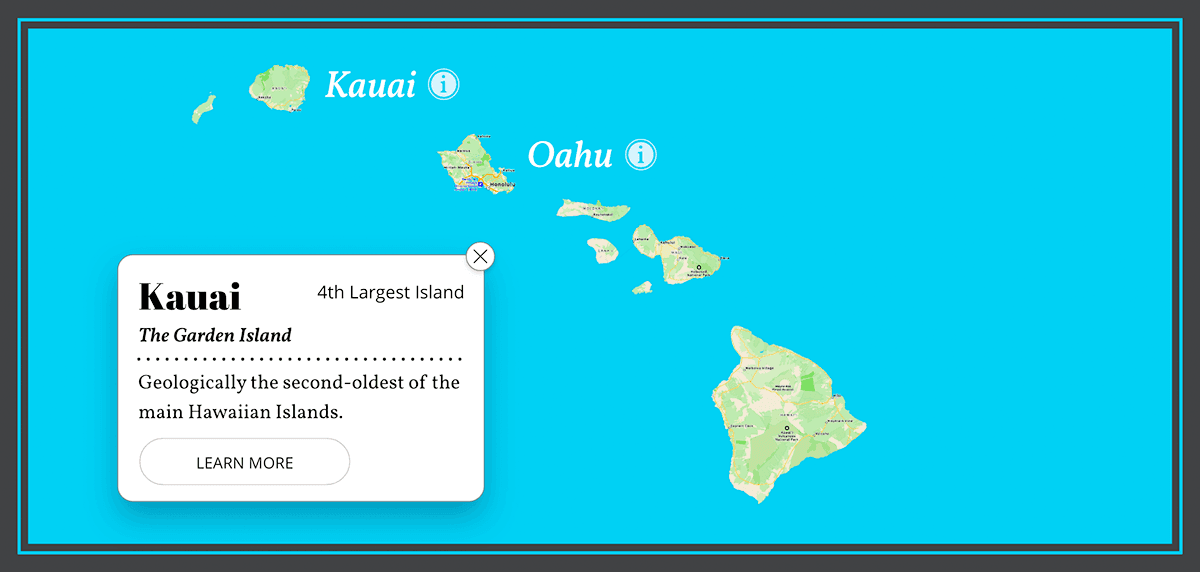
  3. Click once on Kauai to select the entire group.

    Notice that this selection includes both the text and the circular icon to its right, as they're grouped together as a single interactive element.

  4. In the Property Inspector on the right, under Responsive Resize, you'll see that Stack is enabled with a spacing value of 11.

    This stack layout ensures consistent spacing between the text and icon, automatically adjusting when content changes—a key principle of scalable design systems.

  5. In the Property Inspector on the right, locate the Component section and click the + button to convert this group into a reusable component.
  6. Under Component, Adobe XD has automatically created a Default State for your new component.

    Click the + button to the right of Default State and choose Hover State from the dropdown menu.

  7. The Hover State name will be highlighted for editing. For this exercise, the default name works perfectly, so hit Return (Mac) or Enter (Windows) to accept it.

  8. On the artboard, double–click on the circular (i) icon to select it directly. This enters the component's edit mode and isolates the icon for modification.
  9. In the Property Inspector on the right, you'll make two key adjustments that create a subtle but effective hover animation:

    • In the Layout section, change Adjacent Spacings adjacent spacings from 11 to 5. This draws the icon closer to the text, creating a sense of connection during hover.
    • Set Opacity opacity icon to 100% to make the icon more prominent and visually accessible.
  10. Click on the circular (i) icon again on the artboard to ensure your cursor is no longer active in the Property Inspector fields.
  11. Hit the Esc key to exit the component's edit mode and reselect the entire component. This is essential for viewing and managing component states.
  12. In the Property Inspector, you should now see the Component (Main) section with Hover State currently selected.

    Click on Default State to return to the base appearance.

    NOTE: Always return to the default state when finished editing. Leaving a component in an alternate state can cause confusion and inconsistencies in your design file.

  13. At the top right of the window, click on Desktop Preview desktop preview or hit Cmd–Return (Mac) or CTRL–Enter (Windows) to test your interactive prototype.
  14. Hover over Kauai and observe how the circular (i) icon moves closer to the text while becoming more opaque. This subtle animation provides immediate feedback that enhances user experience.
  15. Close the preview window to continue building additional instances of your component.
  16. Now you'll create another instance of your interactive button for the second island. This demonstrates the power of component-based design.

    Hold Option (Mac) or ALT (Windows) and drag the Kauai component down to position it beside the next island below. This creates a linked copy that inherits all the interactive behaviors you just defined.

  17. On the new component instance, double–click on the Kauai text to enter edit mode.
  18. Double–click again on the text to enter text editing mode, where you can modify the content.

    • Change the text from Kauai to Oahu.
    • Notice how the circular (i) icon automatically maintains the correct distance as you edit the text. This is the stack layout system working intelligently to preserve your design intent.
  19. Hit the Esc key once to exit text editing mode.
  20. Hit the Esc key again to reselect the component instance, which will restore the component state controls in the Property Inspector.
  21. In the Property Inspector, under Component (Instance), click on Hover State to switch to the hover appearance.
  22. You'll notice the text still shows "Kauai" in this state because component instances require manual updates to maintain state-specific content.

    • Double–click on the Kauai text, then double–click again to enter text editing mode.
    • Change the text to Oahu to match the default state.
  23. Hit the Esc key once to finish text editing.
  24. Hit the Esc key again to reselect the component instance and restore state management controls.
  25. In the Property Inspector, under Component (Instance), click on Default State to return to the base appearance.
  26. Launch Desktop Preview by clicking the icon desktop preview or using Cmd–Return (Mac) or CTRL–Enter (Windows).
  27. Test both buttons by hovering over them. Both should exhibit identical hover behavior while displaying their respective island names. This consistency is crucial for maintaining design system integrity.
  28. Close the preview window to proceed with the next phase of the exercise.

Now that you've mastered hover states, let's explore toggle states—a more complex interaction pattern that's essential for creating dynamic interfaces like expanding panels, modal triggers, and progressive disclosure elements.

Creating Your First Hover State

1

Select Component

Click on the Kauai element and notice it's a group with Stack enabled and 11px spacing between text and icon.

2

Add Hover State

In Property Inspector, click the + button next to Component, then add a Hover State to the Default State.

3

Modify Appearance

Double-click the circle icon and change Adjacent Spacing from 11 to 5, then set Opacity to 100%.

4

Test Interaction

Return to Default State, open Desktop Preview, and hover over Kauai to see the icon move closer and brighten.

Always Return to Default State

When finished editing component states, always switch back to the Default State. Otherwise, your design will remain on the modified state, which can cause confusion during design handoff.

Creating a Toggle State

Toggle states enable users to switch between two distinct interface conditions with a single interaction. In this section, we'll create a toggle that reveals detailed information when clicked, demonstrating how to prototype expandable content areas that are common in modern web and app design.

  1. Click once on the Kauai button to select it as the trigger element.
  2. Hold Shift and click on the Kauai info card to add it to your selection. This creates a compound component that includes both the trigger and the content it reveals.
  3. In the Property Inspector on the right, click the + button next to Component to convert this multi-element selection into a single interactive component.
  4. Before creating additional states, we need to establish the default behavior where the info card remains hidden. Double–click on the info card to enter component edit mode.
  5. If the Layers panel isn't visible, click the layers panel icon icon at the bottom left of the window to open it. The Layers panel provides precise control over element visibility and organization.
  6. In the Layers panel, locate the info card folder (group), which should be currently selected.

    Hover over the info card folder name and click the hide icon eye icon that appears to hide this element in the default state.

  7. Hit the Esc key to exit edit mode and reselect the entire component.
  8. In the Property Inspector, under Component (Main), click the + button to the right of Default State and choose Toggle State from the dropdown. Toggle states automatically create bidirectional interactions, meaning users can switch back and forth between states with the same trigger.
  9. The Toggle State name will be highlighted for editing. Hit Return (Mac) or Enter (Windows) to accept the default name.
  10. On the artboard, double–click the Kauai component to enter edit mode and modify the toggle state appearance.
  11. In the Layers panel, restore visibility to the info card folder by clicking its hide icon eye icon. This defines what appears when users activate the toggle.
  12. Hit the Esc key to exit edit mode and reselect the component for state management.
  13. In the Property Inspector, under Component (Main), click on Default State to ensure you're viewing the initial appearance.
  14. Launch Desktop Preview by clicking desktop preview or using Cmd–Return (Mac) or CTRL–Enter (Windows) to test your toggle interaction.
  15. Click on Kauai to reveal the info card. Notice how the interface smoothly transitions between states, providing clear feedback to the user.
  16. To close the info card, you can either click Kauai again or click anywhere on the info card itself.

    NOTE: In a production environment, you might want more specific close behaviors (like requiring users to click a dedicated close button). For such scenarios, you'd use a New State instead of Toggle State, then add custom prototype actions to specific elements like close buttons that return to the default state. While this requires additional setup, it provides complete control over user interaction patterns.

  17. Close the preview window and save your progress.
  18. Save the file using Cmd–S (Mac) or CTRL–S (Windows) and close it to complete the exercise.

NOTE: Component states offer remarkable flexibility for advanced prototyping. Objects within states can have their own prototype interactions—for example, you could add a Scroll To action to the Learn More button in the info card that navigates to detailed content elsewhere in your prototype. States can also contain scrollable areas, video players, or other complex interface elements. This makes component states invaluable for prototyping sophisticated functionality like multi-step forms, interactive dashboards, or progressive web app interfaces. As design systems continue to evolve in 2026, mastering these state-based interactions is essential for creating prototypes that accurately represent modern user experiences.

Building Interactive Toggle Components

1

Prepare Components

Select both the Kauai button and info card, then create a new component. Hide the info card in the default state using the Layers panel.

2

Add Toggle State

Click the + button next to Default State and choose Toggle State. This creates an alternative appearance for the component.

3

Configure Visibility

In the Toggle State, show the info card by clicking its visibility icon in the Layers panel.

4

Test Functionality

Preview the design and click Kauai to toggle the info card open and closed.

Toggle State vs Custom State

FeatureToggle StateCustom State
Interaction TypeClick anywhere to closeClick specific close button
Setup ComplexitySimple, automaticRequires prototype actions
User ControlLess preciseMore precise
Best ForQuick prototypesProduction-ready designs
Recommended: Use Toggle State for rapid prototyping, Custom State for precise user interactions
Advanced State Capabilities

Objects within states can have their own prototype interactions, including scroll-to links and scrollable areas. This enables complex interactive functionality within component states.

Key Takeaways

1Adobe XD component states enable interactive prototyping without complex wiring between artboards
2Hover states provide visual feedback by modifying properties like spacing, opacity, and color on cursor interaction
3Toggle states allow components to switch between different appearances with a single click interaction
4Stack spacing in responsive resize maintains consistent relationships between elements across different states
5Component instances inherit state behaviors but require individual text editing for each state variation
6Always return to Default State after editing to prevent design confusion and ensure proper handoff
7Toggle states offer simpler setup than custom states but provide less precise user interaction control
8Objects within states can contain their own prototype interactions including scrollable areas and navigation links

RELATED ARTICLES