April 1, 2026Dan Rodney/8 min read

Adjusting the Layout for Tablets & Mobile Phones

Master responsive design with Bootstrap grid systems

What You'll Master

Bootstrap Grid System

Learn how Bootstrap's 12-column grid adapts across different screen sizes with consistent gutters and flexible column widths.

Tablet Optimization

Discover techniques for adapting desktop layouts to 768px tablet screens while maintaining visual hierarchy and usability.

Mobile-First Design

Master the art of creating single-column mobile layouts that prioritize content accessibility on 320px screens.

Topics Covered in This Adobe XD Tutorial:

Master responsive design fundamentals by designing with Bootstrap's Grid system, adapting layouts for tablets, and optimizing interfaces for mobile phones

Exercise Preview

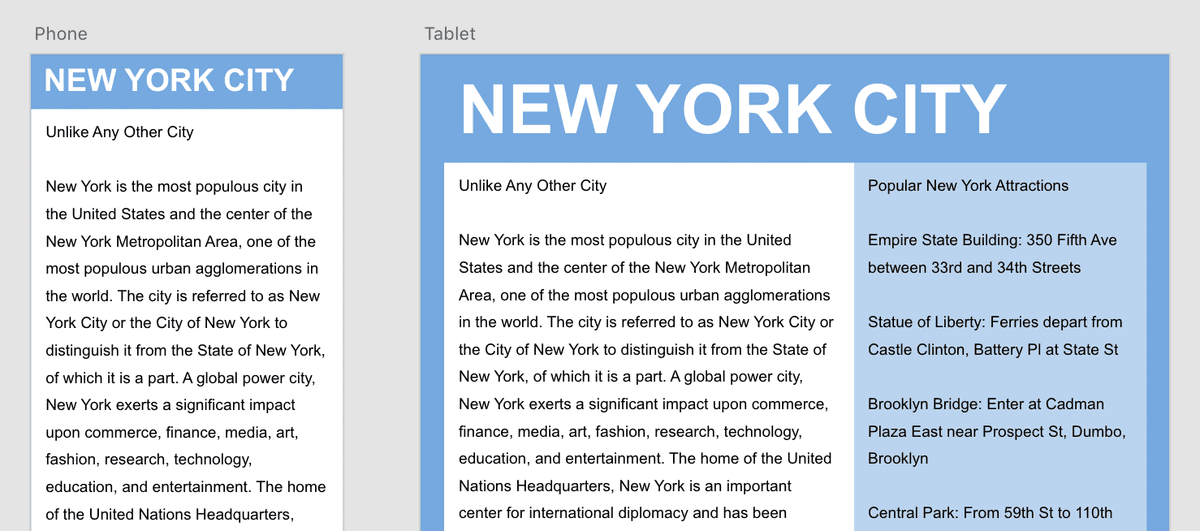
preview adapting for tablet and phone

Exercise Overview

Responsive design isn't just about making things smaller—it's about reimagining how users interact with content across different contexts. In this comprehensive exercise, you'll master the art of transforming desktop-optimized designs into tablet and mobile experiences that feel native to each device. You'll learn to work within Bootstrap's proven grid constraints while making strategic design decisions that prioritize usability and visual hierarchy across screen sizes.

File Preparation Note

This exercise uses a fresh starter file in case you modified your design in previous exercises. Starting with 'About Page—Ready for Tablet & Phone.xd' ensures consistency.

Comparing Bootstrap's Grid Across Screen Sizes

  1. Launch Adobe XD and navigate to File > Open from Your Computer or use the keyboard shortcut Cmd–Shift–O (Mac) or CTRL–Shift–O (Windows).
  2. Navigate to Desktop > Class Files > Adobe XD Class > NYC and double–click About Page—Ready for Tablet & Phone.xd to open it.

    NOTE: This starter file contains the completed desktop layout from the previous exercise. Using this ensures everyone begins with identical baseline designs, allowing you to focus on responsive adaptation techniques rather than troubleshooting layout inconsistencies.

  3. Study the relationship between the Desktop and Tablet artboards. Notice how Bootstrap intelligently maintains consistent gutter widths while proportionally adjusting content column widths. This consistency is crucial for maintaining visual rhythm across breakpoints.

    NOTE: The Tablet artboard targets the 768px breakpoint—a critical threshold where many interfaces transition from desktop to tablet paradigms. The 720px content container provides optimal readability while accommodating touch interactions.

  4. Compare the Tablet and Phone layouts to understand how dramatic grid simplification becomes necessary on small screens. The 12-column desktop grid collapses to just 2 primary columns on mobile, though 3-4 columns work effectively for supplementary content like icon grids or image galleries. Primary content blocks typically span the full width to maximize readability on constrained screens.

    NOTE: Our Phone artboard uses the 320px width of an iPhone SE—still relevant in 2026 as the baseline for ensuring accessibility across older and budget devices globally.

Bootstrap Grid Breakpoints

FeatureDesktopTabletPhone
Screen Width1200px+768px320px
Container WidthVariable720pxFull Width
Column Count12122-4
Gutter Width30px30pxVariable
Recommended: Notice how column count changes dramatically for mobile while gutter consistency is maintained across larger screens.
Grid Flexibility

Grid systems don't require elements to span the same number of columns across screen sizes. A 4-column sidebar on desktop can become 5 columns on tablet for better readability.

Adapting the Design for Tablets

Tablet design requires balancing desktop functionality with mobile usability patterns. Let's transform our desktop layout into a tablet-optimized experience.

  1. Select the Select tool select tool from the toolbar to begin transferring elements between artboards.
  2. Create an optimal workspace by displaying both artboards simultaneously:

    • Click Tablet in the Layers panel
    • Shift–click Desktop to select both artboards
    • Press Cmd–3 (Mac) or CTRL–3 (Windows) to zoom both artboards into view
  3. Click on empty canvas space to deselect the artboards and prepare for element selection.
  4. Select the NEW YORK CITY heading text on the desktop artboard—this will serve as our primary navigation anchor.
  5. Copy the text using Cmd–C (Mac) or CTRL–C (Windows).
  6. Click on the Tablet artboard name to activate it as your paste destination.
  7. Paste using Cmd–V (Mac) or CTRL–V (Windows).
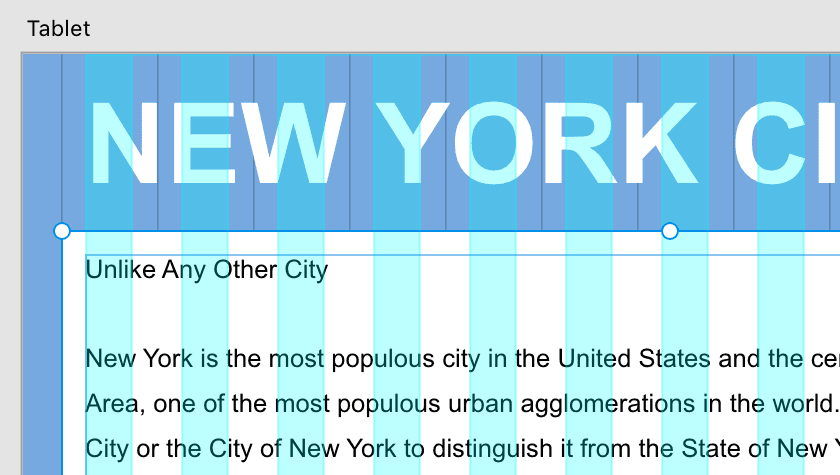
  8. Optimize the heading for tablet viewing by reducing the font size to 70 in the Property Inspector's Text section. This maintains visual hierarchy while improving content balance on smaller screens.
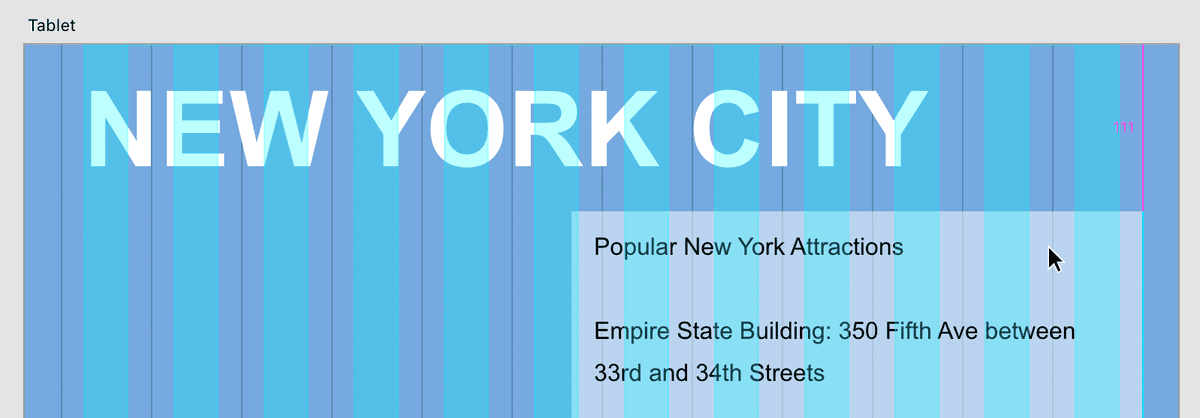
  9. Position the heading by aligning its left edge with the leftmost aqua grid column and snapping it to the artboard's top edge. This establishes consistent grid alignment from the start.

    NOTE: Use Cmd/CTRL + Plus(+) or Minus(-) to zoom dynamically as needed throughout this exercise—precision often requires closer inspection.

  10. Select both sidebar elements simultaneously on the Desktop artboard by dragging a selection box that encompasses both the background shape and text. Start your drag outside the elements and ensure the selection box touches both components:

    nyc sidebar drag selection

  11. Copy the sidebar elements using Cmd–C (Mac) or CTRL–C (Windows).
  12. Switch to the Tablet artboard by clicking anywhere within its boundaries—verify your selection in the Layers panel header.
  13. Paste the sidebar elements with Cmd–V (Mac) or CTRL–V (Windows). They'll appear centered on the artboard.
  14. Set your zoom to 100% using Cmd–1 (Mac) or CTRL–1 (Windows) for accurate positioning work.
  15. Position the sidebar strategically by aligning its right edge with the container's rightmost guide. This right-alignment approach ensures the sidebar doesn't interfere with primary content flow while maintaining grid integrity:

    nyc position tablet sidebar

  16. Click on empty canvas to deselect all elements.
  17. Select the sidebar text within the Tablet artboard to optimize its width for the new context.
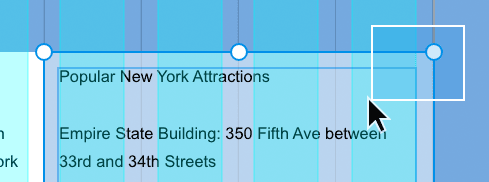
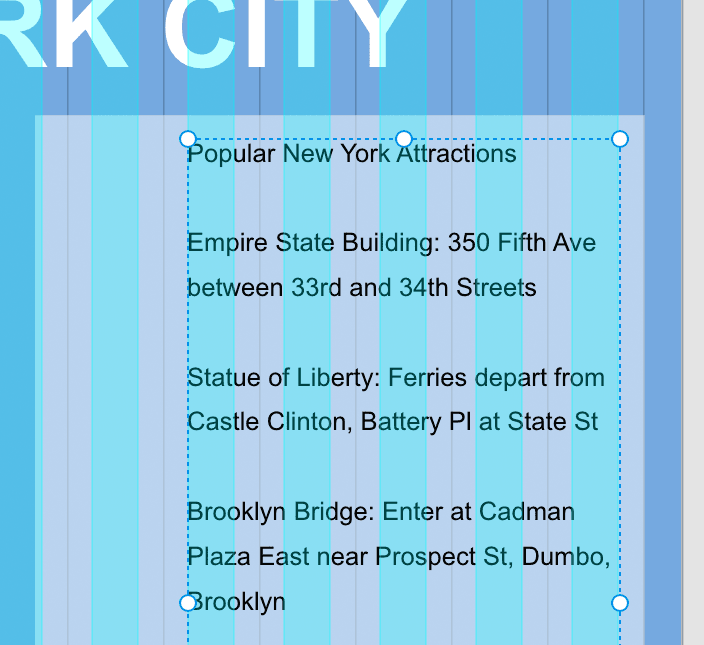
  18. Resize the text box to span exactly 5 columns by dragging the left-middle handle inward until it aligns with the appropriate grid guide:

    nyc tablet sidebar text box

    NOTE: Strategic grid flexibility is key to responsive design success. While the desktop sidebar spans 4 columns, expanding to 5 columns on tablet creates better readability and visual balance. Effective responsive design prioritizes user experience over rigid column consistency.

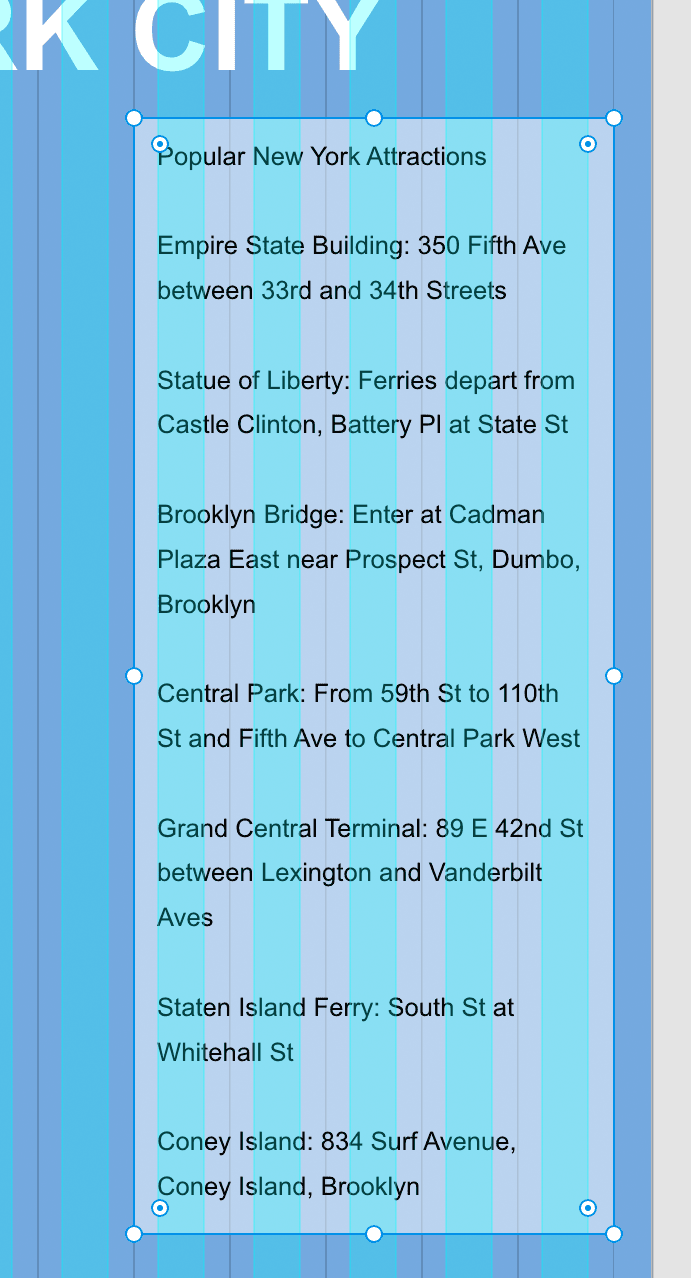
  19. Address the sidebar's background height by selecting the light blue background element.
  20. Extend the background by dragging its bottom-left handle downward until it properly contains all text and aligns with a gutter guide for visual consistency:

    nyc tablet sidebar resize bg

  21. Navigate back to the Desktop artboard using Spacebar + drag to pan, or utilize trackpad gestures on Mac (2-finger drag to scroll, 2-finger pinch to zoom).

    Mac Users: Trackpad navigation significantly speeds up multi-artboard workflows—master these gestures for professional efficiency.

  22. Select both the main column's white background and its text content on the Desktop artboard using a selection drag.
  23. Copy these elements using Cmd–C (Mac) or CTRL–C (Windows).
  24. Transfer the main column to tablet by:

    • Navigating to the Tablet artboard
    • Clicking within the artboard boundaries to activate it
    • Pasting with Cmd–V (Mac) or CTRL–V (Windows)

    The dramatic size difference between artboards becomes immediately apparent—this visual contrast helps inform design decisions.

  25. Create a cohesive two-column tablet layout by positioning the main column's left edge against the container's leftmost guide. The element should snap precisely into alignment both horizontally and vertically with the sidebar:

    nyc position main col sidebar

  26. Deselect all elements by clicking in empty canvas space.
  27. Select the main column's white background and resize it by dragging the right-middle handle inward until it snaps against the sidebar's background edge—creating a seamless column relationship.
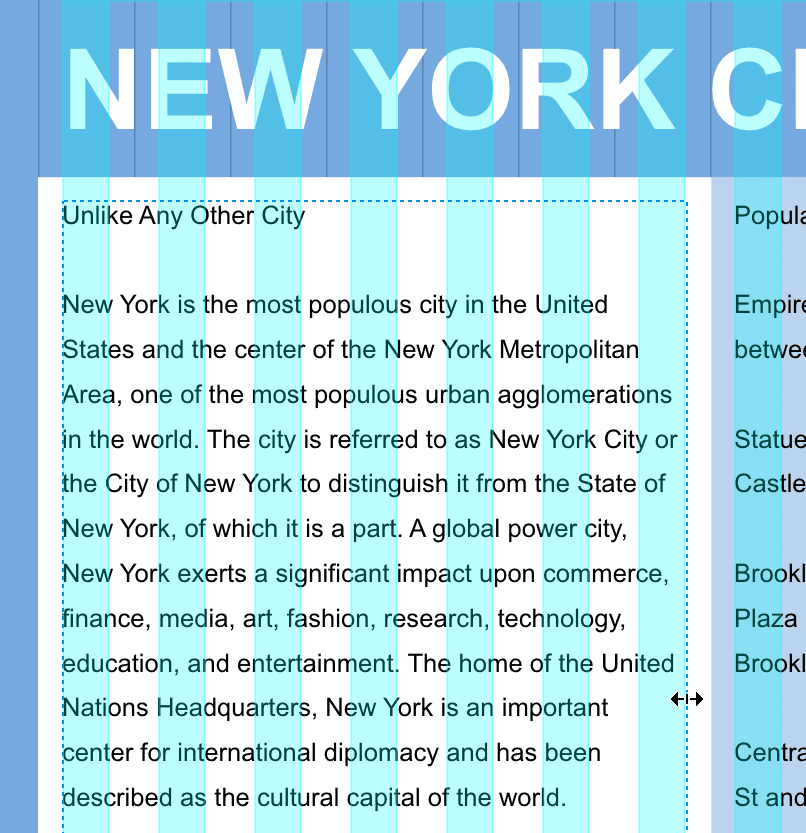
  28. Select the main column's text box for width optimization.
  29. Adjust the text box width by dragging its right-middle handle to align with the appropriate aqua grid column, ensuring proper text flow and readability:

    nyc tablet resize main col

  30. Optimize the artboard height by first clicking in the gray canvas area outside any artboards.
  31. Select the Tablet artboard in the Layers panel.
  32. Extend the artboard height by dragging the bottom-middle handle downward until all content is visible with appropriate breathing room.
  33. Select the main column's white background on the Tablet artboard.
  34. Extend the background downward using the bottom-middle handle, ensuring it extends beyond the text with professional spacing.
  35. Select the sidebar's light blue background for height matching.
  36. Align both column backgrounds by dragging the sidebar's bottom-middle handle until it matches the main column's height—creating visual harmony.
  37. Hide the layout grid using Cmd–Shift–' (Mac) or CTRL–Shift–' (Windows) to see the clean design.
  38. Remove all guides via View > Guides > Hide All Guides or Cmd–; (Mac) / CTRL–; (Windows).
  39. View your completed tablet design at 100% zoom using Cmd–1 (Mac) or CTRL–1 (Windows).

    NOTE: The tight padding you observe represents Bootstrap's minimum spacing standards—larger tablets will maintain the same content width while adding more peripheral padding. While some designers prefer custom grid systems for greater control, Bootstrap's constraints ensure cross-platform consistency and faster development cycles. Understanding these trade-offs helps you make informed decisions about when to use pre-built versus custom solutions.

  40. Save your progress with File > Save.

Tablet Layout Process

1

Copy Desktop Elements

Select and copy text, sidebar, and main content from desktop artboard using standard copy-paste commands

2

Adjust Typography

Reduce heading font size from desktop default to 70px for better tablet proportions

3

Reposition Elements

Align elements with Bootstrap grid guides, ensuring proper spacing and container alignment

4

Resize Containers

Adjust background containers and text boxes to fit new column widths while maintaining visual balance

Keyboard Shortcuts for Efficiency

Use Cmd/Ctrl + 3 to zoom to selection, Cmd/Ctrl + 1 for 100% zoom, and Spacebar + drag for quick navigation between artboards.

Adapting the Design for Mobile Phones

Mobile design represents the ultimate constraint challenge—transforming multi-column layouts into single-column experiences that prioritize essential content and thumb-friendly interactions.

  1. Clear any artboard selections by clicking on blank canvas space.
  2. Select the Phone artboard in the Layers panel.
  3. Add the Tablet artboard to your selection using Shift + click.
  4. Frame both artboards in view using Cmd–3 (Mac) or CTRL–3 (Windows).
  5. Deselect both artboards by clicking on empty canvas space.
  6. Prepare the mobile canvas by selecting the Phone artboard (click the artboard name at its top-left corner).
  7. Begin resizing the artboard height by dragging the bottom handle—though visual approximation helps, precise dimensions are crucial for mobile design.
  8. Set an appropriate mobile artboard height by entering 1000 in the Property Inspector's H (Height) field, then press Return (Mac) or Enter (Windows). This provides ample space for the single-column mobile layout.
  9. The mobile adaptation process mirrors the tablet workflow you just mastered—copy elements from the tablet design, paste them onto the phone artboard, then adjust sizing and positioning for optimal mobile usability. Since you've demonstrated proficiency with these techniques, you may choose to complete this adaptation independently or move forward with the provided solution.
  10. Save your work and close the file to prepare for the next exercise.

Mobile Layout Specifications

320px
pixels wide (iPhone SE)
1,000px
pixel artboard height needed
1
column layout recommended
Single Column Strategy

Multiple text columns don't fit on small screens. The mobile layout uses a single column with the main content stacked on top of the sidebar content.

Is Stacking Elements the Best Solution?

The instinct to simply stack desktop columns vertically on mobile often creates suboptimal user experiences. While stacking provides a quick responsive solution, it frequently results in excessively long pages that bury critical information below the fold. Modern mobile users expect streamlined, scannable interfaces—not desktop experiences compressed into narrow viewports.

Consider these strategic alternatives: implement progressive disclosure through collapsible sections that reveal details on tap; transform image galleries into swipe-enabled carousels; use tabbed navigation for related content groups; or employ floating action buttons for primary calls-to-action. The key is understanding user intent and interaction patterns on each device type.

Effective mobile design isn't about fitting everything onto smaller screens—it's about prioritizing what matters most to users in mobile contexts. Always prototype and test your mobile layouts with real users to validate that your responsive strategy serves their needs, not just your technical constraints.

Element Stacking Analysis

Pros
Simple and straightforward implementation
Maintains all content visibility
Easy to understand user experience
Consistent with desktop content hierarchy
Cons
Creates very tall mobile layouts
Important information may be buried below fold
Requires extensive scrolling from users
May not optimize for mobile-specific interactions

Alternative Mobile Solutions

Collapsible Sections

Allow users to tap and expand sections for easy content scanning. Reduces initial page height while keeping information accessible.

Content Carousels

Convert multiple photos or similar content into swipeable slideshows. Saves vertical space while maintaining visual impact.

Progressive Disclosure

Show essential information first with options to reveal more details. Prioritizes user needs over complete content display.

User-Centered Design Principle

Think about how users will interact with your content to decide what's best for mobile, tablet, and desktop users. The technical capability to stack doesn't always equal the best user experience.

Key Takeaways

1Bootstrap's grid system maintains consistent gutter spacing across screen sizes while adapting column widths and counts for optimal viewing
2Tablet layouts at 768px width can accommodate modified column spans - a 4-column desktop sidebar can become 5 columns on tablet for better readability
3Mobile phone layouts at 320px width typically require single-column designs with stacked content due to severe width constraints
4Font sizes need adjustment across breakpoints - reducing desktop headings from default to 70px improves tablet typography proportions
5Adobe XD keyboard shortcuts significantly speed up responsive design workflow, especially Cmd/Ctrl+3 for zoom to selection and spacebar+drag for navigation
6Simply stacking desktop columns on mobile creates usable but potentially suboptimal experiences due to excessive page height and scrolling requirements
7Alternative mobile solutions like collapsible sections, content carousels, and progressive disclosure can provide better user experiences than basic stacking
8Successful responsive design requires considering user interaction patterns and content priorities, not just technical grid system capabilities

RELATED ARTICLES