April 1, 2026Dan Rodney/10 min read

Adding Interactions to a Slideshow: Tap, Drag, & Keys

Master interactive prototyping with advanced Adobe XD techniques

Key Interaction Types You'll Master

Tap Interactions

Create responsive button controls for navigation. Perfect for mobile-first design approaches where touch is primary.

Drag Functionality

Enable intuitive swipe gestures between slides. Essential for modern user expectations in slideshow interfaces.

Keyboard Navigation

Add accessibility and power user features with arrow key controls. Improves usability across different interaction preferences.

Topics Covered in This Adobe XD Tutorial:

Creating a Working Slideshow Prototype, Adding Tap Interactions, Adding the Ability to Drag, Adding Keystrokes

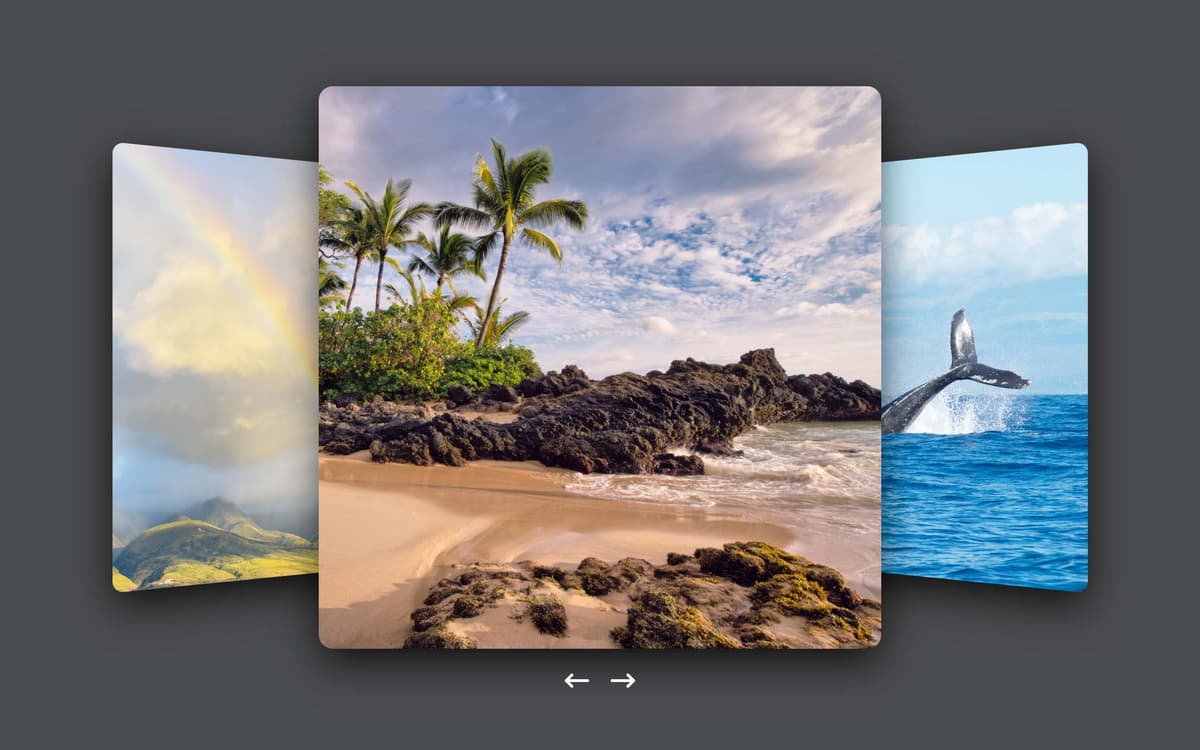
Exercise Preview

preview slideshow

Exercise Overview

In this comprehensive exercise, you'll master one of Adobe XD's most powerful features: creating interactive slideshows with sophisticated 3D transforms. You'll build a fully functional prototype that responds to arrow button clicks, supports keyboard navigation, and enables intuitive drag gestures between slides. This technique is essential for modern UX design, allowing you to demonstrate complex interactions to stakeholders and development teams with pixel-perfect precision.

Slideshow Project Specifications

3
artboards required
3
interaction types
-300
Z-axis transform depth

Getting Started

Let's begin by opening your project files and preparing your workspace for this advanced prototyping exercise.

  1. In Adobe XD, go to File > Open from Your Computer or hit Cmd–Shift–O (Mac) or CTRL–Shift–O (Windows).
  2. Navigate into Desktop > Class Files > Adobe XD Class and double–click on Slideshow.xd to open it.
  3. In the Toolbar, choose the Select tool select tool.

Setting up the Slides

While basic scrollable areas work well for simple content, professional slideshow interactions require a more sophisticated approach. We'll create multiple artboards to represent different states of our slideshow, enabling smooth animations and multiple interaction types. This method gives you granular control over timing, easing, and visual hierarchy—critical elements for compelling user experiences.

  1. Select the artboard by clicking on the artboard name 1 (at the top left of the artboard).
  2. Duplicate it by hitting Cmd–D (Mac) or CTRL–D (Windows) two times to create a total of 3 artboards.
  3. Rename the artboards by double–clicking the artboard name at the top left. Change their names to:

    • 2 for the middle artboard.
    • 3 for the right artboard.
  4. On artboard 1:

    • Select the left arrow.
    • Press the 3 key on your keyboard to quickly set the Opacity to 30%.
  5. On artboard 3:

    • Select the right arrow.
    • Press the 3 key on your keyboard to quickly set the Opacity to 30%.

Artboard Setup Process

1

Duplicate Base Artboard

Use Cmd-D (Mac) or CTRL-D (Windows) twice to create 3 total artboards for different slideshow states

2

Rename Artboards

Double-click artboard names and rename to 1, 2, and 3 for clear organization

3

Configure Arrow Opacity

Set left arrow on artboard 1 and right arrow on artboard 3 to 30% opacity using the 3 key

Adjusting the First Slide

Now we'll configure the 3D transforms that create the illusion of depth and perspective in our slideshow. These transforms are what elevate a basic image carousel into a visually compelling, dimensional experience.

  1. On artboard 1, select the center beach photo.
  2. In the Property Inspector, to the right of Transform click the 3D Transforms icon 3D transforms to toggle it on.
  3. In the Property Inspector's Transform section:

    • Set Z to -300 and don't miss the minus part!
    • Set Y Rotation y rotation to -20° and don't miss the minus part!
  4. On artboard 1, CTRL–click (Mac) or Right–click (Windows) on the rainbow photo and choose Reset 3D Transforms.
  5. Select the 3 photos, but do NOT select the arrows!
  6. In the Property Inspector, set X to 340

3D Transform Settings

Remember the negative values: Z to -300 and Y Rotation to -20 degrees. Missing the minus signs will break the 3D perspective effect.

Adjusting the Last Slide

The final slide requires a mirror configuration of transforms to create visual symmetry and maintain the illusion of three-dimensional space as users navigate through the sequence.

  1. On artboard 3, select the center beach photo.
  2. In the Property Inspector's Transform section:

    • Set Z to -300 and don't miss the minus part!
    • Set Y Rotation y rotation to 20°
  3. On artboard 3, with the center beach photo selected choose Object > Arrange > Bring to Front.
  4. On artboard 3, CTRL–click (Mac) or Right–click (Windows) on the whale photo and choose Reset 3D Transforms.
  5. Select the 3 photos, but do NOT select the arrows!
  6. In the Property Inspector, set X to -174 and don't miss the minus part!
  7. In the Property Inspector, to the right of Transform click the 3D Transforms icon 3D transforms to toggle it off.

Making the Arrow Buttons Work & Changing the Easing

With our visual states configured, let's wire up the interactive elements. The choice of easing function dramatically impacts the perceived quality and personality of your interface—it's often the difference between a prototype that feels professional and one that feels amateur.

  1. At the top left of the window click Prototype.
  2. We're going to wire up the arrows on artboard 1, so make sure you can see the arrows, and at least part of artboard 2 (you don't need to see the whole thing).
  3. On artboard 1, select the right arrow.
  4. A blue arrow will appear on it. Drag the blue arrow to artboard 2.
  5. In the Property Inspector, set the following:

    • Trigger: Tap
    • Type: Auto-Animate
    • Destination: 2 (should already be set)
    • Easing: Ease Out
    • Duration: 0.5 s
  6. At the top right of the window, click on Desktop Preview desktop preview or hit Cmd–Return (Mac) or CTRL–Enter (Windows).
  7. Click the right arrow to see the animation to the next slide.

    The effect demonstrates how 3D transforms create spatial depth, but let's explore how different easing functions can completely transform the emotional impact of the same interaction.

  8. Close the preview window.
  9. With the right arrow on artboard 1 still selected, in the Property Inspector change Easing to Snap.
  10. At the top right of the window, click on Desktop Preview desktop preview or hit Cmd–Return (Mac) or CTRL–Enter (Windows).
  11. Click the right arrow to see the animation to the next slide.

    If you want to see it again, we have not wired up the arrow buttons on screen, but you can press the Left Arrow key on your keyboard to go back to the previous artboard and click the arrow button again.

    The Snap easing creates a dynamic overshoot effect that adds personality and energy to the transition. This type of motion design can make interfaces feel more engaging and responsive, though it should be used judiciously in professional applications.

  12. Try out the other easing types such as Wind Up and Bounce. Each creates a distinctly different user experience and emotional response.
  13. When you're done experimenting set Easing back to Ease Out, which provides smooth, professional motion that works well across most use cases.
  14. Now let's complete the navigation system by wiring up all remaining arrows. On artboard 2 select the left arrow.
  15. Drag the blue arrow to artboard 1.
  16. In the Property Inspector, make sure the following are set:

    • Trigger: Tap
    • Type: Auto-Animate
    • Destination: 1
    • Easing: Ease Out
    • Duration: 0.5 s
  17. On artboard 2:

    • Select the right arrow.
    • Drag the blue arrow to artboard 3.
  18. On artboard 3:

    • Select the left arrow.
    • Drag the blue arrow to artboard 2.
  19. Click in an empty area of the canvas to sure nothing is selected.
  20. At the top right of the window, click on Desktop Preview desktop preview or hit Cmd–Return (Mac) or CTRL–Enter (Windows).
  21. Test out all the arrows and verify that the entire slideshow navigation system is functioning smoothly!
  22. Close the preview window.

Animation Easing Options

FeatureEasing TypeEffect
Ease OutSmooth decelerationProfessional standard
SnapFast with overshootBouncy and lively
Wind UpAnticipation effectDramatic movement
BounceMultiple bouncesPlayful interaction
Recommended: Ease Out provides the most professional and widely accepted animation feel

Adding Keystrokes

Keyboard navigation is a crucial accessibility feature and a hallmark of polished user interfaces. Power users expect keyboard shortcuts, and implementing them in your prototypes demonstrates attention to user experience details that separate professional work from amateur efforts.

  1. On artboard 1 select the right arrow.
  2. Drag the blue plus to artboard 2.
  3. In the Property Inspector, set:

    • Trigger: Keys & Gamepad
    • Key: Click into the field and press your Right Arrow key
    • Type: Auto-Animate
    • Destination: 2
    • Easing: Ease Out
    • Duration: 0.5 s
  4. Click in an empty area of the canvas to sure nothing is selected.
  5. At the top right of the window, click on Desktop Preview desktop preview or hit Cmd–Return (Mac) or CTRL–Enter (Windows).
  6. Press your Right Arrow key and the slideshow should animate to the second slide.

    NOTE: Adobe XD's preview normally uses left/right arrow keys for basic artboard navigation, but our custom keystroke interactions override this default behavior, providing the exact interaction model we've designed.

  7. Close the preview window.
  8. On artboard 2 select the left arrow and then:

    • Drag the blue plus to artboard 1.
    • In the Property Inspector, below Key, click into the field and the press your Left Arrow key.
  9. On artboard 2 select the right arrow and then:

    • Drag the blue plus to artboard 3.
    • In the Property Inspector, below Key, click into the field and the press your Right Arrow key.
  10. On artboard 3 select the left arrow.

    • Drag the blue plus to artboard 2.
    • In the Property Inspector, below Key, click into the field and the press your Left Arrow key.
  11. Click in an empty area of the canvas to sure nothing is selected.
  12. At the top right of the window, click on Desktop Preview desktop preview or hit Cmd–Return (Mac) or CTRL–Enter (Windows).
  13. Test the complete keyboard navigation system using the right and left arrow keys to move seamlessly between all slides!
  14. Close the preview window.

Keystroke Override Behavior

Custom keystroke interactions override XD's default arrow key navigation, giving you full control over the user experience.

Keystroke Implementation Checklist

0/4

Adding the Ability to Drag

Touch and drag interactions are fundamental to modern interface design, especially for mobile and tablet experiences. Unlike simple scrollable areas, drag interactions with state-based animations give you precise control over the user experience and visual feedback.

  1. On artboard 1 select the rainbow photo.
  2. Drag the blue arrow to artboard 2.
  3. In the Property Inspector, set:

    • Trigger: Drag
    • Type: Auto-Animate
    • Destination: 2
    • Easing: None
  4. On artboard 2:

    • Select the beach photo.

    • Drag the blue arrow to artboard 3.

  5. On artboard 3:

    • Select the whale photo.
    • Drag the blue arrow to artboard 2.
  6. Click in an empty area of the canvas to sure nothing is selected.
  7. At the top right of the window, click on Desktop Preview desktop preview or hit Cmd–Return (Mac) or CTRL–Enter (Windows).
  8. Drag right to left on the rainbow photo to advance to slide 2.
  9. Drag right to left on the beach photo to move to slide 3.
  10. Drag left to right on the whale photo to return to slide 2.
  11. On slide 2 we can't go back to slide 1 because we only have a drag interaction to advance to slide 3.

    As of 2026, Adobe XD still has limitations with multiple drag interactions on a single element, though this remains one of the most requested features in the design community. While this creates some navigation gaps in our prototype, it's sufficient for demonstrating the interaction concept to stakeholders, conducting user testing, and providing clear specifications to developers. The Adobe XD team continues to prioritize features based on community feedback, so these limitations may be addressed in future updates.

  12. Close the preview window.

XD Drag Limitation

XD cannot add multiple drag interactions to a single element. This means bidirectional dragging on one slide isn't possible yet.

Drag Implementation Strategy

Forward Navigation

Drag right-to-left on photos to advance slides. Use the prominent center image for best user discovery.

Backward Navigation

Limited to specific slides due to XD constraints. Focus on primary user flow rather than complete functionality.

Optional Bonus: Adding the Ability to Tap

For those ready to push the interaction model further, consider adding tap interactions to the photos themselves. This creates multiple pathways for navigation, accommodating different user behaviors and preferences—a key principle in inclusive design.

If you get done early and want to add even more functionality, you could add a Tap interaction to the 3D transformed photos that would let you tap on them to go to the next slide. You'll select the appropriate photo, drag the blue arrow to the next slide, and this time use a Tap Trigger.

Advanced Interaction Layer

Adding tap interactions to 3D transformed photos creates multiple ways to navigate, improving user experience and accessibility.

Remember You're Designing, Not Building

It's tempting to perfect every interaction detail, but remember that XD prototypes serve as design communication tools, not production applications. Your goal is to convey interaction concepts, timing, and visual behavior clearly and convincingly.

For a 10-slide presentation, implementing 2-3 fully interactive slides effectively demonstrates the complete system. Stakeholders and developers will understand the pattern without requiring every single interaction to be wired. Focus your energy on perfecting the core interactions, visual transitions, and user experience flow rather than getting bogged down in comprehensive wiring.

Think of your XD prototype as architectural blueprints—detailed enough to guide construction, but not requiring every nail and screw to be specified. This strategic approach lets you iterate quickly, gather meaningful feedback, and maintain focus on the design decisions that truly impact user experience.

Focus on designing the various appearances, interactions, and animations. Don't get caught up in the busy work and tediousness of making every little tiny detail work.
Key principle for efficient prototyping workflow

Prototype Completeness Strategy

Pros
Demonstrates core functionality effectively
Saves time for more important design decisions
Focuses on user experience over technical perfection
Provides clear blueprint for developers
Cons
May leave some edge cases unaddressed
Requires clear communication about intended final behavior
Could miss some interaction discovery opportunities

Key Takeaways

1Adobe XD prototypes serve as design blueprints, not final products - focus on demonstrating key interactions rather than building every detail
23D transforms with negative Z values (-300) and Y rotation create compelling depth effects in slideshow transitions
3Multiple interaction types (tap, drag, keyboard) can be layered on the same prototype to demonstrate comprehensive functionality
4Animation easing significantly impacts user perception - Ease Out provides professional feel while Snap adds playful bounce
5XD's current limitation of one drag interaction per element requires strategic workarounds in prototype design
6Keystroke interactions override default XD navigation, giving designers full control over keyboard user experience
7Artboard duplication and systematic naming (1, 2, 3) creates organized foundation for complex interactive prototypes
8Prototype testing should focus on communicating design intent to stakeholders rather than pixel-perfect functionality

RELATED ARTICLES