March 22, 2026Noble Desktop/1 min read

Quickly Select One or More Lines in Sublime Text

Master Sublime Text line selection techniques efficiently

Essential Text Editor Skill

Line selection is one of the most fundamental operations in code editing. Mastering these shortcuts in Sublime Text will significantly speed up your development workflow.

Sublime Text Selection Methods

Single Line Selection

Click at the beginning of a line and drag to the end. Alternatively, triple-click anywhere on the line for instant selection.

Multiple Line Selection

Hold Ctrl (Cmd on Mac) while clicking to select multiple non-contiguous lines. Use Shift+Click for contiguous line ranges.

Keyboard Shortcuts

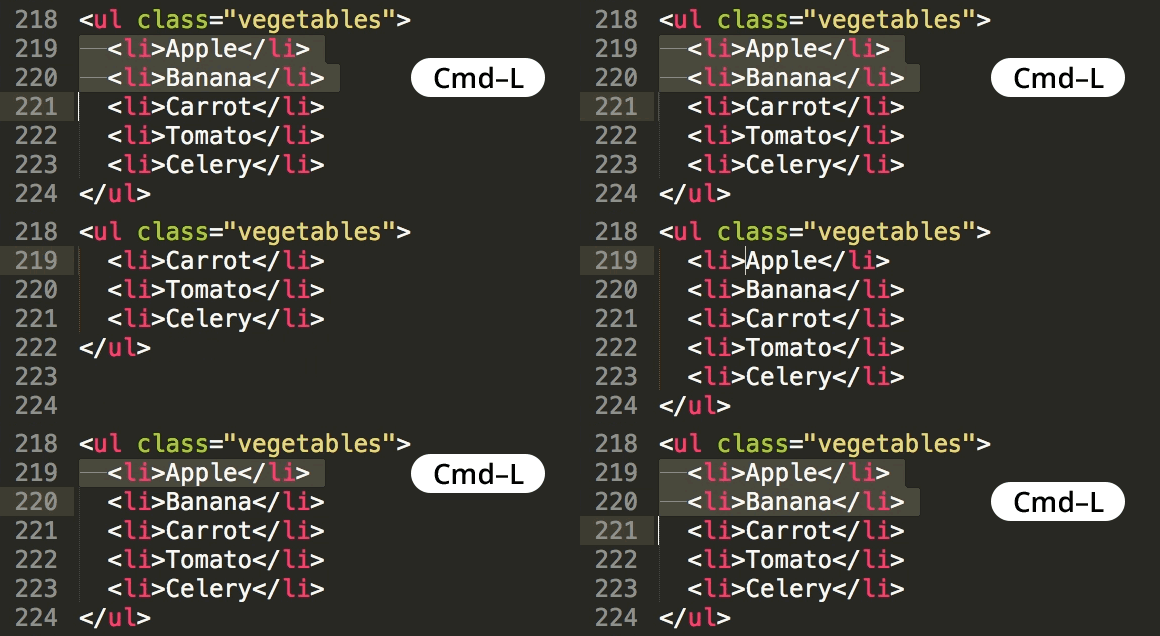
Use Ctrl+L to select the current line. Repeat the command to extend selection to additional lines below.

Master advanced Sublime Text Coding Tips that will dramatically accelerate your development workflow. These professional-grade techniques and productivity hacks are integrated throughout our hands-on coding classes and bootcamps in NYC, where you'll learn alongside industry practitioners who use these tools daily in production environments.

Ready to elevate your coding skills? Explore Noble Desktop’s professional training programs:

Key Takeaways

1Line selection is a fundamental skill that dramatically improves coding efficiency in Sublime Text
2Multiple selection methods exist including mouse clicks, keyboard shortcuts, and combination techniques
3Ctrl+L (Cmd+L on Mac) is the primary keyboard shortcut for selecting entire lines
4Triple-clicking provides instant single line selection without precise cursor positioning
5Multiple line selection can be achieved through Ctrl+Click for non-contiguous lines or Shift+Click for ranges
6Noble Desktop offers comprehensive Sublime Text training within their web development certificate programs
7Hands-on practice in coding bootcamps helps solidify text editor skills through real project application
8These line selection techniques form the foundation for more advanced Sublime Text features and workflows

RELATED ARTICLES