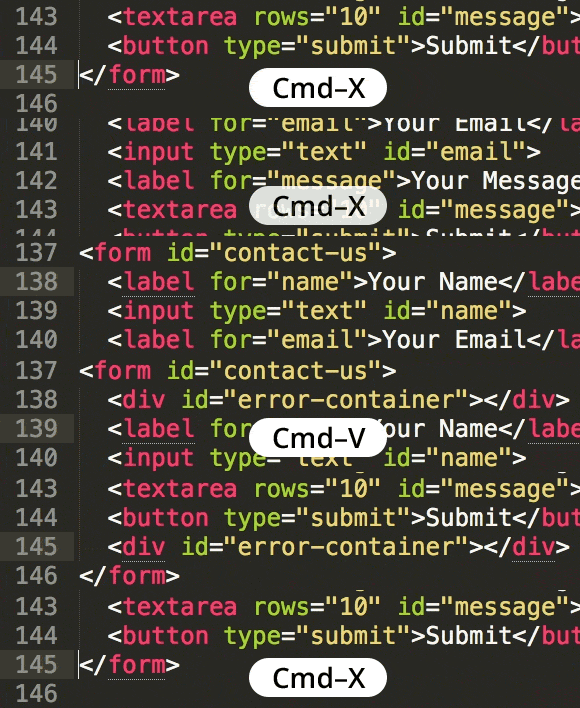
Quickly Cut a Line of Code in Sublime Text
Master Essential Text Editing Skills in Sublime
Learning keyboard shortcuts for common editing tasks can significantly speed up your coding workflow and reduce repetitive strain from mouse usage.
Common Line Operations in Code Editors
Cut Line
Removes entire line and copies to clipboard. Essential for quickly moving code blocks without selecting text first.
Copy Line
Duplicates line content to clipboard while keeping original. Useful for creating similar code patterns rapidly.
Delete Line
Removes line without copying to clipboard. Faster than cut when you don't need to paste elsewhere.
Quick Line Cut Process
Position Cursor
Place your cursor anywhere on the line you want to cut. No need to select the entire line manually.
Execute Command
Use the appropriate keyboard shortcut for your operating system to cut the entire line instantly.
Paste if Needed
Move to your desired location and paste the cut line using standard paste commands.
Keyboard Shortcuts vs Mouse Operations
| Feature | Keyboard Shortcut | Mouse Method |
|---|---|---|
| Speed | Instant | 3-4 seconds |
| Precision | Exact line | Risk of partial selection |
| Hand Movement | Minimal | Keyboard to mouse |
| Learning Curve | Memorize once | No learning needed |
Best Practices for Line Cutting
Consistent use builds speed and reduces cognitive load during coding sessions
Ensures you cut the intended line and avoid accidental deletions
Quick recovery option if you cut the wrong line or make mistakes
Learn copy line and delete line shortcuts for comprehensive line manipulation
Key Takeaways
RELATED ARTICLES
Quickly Write Nested Tags in Sublime Text
Use > (greater-than symbol) to quickly write nested tags. For example, if you type article>h1and hit Tab, Emmet expands article>h1 to <article>...
Quickly Delete a Word in Any Text Editor
Hit Option–Delete (Mac) or Ctrl–Backspace (Windows) to delete the word to the left of the cursor. This is an operating system feature so it should work in any...
Proper Character Encoding with Unicode
To ensure special characters display properly on your website, do one of the following: Add <meta charset="UTF-8"> into the <head> of every HTML page....