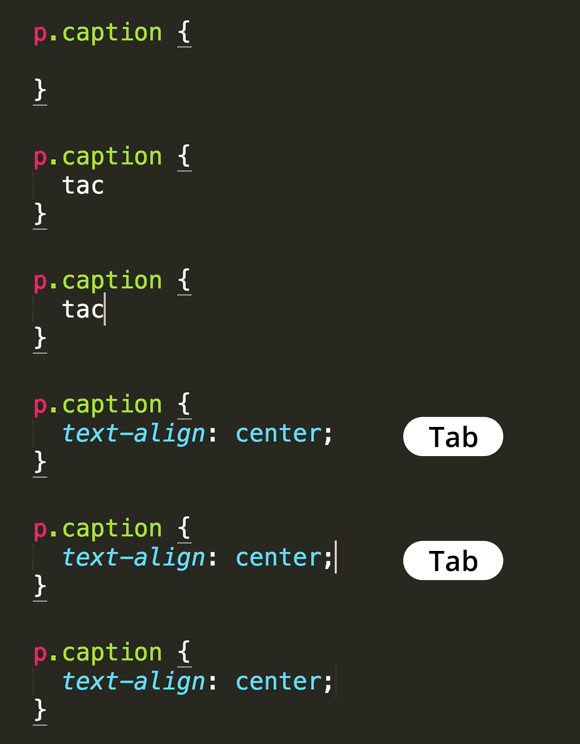
Quickly Code CSS text-align: center in Sublime Text
Master CSS centering with Sublime Text automation
This coding tip requires Emmet to be installed in Sublime Text. Without Emmet, these shortcuts will not function properly.
Essential Sublime Text Resources
Emmet Installation
Download the Sublime Text Enhancements Installation Guide to set up Emmet properly. This plugin is essential for rapid CSS development.
Advanced Coding Tips
Explore additional Sublime Text coding shortcuts and productivity techniques. Master your development workflow with proven methods.
How to Use CSS text-align: center Shortcut
Open Sublime Text
Launch Sublime Text with Emmet already installed and configured properly
Type the Emmet Abbreviation
Enter the specific Emmet shortcode for CSS text-align center property
Expand the Code
Press Tab or the designated expansion key to generate the complete CSS rule
Key Takeaways
RELATED ARTICLES
Quickly Write Nested Tags in Sublime Text
Use > (greater-than symbol) to quickly write nested tags. For example, if you type article>h1and hit Tab, Emmet expands article>h1 to <article>...
Quickly Delete a Word in Any Text Editor
Hit Option–Delete (Mac) or Ctrl–Backspace (Windows) to delete the word to the left of the cursor. This is an operating system feature so it should work in any...
Proper Character Encoding with Unicode
To ensure special characters display properly on your website, do one of the following: Add <meta charset="UTF-8"> into the <head> of every HTML page....