March 22, 2026 (Updated April 1, 2026)Eugenio Solis de Ovando/10 min read

Professional Retouching in Photoshop

Master Professional Photo Retouching Techniques

Essential Prerequisites

Professional retouching requires proper tools, work environment, and existing Photoshop knowledge to minimize time spent working and achieve the best results.

First Steps

Success in professional retouching depends on having the right tools and workspace from day one. The difference between amateur and professional results often comes down to these fundamental elements. Before diving into advanced techniques, invest time in establishing a proper foundation—it will dramatically improve your efficiency and output quality throughout your career.

Monitor

Photo of a pair of computers on a desk

Color accuracy is non-negotiable in professional retouching. Your monitor must display what clients will see in the final output, whether that's high-end print or digital media. Many consumer monitors can't reproduce the full color gamut available in print workflows, leading to costly revisions when colors shift during production. Professional monitors with wide color gamuts (covering 99% Adobe RGB or P3) and hardware calibration capabilities are essential investments.

Soft proofing—previewing how your digital file will look when printed on specific paper stocks—becomes critical when working with luxury brands or publications where color fidelity can make or break a campaign. Noble Desktop's Color Management courses emphasize working with calibrated professional monitors and teach students to use spectrophotometers for precise calibration, ensuring consistent results across different viewing conditions.

Tablet

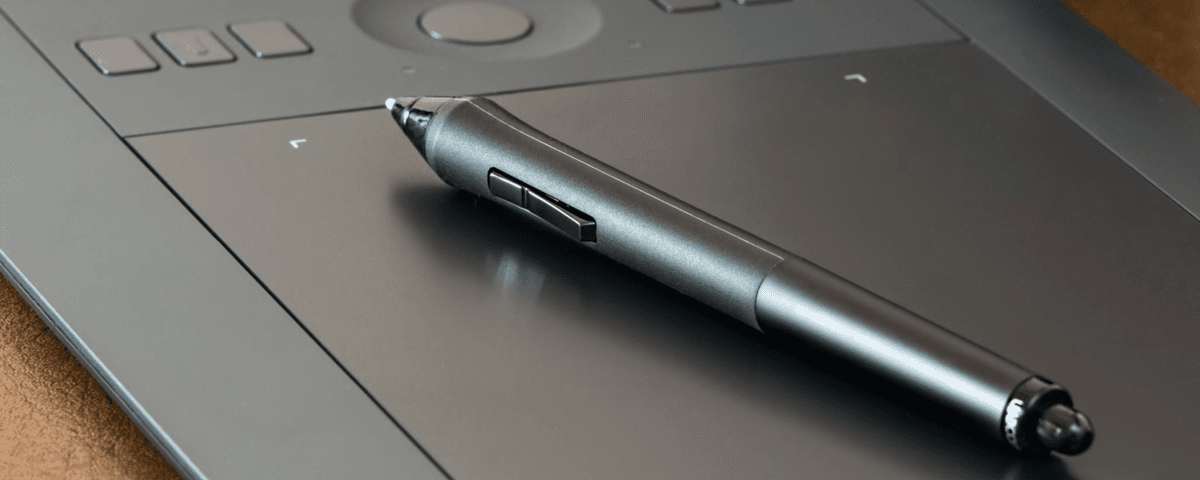
Close-up image of a black writing pen laying on top of a laptop mouse pad.

Professional retouchers rely on pressure-sensitive tablets for precision work that's impossible to achieve with a mouse. Wacom tablets (now joined by strong competitors like Huion and XP-Pen) provide the natural brush dynamics essential for seamless skin retouching. The pressure sensitivity allows for subtle opacity and flow variations that create realistic textures and seamless blending. While not mandatory for basic work, tablets become indispensable for high-end beauty and fashion retouching where every skin pore matters.

Skills

Professional retouching builds upon a solid Photoshop foundation. You should be comfortable with layer management, blend modes, and fundamental tools before tackling advanced techniques. Understanding concepts like frequency separation, dodge and burn workflows, and color theory will accelerate your learning curve significantly. While Noble Desktop's Advanced Retouching course provides step-by-step guidance, students with prior Photoshop experience can focus on mastering professional techniques rather than struggling with basic interface navigation.

Professional Setup Requirements

0/4

Output

Photo of a Printer

Your retouching approach must align with the final output medium. Digital displays (sRGB) have different color and contrast capabilities than print media, which varies dramatically between newsprint, magazine paper, and luxury art papers. A retouching style perfect for Instagram might look flat in a glossy magazine spread. Understanding these output limitations prevents over-retouching and ensures your work translates beautifully to its intended medium. Noble Desktop's Color Management curriculum teaches students to work within specific color gamuts and prepare files for different output scenarios.

Image Resources

The quality of your source material fundamentally limits your final results. RAW files contain significantly more color and tonal information than JPEGs, providing greater flexibility for color correction and exposure adjustments without introducing artifacts. Professional photographers typically deliver RAW files for high-end retouching work, understanding that the compressed, processed nature of JPEG files constrains post-production possibilities. When clients provide only JPEG files—especially those that have been heavily compressed or processed—it's crucial to set realistic expectations about the achievable quality level.

Photoshop versus Workflow in Camera Raw

Modern retouching workflows leverage both Camera Raw (or Lightroom) and Photoshop for optimal results. Camera Raw excels at global color correction, exposure adjustments, and initial skin smoothing without damaging the underlying image data. Many professional retouchers perform 70-80% of their color work in Camera Raw before moving to Photoshop for detailed local adjustments. This non-destructive approach preserves maximum image quality while providing precise control over the final aesthetic.

Camera Raw

Workflow Strategy

Research quality benchmarks online using keywords like 'before-after retouching,' 'beauty retouching,' and 'fashion retouching' before starting any project.

Workflow in Photoshop for Skin Retouching

Before beginning any project, study current industry standards by researching "beauty retouching before-after," "fashion retouching trends," and "commercial retouching standards." The industry evolves rapidly—what looked cutting-edge five years ago may now appear dated. Pay attention to how different sectors (luxury beauty, commercial fashion, editorial) approach retouching differently, and note the varying levels of intervention considered acceptable in each market.

Justifying Working Hours

Close-up of a vintage-style black alarm clock with a white clock face, black numerals, and twin bells on top, set against a rustic wooden background.

Time allocation varies dramatically based on usage and budget. A magazine editorial might require 2-4 hours per image, while a luxury beauty campaign could justify 8-12 hours of meticulous work per hero shot. Understanding these industry standards helps you price appropriately and manage client expectations. The rise of social media has also created demand for faster, more natural-looking retouching styles that require different time investments than traditional high-end beauty work.

Time Investment by Project Type

Magazine Retouching

Standard quality work with moderate time investment. Focus on basic corrections and color uniformity for print publications.

Advertising Campaigns

High-end retouching requiring significant time investment. Detailed skin work, stylization, and perfect color matching for commercial use.

Retouching Skin: Basic Level

Basic skin retouching serves the broad middle market—e-commerce, corporate headshots, social media content, and publications where speed and natural results matter more than pixel-perfect detail. This level of retouching should enhance rather than transform, maintaining believable skin texture while addressing obvious distractions. Success at this level requires clear communication with clients about expectations and deliverable quality.

Establish these parameters with every client before beginning work:

Skin Colors

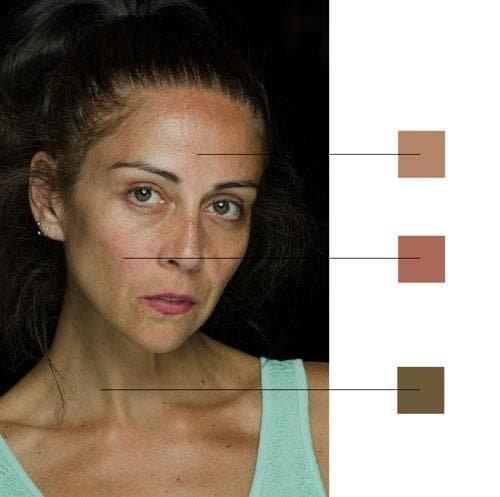
Close-up portrait of a woman with her hair pulled back, wearing a light-colored sleeveless top, set against a dark background. There are three rectangular color swatches to the right, each representing different tones sampled from her face.

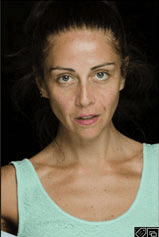
Human skin contains a complex mixture of undertones that shift across facial geography. The T-zone typically shows cooler, more yellow tones due to oil production, while cheeks and chin areas often display warmer, redder hues from increased blood flow. Professional retouching harmonizes these variations without eliminating them entirely—completely uniform skin color appears unnatural and plastic. Understanding these natural color patterns helps you make targeted adjustments that enhance rather than homogenize.

Understanding Skin Tone Variations

Skin naturally contains multiple color ranges - reds, yellows, and even greens. Major changes typically occur on cheeks and chin, while the forehead shows more uniform coloring.

Skin Lighting

Studio photography typically employs multiple light sources creating complex highlight and shadow patterns across facial features. Key lights, fill lights, and rim lights each contribute different qualities of illumination that affect both skin color and texture appearance. Professional retouchers learn to work with these lighting patterns rather than fighting them, using the existing light structure to guide their enhancement decisions.

Imperfections

The line between enhancement and over-retouching requires careful consideration. Temporary blemishes, hot spots, and obvious distractions typically warrant removal, while permanent features like moles, scars, and natural skin texture should generally be preserved unless specifically requested otherwise. Removing all expression lines and natural skin character creates an uncanny valley effect that undermines the image's credibility. Modern audiences, particularly on social media platforms, increasingly value authentic representation over heavily processed perfection.

Maintain Natural Features

Removing all eye lines and wrinkles can make images look fake. Balance correction with preserving natural characteristics for realistic results.

Analyzing an Image Before and After

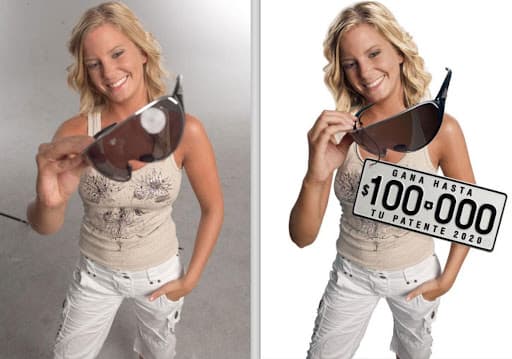
When researching "before-after Photoshop retouching" examples, you'll commonly encounter transformations like this:

A smiling blonde woman wearing a light-colored, floral-patterned tank top and white cargo pants, holding a large pair of sunglasses toward the camera. Next to her is a similar edited version of the photo where she holds a sign reading, 'Gana hasta $100-000 tu patente 2020.'

This comparison demonstrates several key retouching principles: the original image shows natural skin color variation and texture, while the retouched version presents more unified coloring with reduced imperfections. Notice how the skin smoothing maintains some texture rather than creating a completely plastic appearance. The lighting has been enhanced to provide more even illumination, and subtle body contouring creates a more polished overall presentation. However, the retouching stops short of complete transformation—the subject remains recognizable and natural-looking.

For This Type of Retouching, Here Are the Essential Steps:

Professional workflows prioritize non-destructive techniques that preserve original image data and allow for revisions. Working destructively (directly modifying pixel data) makes changes permanent and limits your ability to refine results. When possible, use Adjustment Layers instead of direct adjustments, and employ Smart Objects or duplicate layers for operations that require destructive filters.

Step 1: Adjusting Highlights and Shadows

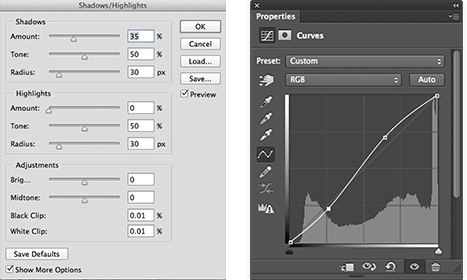
Establish proper tonal balance before addressing specific skin issues. Curves adjustments provide precise control over contrast and can target specific tonal ranges without affecting others. The Shadows/Highlights command offers intuitive controls for opening up dark areas and controlling bright spots, but should be used judiciously to avoid creating flat, lifeless results. Pay particular attention to maintaining natural contrast ratios that support dimensional skin appearance.

Adjusting Highlights and Shadows dialog boxes

Step 2: Adjusting the Tonal Range

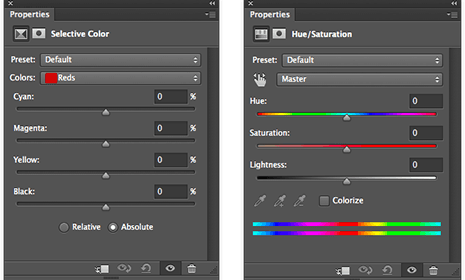
Color correction builds upon tonal adjustments to create pleasing, consistent skin tones. Hue/Saturation adjustments allow broad color shifts and can target specific color ranges (like reds or yellows) without affecting others. Selective Color provides more nuanced control by adjusting the CMYK composition of specific color families. Both tools excel in different situations—experiment to find which approach works best for each image's specific color challenges.

Adjusting Tonal Range

Step 3: Liquify

Apply Liquify adjustments early in your workflow, before detailed retouching work that might be affected by shape changes. This filter excels at subtle refinements—straightening noses, adjusting lip symmetry, or refining facial contours—but requires restraint to maintain believable proportions. Modern beauty and fashion standards often call for stylized proportions, but the key is making adjustments that enhance rather than dramatically alter natural features. Always work with low brush pressure and make multiple gentle adjustments rather than dramatic single moves.

Step 4: Skin Cleaning

The Retouching Tools

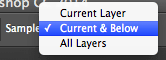
The Spot Healing Brush excels at removing small, isolated blemishes by automatically sampling surrounding texture and color information. For larger areas or situations requiring more control, the Clone Stamp tool allows manual source point selection. Working on separate layers (set your healing tools to "Sample All Layers") preserves the original image data and enables selective opacity adjustments. This non-destructive approach proves invaluable when clients request revisions or when you need to dial back overly aggressive retouching.

Skin Cleaning

This technique proves particularly effective when working around delicate areas like under-eye regions, where overly aggressive healing can create unnatural smoothness. The ability to selectively erase portions of your retouching work allows for precise blending between treated and untreated areas.

Step 5: Colorizing the Skin

This technique harmonizes color variations across skin areas without eliminating natural diversity entirely. The process creates subtle uniformity that enhances overall skin appearance:

  • Create a new layer positioned above your base image layers

  • Select the Eyedropper tool The Eyedropper Tool

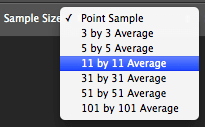
  • Configure the Eyedropper to sample 5x5 or 11x11 pixel areas rather than single pixels. This averaging produces more accurate color representation for organic skin tones, reducing the influence of individual pores, hairs, or texture variations that could skew your color sample.

Colorizing Third Bullet
  • Select the Brush tool The Brush Tool and configure appropriate size and hardness settings for smooth, controlled application

Brush settings significantly impact results—too hard an edge creates obvious brushstrokes, while too soft reduces precision. Aim for 10-20% hardness for most skin work.

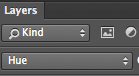
  • Set the layer blend mode to Hue, which affects color information while preserving luminance and saturation values from the underlying layers

Screenshot of two image-editing panels: on the left, the 'Shadows/Highlights' dialog box with sliders labeled Amount, Tone, and Radius, and on the right, the 'Properties' panel showing a Curves adjustment with a custom preset, displaying a curve line over a histogram for RGB values.
  • Paint over areas where skin color shifts noticeably from your target tone. The changes appear subtle in real-time, but toggling layer visibility reveals the cumulative effect of reduced color variation and more harmonious skin tones

Step 6: Skin Smoothing

This final step creates subtle skin refinement while preserving essential texture and character:

  • Duplicate your composite layer (Command+J on Mac, Ctrl+J on PC) to create a working copy for filter application

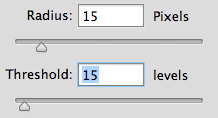
  • Apply Surface Blur from Filter > Blur > Surface Blur. This edge-preserving filter smooths skin texture while maintaining important detail boundaries like lips, nostrils, and eyelashes. Experiment with Radius and Threshold values to achieve a polished but natural appearance—typically 3-8 pixel radius with 8-15 threshold levels work well for most images

Skin Smoothing Second Bullet
  • Add a Layer Mask The Layer Mask Button using the icon at the bottom of the Layers panel

  • Invert the mask to black by accessing Layer Mask properties and clicking Invert, or use Cmd+I (Ctrl+I on PC). This hides the blur effect initially, allowing selective application

Screenshot image of the 'Invert' button.
  • Using a soft white brush on the layer mask, carefully reveal the smoothing effect only on skin areas. Avoid eyes, lips, hair, clothing, and background elements where the blur would reduce important detail

  • Reduce layer opacity to 30-50% to blend the smoothed skin naturally with underlying texture. The goal is subtle enhancement rather than obvious processing

  • Consider adding subtle texture back to heavily smoothed areas using Filter > Noise > Add Noise at 1-3% amount in Monochromatic mode. This prevents the plastic appearance that can result from excessive smoothing

These fundamental techniques provide solid results for web-based imagery and moderate print applications. For advanced commercial and editorial work requiring industry-leading quality, Noble Desktop's Advanced Photoshop classes teach sophisticated techniques like frequency separation, advanced dodge and burn methods, and color grading workflows used in high-end fashion and beauty campaigns.

Key Takeaways

1Professional retouching requires calibrated monitors, graphics tablets, and strong Photoshop fundamentals to achieve industry-standard results
2Camera Raw files provide significantly better quality and editing flexibility compared to compressed JPEG formats for professional work
3Understanding output requirements (digital vs print) is crucial for proper color management and final quality expectations
4Time investment varies dramatically between magazine work and advertising campaigns, with the latter requiring much higher quality standards
5Skin naturally contains multiple color ranges, and successful retouching requires balancing correction with maintaining realistic natural features
6Non-destructive workflows using Adjustment Layers and smart objects preserve image quality and allow for future modifications
7The six-step professional workflow covers lighting, color correction, feature shaping, imperfection removal, color uniformity, and texture smoothing
8Research industry benchmarks and discuss client expectations clearly before beginning any retouching project to ensure appropriate quality levels

RELATED ARTICLES