March 22, 2026Noble Desktop/12 min read

Photoshop Tutorial: Using Hair Brushes to Paint Hair Masks

Master Advanced Hair Masking in Photoshop

Challenge Level Alert

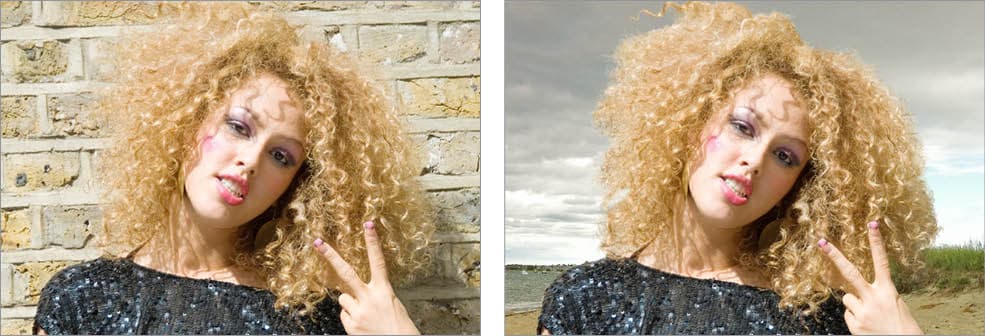
This tutorial tackles the most difficult hair-silhouetting challenge yet: blonde frizzy hair against a similar-colored background with minimal contrast. Traditional selection methods will fail here.

Exercise Overview

This exercise presents the most challenging hair-silhouetting scenario you'll encounter: a blonde subject with extremely frizzy hair against a wall of nearly identical color and tone. This combination creates a perfect storm of selection difficulties—minimal contrast in both luminosity and color values makes traditional selection methods virtually useless.

Standard channel-based selections will fail here due to insufficient tonal separation, and Photoshop's Refine Edge/Select and Mask tools struggle when edge definition is this ambiguous. Instead, we'll employ a hybrid approach that combines rough automated selections with custom hair brush painting—a technique that bridges technical precision with artistic interpretation. This method requires developing an eye for natural hair flow and understanding how light interacts with fine strands, skills that separate professional retouchers from casual users.

The following section covers the essential setup process for accessing the specialized files and brushes required for this advanced technique.

Traditional vs Hair Brush Technique

FeatureTraditional MethodsHair Brush Technique
Channel SelectionIneffectiveNot Used
Refine Edge ToolWill FailMinimal Use
Artistic Skill RequiredLowHigh
Precision LevelLimitedCustom Control
Best ForHigh ContrastLow Contrast
Recommended: Hair brush technique is essential when contrast between subject and background is minimal

Downloading & Installing Class Files

  1. Navigate to your Desktop.
  2. Create a new folder named Class Files—this will serve as your organized workspace for all downloaded materials.
  3. Visit nobledesktop.com/download in your browser.
  4. Enter the access code hair-1702-07 when prompted.
  5. Click Start Download if you haven't already initiated the process.
  6. Once the .zip file completes downloading, ensure it extracts automatically (most systems do this by default). You should see a Hair the Seminar folder containing all exercise materials.
  7. Move the extracted folder into your newly created Class Files directory for easy access throughout the workshop.
  8. Delete the original .zip file to keep your desktop clean—you now have everything needed for the exercises.

With your files properly organized, we'll now begin the practical work by setting up the composite environment where you'll test your selections against various backgrounds.

Quick Setup Process

1

Create Workspace

Navigate to Desktop and create new folder called Class Files

2

Download Files

Go to nobledesktop.com/download and enter code hair-1702-07

3

Extract and Organize

Unzip downloaded file and drag Hair the Seminar folder into Class Files

Setting Up the Composite Environment

  1. Launch Photoshop and ensure you have adequate RAM allocated for this memory-intensive exercise.

  2. Navigate to File > Open and locate:

    • Desktop > Class Files > Hair the Seminar
    • Open Hair3_backgrounds.tif
  3. Examine the Layers panel (Window > Layers if not visible). This file contains multiple background options that will serve as testing grounds for your selection quality—each background will reveal different flaws and strengths in your mask.

  4. Select the top layer (Beach) before importing your subject. This ensures proper layer stacking when adding new content.

  5. Open your subject file via File > Open:

    • Navigate to Desktop > Class Files > Hair the Seminar
    • Open blonde_curly_iStock_000005164255_ProjectB.jpg
  6. Since this file contains only a background layer, create a working copy using Layer > Duplicate Layer.

  7. In the Document dropdown menu, select Hair3_backgrounds.tif as the destination.

  8. Confirm with OK to transfer the layer.

  9. Close the original subject file (blonde_curly_iStock_000005164255_ProjectB.jpg) to reduce memory usage.

  10. Return to Hair3_backgrounds.tif where your subject layer now sits at the top of the stack.

  11. Rename the imported layer from Background to original by double-clicking the layer name. Clear naming conventions become crucial when managing complex composites.

  12. Create a working duplicate by selecting the original layer and pressing Cmd–J (Mac) or Ctrl–J (Windows). This preserves your source material while allowing experimental work.

  13. Rename this new layer to silo—this will become your primary working layer for the selection process.

  14. Hide the original layer by clicking its eye icon, maintaining it as a backup reference.

  15. Confirm the silo layer is selected before proceeding to the next phase.

Before diving into selection work, we need to import specialized brushes designed specifically for creating realistic hair edges—tools that will make the difference between amateur and professional results.

Importing Professional Hair Brushes

Dave Nagel's meticulously crafted hair brushes represent years of refinement in digital hair creation. Originally available at tinyurl.com/nagel-19, these brushes have become industry-standard tools for professional retouchers working on challenging hair selections. We've included them in your class files for immediate access.

  1. Activate the Brush tool from your toolbar or press B.

  2. Open the Brush Presets panel via Window > Brush Presets if it's not already visible.

  3. Access the panel menu (top-right corner) and select Load Brushes.

  4. Navigate to: Class Files > Hair the Seminar > NagelSeries_19 > NagelSeries_19.abr and double-click to install.

  5. Scroll to the bottom of the Brush Presets panel to examine your new arsenal of hair brushes. Each brush is engineered for specific hair types and textures—from fine wisps to coarse curls. These brushes are now permanently installed in your Photoshop setup and will remain available for all future projects.

Now that we have the proper tools loaded, we'll begin the selection process with a strategic rough pass that establishes our foundation before moving to the precision hair work.

Creating the Foundation Selection

  1. Select the Quick Selection tool, which excels at capturing solid forms but intentionally avoid fine edges where precision matters most.

  2. Set your brush size to approximately 90 pixels for efficient coverage of larger areas.

  3. Begin by selecting the subject's torso, arms, and face—areas with clear definition against the background. Avoid the hair entirely for now. When the tool inevitably captures unwanted background areas, hold Option (Mac) or Alt (Windows) while dragging to subtract those regions.

  4. For hair selection, focus exclusively on the dense interior areas where strands are clearly defined as hair rather than background. Deliberately exclude any transitional zones where hair and background blend. This conservative approach prevents the common mistake of including problematic edge pixels that would require extensive cleanup later.

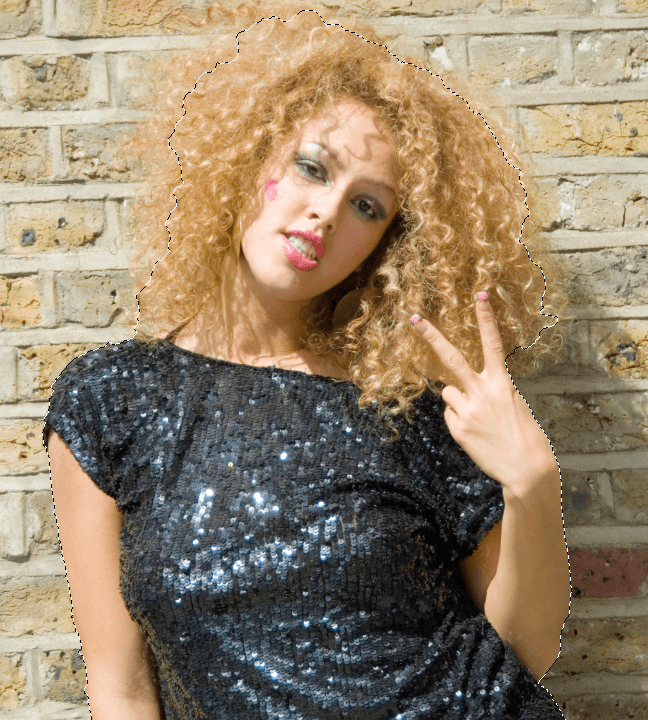
    The key principle here is restraint—we're establishing a solid foundation that custom brushes will extend to create believable edges. Use this screenshot as your target:

    Quick Selection applied to torso and face of woman with frizzy blonde hair

    Photo courtesy of istockphoto, ProjectB, Image #5164255

  5. Address the inevitable roughness from Quick Selection by opening Select and Mask. Hold Shift and choose Select > Select and Mask to access the full interface. (Legacy Photoshop versions may show Refine Edge directly in the Select menu.)

  6. Apply minimal refinement with a Radius of 1—we're not relying on this tool for hair edges, just cleaning mechanical selection artifacts.

  7. Configure these conservative settings for body edge cleanup:

    • Enable Smart Radius for adaptive edge detection
    • Smooth: 1 (removes jagged pixels)
    • Feather: 0.7 (subtle softening)
    • Shift Edge: –10 (contracts selection slightly for cleaner edges)
    • Output To: Selection
    • Focus your evaluation on arms and torso edges—ignore hair areas since we'll replace those edges entirely with our custom technique.
  8. Apply your refinements with OK.

  9. Ensure the silo layer remains selected in the Layers panel.

  10. Access Quick Mask mode by double-clicking the Edit in Quick Mask Mode button near the bottom of the Tools panel to configure its display.

  11. In the options dialog, set Color Indicates to Selected Areas for intuitive feedback.

  12. Change the overlay Color from default red to bright lime green—this provides optimal contrast against the warm tones in this particular image.

  13. Confirm with OK to activate Quick Mask mode.

    Quick Mask mode transforms your selection into a visual overlay, revealing details impossible to see with traditional marching ants. This mode allows pixel-level precision using any paint tool, essential for the intricate hair work ahead. Green areas represent your current selection, while uncolored areas will be transparent in the final mask.

  14. Configure the Brush tool for foundation expansion:

    • Choose Soft Round brush
    • Size: 140 px
    • Hardness: 0%
    • Opacity: 100%
    • Flow: 100%
  15. Press D to reset colors to default Black/White configuration.

  16. Carefully extend your selection toward hair edges without crossing into background territory. Paint from solid hair areas outward, stopping just short of any visible background bleed-through. This measured approach sets up clean boundaries for the specialized hair brushes to complete.

    If you accidentally select background areas, press X to swap to white foreground and paint those areas away. Remember: in Quick Mask mode, black adds to selection (appears as colored overlay) while white subtracts from selection (removes overlay).

With our foundation selection properly established, we can now employ the specialized hair brushes to create convincing edge details that mimic natural hair behavior and light interaction.

Crafting Realistic Hair Edges

The transition from automated selection to hand-painted edges represents a fundamental shift from technical execution to artistic interpretation. Creating believable hair requires understanding how individual strands catch light, create shadows, and interact with atmospheric perspective. This technique demands patience and practice—professional retouchers often spend years perfecting their brush technique for different hair types and lighting conditions.

Success depends on restraint and observation. Study the existing hair carefully: note how strands vary in opacity, thickness, and direction. The goal is enhancement and extension of natural patterns, not wholesale invention of new hair. Consider investing in a pressure-sensitive tablet like those from Wacom or Huion—the variable pressure control dramatically improves your ability to create natural-looking strands.

  1. Switch to pixel-perfect view using View > 100% or Actual Pixels (menu terminology varies by Photoshop version). Working at this magnification ensures accurate edge placement.

  2. Navigate to the areas where frizzy hair meets background—typically the most challenging regions requiring your attention.

  3. Open the Brush Presets panel (Window > Brush Presets) and scroll to the Nagel hair brushes.

  4. Examine each brush's dual preview: the left thumbnail shows the brush shape, while the right shows a stroke sample. No single brush works for all hair types—successful edge work requires combining multiple brushes to avoid repetitive patterns that scream "digital manipulation."

    The additive approach is crucial here. Rather than trying to erase and correct problematic edges, we build outward from solid hair areas. This method prevents the harsh cutouts that plague amateur work and creates the soft, organic transitions found in professional fashion and beauty retouching.

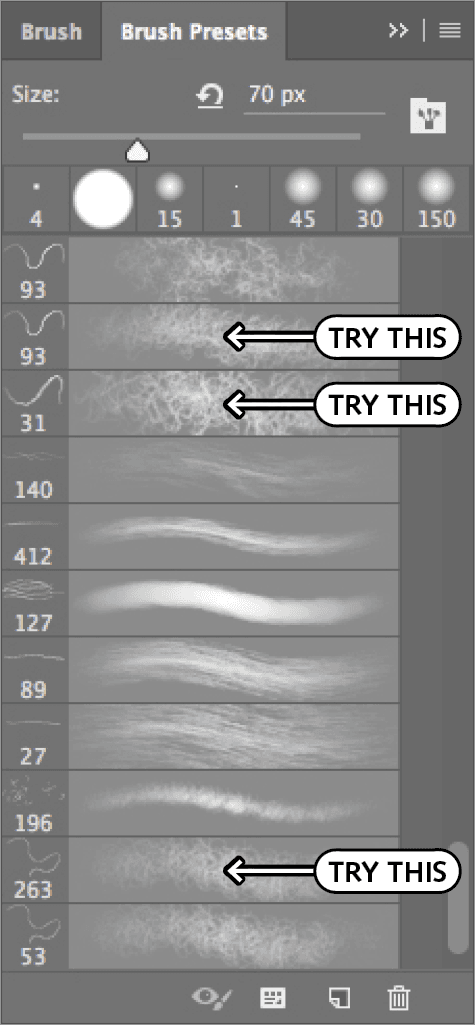
  5. For this frizzy blonde hair, three brushes provide excellent starting points: 31, 93 (select the denser second version), and 263. Each offers different strand densities and curvature patterns:

    Hair brush options in Photoshop: brushes 31, 93, and 263 shown for frizzy hair edges

  6. Start with brush 31 and increase its size to approximately 50 pixels for appropriate strand thickness.

  7. Paint from the existing hair interior outward toward the natural hair boundary. Avoid mechanical, repetitive strokes—vary your direction, pressure, and brush size to mimic natural hair growth patterns. Apply these brushes to scattered sections rather than continuous perimeters to prevent obvious digital artifacts.

    Exercise particular caution near the brick mortar lines—their dark values will become glaringly obvious if accidentally included in your selection. The silver lining of this challenging image is that hair and background share similar color temperatures, making small errors less noticeable than they would be against a contrasting background.

    Reserve these textural brushes for fine frizz and general edge softening. Larger, more defined curl structures require different handling techniques covered in the next section.

  8. Rotate through brushes 93 and 263, continuously varying size and application areas. Professional results come from this diversity—real hair exhibits infinite variety that single-brush approaches cannot replicate.

  9. For more controlled, specific strand placement, modify the brush behavior in the Brush panel (Window > Brush):

    • Uncheck Shape Dynamics and Scattering to disable randomization
    • Click Brush Tip Shape in the left panel
    • Adjust the Angle to match desired hair direction
    • Click once (don't drag) to place precise individual strands. Multiple clicks on the same spot build density and opacity

The specialized hair brushes handle fine texture beautifully, but larger flyaway curls require a more nuanced approach that combines precision with artistic judgment.

Defining Major Flyaways and Curls

  1. Return to the standard Soft Round brush at the top of your presets. For pressure-sensitive tablet users, choose Soft Round Pressure Size or Soft Round Pressure Opacity to leverage your stylus capabilities for more natural stroke variation.

  2. Configure these settings for precision curl work:

    • Size: 10 px (adjust with bracket keys [ ] as needed)
    • Opacity: 50% (allows gradual building)
    • Flow: 100%
    • Foreground color: Black
  3. Target the prominent flyaway curls—particularly the large curl visible at the upper left. These substantial hair elements require smooth, confident strokes rather than tentative dabbing. Mouse users will find this challenging; a graphics tablet transforms this step from frustrating to enjoyable.

    Paint with the natural flow of each curl, following its inherent curve and varying your brush size to match the strand's thickness variation. Build opacity gradually with multiple passes rather than attempting full coverage in single strokes.

  4. Complete your hair edge work, then exit Quick Mask mode by clicking the Edit in Standard Mode button in the Tools panel. Your painted areas now convert back to a standard selection marquee.

  5. With the silo layer selected, create your layer mask using the Add layer mask button at the bottom of the Layers panel.

    The immediate preview against the beach background reveals your mask quality instantly. Don't be discouraged if it needs refinement—even experienced professionals rarely achieve perfection on the first attempt.

While your basic mask structure is now complete, professional-quality results require additional refinement to match the optical characteristics of the original photograph.

Professional Mask Refinement

The painted hair edges, while accurately positioned, often exhibit excessive sharpness compared to the original photograph's depth of field and natural softness. Professional retouching requires matching not just the placement of hair strands, but their optical qualities—how they interact with focus, atmospheric perspective, and the camera's optical characteristics.

  1. Select the Blur tool for targeted edge softening that mimics natural optical effects.

  2. Apply selective blur to painted edges that appear too sharp against the background. The key is variation—real photography exhibits inconsistent focus across hair strands due to depth of field. Some strands should remain crisp while others fade softly into the background.

    Study the original image's natural edge characteristics and match that optical quality. Avoid uniform blurring, which creates an artificial, processed appearance.

  3. For areas requiring subtle transparency rather than blurring, switch to the Brush tool with these settings:

    • Choose Soft Round brush
    • Size: Around 90 px (adjust for area coverage)
    • Opacity: 20% (builds gradually)
    • Flow: 100%
    • Foreground color: Black
    • Paint over hair edges that appear too dense or contrasty. This technique creates partial transparency that mimics the way fine hair naturally fades into backgrounds.
  4. Compare your work against the original by Shift-clicking the silo layer mask thumbnail to temporarily disable it. This reveals the complete original image for reference, helping identify areas needing additional work.

    • Look for hair volume discrepancies—masked hair often appears thinner than the original due to conservative edge placement
    • If your result seems too sparse, add volume using the hair brushes we loaded earlier
    • For masks that appear too soft or transparent, apply a Curves adjustment (Cmd–M or Ctrl–M) to brighten the mask's midtones, which strengthens edge opacity
    • Click the mask thumbnail again to reactivate it and see your changes

Key Takeaways

1Hair brush masking is essential when traditional selection tools fail due to low contrast between subject and background
2Dave Nagel's hair brushes (31, 93 dense, and 263) provide realistic hair textures when used strategically and varied
3Quick Mask Mode with custom colors enables precise pixel-level selection editing and real-time visual feedback
4Work additively from hair interior toward edges rather than trying to erase background areas
5Artistic interpretation and practice are crucial - this technique requires developed hand skills and preferably a graphics tablet
6Layer mask refinement includes selective blurring, opacity adjustments, and potential volume additions for realism
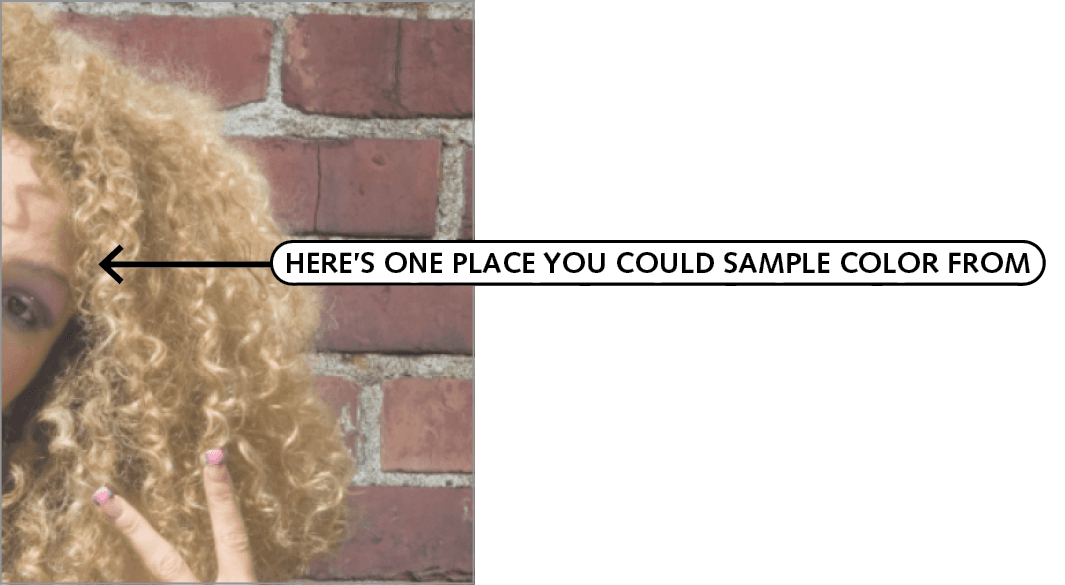
7Color cast correction using Color blend mode preserves hair luminosity while fixing color temperature issues
8Non-destructive workflow with layer duplicates and proper naming conventions prevents loss of original work

RELATED ARTICLES