Photoshop Tutorial: Using Channels to Make Hair Selections
Master Advanced Hair Selection Techniques in Photoshop
This technique is part science and part art, requiring judgment and practice. The more thought and effort you put into it, the better your result will be.
Exercise Overview
In this comprehensive exercise, you'll master one of Photoshop's most sophisticated selection techniques: using channels to isolate complex subjects like hair. This method combines analytical precision with artistic judgment, making it impossible to provide rigid, one-size-fits-all instructions. Success depends on your ability to evaluate tonal relationships and make nuanced decisions about what to include or exclude from your selection.
Unlike automated selection tools, channel-based selections require you to think critically about contrast, edge definition, and the relationship between your subject and background. The technique involves substantial manual refinement through painting and subtle adjustments—the more thoughtful attention you invest, the more professional your results will be. Mastering these advanced selection methods takes dedicated practice and willingness to experiment with different approaches for various scenarios.
The following setup instructions will help you download and organize the exercise files properly to ensure a smooth workflow throughout this tutorial.
Downloading & Installing Class Files
- Navigate to your Desktop to establish a consistent workspace.
- Create a new folder called Class Files—this centralized location will house all downloaded materials and maintain project organization.
- Visit nobledesktop.com/download in your web browser.
- Enter the access code hair-1702-07 when prompted.
- Click Start Download to begin the file transfer process.
- Once the .zip file download completes, extract its contents if your system hasn't done so automatically. You should see a folder named Hair the Seminar containing the exercise materials.
- Move the extracted Hair the Seminar folder into your Class Files directory. These assets will serve as your working files throughout the entire workbook.
- Delete the original .zip file to free up disk space—you no longer need it once the contents are properly extracted and organized.
With your files properly organized, you're ready to begin the actual selection process. We'll start by setting up the workspace and importing the necessary images.
File Setup Process
Create Workspace
Navigate to Desktop and create a new folder called Class Files
Download Files
Go to nobledesktop.com/download and enter code hair-1702-07
Install Files
Unzip the downloaded file and drag the Hair the Seminar folder into Class Files
Setting Up Your Workspace and Background Images
-
Launch Adobe Photoshop and ensure you're working with the latest workspace configuration.
-
Navigate to File > Open and locate your exercise files:
- Browse to Desktop > Class Files > Hair the Seminar.
- Open Hair2_backgrounds.tif—this document contains multiple background options for testing your selection quality.
-
Examine the Layers panel (Window > Layers) to familiarize yourself with the available background layers. These varied backgrounds will help you evaluate how well your selection performs in different contexts, from simple to complex scenarios.
-
Select the top layer (Beach) to establish the insertion point for your subject. This ensures proper layer stacking when you import the portrait.
-
Open your subject image by navigating to File > Open:
- Return to Desktop > Class Files > Hair the Seminar.
- Open messy_iStock_000008884668_ianmcdonnell.jpg—this portrait features challenging hair detail that will test your selection skills.
-
Since this image contains only a Background layer, create a working copy using Layer > Duplicate Layer. This preserves your original while providing flexibility for experimentation.
-
In the Document dropdown menu, select Hair2_backgrounds.tif as your destination file.
-
Click OK to transfer the duplicate layer.
-
Close the original portrait file (messy_iStock_000008884668_ianmcdonnell.jpg) to declutter your workspace.
-
Return your focus to Hair2_backgrounds.tif, which now contains your subject layer.
-
In the Layers panel, rename the imported layer from Background to original. This descriptive naming convention helps maintain clear project organization as you create multiple working versions.
-
Create a duplicate of your original layer using Cmd–J (Mac) or Ctrl–J (Windows). This non-destructive workflow allows you to preserve your starting point.
-
Rename this new layer from original copy to silo—this will become your main working layer for the selection process.
-
Hide the original layer by clicking its eye icon, keeping it as a safety backup.
-
Ensure the silo layer remains selected before proceeding to the channel analysis phase.
Now that your workspace is properly configured, you'll analyze the color channels to determine which provides the best foundation for your selection. This analytical approach is crucial for achieving professional results.
Analyzing and Preparing Color Channels for Selection
-
Open the Channels panel (Window > Channels) to begin your channel analysis.
-
Systematically examine each color channel (Red, Green, and Blue) by clicking on them individually. When evaluating channels for selection purposes, think in terms of contrast: black areas will be unselected, white areas will be fully selected, and gray areas will be partially selected.
The Blue and Green channels show significantly better contrast than the Red channel for this particular image. However, the Green channel offers superior definition in the neck area, while the Blue channel shows problematic dark areas around the neck and more pronounced background texture. The Green channel provides our optimal starting point.
-
Duplicate the Green channel by dragging it to the Create new channel button at the bottom of the Channels panel. This creates an editable working copy while preserving the original channel data.
-
Double-click the Green copy name and rename it to hair for clear identification of its purpose.
-
The duplicated channel requires significant enhancement to create a usable selection mask. You'll first increase contrast to push the tonal values toward pure black and white, minimizing problematic gray areas. With the hair channel selected, open Curves using Cmd–M (Mac) or Ctrl–M (Windows), or navigate to Image > Adjustments > Curves.
-
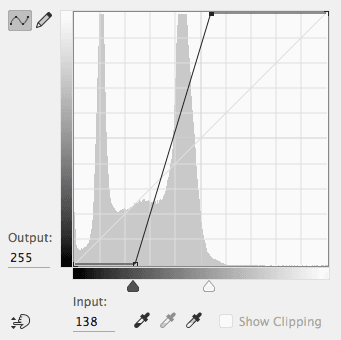
Move the black point slider rightward until the Input value reaches approximately 61. This adjustment darkens the shadow areas, improving separation between subject and background.
-
Drag the white point slider leftward until Input shows about 138. This brightens the highlight areas, further enhancing contrast. Your curve should display a steep, almost straight line between these adjusted points:

-
Toggle the Preview checkbox to evaluate the changes. While the overall contrast improves dramatically, you'll notice the background shadow around the neck becomes too dark, creating selection problems that we'll address in the next phase.
-
Click OK to apply the curves adjustment.
The curves adjustment has improved overall contrast but created some problematic areas that need selective correction. The History Brush tool allows you to selectively restore previous states in specific areas, giving you precise control over your channel refinement.
Selective Restoration Using the History Brush
-
Open the History panel (Window > History) to access your adjustment timeline.
-
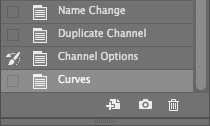
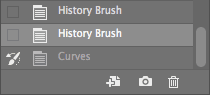
To selectively restore the neck area to its pre-adjustment state, you need to set the History Brush source to an earlier point in your workflow. Locate the Channel Options state (directly above the Curves adjustment) and click the source box to its left as shown below:

Critical Note: The Curves state must remain selected (highlighted) while the source indicator
appears next to Channel Options. This configuration lets you paint from the earlier state onto the current adjusted version. -
Select the History Brush tool
from the toolbar. -
Configure a round brush at approximately 90 pixels in size using the Options bar.
-
Set the brush Hardness to 50% for smooth edge transitions.
-
Zoom in on the neck area to work with precision and accuracy.
-
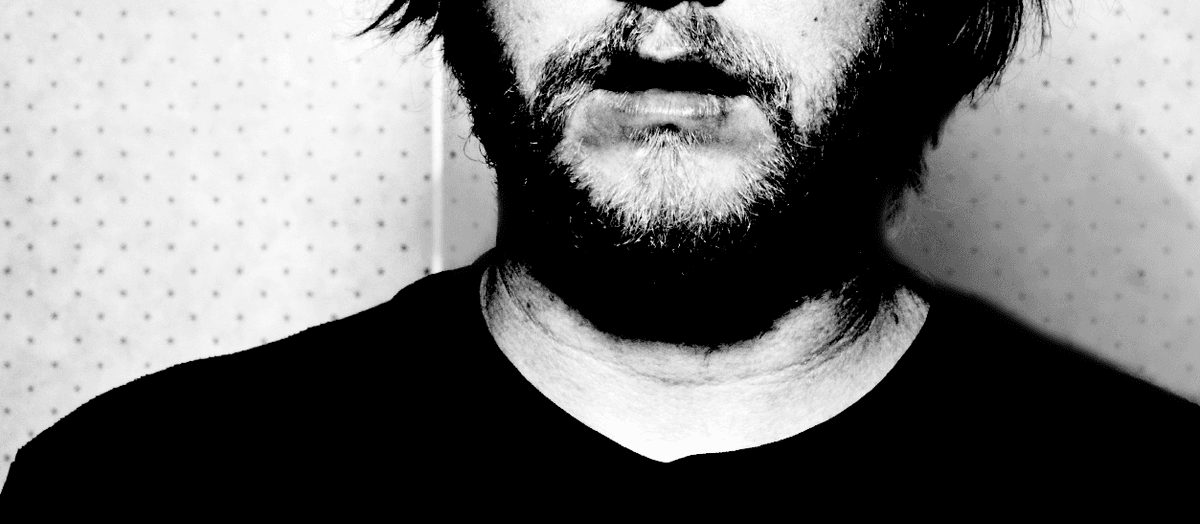
Carefully brush around the neck to restore the lighter tones, focusing particularly on the area above the right shoulder where the shadow is most problematic:

Photo courtesy of istockphoto, ianmcdonnell, Image #8884668
-
Switch to the standard Brush tool to continue refining your channel mask.
-
Set your Foreground color to Black for painting selected areas.
-
Maintain the same brush size (approximately 90 px) and 50% Hardness for consistency.
-
Ensure both Opacity and Flow are set to 100% in the Options bar for full coverage.
-
Paint black over all areas you want selected: the face, neck, and interior portions of the hair. Remember that in a selection channel, black areas will be selected while white areas will be masked out.
-
Pay special attention to prominent hair sections like the large spike at the top of his head. Reduce brush size using the left bracket [ key when working in detailed areas. Use professional judgment to block out main areas without getting caught up in tiny individual hair strands at this stage.
-
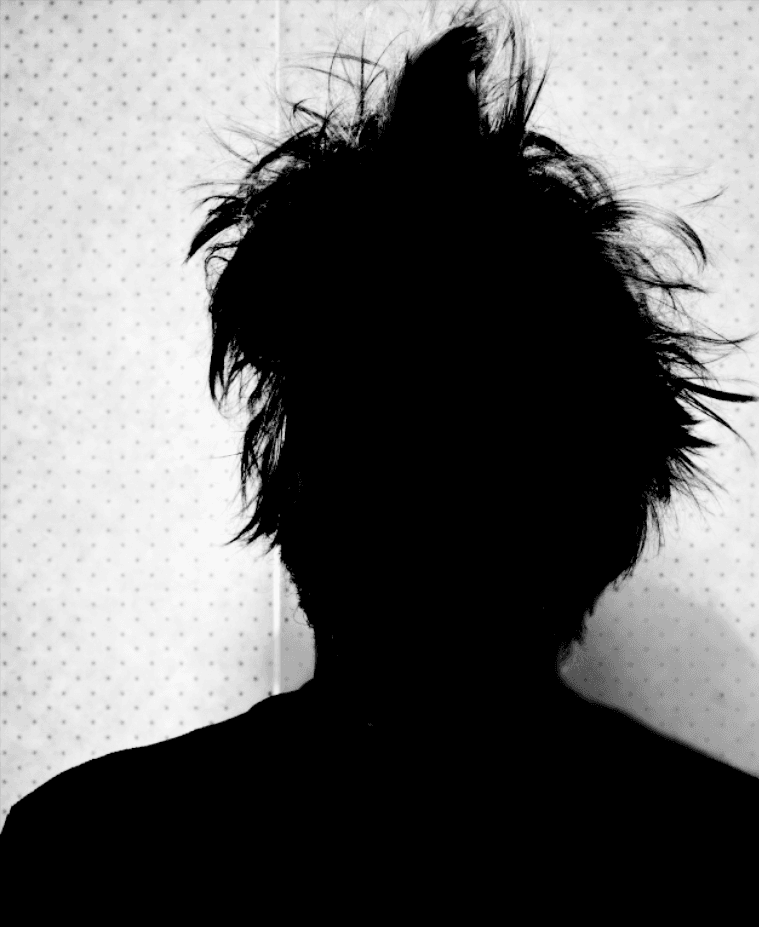
Your channel should resemble this reference image when complete:

-
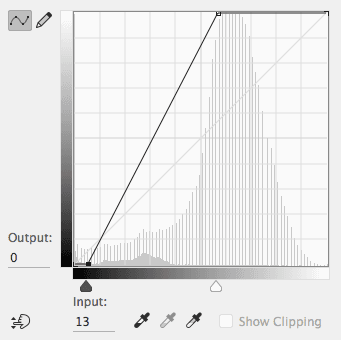
Apply additional contrast enhancement to push the gray background areas toward pure white. Use Cmd–M (Mac) or Ctrl–M (Windows) to open another Curves adjustment.
-
Move the white point leftward to approximately Input: 145 to brighten the background areas.
-
Make a subtle adjustment to the black point, moving it slightly right to about Input: 13 to maintain solid blacks. Your curve should appear like this:

-
Click OK to apply the adjustment.
-
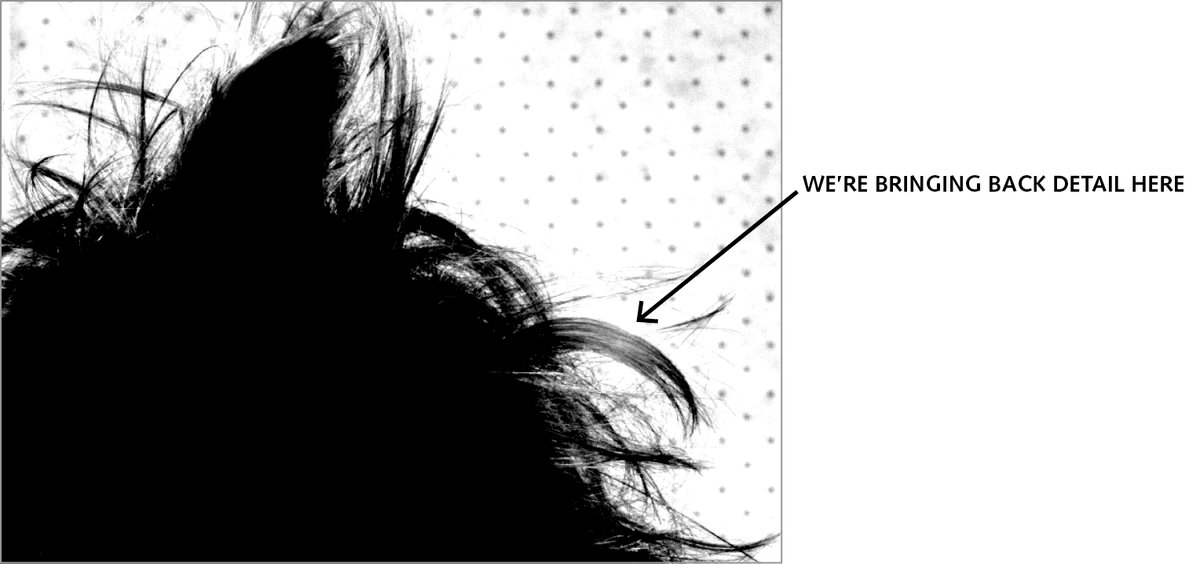
This aggressive contrast adjustment may have eliminated important hair detail on the right side. Return to the History panel (Window > History) to selectively restore this information.
-
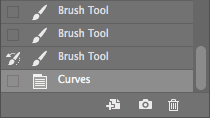
Set your History Brush source to the Brush Tool state (located directly above the most recent Curves adjustment):

Important: Keep the latest Curves state selected (highlighted) while setting the source to the earlier Brush Tool state.
-
Select the History Brush tool again.
-
Adjust your brush size appropriately and restore the hair detail in the arc area shown below:

Your channel now shows good overall contrast, but the shoulder and neck areas likely still contain problematic gray tones that need addressing. The next phase focuses on optimizing these critical transition areas.
Optimizing Critical Transition Areas
-
The neck and shoulder regions typically contain stubborn gray tones that create soft, unconvincing selection edges. Address this with targeted contrast adjustment using Cmd–M (Mac) or Ctrl–M (Windows).
-
Drag the white point aggressively leftward until the gray background areas around the shoulders become predominantly white—approximately Input: 59. Focus your attention on the neck area quality, temporarily ignoring how this affects the hair regions.
-
Click OK to apply this targeted adjustment.
-
This extreme adjustment benefits only the neck area while potentially damaging other regions. Use the History panel to implement selective application of this change.
-
Step back one history state by clicking on the History Brush tool state (not the source box—click directly on the state name to highlight it). This reverts the image to its pre-adjustment appearance.
-
Now click the source box next to the most recent Curves state, creating this configuration:

This setup allows you to selectively paint the beneficial curves adjustment only where needed, essentially "painting from the future" back onto the current state.
-
Select the History Brush tool for selective application.
-
Carefully brush around both sides of the neck area to apply the aggressive whitening effect only to these background regions, avoiding the hair areas where this adjustment would be detrimental.
-
Switch to the standard Brush tool
for final cleanup work. -
Press X to set your foreground color to white for background cleanup.
-
Eliminate any remaining gray areas in the background, including stubborn spots around the neck and any visible background texture dots. Work methodically but carefully near hair edges, adjusting brush size as needed for precision.
-
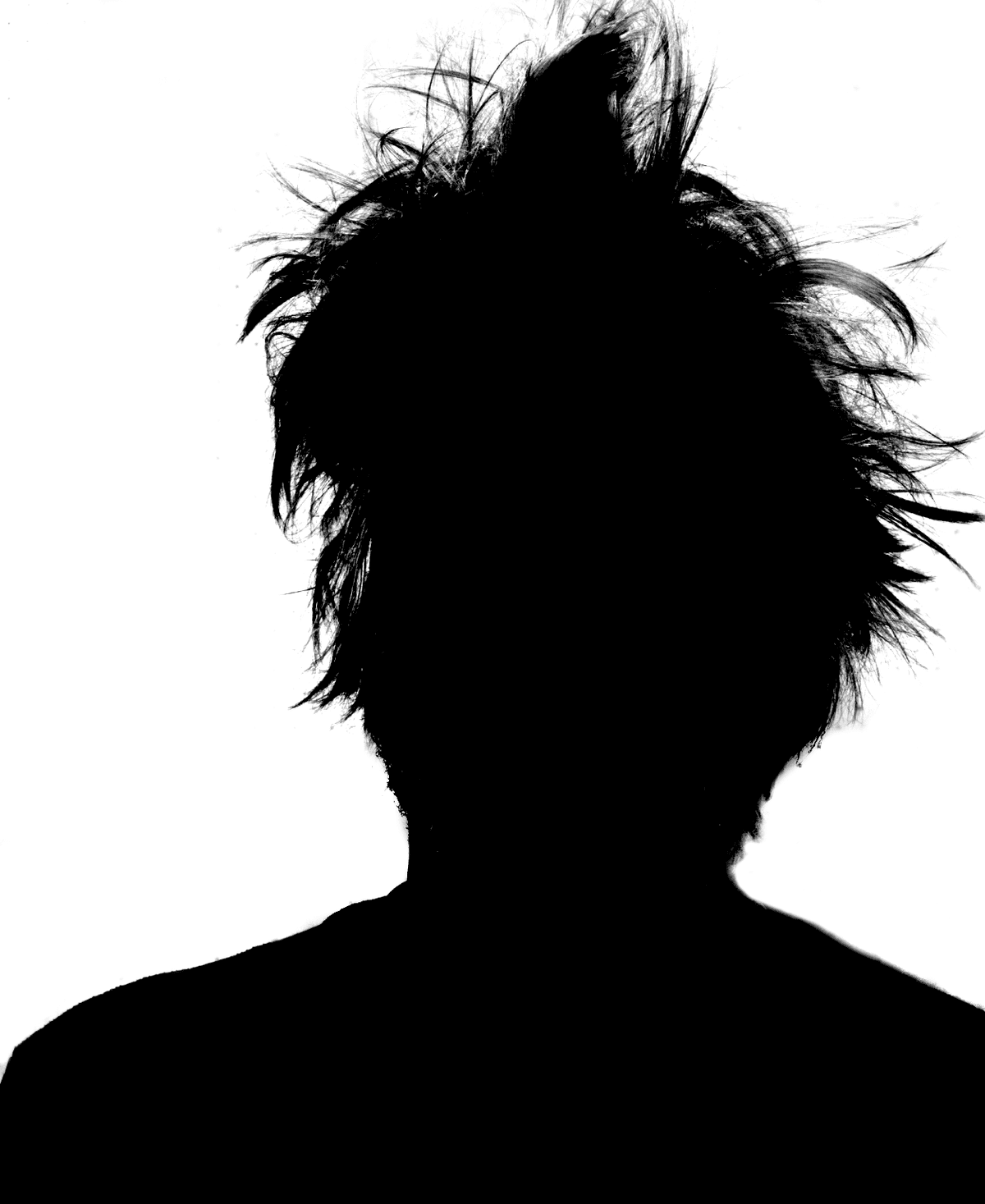
Your final channel should achieve clear black and white separation similar to this reference:

With your channel properly refined to show clear tonal separation, you're ready to convert this grayscale information into an active selection and apply it as a layer mask. This transformation brings your analytical work into practical application.
Converting Channel Data to Working Selection
-
Use Cmd–0 (Mac) or Ctrl–0 (Windows) to fit the entire image on screen for evaluation (View > Fit on Screen).
-
Transform your refined channel into an active selection by holding Cmd (Mac) or Ctrl (Windows) while clicking on the hair channel in the Channels panel. You should see the characteristic "marching ants" selection border appear around your subject.
-
Return to full-color view by clicking the RGB composite channel at the top of the Channels panel.
-
If the hair channel remains visible (showing the black and white mask overlay), hide it by clicking the eye icon next to it.
-
Confirm the silo layer is selected in the Layers panel before proceeding.
-
Apply your selection as a layer mask by clicking the Add layer mask button at the bottom of the Layers panel.
-
Depending on your Photoshop channel preferences, the mask might be inverted from your intention. If your subject disappears (showing only background), the mask needs inversion. With the mask thumbnail selected, press Cmd–I (Mac) or Ctrl–I (Windows), or use Image > Adjustments > Invert.
-
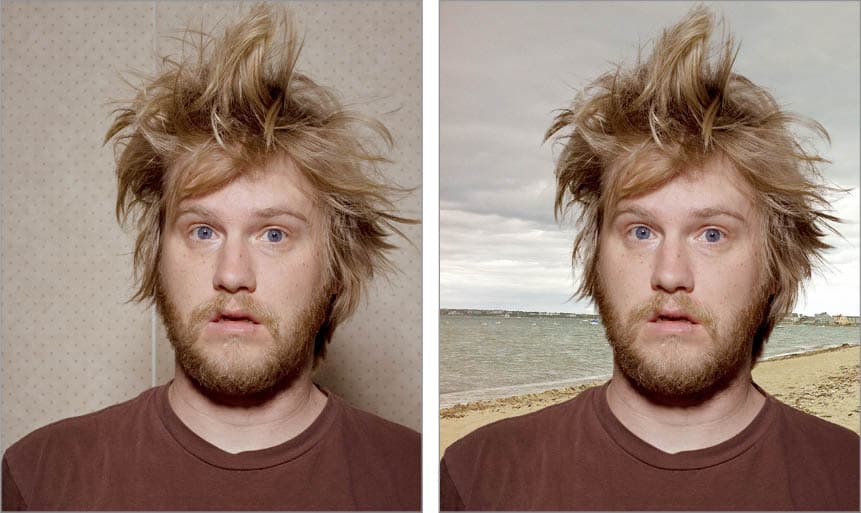
Evaluate your results—your subject should now appear seamlessly integrated with the beach background. The initial selection quality should show significant improvement over automated selection tools.
-
Test the selection versatility by hiding the Beach layer (click its eye icon) to reveal the brick background underneath.
-
For the most demanding test, hide the Bricks layer to show the subject against solid black.
The black background reveals edge quality issues that remain invisible against textured backgrounds. This unforgiving test shows where additional refinement is needed for truly professional results.
- Make both the Bricks and Beach layers visible again for continued work on a forgiving background.
-
Re-enable both background layers to provide a realistic working environment for mask refinement.
Your channel-based selection provides an excellent foundation, but achieving truly professional results requires additional refinement. The next phase uses Photoshop's advanced masking tools to perfect edge quality and hair detail.
Professional Edge Refinement and Final Optimization
-
Ensure the silo layer's mask thumbnail remains selected for direct editing.
-
Access Photoshop's legacy Refine Mask interface, which often provides superior results for hair selections compared to the newer Select and Mask workspace.
Hold Shift while choosing Select > Select and Mask to access the classic Refine Edge dialog. (Users with older Photoshop versions may see "Refine Mask" directly in the Select menu without requiring the Shift modifier.)
-
Click the View thumbnail at the top of the dialog to access preview options.
-
Double-click On Layers (L) from the view menu to see your refined edges in the context of the actual background layers.
-
Set Radius to 1 pixel for subtle but effective edge improvement.
-
Enable Smart Radius to let Photoshop automatically vary the radius based on edge complexity. This creates more natural-looking soft edges while maintaining crisp definition where appropriate.
-
Keep the dialog open and zoom into the image for detailed edge work.
-
Reduce brush size using the left bracket [ key for precision control.
-
Selectively paint over hair edges that need improvement, focusing on areas where the automatic refinement isn't sufficient. Unlike previous exercises, you don't need to paint every edge—concentrate on problem areas while leveraging the superior foundation your channel work has provided.
-
Click OK when satisfied with the refinement results.
-
Use View > Fit on Screen to evaluate the complete result.
- Test the refined selection against the brick background by hiding the Beach layer in the Layers panel.
-
Perform final manual cleanup as needed, painting with Black on the mask to hide unwanted areas or White to reveal portions of the original image. This hand-finishing ensures your selection meets professional standards across all intended background applications.
Advance Your Creative Career at Noble Desktop
Master advanced Photoshop techniques and build professional-level creative skills through Noble Desktop's comprehensive
Key Takeaways
RELATED ARTICLES
Intro to Motion Graphics: Free Online Course
Get a Free Introduction to Animation, Adobe After Effects, Premiere Pro, & More What is motion graphics? What’s the difference between Premiere Pro and...
Collecting Content for Your Design Portfolio from Day One
As a designer at any level, your portfolio is a most valuable asset. It represents what you can do, the methods you can apply to implement stakeholder...
Professional Retouching in Photoshop
There are many ways to retouch skin in Photoshop, some more advanced than others. Since each method provides different results, it’s important to know where...