March 22, 2026Noble Desktop/13 min read

Photoshop Tutorial: Intro to Hair Retouching

Master Professional Hair Retouching in Adobe Photoshop

Understanding Hair Masking Complexity

Hair isolation is actually a secondary concern. The most important factor is what you plan to do after isolating the hair - whether it's minor color correction, major background changes, or compositing onto new backgrounds.

Here's the critical insight most professionals miss: isolating hair is actually a secondary consideration. The primary factor driving your technique selection and precision requirements is your intended final output. Are you compositing the subject onto an entirely new background? Making subtle color adjustments to the existing backdrop? Performing a dramatic color transformation? Your answers will determine not only which masking approach to employ but also how much precision your hair isolation truly demands. Let's examine these scenarios in order of increasing complexity.

When performing minor color corrections to a background—perhaps removing a slight color cast or adjusting saturation—your hair mask doesn't require surgical precision. This accessibility stems from a fundamental challenge that makes precise hair masking so complex: individual flyaway hairs in any photograph rarely match the color values of the main hair mass. This discrepancy occurs because of how digital sensors capture light and how image processors interpret that data. Flyaway strands, typically spanning one to several pixels in width, appear semi-translucent to the camera sensor. Consequently, the recorded color represents a blend between the hair's actual pigmentation and the background tone.

While some flyaway hairs will retain colors similar to the primary hair mass, the majority actually skew much closer to the background's color palette. This phenomenon creates the fundamental masking challenge. For minor background adjustments—say, neutralizing a color cast to achieve a clean gray backdrop—you need only create a loose background selection, apply your color correction, then selectively brush away the mask in areas where flyaway hairs still appear to match the original hair tone.

The complexity escalates dramatically when you want to perform radical background color shifts or, even more challenging, composite the subject onto an entirely new background while maintaining photorealistic flyaway detail. How do you preserve that natural hair authenticity?

The reality requires advanced digital illustration skills—specifically, manually redrawing significant portions of the hair. This isn't a limitation of current software; it's a fundamental challenge rooted in physics and optics.

Most selection techniques produce rough edge pixels that appear unnatural against new backgrounds. Additionally, when hair is photographed against light backgrounds, that illumination bounces throughout the hair structure, effectively reducing apparent contrast and creating a softer, more luminous appearance. Transplant that same hair onto a dark background, and the edge regions become as problematic as the selection boundaries themselves—the hair appears unnaturally light and lacks dimensional depth. Had the original portrait been captured against a black backdrop, the hair's interior shadows and overall contrast would be significantly deeper due to reduced ambient light reflection. The inverse problem occurs when moving from dark to light backgrounds: edge hair appears too dark and contrasty rather than too light and flat. Solving this requires extensive color correction to the hair's interior combined with hand-painted flyaway reconstruction.

Professional flyaway painting demands both technical precision and artistic sensitivity, ideally executed with a high-quality pressure-sensitive tablet. The artist must seamlessly transition between brush sizes, continuously adjusting edge hardness while varying paint colors. Achieving photorealistic results requires understanding that some flyaway strands should appear larger and softer, others thin and sharp. Color variation is equally crucial—some strands should catch highlights appearing blonde or golden, while others should render in deep browns or near-black shadow tones.

Artists unfamiliar with pressure-sensitive digital painting techniques will find achieving professional-grade results challenging. The subtle pressure variations, brush control, and color intuition required develop only through dedicated practice.

Our point is this: hair selection represents just one component of a more complex challenge. Creating believable, photorealistic background changes often transcends what any combination of software features can accomplish automatically. We're not discouraging your efforts—these results are absolutely achievable with dedicated practice and the right approach. Mastery comes through repetition and increasingly challenging projects.

That said, specific Photoshop techniques and features can create excellent hair masks for certain image-background combinations, or at minimum provide a strong foundation for refinement. We'll guide you through several proven approaches, using photographs with challenging but realistic hair-background combinations. Rather than suggesting these tools perform magic, we want you to understand both their capabilities and limitations. The techniques we'll demonstrate aren't the only solutions available—they represent battle-tested approaches we've found consistently useful in professional workflows.

When software-based techniques don't achieve your quality standards, hand-painting additional hair detail becomes necessary. This aspect of the process resists standardized instruction because it requires artistic interpretation, color theory understanding, and developed brush control—skills that improve through practice rather than written guidelines.

Ready to begin? Here's a practical exercise that introduces Noble Desktop's teaching methodology while demonstrating fundamental hair retouching principles in Adobe Photoshop.

In this comprehensive step-by-step exercise, you'll master a quick and effective approach to hair silhouetting. Our starting image features strong contrast between hair and background—ideal conditions for learning the Refine Edge selection methodology and understanding when this approach excels.

Downloading & Installing Class Files

Before diving into the technique, ensure you have the necessary practice files by following these setup instructions:

  1. Navigate to your Desktop.
  2. Create a new folder named Class Files (this will house all downloaded materials).
  3. Visit nobledesktop.com/download
  4. Enter the access code hair-1702-07
  5. Click Start Download if you haven't already.
  6. After the .zip file downloads completely, unzip the contents if your system hasn't done so automatically. You should see a Hair the Seminar folder.
  7. Move the unzipped folder into your newly created Class Files directory. These files will support you throughout the entire exercise.
  8. Delete the original .zip file to free up storage space. Your setup is complete!

File Setup Process

1

Create Class Files Folder

Navigate to Desktop and create a new folder called 'Class Files' for organizing downloaded materials

2

Download Tutorial Files

Visit nobledesktop.com/download and enter code 'hair-1702-07' to access the required files

3

Extract and Organize

Unzip the downloaded file and drag the 'Hair the Seminar' folder into your Class Files directory

Exercise Overview

This exercise teaches efficient hair silhouetting for high-contrast scenarios. Our subject photograph features dramatic contrast between dark hair and a light background—optimal conditions for demonstrating the Refine Edge selection method's capabilities and learning when to deploy this technique in your professional workflow.

NOTE: Adobe Photoshop CC 2015.5 replaced the original Refine Edge feature with Select and Mask, marketed as an upgrade. However, the newer version removed certain useful features while failing to add functionality we need for this specific technique. Fortunately, there's a hidden method to access the classic Refine Edge interface in CC 2015.5 and later versions—we'll show you this professional workaround.

Refine Edge vs Select and Mask

Photoshop CC 2015.5 replaced Refine Edge with Select and Mask, but the older Refine Edge feature is still accessible and often more effective for hair retouching work.

Hair Masking Difficulty Levels

Minor Background Color Correction

Requires loose background mask with minimal precision. Flyaway hairs can be easily managed with simple brushwork adjustments.

Radical Background Changes

Demands advanced illustration skills and often requires hand-painting most hair elements for photo-realistic results.

New Background Compositing

Most challenging level requiring significant color correction to interior hair and manual flyaway painting with pressure-sensitive tablet.

Putting Our Image onto the New Backgrounds

  1. Launch Photoshop.

    NOTE: This exercise has been tested extensively with Photoshop CC 2017 but functions reliably across recent Photoshop versions. The principles remain consistent even as Adobe updates the interface.

  2. Navigate to File > Open and:

    • Browse to Desktop > Class Files > Hair the Seminar.
    • Open Hair1_backgrounds.tif.
  3. In the Layers panel (Window > Layers if not visible), observe the multiple background layers provided. These represent different backdrop scenarios where you'll test your isolated subject. Our next step involves importing the portrait subject into this document.

  4. Select the top layer (Bricks). This ensures that when we import the subject photograph, it will appear above the currently selected layer in the stacking order.

  5. Return to File > Open and:

    • Navigate to Desktop > Class Files > Hair the Seminar.
    • Open dark_curly_iStock_000023058113_LL28.jpg.
  6. This portrait contains only one layer (the Background layer). Select Layer > Duplicate Layer to create an editable copy.

  7. In the Document dropdown menu, choose Hair1_backgrounds.tif as the destination.

  8. Click OK to complete the layer duplication.

  9. Close the original portrait file (dark_curly_iStock_000023058113_LL28.jpg).

  10. You should now be working in Hair1_backgrounds.tif with your portrait as the top layer.

  11. In the Layers panel, the top layer still carries the generic "Background" name. Double-click this layer name and rename it original for clearer project organization.

Image Import Workflow

1

Open Background File

Launch Photoshop and open Hair1_backgrounds.tif from the Class Files directory

2

Import Subject Image

Open dark_curly_iStock image and duplicate the background layer to Hair1_backgrounds.tif document

3

Organize Layers

Rename the duplicated layer to 'original' for better organization and workflow management

Creating the Selection

The high contrast between our subject's dark hair and the bright background creates ideal conditions for Refine Edge to excel. As mentioned earlier, while Select and Mask has officially replaced Refine Edge, we prefer the original interface for this type of precision work. We'll reveal the hidden access method for professionals who want the classic tool's superior workflow.

Our process begins with creating a rough initial selection—precision isn't required at this stage. Refine Edge will analyze and enhance this foundation, significantly reducing your manual effort while delivering superior results.

  1. Select the Quick Selection tool. If it's not visible, click and hold the Magic Wand tool to reveal the flyout menu, then choose Quick Selection.

  2. The Quick Selection tool functions like an intelligent brush that paints selections based on color and contrast boundaries. Each brush stroke adds to your selection automatically—no modifier keys required for basic operation. Begin painting over the woman's body, face, and the majority of her hair. Don't attempt perfection around hair edges; we'll address those details in the next phase.

    Ensure you capture all elements of her clothing, particularly around edges where striped patterns might be missed. Return to paint over any gaps in your selection.

    Professional tips for Quick Selection tool mastery:

    • To subtract from your selection, hold Option (Mac) or Alt (Windows) while dragging—watch for the cursor to change to a minus symbol.
    • If you accidentally select unwanted areas, immediately press Cmd–Z (Mac) or Ctrl–Z (Windows) to undo the last brush stroke.
    • Vary your brush size using the bracket keys: ] to increase, [ to decrease brush diameter for better control in detailed areas.
  3. To access the superior legacy Refine Edge interface, hold Shift while selecting Select > Select and Mask. (Users of older Photoshop versions who see Refine Edge directly in the Select menu can proceed without the Shift modifier.)

  4. Professional workflow demands non-destructive editing. At the dialog's bottom, expand the Output To menu and choose New Layer with Layer Mask. This preserves your original while creating an editable masked copy. (Important: Don't click OK yet—we have significant refinement work ahead.)

  5. At the dialog's top, click the thumbnail adjacent to View to access preview options.

  6. Double-click On White (W) to select this preview mode. Working against a white background provides clearer hair detail visibility compared to the complex brick patterns in our background file.

    Understanding Refine Edge's workflow is crucial for professional results. While some features seem unintuitive initially, they become powerful once you grasp their purpose. Our next critical step involves defining the transition zone (radius) between hair and background, enabling Photoshop to analyze and automatically refine these complex boundaries.

  7. In the Options bar, set your Brush Size to approximately 125 pixels.

  8. If the Refine Edge dialog obscures your image, reposition it to maintain full visibility of your subject. The dialog must remain open throughout our refinement process.

  9. The current preview displays your selection boundaries but conceals unselected hair details. Press X on your keyboard to disable this preview mode.

  10. With the original photograph now visible, begin painting over all hair edges. Your brush strokes will appear as a green highlight overlay. This green zone should encompass both hair strands and background areas, defining where Photoshop analyzes the hair-background transition. The green highlight disappears when you stop brushing, and changes aren't immediately visible. Press X to return to selection preview mode and evaluate your progress against the white background.

  11. Continue alternating between edge highlighting (original view) and selection preview (press X to toggle) until you've painted green highlights around all hair boundaries. Before moving to setting adjustments, ensure comprehensive edge coverage:

    • Paint highlights over yellow background contamination visible within hair areas, including spots distant from the primary edge.
    • Don't overlook hair strands around the jawline and chin area.
    • Use the Show Radius checkbox in the dialog to visualize all painted areas, ensuring complete coverage without gaps. Uncheck this before continuing.
  12. Now experiment with the Radius slider in the Refine Edge dialog. Allow Photoshop processing time as you increase values. While hair areas won't change dramatically (you defined those manually), observe the shirt and arms where you didn't paint highlights.

    Higher radius values expand Photoshop's edge detection range, while lower values constrain refinements closer to your original selection. Exercise caution with excessive values—Photoshop may consider irrelevant edges and introduce artifacts. Maintain conservative settings and rely on manual edge painting for larger refinement zones.

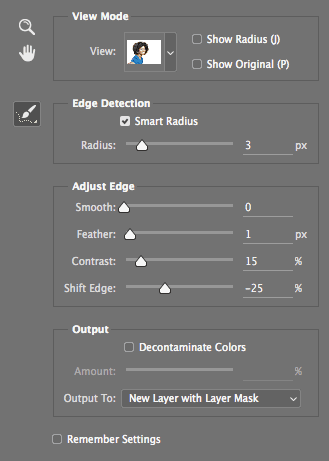
  13. Set Radius to 3px, which provides optimal results for this particular image without over-processing.

  14. Enable Smart Radius to allow Photoshop's adaptive edge detection to provide subtle improvements in boundary quality.

  15. Let's evaluate our selection quality using a different preview mode. Click the thumbnail next to View at the dialog's top.

  16. Double-click On Layers (L) to activate this preview mode, which shows your subject against the actual background layers.

  17. Accurate quality assessment requires pixel-level examination. Choose View > 100% (or Actual Pixels) from the main menu.

  18. If hair details aren't visible at this zoom level, hold Spacebar and drag within the image to navigate to the hair areas.

  19. The edge quality clearly needs refinement—excessive yellow background contamination is visible. Begin by increasing Contrast to 15% to sharpen selection boundaries and reduce color contamination. (Note: Optimal values vary between images; these recommendations are specific to our practice file.)

  20. To contract the selection and eliminate more yellow fringing, set Shift Edge to –25%. This pulls the selection boundary inward.

  21. Add subtle edge softening by setting Feather to 1px for more natural blending.

  22. Your final settings should match these values:

    custom noble desktop graphic

  23. We've achieved the maximum quality possible through Refine Edge alone. Remaining imperfections will require alternative techniques offering greater control. Click OK to apply these settings.

    NOTE: You might wonder why we're avoiding the Decontaminate Colors option. While potentially helpful for certain images, testing revealed it's ineffective for our subject. We'll demonstrate a more controllable alternative technique that succeeds where automatic decontamination fails.

  24. The Layers panel now contains a new layer named original copy. Double-click this name and change it to silo for better organization.

Accessing Hidden Refine Edge

To access the older Refine Edge feature in CC 2015.5 or 2017, hold Shift and choose Select > Select and Mask. This provides better control for hair retouching than the newer interface.

Quick Selection Process

1

Initial Selection

Use Quick Selection tool to drag over woman's body, face, and most hair. Don't worry about perfection around hair edges.

2

Access Refine Edge

Hold Shift and choose Select > Select and Mask, then set Output to 'New Layer with Layer Mask'

3

Define Edge Radius

Paint green highlights over hair edges covering both background and hair to define transition areas

Filling in Missing Spots in the Layer Mask

  1. Let's examine our mask in detail for quality control. In the Layers panel, hold Option (Mac) or Alt (Windows) while clicking the silo layer's black-and-white layer mask thumbnail.

  2. The document window now displays a full-size grayscale version of your mask, revealing fine details that might be invisible in the small thumbnail. If you discover black or gray areas within the face or interior hair regions, follow these correction steps. Depending on your selection technique, the mask might already be clean and require no adjustment.

    • Select the Brush tool from the toolbar.
    • Press D to reset colors, then X if necessary to set Foreground to White. (In mask editing: white areas reveal the layer content, black areas conceal it.)
    • Adjust brush size and hardness for the correction needed. Use the right bracket ] to increase brush size, left bracket [ to decrease. Hold Shift while pressing bracket keys to adjust hardness.
    • Paint white over any black spots that should reveal the subject.
  3. When finished with mask corrections, click the silo layer's main thumbnail (not the mask thumbnail) to return to normal image view.

Mask Visualization Technique

Hold Option (Mac) or Alt (Windows) and click on the layer mask thumbnail to view a full-sized black-and-white version of the mask for detailed editing.

Mask Refinement Tasks

0/4

Removing the Yellow Color Cast

Now we'll address the persistent yellow color fringing that automated tools couldn't eliminate.

  1. Zoom to 100% magnification for accurate assessment of hair detail quality.

  2. Ensure the silo layer is selected and active before proceeding with color correction.

Flyaway hairs are semi-translucent to the camera's sensor and the color of the hair blends with the background, making most flyaways closer in color to the background than the main body of hair.
This explains why yellow color fringing occurs and why it requires special attention during the retouching process.

Key Takeaways

1Hair isolation success depends primarily on your intended final use - minor color corrections require less precision than complete background replacement
2Flyaway hairs are semi-translucent and blend with background colors, making them closer to background color than main hair color
3Professional background compositing often requires advanced illustration skills and hand-painting individual hairs for photo-realism
4The hidden Refine Edge feature (accessible via Shift + Select and Mask) offers better control than the newer Select and Mask interface
5Quick Selection tool provides adequate initial selection - Refine Edge handles the precision work around hair edges
6Proper radius definition through edge highlighting is crucial for Refine Edge to analyze and refine hair selections effectively
7Layer masks can be viewed in isolation mode using Alt/Option + click for detailed editing and gap filling
8Pressure-sensitive tablets are essential for hand-painting realistic flyaway hairs with proper variation in size, hardness, and color

RELATED ARTICLES