Uploading a WordPress Site
What This Tutorial Covers
FTP/SFTP
Transfer files securely to your hosting account.
Database Migration
Export local DB and import on the server.
URL Updates
Update site URLs after the move.
Noble Desktop's WordPress Bootcamp teaches WordPress for site builders and developers.
Gain a comprehensive understanding of WordPress in this tutorial that covers topics such as exporting a database, modifying the SQL for absolute URLs, uploading a WordPress site, and importing a database.
Exercise Preview
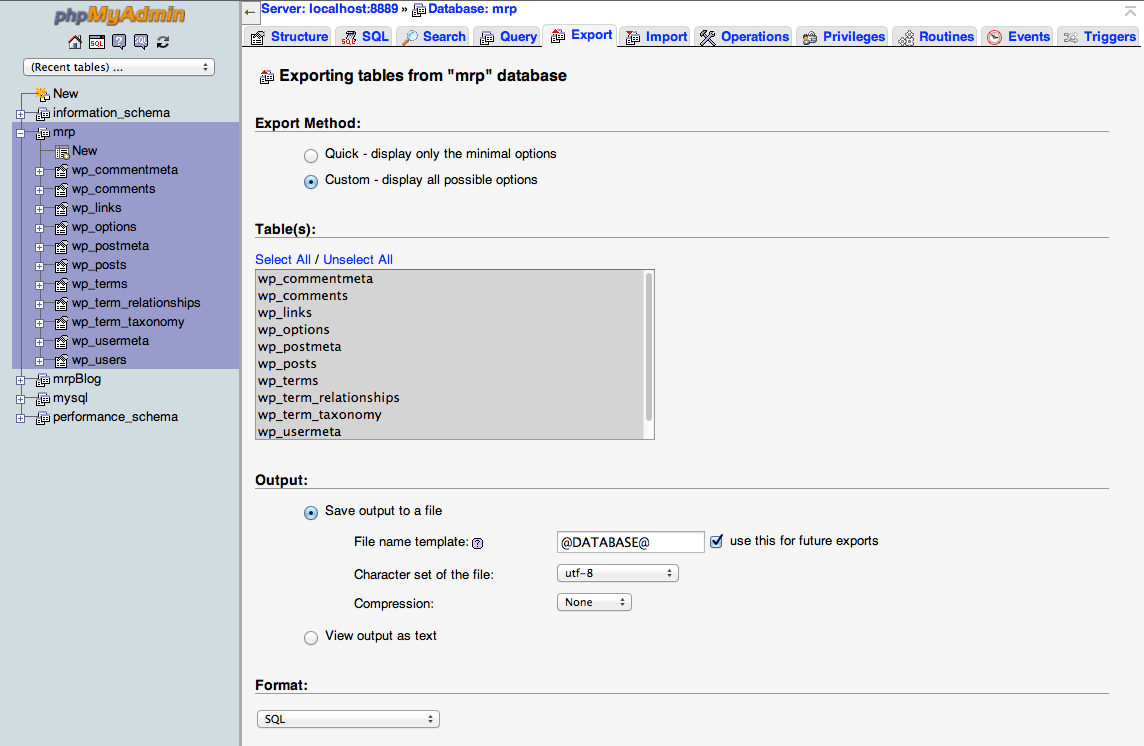
Exporting the Database
WordPress stores all the posts, page content, and comments in a MySQL database. We can easily transfer all our site content from the local version to the remote server by transferring the database.
Open phpMyAdmin, as shown below:
Mac
- Open the MAMP application.
- Servers should start automatically; if not, click Start Servers.
- Click Open WebStart page if the MAMP start page doesn’t automatically open in your default browser.
- On the start page, in the nav menu, go to Tools > phpMyAdmin.
Windows
- Open XAMPP.
- In the control panel, ensure the Apache and MySQL services are running.
- Open your browser and go to localhost
- On the start page, on the left sidebar, under Tools, click phpMyAdmin.
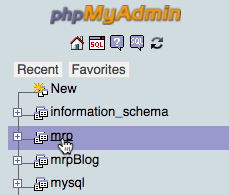
Click the mrp database from the list of databases on the left. This is the WordPress database that stores everything.
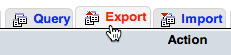
On the following page, click the Export tab:
To finish exporting your WordPress database, follow the appropriate directions for your operating system:
Mac
- Under Export Method, choose Custom.
- Under Table(s), click Select All to make sure all the tables are selected.
- Under Output, choose Save output to a file.
- Under Object creation options, check on Add DROP TABLE / VIEW / PROCEDURE / FUNCTION / EVENT / TRIGGER statement.
- At the bottom of the page, click Go.
Windows
- Under Export Method, choose Custom.
- Under Object creation options, check on Add DROP TABLE / VIEW / PROCEDURE / FUNCTION / EVENT / TRIGGER statement.
- At the bottom of the page, click Go.
If a pop-up window appears, Save the file into your Downloads folder. (If you are using Chrome on any platform or Safari on a Mac, it won’t open a pop-up window; it will just download the file.)
NOTE: By default, most web browsers will download files into the Downloads folder on your machine. Depending on whether you have changed your preferences, the file may download into another location other than the Downloads folder.
The mrp.SQL file will now be downloaded and placed in your Downloads folder.
Importing the Database
Go to the phpMyAdmin URL you were given at the start of class. (Please note that the URL is case-sensitive, so type it exactly as it was given to you!)
Log in using the Username and Password you were given.
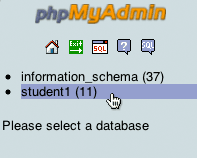
As shown below, click on the name of your database from the list of databases on the left. (The name of the database will be the same as the FTP Username you were given at the beginning of the exercise.)
Click on the Import tab.
Click the Choose File button (in some browsers it is Browse).
Go to the Downloads folder where the mrp.SQL file was saved.
Double–click mrp.SQL
At the bottom of the page, click the Go button. It should import your database. You’ll know it worked if you see a message at the top that says something like: Import has been successfully finished, 396 queries executed.
NOTE: It shouldn’t take more than a few seconds to import the database. In our testing, we found that Safari would sometimes stall during the process. If this happens, we recommend using Chrome instead.
Uploading Your WordPress Site
Launch Cyberduck.
Click the Open Connection button at the top left of the main window.
Next to Server, enter: noble.local
For Username, enter the username you selected or were assigned.
For Password, enter the password you selected or were assigned.
At the bottom, if More Options aren’t already showing, click the triangle
 next to More Options to reveal them.
For Path, enter: public_html/WordPress/
To connect to the server, click Connect. If you get a warning that you have an Unsecured FTP connection, just hit Continue.
NOTE: If Cyberduck cannot make a connection, double-check your username and password as well as making sure there are no extra spaces.
Once connected, you will see the window that lists the files for your site.
TIP: Once connected, you can choose Bookmark > New Bookmark to save all this information for future use.
You are now ready to upload your files. In order to do this, move the Cyberduck window to one side so you’ll be able to see your local file folder next to it.
- Open a Finder (Mac) or Explorer (Windows) window and navigate to:
- Mac: Hard Drive > Applications > MAMP > htdocs > mrp
- Windows: C: > xampp > htdocs > mrp
Arrange this window and the Cyberduck window so they are side-by-side.
Drag the wp-content folder from your computer’s window onto the Cyberduck window. TIP: Be careful not to drop the folder into one of the existing folders. If you get another warning that you have an Unsecured FTP connection, just hit Continue once more.
A Transfers window will appear, showing the progress of the upload.
If you get an Overwrite window or a warning about overwriting the pre-existing files and folders, just hit Continue to overwrite those files with your own.
Once it has finished uploading, you can go ahead and close the Transfers window.
Go to the WordPress URL you were given at the start of class. The MRP website should load. Awesome!