Installing WordPress
What This Tutorial Covers
Local vs Hosted
Choose between local dev and hosted installs.
Database Setup
Create MySQL database and user before install.
wp-config.php
Configure connection and security keys.
Noble Desktop's WordPress Bootcamp teaches WordPress for site builders and developers.
Explore our detailed WordPress tutorial that guides you through creating a database, installing WordPress, and creating a wp-config.php file, with step-by-step instructions for both Mac and Windows users.
Exercise Preview
Creating a Database
- The first step in creating a WordPress site is to establish a database for it. This is because WordPress sites rely on MySQL databases to hold all the content: posts, settings, images, etc. To create a database, you will use phpMyAdmin. Start your server and open phpMyAdmin, as shown below:
Mac
- Open MAMP (Hard Drive > Applications > MAMP > MAMP.app).
- The Apache and MySQL Servers should start automatically. You should see green squares next to them light up. If not, click Start Servers.
- If the MAMP start page does not open automatically, click the Open WebStart page button.
- On the start page, in the nav menu, go to Tools > phpMyAdmin.
- Click the Databases tab at the top.
- In the Create database field, enter: mrpBlog as shown below:

- Click the Create button.
Windows
- If XAMPP is not already running, navigate to C:
/xampp, then double–click xampp-control.exe and start the Apache and MySQL services. - Open Chrome and in the URL field, enter: localhost
- On the start page, in the Tools section, click phpMyAdmin.
- Click the Databases tab at the top.
- In the Create database field, enter: mrpBlog as shown below:

- Click the Create button.
Creating a Wp-config.php File
The wp-config.php file establishes the connection between your site and the database. WordPress offers two ways to create a wp-config.php file—through a web interface or manually. Let’s see how to use the web interface.
- Open Chrome and go to:
- Mac: localhost:8888/mrpBlog
- Windows: localhost/mrpBlog
English (United States) should be selected, so click Continue.
Click the Let’s go! button at the bottom of the page.
Enter the following database information:
MacWindowsDatabase Name: mrpBlog User Name: root Password: root Database Host: localhost Table Prefix: wp_ Database Name: mrpBlog User Name: root Password: (leave blank for local install) Database Host: localhost Table Prefix: wp_ Getting Database Information for Wp-config.php
Info about your local database can always be found by going to the start page of MAMP or XAMPP. The start page will tell you the host, username, and password for the MySQL Server. Information specific to the database can be found by clicking on the phpMyAdmin link on the homepage. Database names will be listed on the left of the screen. If you click on a database name, you can see the prefix being used in the table. This same process also applies to updating database information when moving a WordPress site to a remote server. We will cover that in more detail in a later exercise.
Click Submit.
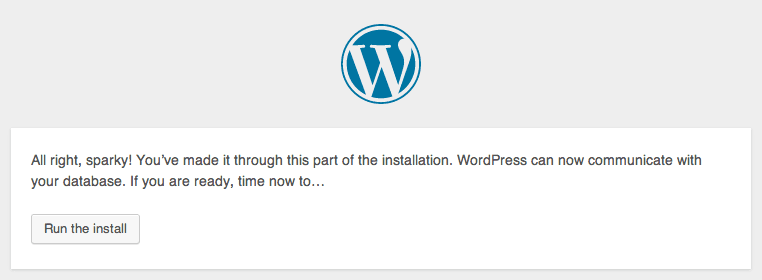
Click Run the install.
For Site Title, enter: Monteith Restoration & Performance
For Username, enter: mrpAdmin
NOTE: It is not a good idea to simply use admin as your username as this can make WordPress sites vulnerable to hackers trying to crack the admin’s password.
For Password, enter and re-enter: student
For a real live site, you’ll want to choose a stronger password. But for class we can keep it short to save time typing it in.
For Your Email, enter an email address that can be accessed for the remainder of the class. Make sure to double-check the address before submitting the form.
Uncheck Allow search engines to index this site.
NOTE: You will be able to change this once you have uploaded your site to a live server. For a real live website, you’ll want to leave this checked!
Click the Install WordPress button.
If your blog information was accepted, you will get a success screen showing your new Username. Congratulations, you just did a custom install of WordPress! Now let’s check the site out!
Click the Log In button.
For Username, enter: mrpAdmin
For Password, enter: student
Click Log in.
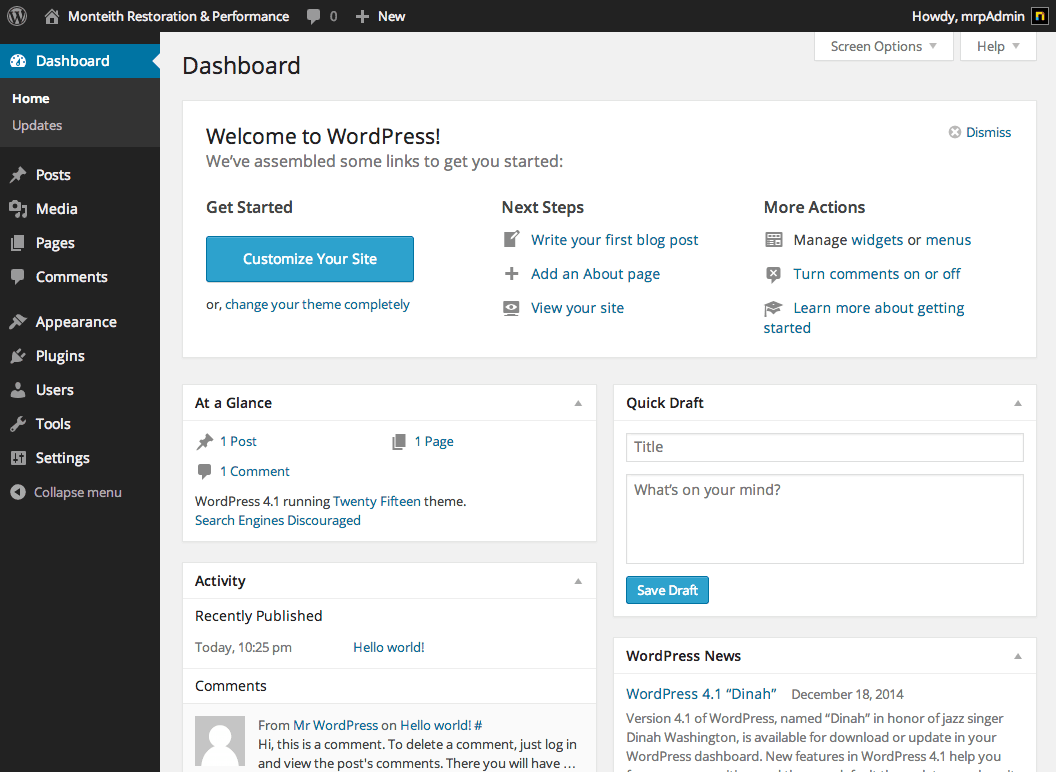
Welcome to the Dashboard of your site! The Dashboard is the first page you see when you log into the administrator section on your site. It gives you access to all of the different operations WordPress has to offer.
The Dashboard is built using a responsive design. That means the page is designed to look differently on different devices and screen sizes. This book assumes you are working on a desktop with a wide enough browser window that you see the page as it is meant to be seen on the desktop, as shown below. At smaller screen sizes, some elements on the page may look different or be in different locations than we say in the book. For example, at smaller screen sizes, the navigation links on the left are only shown as icons.
At the top of the page, click the Monteith Restoration & Performance title to see the front-end of your site.
NOTE: The gray menu bar on the top is only visible to logged in users and not the public.