April 1, 2026Noble Desktop Publishing Team/5 min read

Installing Themes: Free WordPress Tutorial

Master WordPress Theme Installation and Customization

WordPress Theme Installation Methods

Automated Installation

Browse and install themes directly from WordPress Dashboard using the built-in theme directory. Quick, secure, and beginner-friendly approach.

Manual Installation

Upload theme files directly to server folders. Required for premium themes or custom designs not available in the WordPress directory.

Topics Covered in This WordPress Tutorial:

Downloading a Theme from the WordPress Dashboard, Manually Installing a Theme

Exercise Preview

theme activate

Theme Benefits

WordPress themes contain all necessary styles and layouts to transform your site's appearance. You can change themes at any time without affecting your content, making design updates risk-free.

Exercise Overview

With WordPress successfully installed, you're ready to transform your site's visual identity by implementing a custom theme. WordPress themes are sophisticated template systems that control every aspect of your site's appearance—from typography and color schemes to layout structures and responsive behavior. These comprehensive packages contain PHP templates, CSS stylesheets, JavaScript files, and image assets that work together to create cohesive user experiences.

The beauty of WordPress's theme system lies in its flexibility and modularity. You can seamlessly switch between professionally designed themes, customize existing templates to match your brand requirements, or develop entirely custom solutions from scratch. Most importantly, theme changes never affect your content—your posts, pages, and media remain intact regardless of how many times you modify your site's appearance.

The default theme for this version of WordPress is called Twenty Fifteen, a well-architected foundation that demonstrates modern web design principles and responsive functionality. While it serves as an excellent starting point for many projects, professional sites often require more specialized visual treatments. In this exercise, you'll master both automated and manual theme installation methods while setting up a distinctive look for the Monteith Restoration & Performance Blog.

WordPress Theme Evolution

Initial Setup

Default Theme Installation

WordPress comes with Twenty Fifteen as the default theme

Intermediate

Theme Customization

Modify existing themes or create custom designs

Advanced

Advanced Theming

Develop completely custom themes from scratch

Project Focus

This tutorial demonstrates theme installation for the Monteith Restoration & Performance Blog, showcasing both automated and manual installation methods.

Using WordPress's Automated Theme Installer

WordPress's built-in theme installer represents the most efficient pathway for discovering and deploying themes from the official WordPress Theme Directory. This curated repository at WordPress.org/themes contains thousands of vetted themes that meet WordPress coding standards, security requirements, and accessibility guidelines. The automated installer eliminates technical complexity while ensuring you're working with reliable, well-maintained code.

  1. Launch Chrome and navigate to your WordPress admin panel:
    • Mac: localhost:8888/mrpBlog/wp-admin
    • Windows: localhost/mrpBlog/wp-admin
  2. Enter your administrative username and password when prompted.

  3. In the Dashboard's left navigation panel, locate the Appearance menu item. Hover over Appearance to reveal its submenu options, then select Themes.

  4. On the Themes management page, click the prominent Add New button located at the top of the interface (alternatively, you can click Add New Theme beneath the existing theme thumbnails). This action opens the theme browser, which provides access to the entire WordPress Theme Directory with advanced filtering and search capabilities.

  5. For the Monteith Restoration & Performance brand, we're targeting a clean, professional aesthetic featuring prominent header real estate and a sophisticated gray color palette that conveys automotive expertise. In the search field, enter: simple header

  6. Browse the search results until you locate the Simple Catch theme, then position your cursor over its thumbnail to reveal the action buttons.

  7. Click Preview to launch the theme's live preview mode, which displays your actual content within the new design framework. This preview system allows you to evaluate typography, spacing, and overall visual hierarchy before committing to the installation.

  8. After reviewing the design elements and confirming the theme meets your requirements, click the Install button positioned in the upper left corner of the preview interface.

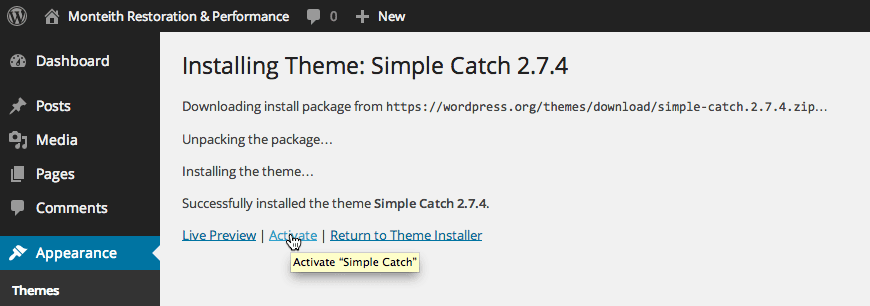
  9. Monitor the installation progress as WordPress downloads and extracts the theme files. Once the process completes successfully, click Activate to make the new theme live on your site.

    theme activate

  10. To view your transformed site, click the Monteith Restoration & Performance title in the admin bar at the top of the screen, which will open your public-facing website in a new tab.

Now that you've mastered the automated installation process, let's explore the manual method—an essential skill for implementing premium themes, custom designs, or themes from specialized marketplaces.

Automated Theme Installation Process

1

Access WordPress Dashboard

Navigate to localhost:8888/mrpBlog/wp-admin (Mac) or localhost/mrpBlog/wp-admin (Windows) and enter your credentials

2

Navigate to Themes

Find Appearance in the left sidebar, hover to open submenu, then click Themes

3

Search and Install

Click Add New, search for desired theme, preview it, then click Install and Activate

Theme Selection Criteria

The Simple Catch theme was selected for Monteith Restoration & Performance based on their requirements for a simple blog with prominent header and gray color scheme.

Manually Installing a Theme

Manual theme installation becomes necessary when working with premium themes from marketplaces like ThemeForest, custom-developed themes from design agencies, or specialized themes that aren't available in the WordPress directory. This method involves direct file system access and provides complete control over the installation process, making it invaluable for professional WordPress development workflows.

For this demonstration, we'll install the Obscure theme, which was originally distributed as a free theme from wpcrunchy.com. While this particular theme hasn't received recent updates (a common consideration when evaluating older themes in 2026), it serves as an excellent example of the manual installation process you'll use with contemporary premium themes.

  1. Using your system's file manager, navigate to the Desktop, then open the Class Files folder, followed by the WordPress.org Class folder.

  2. Locate and select the obscure folder, which contains all the theme's template files, stylesheets, and assets.

  3. Copy the folder using Cmd–C (Mac) or Ctrl–C (Windows).

  4. Navigate to your WordPress installation's themes directory:
    • Mac: Hard Drive > Applications > MAMP > htdocs > mrpBlog > wp-content > themes
    • Windows: C: > xampp > htdocs > mrpBlog > wp-content > themes
  5. Paste the obscure folder into the themes directory using Cmd–V (Mac) or Ctrl–V (Windows).

    Excellent work! You've successfully completed a manual theme installation. The theme files are now properly positioned within your WordPress file structure, but the theme remains inactive until you explicitly activate it through the WordPress admin interface.

  6. Return to your WordPress Dashboard by navigating to:
    • Mac: localhost:8888/mrpBlog/wp-admin
    • Windows: localhost/mrpBlog/wp-admin
  7. If prompted, re-enter your administrative username and password.

  8. Access the Appearance menu and select the Themes option to return to the theme management interface.

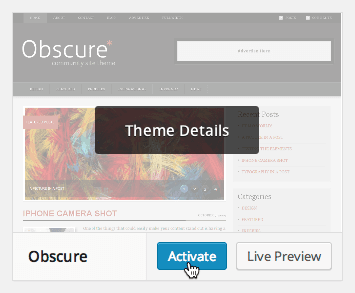
  9. You'll now see Obscure listed among your available themes. Hover over the theme thumbnail to reveal the activation controls, then click Activate to implement the new design.

    obscure activate

  10. To preview your newly transformed website, click the Monteith Restoration & Performance title in the admin bar to open your public site and review the design changes.

Manual Theme Installation Steps

1

Locate Theme Files

Find the downloaded theme folder (Obscure theme from wpcrunchy.com in this example)

2

Copy Theme Folder

Copy the theme folder using Cmd-C (Mac) or CTRL-C (Windows)

3

Paste to Themes Directory

Navigate to wp-content/themes folder and paste using Cmd-V (Mac) or CTRL-V (Windows)

4

Activate Theme

Return to WordPress Dashboard, go to Appearance > Themes, and activate the new theme

Installation Method Comparison

FeatureAutomated InstallationManual Installation
Ease of UseVery EasyModerate
Theme SourceWordPress Directory OnlyAny Source
Technical SkillsNone RequiredBasic File Management
SecurityWordPress VerifiedUser Responsibility
Recommended: Use automated installation for themes from WordPress directory, manual installation for premium or custom themes
Theme Activation Required

Manually installed themes will not be visible on your site until you activate them through the WordPress Dashboard. Installation only makes them available for activation.

Key Takeaways

1WordPress themes control your site's visual appearance and layout without affecting content
2Two main installation methods exist: automated through WordPress Dashboard and manual file upload
3Automated installation works only with themes from the WordPress Theme Directory
4Manual installation is required for premium themes and custom designs from external sources
5Theme files must be placed in the wp-content/themes directory for manual installation
6All themes must be activated through Appearance > Themes in WordPress Dashboard
7You can preview themes before installation to ensure they meet your design requirements
8The default WordPress theme Twenty Fifteen can be easily customized but may not suit all needs

RELATED ARTICLES