Database Backup
WP-DB-Backup Setup
Install WP-DB-Backup Plugin
Plugins → Add New, search 'wp-db-backup', click Install Now.
Open Tools → Backup
Adjust which tables to back up beyond the WordPress core tables.
Choose Download to Your Computer
Then click Backup now! to save the .sql file locally.
Restore by Importing the SQL
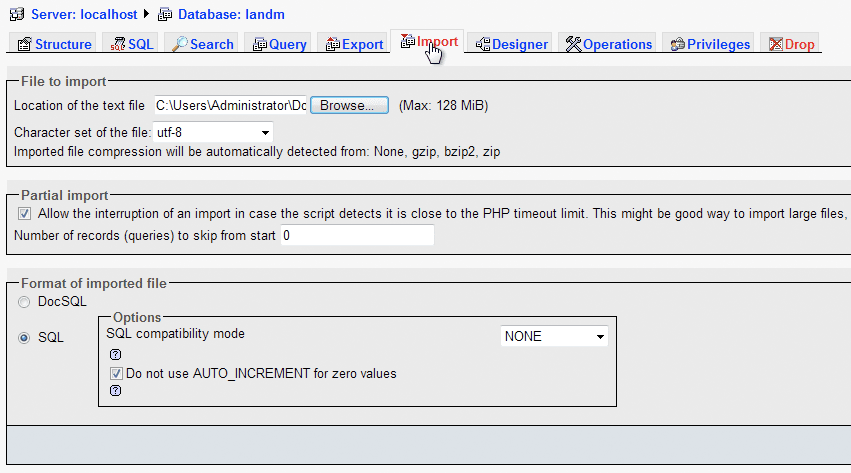
Use phpMyAdmin to import the backup if disaster strikes.
Noble Desktop's WordPress Bootcamp teaches themes, plugins, and custom site development.
Learn how to install the WP-DB-Backup plugin, back up and restore your WordPress site's database, adjust the backup settings, make changes to your database, and restore it using the backup in this comprehensive WordPress tutorial.
Exercise Preview
Restoring with the Backup
- In the event something catastrophic happens and you lose your database, you will need to restore it from a backup. To do this, log into phpMyAdmin as shown below:
Mac
- Switch to the MAMP application.
- Click Open WebStart page if the MAMP start page doesn’t automatically open in your default browser.
- On the start page, in the nav menu, go to Tools > phpMyAdmin.
Windows
- Open XAMPP.
- In the control panel, ensure the Apache and MySQL services are running.
- Open your browser and go to localhost
- On the start page, on the left sidebar, under Tools, click phpMyAdmin.
On the left, select mrp from the list of databases.
Click on the Import tab.

On the next screen, click the Choose File or Browse button.
Navigate to your Downloads folder (or the folder the database was downloaded to).
Double–click the backup SQL file you had just downloaded (it should be named mrp_wp_YYYYMMDD_###.SQL.gz).
Click the Go button.
- Go to:
- Mac: localhost:8888/mrp/wp-admin
- Windows: localhost/mrp/wp-admin
On the left side of the screen, click Pages. Whew, all our pages have been restored! That was a close one.