April 1, 2026Noble Desktop Publishing Team/4 min read

Adding a Contact Form

Master WordPress Contact Forms with Professional Plugins

WordPress Plugin Ecosystem

12,000+
plugins in official repository
23M
million downloads for Contact Form 7

Topics Covered in This WordPress Tutorial:

Installing the Contact Form 7 Plugin, Adding the Form to a Page

What You'll Learn

Plugin Installation

Learn to install Contact Form 7 from the WordPress repository. Understand the process of activating and configuring plugins.

Form Integration

Master adding contact forms to pages using shortcodes. Customize form placement and styling within your content.

Exercise Preview

adding contact form

Exercise Overview

Plugins represent one of WordPress's greatest strengths—they're specialized code modules that extend your site's capabilities without requiring custom development. From comprehensive ecommerce solutions to automated backups and dynamic galleries, plugins transform a basic WordPress installation into a powerful business platform. The official WordPress plugin repository now hosts over 60,000 plugins, making it the world's largest content management ecosystem. In this exercise, you'll implement a professional contact form using Contact Form 7, one of the most trusted and widely-deployed form plugins in the WordPress community.

Plugin Functionality

Plugins are blocks of code that allow you to easily add special functionality to your site. They can help you build an ecommerce store, back up your website, and create slideshows.

If You Did Not Do the Previous Exercise

  1. In a web browser, go to localhost:8888/mrp/wp-admin (Mac) or localhost/mrp/wp-admin (Windows) and log in if prompted.
  2. On the left of the Dashboard, mouse over Appearance and click Themes.
  3. Click the Add New button.
  4. Click the Upload link, then the Browse (or Choose File) button.
  5. Navigate to Desktop > Class Files > WordPress.org Class and double–click mrpTheme-ready-for-contact-form.zip to open it.
  6. Click Install Now, then click Activate.

Setup Prerequisites

1

Access WordPress Dashboard

Navigate to localhost:8888/mrp/wp-admin (Mac) or localhost/mrp/wp-admin (Windows) and log in if prompted

2

Install Required Theme

Upload and activate the mrpTheme-ready-for-contact-form.zip theme from the Class Files directory

3

Verify Setup

Ensure the theme is properly activated before proceeding with the contact form installation

Installing Contact Form 7

Contact Form 7 stands as the gold standard for WordPress contact forms, powering millions of websites worldwide with its robust feature set and exceptional reliability. This plugin generates highly customizable contact forms through an intuitive interface, offering everything from basic contact fields to complex multi-step forms with file uploads and conditional logic. Its proven track record and active development make it the go-to choice for professionals who need dependable form functionality. Let's walk through the installation process.

  1. Go to:
    • Mac: localhost:8888/mrp/wp-admin
    • Windows: localhost/mrp/wp-admin
  2. If necessary, log in to the site.

  3. On the left side of the Dashboard, navigate to Plugins > Add New.

  4. In the search field, type: contact form 7

  5. Press Return (Mac) or Enter (Windows).

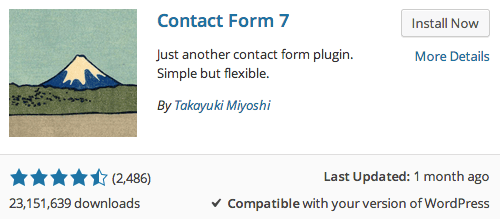
  6. Multiple results will appear. Look specifically for Contact Form 7 by Takayuki Miyoshi. This is the original and most trusted version (version numbers will reflect current updates).

    contact form 7

  7. Click More Details to review comprehensive plugin information.

  8. The plugin details page provides valuable insights including screenshots, detailed installation instructions, compatibility information, and developer homepage links. Pay attention to the download statistics—Contact Form 7 has exceeded 300 million downloads, demonstrating its widespread adoption and reliability in professional environments.

  9. Click the prominent Install Now button.

    WordPress will automatically download and install the plugin files to the appropriate directory structure within your Monteith Restoration & Performance site.

  10. Once installation completes, click the Activate Plugin link.

    Notice that a new Contact menu item now appears in the left sidebar of your Dashboard—this provides access to all form management functions.

Now that Contact Form 7 is successfully installed and activated, we'll configure it to create a professional contact form for your website.

Plugin Credibility

Contact Form 7 by Takayuki Miyoshi has over 23 million downloads, making it one of the most trusted contact form solutions in the WordPress ecosystem.

Installation Process

0/4

Adding the Form to a Page

  1. In the left sidebar, click Contact, then select Contact form 1.

    This comprehensive settings page controls all aspects of your contact form, including recipient email addresses, auto-responder messages, form validation rules, and submission handling options.

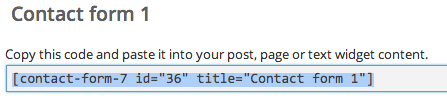
  2. The first section displays a shortcode—a snippet of WordPress code that embeds your contact form anywhere on your site. Highlight and copy this code (your ID number may differ): [contact-form-7 id="36" title="Contact form 1"]

    contact form 1

  3. Press Cmd–C (Mac) or Ctrl–C (Windows) to copy the shortcode to your clipboard.

  4. In the left sidebar, click Pages to access your site's page management.

  5. Click Contact to edit your existing contact page.

  6. In the editor toolbar, click the Text tab to switch to HTML editing mode.

  7. Position your cursor at the end of the content, after the phone number paragraph, and paste the contact form shortcode:

    Call us at 717-964-3345 to make an appointment.
    [contact-form-7 id="36" title="Contact form 1"]
  8. To improve user experience and page structure, add a descriptive heading above the form:

    Call us at 717-964-3345 to make an appointment.
    <h2>Send Us a Message</h2>
    [contact-form-7 id="36" title="Contact form 1"]
  9. Click Update to save your changes and publish the updated contact page.

  10. Click the Monteith Restoration & Performance link at the top of the page to return to your site's frontend.

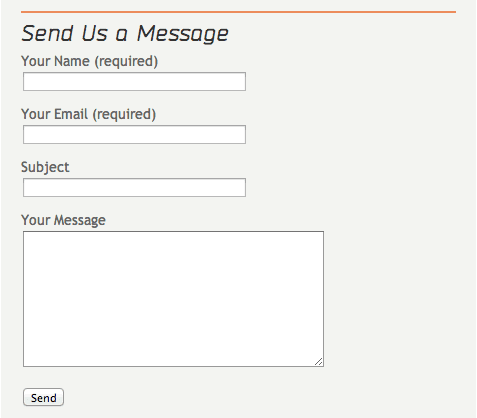
  11. Navigate to the Contact page using your site's menu and scroll down to view your newly implemented contact form.

    The form displays perfectly and is ready for visitor interaction. Note that while form submissions won't function in your local development environment, the form will be fully operational once deployed to a live web server with proper email configuration.

Form Implementation Process

1

Access Contact Settings

Navigate to Contact > Contact form 1 in the Dashboard to view configuration options and shortcode

2

Copy Shortcode

Highlight and copy the generated shortcode [contact-form-7 id="36" title="Contact form 1"]

3

Edit Contact Page

Go to Pages > Contact and switch to Text tab to paste the shortcode after existing content

4

Add Form Title

Include an H2 heading 'Send Us a Message' before the shortcode for better user experience

Local Server Limitation

The form won't work on the local server, but it will work once our site is uploaded to a real server.

Key Takeaways

1WordPress plugins extend site functionality with over 12,000 options available in the official repository
2Contact Form 7 is a trusted plugin with over 23 million downloads, created by Takayuki Miyoshi
3Plugin installation requires searching, installing, and activating through the WordPress Dashboard
4Contact forms are implemented using shortcodes that can be pasted into pages or posts
5The plugin automatically creates a Contact menu section in the Dashboard for configuration
6Forms require proper server hosting to function and won't work on local development environments
7Adding descriptive headings above contact forms improves user experience and page structure
8Plugin research should include checking download counts, reviews, and developer credibility before installation

RELATED ARTICLES