Intro to Flexbox
What This Tutorial Covers
Flex Container
display: flex on the parent enables flexbox layout.
Main & Cross Axes
justify-content and align-items axis control.
Modern Layout Default
Flexbox now drives most modern web layout patterns.
Noble Desktop's Full-Stack Web Development Certificate teaches HTML, CSS, JavaScript, React, Node.js, and the modern web stack.
Our in-depth web development tutorial covers a range of topics including display flex, alignment, distribution, and flex direction, with hands-on exercises designed to enhance your understanding of CSS flexbox.
Exercise Preview
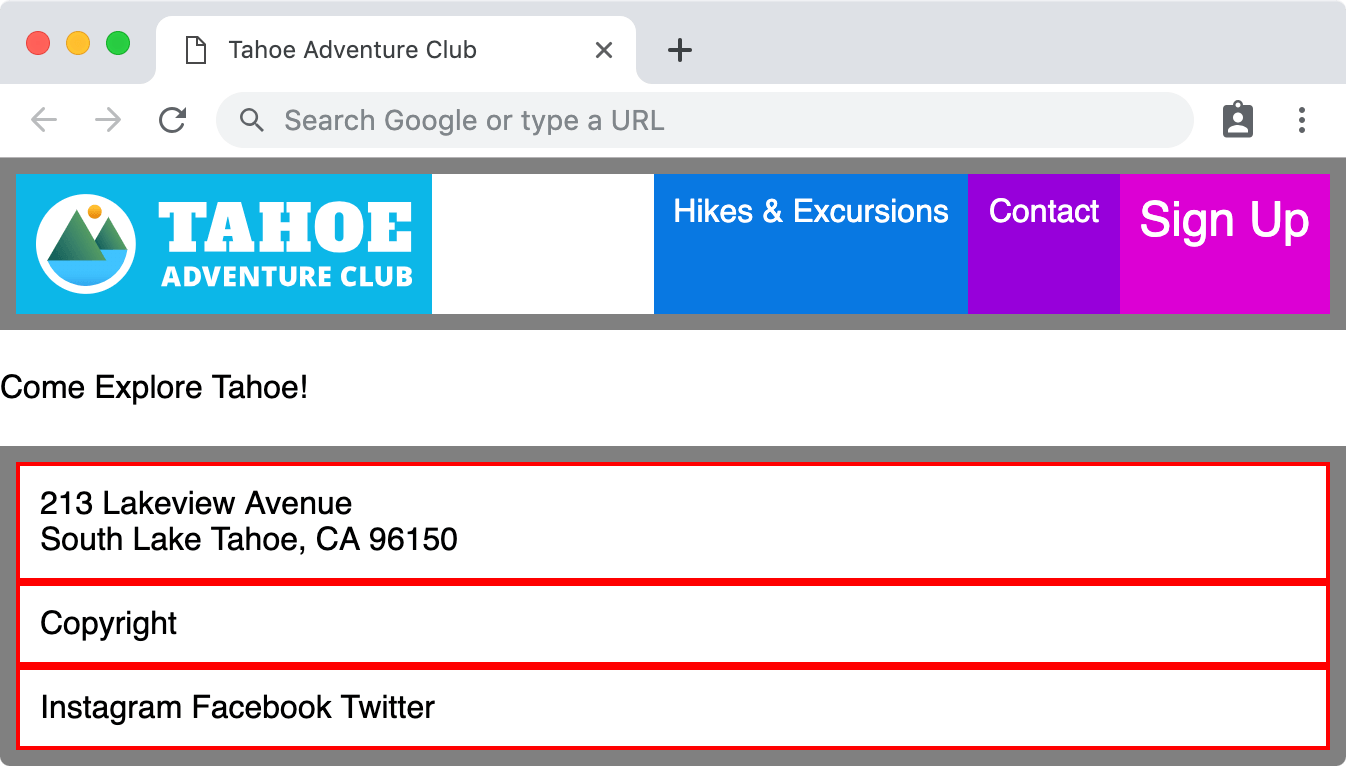
Alignment & Distribution on Main Axis & Cross Axis
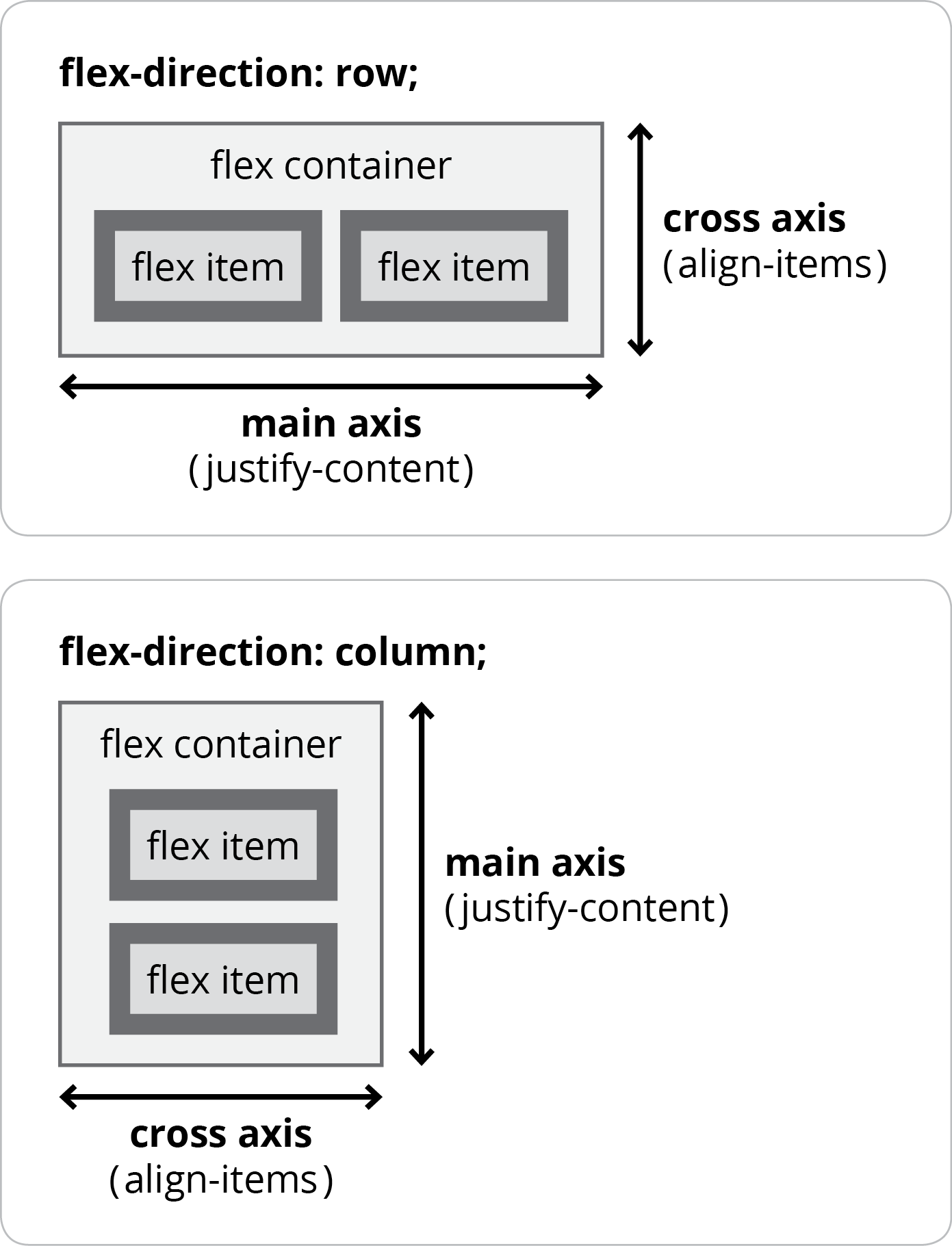
Flexbox enables us to align or distribute flex items in multiple ways. To do this flexbox has a main axis and a cross axis. They are not called horizontal and vertical, because the direction of flexbox can be changed from the default row, to column (as you’ll soon see). Here’s an illustration of how they work:
- Switch back to main.css in your code editor.
In the .navbar rule add the code shown below in bold:
.navbar {
   display: flex;
   justify-content: center;
   border: 8px solid gray;
Code Omitted To Save Space
}Save the file, and reload the page in Firefox.
- Notice the navbar items are centered horizontally.
- CTRL–click (Mac) or Right–click (Windows) on anything inside the navbar and choose Inspect Element.
- In the DevTools click on the
<ul class="navbar"> In the DevTools styles area, in .navbar style there’s a justify-content property. Click on center so it becomes editable and change it to the following values (noticing how each changes the navbar in the page):
- flex-start (the default value)
- flex-end
- center
- space-between
- space-around
- space-evenly
For a description/illustration of each, visit tinyurl.com/csstricks-justify-content
- Switch back to main.css in your code editor.
In the .navbar rule add the code shown below in bold:
.navbar {
   display: flex;
   justify-content: center;
   align-items: center;
   border: 8px solid gray;
Code Omitted To Save Space
}Save the file, and reload the page in Firefox.
- Notice the navbar items are now centered vertically.
- CTRL–click (Mac) or Right–click (Windows) on anything inside the navbar and choose Inspect Element.
- In the DevTools click on the
<ul class="navbar"> In the DevTools styles area, in .navbar style there’s a align-items property. Click on center so it becomes editable and change it to the following values (noticing how each changes the navbar in the page):
- stretch (the default value)
- flex-start
- flex-end
- center
- baseline
For a description/illustration of each, visit tinyurl.com/csstricks-align-items
Remembering Justify-Content Vs. Align-Items
Here’s a way to remember the difference:
- justify-content is a longer word, so main axis.
(horizontal for row, vertical for column) - align-items is a shorter word, so cross axis.
(vertical for row, horizontal for column)
Marcus Herrmann remembers it in a more amusing way: “I memorize Michael Jackson = MJ = Main Axis -> justify-content”