Grid: A Responsive Image Gallery (Masonry Layout)
What This Tutorial Covers
CSS Grid
Native grid layout without JavaScript.
Masonry Effect
Variable-height items packed efficiently.
Responsive Breakpoints
Column count adapts to viewport size.
Noble Desktop's Full-Stack Web Development Certificate teaches HTML, CSS, JavaScript, React, Node.js, and the modern web stack.
Discover how to create an image grid layout that looks good on all screens and understand the process such as setting up the grid for different screen sizes, enlarging some photos, and limiting the width, in this comprehensive web development tutorial.
Topics Covered in This Web Development Tutorial:
Creating the Grid Layout, Enlarging Some Photos to Create a Masonry Layout
Exercise Preview
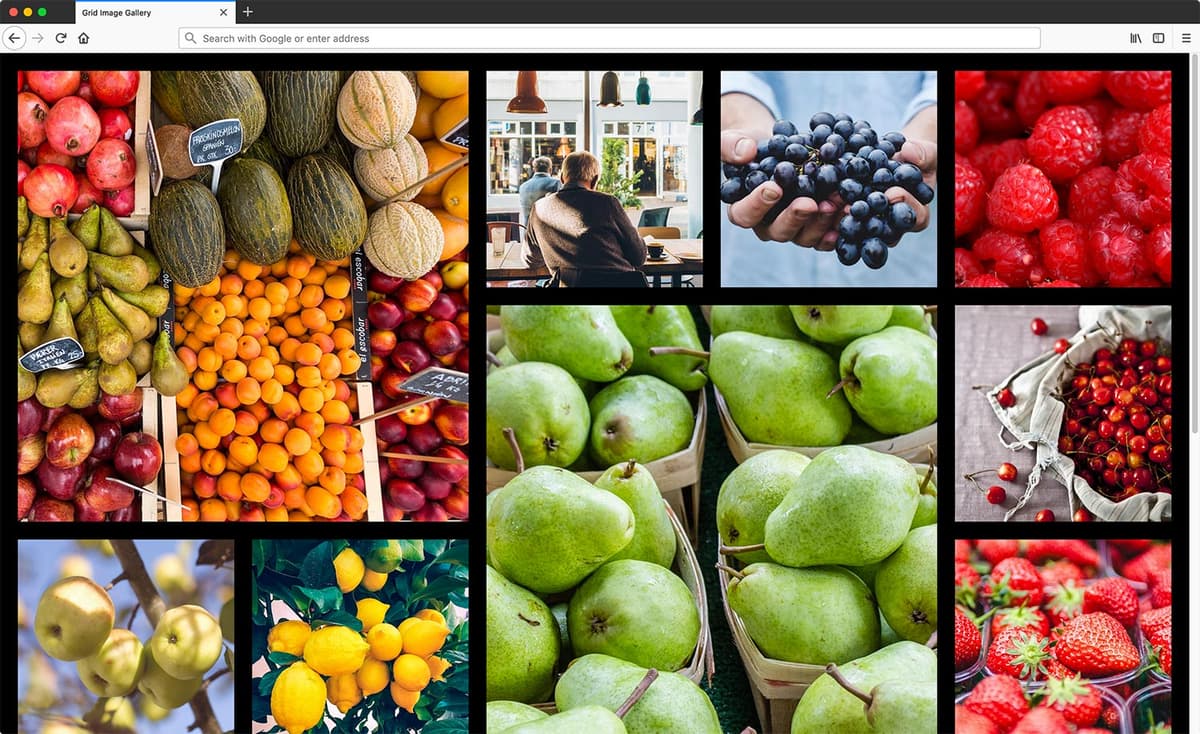
Exercise Overview
In this exercise you’ll create an image grid that looks good on all screen sizes.
Layouts with equally sized items are much easier to create than ones with different sized items. Getting unequally sized elements to fit nicely together (like Pinterest) has usually required JavaScript. CSS grid is the first CSS technology which can give us this kind of layout.
Many years ago David DeSandro created a popular JavaScript library which he named Masonry, and that is what people now call this kind of layout.
Getting Started
- In your code editor, close any files you may have open.
- For this exercise we’ll be working with the Grid Image Gallery folder located in Desktop > Class Files > yourname-Flexbox Grid Class. You may want to open that folder in your code editor if it allows you to (like Visual Studio Code does).
Open index.html from the Grid Image Gallery folder.
- Notice we have a .gallery div that contains images.
Preview index.html in Firefox.
- Scroll through to see the images we have on the page.
- Let’s put them into grid.
Leave index.html open in Firefox as you work, so you can reload the page to see the code changes you’ll make.
Setting up the Grid for Small Screens
- Switch back to your code editor.
- Open main.css from the css folder (in the Grid Image Gallery folder).
Below the body rule add the following new rule:
.gallery {
   display: grid;
   gap: 15px;
   grid-template-columns: 1fr;
}
Save the file, and reload the page in Firefox.
- You should have a 2 column image grid.
- Resize the window to see it looks nice on mobile, but the images get a bit too big on wider screens (where we have space to see more columns).
- Notice we have gaps between columns, but we don’t have the same space round the outside of the grid. Let’s add that.
- Switch back to your code editor.
In the .gallery rule, add the following bold code:
.gallery {
   display: grid;
   gap: 15px;
   padding: 15px;
   grid-template-columns: 1fr;
}
Save the file, and reload the page in Firefox.
- Notice there’s now space on the outside of the grid.
Adjusting the Grid for Larger Screens
- Switch back to your code editor.
Below the .gallery rule add the following new media query:
@media (min-width: 600px) {.gallery {
      grid-template-columns: repeat(auto-fill, minmax(250px, 1fr));
   }
}
Save the file, and reload the page in Firefox.
- Resize the window from narrow to wide.
- On narrow screens 2 columns fit. On wider screens you get more and more columns, depending on how many fit. Nice!
- On larger screens would could have more space between the photos, so let’s adjust that.
- Switch back to your code editor.
In the min-width: 600px media query’s .gallery rule, add the following bold code:
@media (min-width: 600px) {.gallery {
      gap: 25px;
      padding: 25px;
      grid-template-columns: repeat(auto-fill, minmax(250px, 1fr));
   }
}
Save the file, and reload the page in Firefox.
- Resize the window from narrow to wide and notice the margin and gap gets a little bigger when the window is 600px or wider.
Switch back to your code editor.
Enlarging Some Photos
- Switch back to your code editor.
- Switch to index.html.
- Notice that some of the photos have a big class.
- Switch back to main.css.
Below the .gallery rule add the following new rule:
.big {
   grid-column: span 2;
   grid-row: span 2;
}
Save the file, and reload the page in Firefox.
- Some of the photos are now bigger, but that has created a few gaps at certain screen sizes (resize your browser and scroll through the page to find them).
- Luckily grid has a way to help fill in these gaps.
- Switch back to your code editor.
In the min-width: 600px media query’s .gallery rule, add the following bold code:
@media (min-width: 600px) {.gallery {
      gap: 25px;
      padding: 25px;
      grid-template-columns: repeat(auto-fill, minmax(250px, 1fr));
      grid-auto-flow: dense;
   }
}
Save the file, and reload the page in Firefox.
- Notice the gaps should now be filled in.
- Keep in mind the limitations of masonry layout. The bottom may not align perfectly (there can still be gaps at the bottom) because there may not be the right number of elements to perfectly fill the grid.
Limiting the Width
We don’t want the photo grid to get too wide so let’s add a max-width.
In the min-width: 600px media query’s .gallery rule, add the following bold code:
@media (min-width: 600px) {.gallery {Code Omitted To Save Space
grid-auto-flow: dense;
      max-width: 1900px;
      margin: auto;
   }
}
Save the file, and reload the page in Firefox.
- If you have a wide enough screen, resize the window to see the photo grid does not get wider than 1900px.
- If you do not have a wide enough screen, zoom out by holding Cmd (Mac) or CTRL (Window) and hitting the Minus (-) key a few times until you can see that the width is limited.
- Zoom the page back to normal size by holding Cmd (Mac) or CTRL (Window) and hitting the Zero (0) key.