April 1, 2026Dan Rodney/6 min read

Flexbox: Reordering Content

Master Flexbox order property for responsive layouts

Key Learning Objectives

Order Property Mastery

Learn how to manipulate flex item order using positive and negative values. Understand how order values interact with default positioning.

Mobile-First Strategy

Implement mobile-first development principles where HTML order reflects logical mobile layout, then adjust for desktop.

Responsive Reordering

Apply different item orders across screen sizes using media queries for optimal user experience.

Topics Covered in This Web Development Tutorial:

Mastering Flexbox Order Property: Changing the Order of Flex Items, Understanding Positive vs. Negative Order Values

Exercise Preview

preview flexbox order

Exercise Overview

In this hands-on exercise, you'll master one of CSS Flexbox's most powerful features: the ability to visually reorder content without touching your HTML structure. This technique is essential for responsive design, allowing you to create different layouts across screen sizes while maintaining semantic HTML order. You'll learn how to strategically use positive and negative order values to achieve pixel-perfect layouts that adapt seamlessly to any device.

Prerequisites Check

This exercise assumes familiarity with basic Flexbox concepts and CSS media queries. Ensure you have a code editor and browser ready for hands-on practice.

Strategic Content Ordering in Modern HTML

When structuring content in HTML, you face a critical decision: should you order elements according to mobile or desktop layout priorities? The answer significantly impacts your development workflow and user experience.

Mobile-first development has become the industry standard in 2026 for compelling reasons:

  • Development Efficiency: Mobile layouts typically rely on vertical stacking—the browser's natural document flow. This means less CSS override work initially, then progressive enhancement for larger screens using media queries and flexbox properties.

  • User-Centric Approach: With mobile traffic consistently exceeding desktop usage across most industries, prioritizing your primary audience makes business sense. Your mobile experience becomes the foundation, not an afterthought.

Best practice dictates that your HTML order should follow logical, semantic structure—which typically aligns with your ideal mobile layout. Then use CSS flexbox order properties to adapt that structure for larger screens without compromising accessibility or SEO.

Getting Started

Let's set up your development environment and examine the starting point for this exercise.

  1. In your code editor, close any files you may have open to start with a clean workspace.
  2. For this exercise we'll be working with the Flexbox Reorder Content folder located in Desktop > Class Files > yourname-Flexbox Grid Class. If your code editor supports project folders (like Visual Studio Code, WebStorm, or Sublime Text), open the entire folder for easier file navigation.
  3. Open index.html from the Flexbox Reorder Content folder.
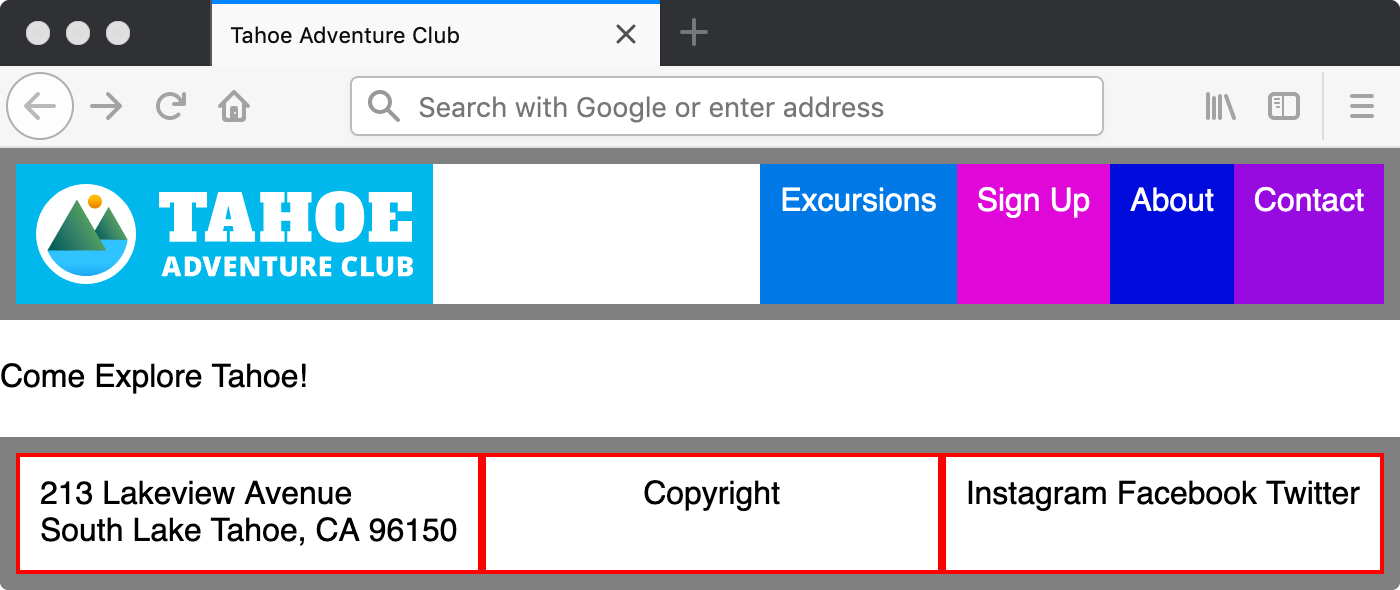
  4. Preview index.html in a browser and examine the responsive behavior:

    • Resize the window to be narrow (mobile width) to see how the navbar and footer items stack vertically instead of displaying in a single row.
    • Notice that the order of items in both the navbar and footer differs from previous exercises. We've intentionally structured the HTML in the optimal semantic order, which displays correctly on mobile devices.
    • Expand the window to desktop width to see the navbar and footer items display as horizontal rows.
    • We'll be strategically reordering some elements to optimize the desktop layout while preserving the mobile experience.
  5. Keep index.html open in your browser as you work—you'll reload the page frequently to observe your CSS changes in real-time.

Exercise Setup Process

1

File Preparation

Close existing files and navigate to Desktop > Class Files > yourname-Flexbox Grid Class > Flexbox Reorder Content folder

2

Open Project Files

Open index.html from the Flexbox Reorder Content folder in your code editor

3

Preview and Test

Open index.html in browser and resize window to observe different layouts at various screen sizes

4

Analyze Current Order

Note how navbar and footer items display differently in mobile vs desktop views

Reordering Content in the Footer (Positive vs. Negative Order Values)

Now we'll explore how flexbox order values work. Understanding this concept is crucial: the default order value for all flex items is 0. This means any negative value moves an item toward the beginning, while positive values move items toward the end.

  1. Switch back to your code editor.
  2. Open main.css from the css folder (in the Flexbox Reorder Content folder).
  3. In the min-width: 571px media query, below the footer rule add the following new rule:

    footer .social {
       order: -1;
    }

    NOTE: The order property only works on flex items. This works here because the .social div is a direct child of the footer, which has display: flex applied.

  4. Save the file, and reload the page in your browser.

    • The social div now appears first because -1 is less than the default value of 0. Negative values are powerful for moving important elements to prominent positions without restructuring HTML.
  5. Return to your code editor to experiment with positive values.
  6. In the min-width: 571px media query's footer .social rule, change the order to 1:

    footer .social {
       order: 1;
    }
  7. Save the file, and reload the page in your browser.

    • The social div has moved to the end because 1 is greater than the default 0. This demonstrates how positive values push elements toward the end of the flex container.
Order Property Requirements

The order property only works on flex items. Elements must be direct children of a flex container to be reorderable.

Order Value Effects

FeatureNegative ValuesPositive Values
Default ComparisonLess than 0 (moves earlier)Greater than 0 (moves later)
Example: order: -1Moves to beginningNot applicable
Example: order: 1Not applicableMoves to end
Default ValueAll flex items start at 0All flex items start at 0
Recommended: Use negative values to move items earlier in display order, positive values to move items later.

Reordering Content in the Navbar

Next, we'll tackle a more complex reordering scenario in the navigation. This section demonstrates how to strategically assign order values when you need precise control over multiple elements.

  1. Return to your code editor.
  2. In the min-width: 571px media query, below the .navbar .logo rule add the following new rule:

    .navbar .signup {
       order: 1;
    }
  3. Save the file, and reload the page in your browser.

    • The Sign Up button now appears at the far right because 1 is greater than the default 0.
    • This positioning works for our current needs, but what if we wanted Sign Up to appear between Excursions and About? Simply setting order to 3 won't make it third, because the other items still have the default order of 0. We need a more systematic approach.
  4. Return to your code editor to implement a comprehensive ordering system.
  5. In the min-width: 571px media query, above the .navbar .logo rule add the following new rule:

    .navbar li {
       order: 5;
    }

    NOTE: By assigning a higher default number (5), we create room for lower numbers (1-4) to control the order of specific elements. This is a professional technique for maintaining flexible, scalable CSS.

  6. In the min-width: 571px media query's .navbar .logo rule, add the following bold code:

    .navbar .logo {
       order: 1;
       margin-right: auto;
    }
  7. In the min-width: 571px media query, below the .navbar .logo rule add the following new rule:

    .navbar .excursions {
       order: 2;
    }
  8. In the min-width: 571px media query, in the .navbar .signup rule change the order to 3:

    .navbar .signup {
       order: 3;
    }
  9. Save the file, and reload the page in your browser.

    • The navigation order on wider screens should now display as: Logo, Excursions, Sign Up, About, Contact. This creates an optimal user flow for desktop users.
    • Test the responsive behavior by resizing your browser window. Verify that all order changes only apply at desktop width (thanks to the media query) while mobile maintains the original, semantically logical order.

You've now mastered the fundamentals of flexbox content reordering. This technique is invaluable for creating responsive designs that prioritize user experience across all devices while maintaining clean, semantic HTML structure. The ability to reorder content with CSS alone gives you tremendous flexibility in responsive design without compromising accessibility or SEO performance.

Strategic Order Assignment

1

Set Base Order

Assign all navbar list items order: 5 to create numbered space for specific positioning

2

Position Logo First

Set navbar logo to order: 1 to ensure it appears at the beginning

3

Order Navigation Items

Assign order: 2 to Excursions and order: 3 to Sign Up for desired sequence

4

Leave Remaining Default

About and Contact keep order: 5, appearing after specifically ordered items

Order Numbering Strategy

Use higher default numbers (like 5) for groups of items to leave room for inserting specific items at lower numbers (1, 2, 3) in desired positions.

Final Layout Result

Position 1

Logo

First position with order: 1

Position 2

Excursions

Second position with order: 2

Position 3

Sign Up

Third position with order: 3

Positions 4-5

About & Contact

Final positions with order: 5

Key Takeaways

1The CSS order property only works on flex items, requiring the parent container to have display: flex
2All flex items have a default order value of 0, making this the baseline for comparison
3Negative order values move items earlier in the display sequence, while positive values move them later
4Mobile-first development is more efficient because mobile layouts typically use default stacking behavior
5HTML structure should reflect the logical, ideal content order that works best for mobile users
6Media queries allow different item orders across screen sizes while maintaining semantic HTML structure
7Strategic order numbering with gaps allows for easy insertion of items in specific positions
8Responsive reordering enables optimal user experience across different devices without changing HTML content order

RELATED ARTICLES