April 1, 2026Dan Rodney/10 min read

Jive Factory: Responsive Slideshow

Master responsive slideshow design with FlexSlider2

Key Learning Areas

Slideshow Implementation

Learn to integrate FlexSlider2 plugin for fully responsive slideshows. Master the setup and configuration process.

Mobile Optimization

Implement smart image loading techniques to prevent unnecessary downloads on mobile devices.

Responsive Styling

Create adaptive controls and overlays that work seamlessly across all device breakpoints.

Topics Covered in This Mobile & Responsive Web Design Tutorial:

Implementing JavaScript-powered slideshows, styling slideshow content and navigation controls, and optimizing image loading for mobile performance

Exercise Preview

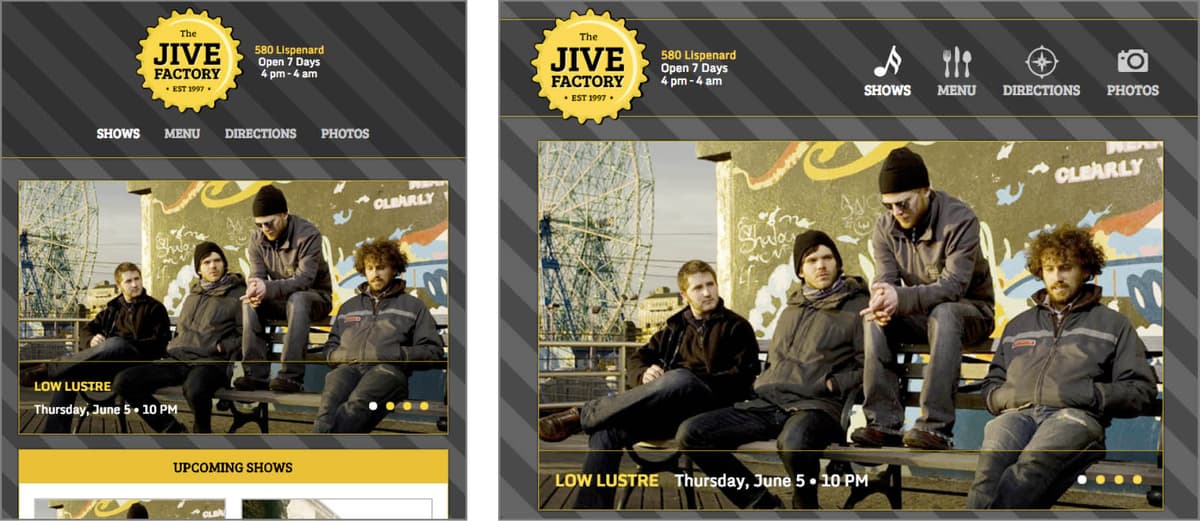
preview responsive slideshow

Exercise Overview

In this comprehensive exercise, you'll master the art of creating responsive slideshows using FlexSlider2, a robust jQuery plugin that remains a reliable choice for modern web development. This hands-on tutorial will teach you not just implementation, but optimization strategies that separate professional developers from beginners.

  1. We'll be working with a fresh set of provided files for this exercise, containing the familiar Jive Factory page enhanced with slideshow starter content. Close any existing files in your code editor to maintain focus and avoid version conflicts.
  2. In your code editor, open index.html from the Jive Responsive Slideshow folder. Precision matters here—ensure you're in the correct directory before proceeding.
  3. Examine the slideshow markup beginning on line 53. Notice the semantic structure: a ul element with class slides contains multiple li elements, each with class slide. This pattern follows accessibility best practices while providing the flexibility modern slideshows demand.

    Each list item contains two critical components:

    • A div with class photo and inline styles that load images as CSS backgrounds rather than HTML img tags.

    • A div with class overlay containing band names and performance details.

    The decision to use CSS background images instead of HTML img elements is strategic and performance-focused. Since we've set the slideshow div to display: none on mobile devices to conserve screen real estate and bandwidth, traditional img tags would still trigger downloads even when invisible to users—a critical performance mistake that costs mobile users data and loading time.

    Background images offer a elegant solution, but with an important caveat: simply setting display: none on the element containing the background image won't prevent loading. You must hide the parent element to achieve true optimization. Our photo divs nest inside the slideshow div, making this technique viable. For deeper technical insights into asset loading behavior, visit tinyurl.com/asset-downloading.

  4. Preview index.html in your browser, ensuring the window width matches the phablet breakpoint or larger to reveal the slideshow functionality.

    You'll notice the overlay text displays correctly, but the photos remain invisible. This occurs because background images don't inherently occupy space—they only appear within the visible boundaries of their container. Without content, these divs collapse to zero height.

    The professional solution involves calculating aspect ratio-based padding. Our images measure 1876 pixels wide by 1108 pixels tall, yielding an aspect ratio of 1108/1876 = 0.5906. Rounded to 59%, this becomes our padding-top value—a technique that maintains proportions across all screen sizes in fluid layouts.

  5. Switch to main.css in the css folder to implement this responsive image technique.
  6. Within the min-width: 480px media query, locate the footer.copyright rule (approximately line 319) and add this essential rule above it:

    .slideshow.slide.photo {
       padding-top: 59%;
       background-size: cover;
    }

    The background-size: cover property ensures images fill their containers completely while maintaining aspect ratio—critical for professional presentation across devices.

    Background Images vs HTML Images

    Using CSS background images instead of HTML img tags allows better control over mobile loading. When a parent element is set to display: none, background images in child elements won't load, saving bandwidth on mobile devices.

The CSS Padding Calculation Principle

Understanding why percentage-based padding works for responsive images reveals a fundamental CSS principle often overlooked by developers. All padding values—top, right, bottom, and left—calculate based on the element's width, never its height. This consistent behavior ensures uniform spacing and enables the aspect ratio technique. When an element has zero height, its top padding still calculates from the width, creating the proportional space needed for background images. This foundational knowledge proves invaluable across responsive design challenges.

  • Save the file and observe the transformation when you preview index.html.

  • With images now visible, we can integrate the slideshow functionality that will elevate this static gallery into an interactive experience.

  • Integrating the FlexSlider2 Plugin

    FlexSlider2 stands out among slideshow solutions for its robust handling of flexible widths and intuitive touch interactions—essential features for modern responsive design. While newer alternatives exist, FlexSlider2's stability and extensive documentation make it an excellent learning foundation and production choice for many projects.

    The plugin architecture requires three core files: jQuery (already linked), the FlexSlider2 JavaScript engine, and the FlexSlider2 CSS framework. We've included these files in your project directory, but you can always download the latest version from flexslider.woothemes.com for access to updates, comprehensive documentation, and community support.

    1. Begin by establishing the CSS foundation. Return to index.html in your editor.
    2. In the document head, add the FlexSlider2 stylesheet reference:

      <link rel="stylesheet" href="css/normalize.min.css">
      <link rel="stylesheet" href="flexslider/flexslider.css">
      <link rel="stylesheet" href="css/main.css">
    3. Navigate to the document's closing tags to add the JavaScript dependency.
    4. Above the existing main.js link, insert the FlexSlider2 script:

      <script src="flexslider/jquery.flexslider-min.js"></script>
      <script src="js/main.js"></script>

      We're implementing the minified version for optimal performance—every kilobyte saved improves user experience, particularly on mobile connections.

    5. Save your changes to prepare for slideshow activation.

    Configuring Slideshow Functionality

    With dependencies established, we can now implement the JavaScript that transforms static markup into dynamic functionality. This process demonstrates how professional developers leverage existing libraries efficiently rather than building complex features from scratch.

    1. Rather than typing configuration code manually, we'll use provided starter code that demonstrates best practices. Open slider-example.js from the snippets folder within your Jive Responsive Slideshow directory.
    2. Select and copy all the configuration code.
    3. Close the example file to maintain workspace clarity.
    4. Open main.js from the js folder in your project directory.
    5. Paste the configuration code into this file.
    6. Customize the selector to target our specific slideshow container:

      $(document).ready(function(){
         $('.slideshow').flexslider({
            animation: "slide", 
            directionNav: false
         });
      });

      Understanding each configuration option:

      • $('.slideshow').flexslider() initializes FlexSlider2 on elements matching the .slideshow class. This selector flexibility allows multiple slideshows per page when needed.

      • animation: "slide" specifies horizontal sliding transitions instead of the default cross-fade effect, providing more dynamic visual feedback.

      • directionNav: false removes the default previous/next arrows, aligning with our design's clean aesthetic while relying on touch gestures and dot navigation.

    7. Save the file to commit these configurations.
    8. Preview index.html in your browser and observe the automatic slide transitions. The slideshow now functions, but the user interface requires refinement to match professional standards. Notice the missing navigation dots that should appear at the bottom—these elements exist but need CSS positioning to become visible and functional.

    Styling Professional Navigation Controls

    FlexSlider2 generates navigation elements automatically, but their positioning and appearance require thoughtful CSS implementation. Professional slideshow design balances functionality with visual hierarchy, ensuring controls enhance rather than distract from content.

    1. Return to main.css to begin control styling.
    2. Within the min-width: 480px media query, locate the .slideshow.slide.photo rule (around line 319) and add this positioning context above it:

      .slideshow {
         position: relative;
      }
    3. Below the .slideshow.slide.photo rule, implement precise navigation positioning:

      .slideshow.flex-control-nav {
         bottom: 20px;
         right: 20px;
         width: auto;
         z-index: 100;
      }

      The flex-control-nav class is dynamically added by FlexSlider2, demonstrating how JavaScript libraries extend HTML with functional classes.

    4. Save and preview your progress. The navigation dots now appear in the bottom-right corner, though their default black styling lacks contrast and brand alignment.
    5. Return to main.css to implement branded navigation styling.
    6. After the .slideshow.flex-control-nav rule, add color customization:

      .slideshow.flex-control-nav li a {
         background: #fcb802;
      }
    7. Implement active state styling to clearly indicate the current slide:

      .slideshow.flex-control-nav li a.flex-active {
         background: #fff;
      }

      The flex-active class updates dynamically as users navigate, providing essential visual feedback about their current position within the slideshow sequence.

    8. Save and test the enhanced navigation in your browser. Click individual dots to verify smooth slide transitions and clear active state indication.

    Crafting Elegant Caption Overlays

    Professional slideshows balance imagery with informative text overlays that enhance rather than obscure visual content. Our implementation will create semi-transparent overlays that provide essential information while maintaining image impact.

    1. Establish positioning context for overlays by adding this rule above .slideshow.slide.photo (around line 322):

      .slideshow.slide {
         position: relative;
      }
    2. Create sophisticated overlay styling below the .slideshow.slide rule:

      .slideshow.slide.overlay {
         position: absolute;
         background: rgba(0,0,0,.5);
         z-index: 100;
         left: 0;
         right: 0;
         bottom: 0;
         padding: 20px;
         border-top: 1px solid #7e5c01;
      }
    3. Save and preview the dramatically improved overlay presentation.
    4. The band names, wrapped in strong tags, need visual emphasis to establish clear information hierarchy.
    5. Add distinctive styling for band name emphasis:

      .slideshow.slide.overlay strong {
         text-transform: uppercase;
         color: #fcb802;
         margin-right: 15px;
      }
    6. Preview the enhanced typography at various screen sizes.
    7. At smaller phablet widths, longer band names may conflict with navigation controls. Responsive design requires accommodation of these edge cases.
    8. Force band names to separate lines on smaller screens by editing the .slideshow.slide.overlay strong rule:

      .slideshow.slide.overlay strong {
         display: block;
         text-transform: uppercase;
         color: #fcb802;
         margin-right: 15px;
      }
    9. Test the improved layout across multiple screen sizes.
    10. Tablet and desktop screens can accommodate inline band names and larger text for improved readability.
    11. Navigate to the min-width: 740px media query and locate the aside rule (approximately line 406).
    12. Above the aside rule, implement tablet and desktop enhancements:

      .slideshow.slide.overlay {
         font-size: 1.4rem;
      }
      .slideshow.slide.overlay strong {
         display: inline;
      }
    13. Save and test the responsive overlay behavior across all breakpoints.
    14. Your slideshow now delivers professional presentation across all device categories with optimized typography and clear information hierarchy.

    Optimizing Mobile Performance Through Smart Loading

    True responsive design extends beyond visual adaptation to include performance optimization. Mobile users often operate under bandwidth constraints and data limitations, making intelligent resource loading a critical professional skill that directly impacts user experience and business metrics.

    1. Open index.html in Chrome to begin performance analysis.
    2. Right-click (Windows) or Ctrl-click (Mac) and select Inspect to access Developer Tools.
    3. Exit device emulation mode by clicking the Toggle device toolbar button devtools device mode icon if currently active.
    4. Optimize your development workspace by docking DevTools to the right. Click the menu button chrome devtools menu in the DevTools panel and select Dock to right:

      chrome dock to right

    5. Resize the browser content area to trigger mobile styling while keeping DevTools visible.
    6. Reload the page to capture fresh loading data.
    7. In DevTools, navigate to the Application tab (in newer Chrome versions, this replaced the Resources tab). If unavailable in the main toolbar, click the overflow >> button to access additional tabs.
    8. Expand the Frames section in the left panel.
    9. Expand (index.html) to view loaded resources.
    10. Expand the Images folder to examine loading behavior. The presence of slideshow images (prefixed with slideshow-) indicates they're downloading even on mobile devices where the slideshow remains hidden—a performance problem that wastes user bandwidth and increases loading times.

      The issue stems from how JavaScript libraries interact with CSS. Our slideshow JavaScript targets the same .slideshow element we set to display: none, potentially interfering with the browser's loading optimization. The solution involves expanding our display hiding to include child elements explicitly.

    11. Maintain your current browser setup while switching to main.css.
    12. Within the max-width: 479px media query, locate the .slideshow rule (around line 267) and enhance it:
    13. Add the slide selector to ensure comprehensive hiding:

      .slideshow, .slideshow .slide {
         display: none;
      }
    14. Save the file immediately to test the optimization.
    15. Return to Chrome with DevTools still open to the Application/Resources tab.
    16. Click the reload button and re-examine the Images folder. The slideshow images should no longer appear in the loaded resources list, confirming successful optimization.
    17. Close your working files, having successfully implemented a performance-optimized, responsive slideshow that demonstrates professional development practices.

    Modern Alternatives: Exploring Advanced Slideshow Solutions

    While FlexSlider2 provides excellent foundational knowledge, the slideshow landscape continues evolving. Swiper has emerged as a modern favorite, offering superior performance, better mobile optimization, and extensive customization options. For WordPress projects, consider MetaSlider or Smart Slider 3, which provide visual builders alongside code-level control.

    For budget-conscious projects requiring advanced features, RoyalSlider remains exceptional value at $14 (or $23 for the WordPress version). Its responsive design, touch optimization, and comprehensive feature set rival much more expensive solutions. Evaluate options at dimsemenov.com/plugins/royal-slider to understand how premium tools can accelerate development while providing enhanced user experiences.

    Key Takeaways

    1FlexSlider2 provides a free, responsive solution for touch-enabled slideshows with minimal setup requirements
    2Using CSS background images instead of HTML img tags enables better mobile optimization and loading control
    3Percentage-based top padding calculated from image aspect ratios creates responsive image containers in fluid layouts
    4All CSS padding percentages are based on element width, making responsive image techniques possible
    5Proper positioning hierarchy (relative parent, absolute children) is essential for slideshow overlay elements
    6JavaScript plugins can interfere with CSS display properties, requiring careful element targeting for optimization
    7Mobile-first design principles include preventing unnecessary image downloads on bandwidth-limited devices
    8Responsive breakpoints require different typography and layout approaches for optimal user experience across devices

    RELATED ARTICLES