Bootstrap: Skinning/Customizing Appearance
What This Tutorial Covers
Sass Variables
Override Bootstrap defaults with custom Sass values.
Custom Themes
Build entire branded looks on Bootstrap's grid foundation.
Component Customization
Modify individual component styles for your brand.
Noble Desktop's Web Design Certificate teaches Figma, HTML, CSS, and responsive design.
Learn to customize the appearance of layouts created with Bootstrap in this comprehensive Mobile & Responsive Web Design tutorial, which also provides hands-on exercises to improve your skills.
Topics Covered in This Mobile & Responsive Web Design Tutorial:
Overriding Bootstrap’s Default Appearance, Adding Custom Media Queries, Bootstrap’s Optional Theme, Creating a Fixed Navbar, Adding Icons Using Boostrap’s Included Icon Font
Exercise Preview
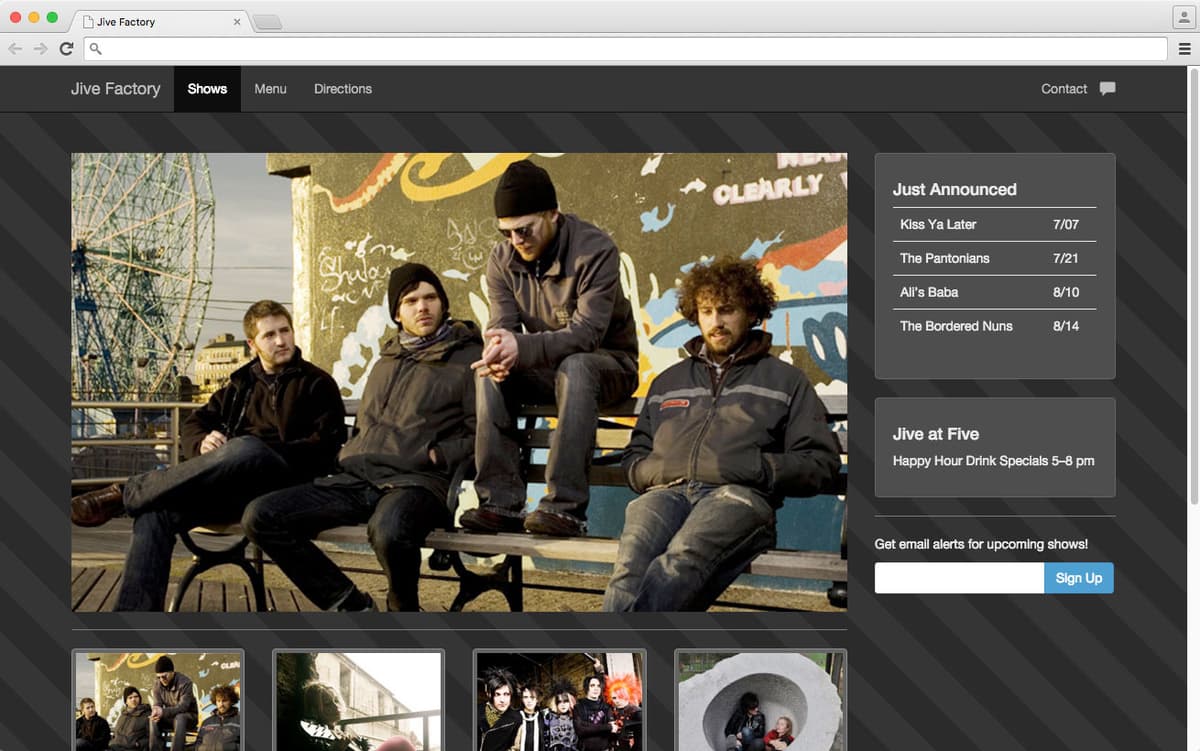
Photos courtesy of istockphoto, Hakan Çaglav, Image #14393929, Renee Keith, Image #7827478.
Exercise Overview
In this exercise you’ll learn how to customize the appearance of layouts created with Bootstrap, which is a process known as skinning.
If you completed the previous exercises, you can skip the following sidebar. We recommend you finish the previous exercises (5C–6B) before starting this one. If you haven’t finished them, do the following sidebar.
If You Did Not Do the Previous Exercises (5C–6B)
- Close any files you may have open.
- On the Desktop, go to Class Files > yourname-Mobile and Responsive Class.
- Delete the Bootstrap folder.
- Select the Bootstrap Controlling Grids & Layout Done folder.
- Rename the folder to Bootstrap.
Improving the Footer
For this exercise we’ll be working with the Bootstrap folder. Open that folder in your code editor if it allows you to (like Sublime Text does).
Open index.html in a browser.
At the very bottom of the page, the footer contains The Jive Factory text on the left and some social links on the right. At wider screen sizes this looks fine, but as the screen/window gets narrower the group of social links get bumped down onto a new line earlier than we’d expect. It seems like they’d have space to fit but they don’t. That’s because we used the sm breakpoint width for columns. We should switch to the xs breakpoint.
Open index.html in your code editor.
In the footer (around line 121), change the sm to xs as shown below:
<footer class="row">
   <div class="col-xs-6">
      <h4>The Jive Factory <small>All rights reserved.</small></h4>
   </div>
   <div class="col-xs-6">
      <ul class="nav-pills pull-right">
         <li><a href="#">X (formerly known as Twitter)</a></li>
         <li><a href="#">Facebook</a></li>
         <li><a href="#">RSS</a></li>
      </ul>
   </div>
</footer>
Save and preview index.html in a browser.
Resize the window to see that the footer is now always two columns. This is better but at very small sizes we don’t want it to be two columns. Bootstrap’s smallest media query is for screens below 768px. We need more fine tuned control than that, so we’ll have to create our own media query for small screens.
Switch to main.css in your code editor.
Above the existing media queries, add the following new media query:
@media (max-width: 599px) {

}
NOTE: Where did we come up with 599px? We experimented until we found a good number that worked with our content. 600px and up shouldn’t get this style, which seemed like a nice round number that was very close to when our content needed to change.
Let’s start by making the footer’s two columns the full width of the screen, so they will no longer appear as columns:
@media (max-width: 599px) {
   footer.col-xs-6 {
      width: 100%;
   }
}
Now let’s stop the social links from aligning to the right by adding the following:
@media (max-width: 599px) {
   footer.col-xs-6 {
      width: 100%;
   }
   footer.nav-pills.pull-right {
      float: none;
   }
}
Save the file.
Preview index.html in Chrome (we’ll be using Chrome’s DevTools).
Resize the window so it’s narrower than 599px. Notice that the social links in the footer are on their own line. The links are still pulling to the right which is not what we wanted. Let’s investigate.
CTRL–click (Mac) or Right–click (Windows) on any one of the social links.
In the menu that appears, choose Inspect.
In the code inspector that opens, click on:
<ul class="nav-pills pull-right">In the Styles section of the inspector find the .pull-right rule and notice there is an !important declaration after float: right. Our CSS selector is more specific than Bootstrap’s .pull-right so normally our CSS should override theirs. But !important forces that attribute to be used over other rules, even if those other rules are more specific. The only way we can force our rule to override theirs is by adding the same !important declaration to our CSS.
Switch back to main.css in your code editor.
Add !important between none and the semi-colon as shown below. Make sure you add the code before the semi-colon!
footer.nav-pills.pull-right {
   float: none !important;
}
Save the file and preview index.html in a browser. Now the social links should align left (at the extra small screen size), except the text isn’t lining up because of the padding on the links. To get these to visually align we’ll have to remove the 15px of space on the links.
Switch back to main.css in your code editor.
Adjust the left margin as follows—and be sure to use a negative number because we’re removing space!
footer.nav-pills.pull-right {
   float: none!important;
   margin-left: -15px;
}
Save the file.
Preview index.html in a browser. Resize the page to see that the footer now looks nice at any screen/window size!
Using Bootstrap’s Optional Theme
Bootstrap’s default styling is very flat and simple. Not only does that fit with current design trends, but it also lends itself to easier skinning. By having less default styling you don’t have to override as much to make changes. Bootstrap does offer an optional theme with a more three-dimensional appearance. Let’s see what it looks like.
- Switch to index.html in your code editor.
Near the top (around line 7) find the link to Bootstrap’s CSS:
<link rel="stylesheet" href="css/bootstrap.min.css">Make a copy of that line as shown below. TIP: If you’re using Sublime Text you can place the cursor in the line and duplicate it by hitting Cmd–Shift–D (Mac) or CTRL–Shift–D (Windows).
<link rel="stylesheet" href="css/bootstrap.min.css">
<link rel="stylesheet" href="css/bootstrap.min.css">
<link rel="stylesheet" href="css/main.css">
On the bottom copy add -theme as shown below:
<link rel="stylesheet" href="css/bootstrap.min.css"> <link rel="stylesheet" href="css/bootstrap-theme.min.css"> <link rel="stylesheet" href="css/main.css">- Save the file.
- Preview index.html in a browser. Look closely to see the visual changes (they are subtle). The navbar and buttons now look slightly more three-dimensional with subtle highlights and gradients. The wells in the sidebar also have subtle gradient backgrounds instead of solid color backgrounds. This theme is optional. Use it if you like, don’t use it if you don’t like it.
- For this page we prefer the cleaner look of the default theme. We’re also going to skin our own design anyway, so let’s keep the page size smaller by not using this optional theme. Switch back to index.html in your code editor.
Delete the link to bootstrap-theme.min.css so you have the following:
<link rel="stylesheet" href="css/bootstrap.min.css">
<link rel="stylesheet" href="css/main.css">
Creating a Fixed Navbar
Earlier in this workbook when we created the Jive Factory’s responsive webpage from scratch we gave it a dark appearance. Let’s start customizing this page so it looks similar to that. We can start by using an alternate appearance for Bootstrap’s navbar.
Around line 12 find the following line for the navbar:
<nav class="navbar-default">Change default to inverse to give it a white on black appearance:
<nav class="navbar-inverse">- Save and preview index.html in a browser. The navbar should now have a black background with white text. That looks cool!
- We can also dock the navbar to the top of the screen if we want. Switch back to index.html in your code editor.
Add a navbar-fixed-top class as shown below:
<nav class="navbar-inverse navbar-fixed-top">Save and preview index.html in a browser. Scroll up/down on the page and notice the navbar now remains attached to the top. That’s pretty cool, but if we’re going to keep it there we have to adjust the top position of the page’s content. Now that the navbar is fixed, it has been removed from the flow of the document and covers part of the page. The slideshow’s placeholder photo and Just Announced sections are being partially obscured. Let’s fix that now.
Switch to main.css in your code editor.
Delete the margin line and replace it with the following padding:
body {
   padding: 80px 0 30px;
}
NOTE: The navbar is 50px tall, and we’re adding 30px of space so we end up needing 80px at the top (the 30px is at the bottom of the page). We’re using padding instead of margin to be consistent with the documentation on the Bootstrap website.
- Save the file.
Preview index.html in a browser.
That’s better! The navbar should no longer cover the page’s content. But there is one other problem, the navbar’s content doesn’t align with the page content below. The navbar’s content is left aligned, but the page’s content is centered. That’s because the page’s content is in a div with Bootstrap’s container class. Even though the navbar is actually inside that container class, it is pulled out of that div to have the fixed position at the top of the window. Therefore we need to wrap the content inside the navbar in a div with that container class.
Switch to index.html in your code editor.
As shown below, wrap a div with a container class around the navbar’s content:
<nav class="navbar-inverse navbar-fixed-top">
   <div class="container">
      <!—Brand and toggle get grouped for better mobile display—>
      <div class="navbar-header">
Code Omitted To Save Space
</div>

      <!—Collect the nav links, forms, and other content for toggling—>
      <div class="collapse navbar-collapse" id="bs-example-navbar-collapse-1">
Code Omitted To Save Space
</div><!—/.navbar-collapse—>
   </div>
</nav>
Save and preview index.html in a browser. Now the navbar’s content should be centered and aligned nicely with the page’s content as the grid changes through the various breakpoints.
Adding Icons Using Bootstrap’s Included Icon Font
Bootstrap includes an icon/glyph font and CSS classes to use their icons. To add them to our page all we need to do is add a span tag with the appropriate Bootstrap class where we want the icon to be in the text.
- Switch to index.html in your code editor.
Around line 49 find the first Tickets link (for the Low Lustre show).
<a href="#" class="btn-default">Tickets</a>We want to add a shopping cart icon to this link, so add the following span tag and classes. IMPORTANT! Be sure to add a space after Tickets so there will be some space between the word and the icon!
Tickets <span class="glyphicon-shopping-cart"></span></a>NOTE: The complete list of the icons and their class names can be found at getbootstrap.com/components
Save and preview index.html in a browser. The first Tickets button should now have a shopping cart icon. Cool!
Switch back to index.html in your code editor.
We need to add this same icon to the other three Tickets buttons. Copy the new span tag for the shopping cart icon you just added.
Paste the span tag in the same place for the other three Tickets buttons, making sure you have a space between Tickets and the span tag!
Let’s add one more icon. We want to add a speech bubble to the Contact link in the navbar. Around line 33 find the Contact link.
<li><a href="#">Contact</a></li>Add the following span tag and classes. This time do not include a space between the text and the icon. We’ll customize the spacing and appearance with CSS instead.
<li><a href="#">Contact<span class="glyphicon-comment"></span></a></li>Save and preview index.html in a browser. The Contact link on the top right of the navbar should now have a speech bubble. If your window is small and the navbar is collapsed, click the three lined menu button (also called the hamburger) to expand the menu and see the Contact link.
Not only is the speech bubble too close to the text, but we think it’s a bit small. Because this icon is a font, it acts like text and we can use regular CSS text styling to change it.
Switch to main.css in your code editor.
Below the hr.visible-xs rule add the following:
nav.glyphicon-comment { font-size: 1.2em; margin-left: 10px; }- Save and preview index.html in a browser and notice the following:
The size and space between the text and icon are both improved, but it’s a little high in the line.
If you look closely, the Contact text has been pushed down slightly in the navbar so it’s no longer aligned with the same baseline as the rest of the navbar text. That’s because the icon character is taller and making the line height taller. We’ll need to remove the extra line-height to fix that.
Switch back to main.css in your code editor.
Add the following to better position the speech bubble icon in the navbar:
nav.glyphicon-comment {
   font-size: 1.2em;
   line-height: 0;
   margin-left: 10px;
}
Save and preview index.html in a browser. Now the Contact text is once again aligned with the rest of the navbar text. The icon is taller vertically so it still looks a bit too high up in the line. Let’s move it down vertically so it looks visually centered.
Switch back to main.css in your code editor.
Add the following to fix the position of the Contact text in the navbar:
nav.glyphicon-comment {
   font-size: 1.2em;
   line-height: 0;
   margin-left: 10px;
   position: relative;
   top:.2em;
}
NOTE: To be able to adjust the top value we must specify a position type. Relative positioning lets us shift the icon up, relative to its current position. We chose.2em for the amount because the type was increased from 1em to 1.2em, giving us a difference of.2em.
Save and preview index.html in a browser. The speech bubble should now look nice!
Skinning or Customizing the Design
Let’s finish giving the page a dark appearance.
From the snippets folder open background-gradient.css.
This is the same diagonal gradient code we learned about in an earlier exercise.
- Select and copy all the code.
- Switch to main.css in your code editor.
Paste the CSS into the body rule as shown below:
body {
  padding: 80px 0 30px;
  color: #ddd;
  background-color: #222;
  background-image: repeating-linear-gradient(45deg, transparent, transparent 35px, rgba(0,0,0,.2) 35px, rgba(0,0,0,.2) 70px);
  background-attachment: fixed;
}
Save the file and preview index.html in a browser. The page should now have a darker striped background, but we have more work to do. The horizontal rules dividing the upcoming shows stand out too much because they are too bright.
Switch to main.css in your code editor.
Before the hr.visible-xs rule add the following:
hr { border-color: #555; }- Save and preview index.html in a browser. The white background of the wells in the sidebar does not fit with our new dark appearance. Let’s give them a dark background with light text.
- Switch to main.css in your code editor.
Before the nav.glyphicon-comment rule add the following:
.well { background: #333; border-color: #444; }- Save and preview index.html in a browser. It’s getting better! The Tickets buttons are too bright so we’ll want to change them as well. These have Bootstrap’s btn-default class. We’ll target that class so our new style will affect all default buttons.
- Switch to main.css in your code editor.
After the .well rule add the following:
.btn-default {
   background: #444;
   border-color: #666;
   color: #ddd;
}
Save and preview index.html in a browser and notice that the icon in the Tickets button changed color along with the text color!
Mouse over the Tickets button and notice the bright appearance. While this could be fine, we’d rather keep the dark appearance. Switch to main.css in your code editor.
After the .btn-default rule add the following:
.btn-default:hover {
   background: #555;
   color: #ddd;
}
Save and preview index.html in a browser. Mouse over the Tickets button and notice the more subtle appearance.
The last thing we need to fix is the bright border around the photos. We used Bootstrap’s img-thumbnail class so let’s change that. Switch to main.css in your code editor.
After the .btn-default:hover rule add the following:
.img-thumbnail {
   background-color: #444;
   border-color: #666;
}
Save and preview index.html in a browser. That’s much better. The page no longer looks like every other Bootstrap page. While there’s more we could do, that should give you a better understanding of how to go about skinning Bootstrap.
Optional Bonus Challenge
- Preview index.html in a browser.
- At the bottom of the page mouse over the social links and notice that the rollover is very bright. That doesn’t fit with our dark theme. Our challenge to you is: can you figure out which Bootstrap class to restyle with CSS?
- You may also want to change the appearance of the email sign up field. If so, what class would you target to restyle that?