Bootstrap: Creating a Photo Grid
What This Tutorial Covers
Grid System
12-column responsive grid out of the box.
Responsive Columns
Different column counts per breakpoint.
Image Fit
Object-fit and aspect ratios for consistent grids.
Noble Desktop's Web Design Certificate teaches Figma, HTML, CSS, and responsive design.
Delve into the intricacies of mobile and responsive web design with this tutorial, exploring Bootstrap’s fluid container, image handling in the grid, and nested sections.
Topics Covered in This Mobile & Responsive Web Design Tutorial:
Bootstrap’s Fluid Container, Making Images Fill the Grid, Nesting Sections
Exercise Preview
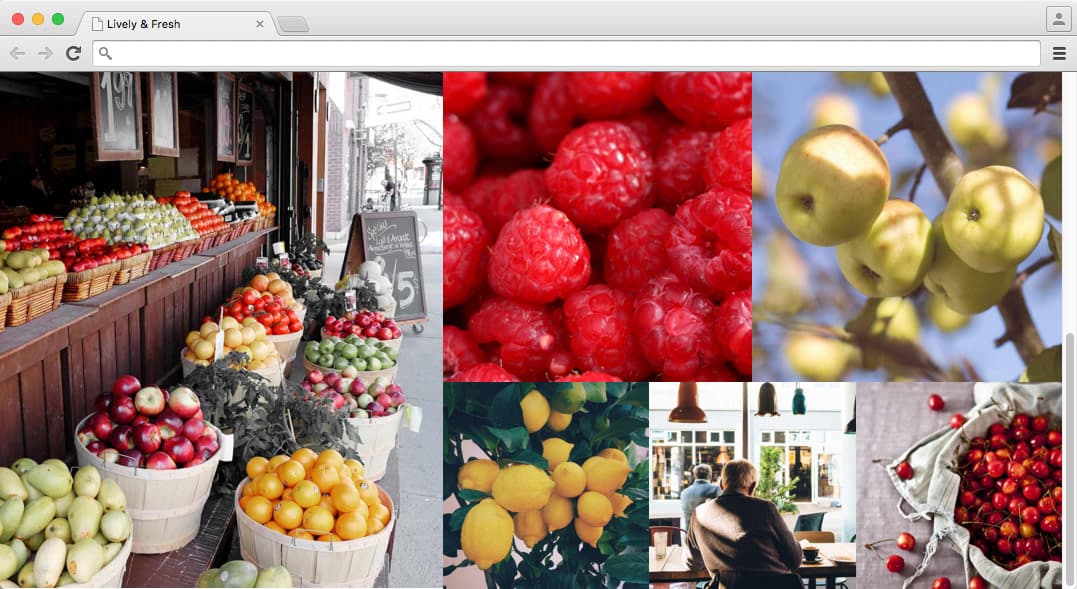
Exercise Overview
In this exercise you’ll learn about Bootstrap’s fluid-width grid that fills the entire screen width.
Getting Started
We’ll be working with the Lively and Fresh folder. Open that folder in your code editor if it allows you to (like Sublime Text does).
In your code editor, open index.html. This is a pretty standard HTML file, in which we have added the viewport meta tag as well as linked to a Google web font, Bootstrap’s CSS, and a main.css (which is currently empty).
Let’s start by adding a fluid-width container and a row. In the body, add the following bold code:
<body>
   <div class="container-fluid">
     <div class="row">

     </div>
   </div>
</body>
NOTE: Bootstrap’s container-fluid class gives us a container that’s the full width of the screen, instead of responsive fixed width, as we used in the previous projects.
Laying Out a Photo Grid
Inside the row, add two columns as shown below in bold:
<div class="row">
   <div class="col-md-5">
      image
   </div>
   <div class="col-md-7">
      grid
   </div>
</div>
Save the file.
Bootstrap is made up of a 12-column grid, so our left column is slightly smaller than the right column. Before we preview, let’s add some styles to help us visualize the grid as we build it.
Open main.css in the css folder. It’s empty now, awaiting your styles.
Let’s give the columns a temporary border, background color, and some height, by adding the following code:
div[class^="col"] {
   border: 1px solid #333;
   background: #fd9;
   line-height: 18;
}
Because Bootstrap uses a variety of classes for column and screen size, we can use an attribute selector to target any class that starts with col.
Save the file.
Preview index.html in a browser and resize the window to the medium breakpoint (992px) or wider.
We can now see the layout’s two columns. We’ll be placing a single tall photo in the left column. In the right column we’ll be creating a photo grid of multiple images (that end up being the same height as the image in the left column).
Nesting Columns
Inside the right column we want to nest a new 12-column grid. We only need to add a row, which can hold another 12-column grid!
We have five photos to fit into the right column. We’ll be splitting them up into two rows: the top row will have two images, and the bottom row will have three images.
Switch back to index.html in your code editor.
In the col-md-7 div, replace grid with two rows, as shown below in bold:
<div class="col-md-7"> <div class="row"> grid </div> <div class="row"> grid </div> </div>- Save the file and preview in a browser.
- Make sure the window is wide enough so you can see image on the left and the two rows of grid on the right.
- Switch back to index.html in your code editor.
Add two columns inside the first grid row, as shown below in bold:
<div class="col-md-7">
   <div class="row">
      <div class="col-md-6">grid</div>
      <div class="col-md-6">grid</div>
   </div>
   <div class="row">
      grid
   </div>
</div>
In the second grid row, add three columns, as shown below in bold. Make sure you’re using the col-md-4 class (because we want three columns instead of two)!
<div class="row"> <div class="col-md-6">grid</div> <div class="col-md-6">grid</div> </div> <div class="row"> <div class="col-md-4">grid</div> <div class="col-md-4">grid</div> <div class="col-md-4">grid</div> </div>- Save the file.
Preview again in your browser. Now you should be able to see the grid! Resize the browser window to see how the layout will snap into a single column at smaller window widths.
Adding Images to the Photo Grid
Let’s start adding the images. In the col-md-5 column, around line 15, replace the placeholder text with the following image:
<div class="row"> <div class="col-md-5"> <img src="img/stand@2x.jpg"> </div>- Save the file.
- Reload your browser. Yikes, it’s giant! We need to make the images responsive.
Return to main.css in your code editor, and add the following above everything else:
img { max-width: 100%; }- Save the file.
- Reload your browser. Better. There is space on the sides that needs to be removed, but let’s finish adding in the images first.
- Return to index.html in your code editor.
In the col-md-7 column around line 17, add the following images as shown below in bold:
<div class="row">
   <div class="col-md-6"><img src="img/raspberries@2x.jpg"></div>
   <div class="col-md-6"><img src="img/apples@2x.jpg"></div>
</div>
<div class="row">
   <div class="col-md-4"><img src="img/lemons@2x.jpg"></div>
   <div class="col-md-4"><img src="img/customer@2x.jpg"></div>
   <div class="col-md-4"><img src="img/cherries@2x.jpg"></div>
</div>
Save the file.
- Reload your browser. The photos should all be there, but the gaps around them don’t look good. Bootstrap’s col class adds 15px of padding on the left and right. Let’s remove that so the images sit neatly flush against each other.
- Return to main.css in your code editor.
In the
div[class^="col"]rule delete all of its current styling, and replace it with the padding shown below in bold:div[class^="col"] { padding: 0; }Save the file and reload the browser.
The bottom of the photo grid on the right is not lining up with the photo on the left. That’s because rows have -15px margins, which is making them larger and covering more than they should. We need to zero out this margin, but only in the nested rows. For a deeper explanation of how the CSS of Bootstrap’s grid works, please check out tinyurl.com/how-bootstrap-grid-works
- Return to main.css in your code editor.
Below the other rules, add the following new rule:
div[class^="col"].row {
   margin: 0;
}
Save the file and reload the browser. That’s looking pretty good!
Resize the window to see that the photo grid currently snaps down to a single column layout when the browser is still quite wide. With Bootstrap’s column classes, we can adjust when each of the columns appear.
Changing Breakpoints in Bootstrap
Return to your code editor.
In index.html change the columns in the nested photo grid from md to sm as shown below in bold:
<div class="row"> <div class="col-sm-6"><img src="img/raspberries@2x.jpg"></div> <div class="col-sm-6"><img src="img/apples@2x.jpg"></div> </div> <div class="row"> <div class="col-sm-4"><img src="img/lemons@2x.jpg"></div> <div class="col-sm-4"><img src="img/customer@2x.jpg"></div> <div class="col-sm-4"><img src="img/cherries@2x.jpg"></div> </div>- Save the file.
- Reload your browser.
Resize the window from desktop size down to mobile and along the way notice:
- When the photo grid first drops below the image of the fruit stand, the photos are still in a grid.
- As the window gets smaller, the grid will change to all images being stacked on top of each other.
- In the mobile layout all the images stack on top of each other, which is a bit boring. It would be nice if we had some sitting side-by-side even at this small screen width.
- Return to index.html in your code editor.
The raspberries and apples row currently stack on top of each other at the sm screen size. Let’s change that to xs so these two images are always next to each other. Around line 19, edit the code as follows:
<div class="row">
   <div class="col-xs-6"><img src="img/raspberries@2x.jpg"></div>
   <div class="col-xs-6"><img src="img/apples@2x.jpg"></div>
</div>
Save the file and reload the browser to see that the raspberry and apple photos should always be next to each other, even at mobile sizes.
Optional Bonus: Adding a Full Screen Hero Image
- Let’s add a hero image and heading at the top of the page. In your code editor, return to index.html.
Directly below the start of the container-fluid div, add the following bold code:
<div class="container-fluid">
   <div class="row">
      <div class="col-xs-12">
          <h1>Lively + Fresh</h1>
      </div>
   </div>
   <div class="row">
NOTE: This is going to be a hero image, so it should fill the container at all sizes. Setting it to span 12 columns (starting with extra small screens) will do the trick.
While we’re here, let’s also give the div another class that we will use to target it for styling. Add the following class as shown in bold:
<div class="container-fluid"> <div class="row"> <div class="col-xs-12 hero"> <h1>Lively + Fresh</h1> </div> </div>- Save the file.
- Switch to main.css.
Below the other styles, add the following rules to style the hero column div and the h1 inside it. (We’ve already linked to a Google-hosted web font called Permanent Marker.)
.hero {
   background: url(../img/hero@2x.jpg) center;
   background-size: cover;
   padding: 10%;
   height: 100vh;
}.hero h1 {
   font-family: 'Permanent Marker', sans-serif;
   font-size: 10vw;
   color: #fff;
   text-align: center;
}
TIP: If you have content that may not fit onto smaller screens, use min-height instead of height. In that case your code would be
min-height: 100vh;- Save the file.
Reload your browser. You should have a gorgeous, full screen, fluid hero image! Don’t forget to scroll down and see the photo grid that’s still down below.