April 1, 2026Noble Desktop Publishing Team/10 min read

Adjusting the Templates Created by Scaffolding

Master Ruby on Rails Template Customization and Styling

Key Areas You'll Master

Template Modification

Learn to customize Rails scaffolding templates by editing views and removing unnecessary elements. Master the art of modifying ERB files to create cleaner interfaces.

Styling and CSS

Apply custom styles using SCSS preprocessor. Understand how Rails compiles Sass into CSS and implement responsive design principles.

Security Implementation

Implement HTTP basic authentication to protect your application. Learn to secure specific actions while keeping others publicly accessible.

Topics Covered in This Ruby on Rails Tutorial:

Formatting Rails applications, coding elegant styles in Rails, implementing dynamic title bar titles, redirecting the site root page, customizing CSS for professional appearance, and adding essential security measures

Exercise Preview

preview adjust scaffolding templates

Exercise Overview

In this comprehensive exercise, you'll transform the basic recipe application from the previous lesson into a polished, professional web application. You'll learn essential Rails formatting techniques, implement responsive design principles, and add security measures that are crucial for any production application. This exercise builds directly on your previous work, so ensure you've completed the scaffolding tutorial before proceeding.

  1. Launch Chrome or your preferred modern browser.

  2. Navigate to localhost:3000/recipes

  3. You should see the functional recipes application from your previous exercise. If you encounter connection errors, you'll need to restart the Rails development server using the process outlined in the sidebar below. This is a common step in Rails development workflows.

    Prerequisites Required

    You must complete the previous exercise before starting this one. Ensure your Rails server is running and the recipes application is accessible at localhost:3000/recipes.

Restarting the Rails Development Server

  1. Open Terminal and type cd followed by a space.

  2. Locate the cookbook folder and drag it onto the Terminal window to auto-populate the path. It should be in Desktop > Class Files > yourname-Rails Class.

  3. Press Return to navigate to the directory.

  4. Execute rails server and press Return to start the development server.

  5. Open Chrome and navigate to localhost:3000/recipes to verify the server is running.

Formatting Rails Applications for Professional Standards

Your current recipe application is fully functional but lacks the visual polish expected in modern web applications. Rails scaffolding creates a solid foundation, but professional developers always customize the generated views to match user experience standards and brand requirements.

  1. Keep your recipe application open in the browser throughout this exercise—you'll be testing changes in real-time, which is standard practice in agile development environments.

  2. We'll be working extensively with the cookbook folder located at Desktop > Class Files > yourname-Rails Class > cookbook. This represents your application's root directory.

  3. Open the entire cookbook folder in your code editor (Sublime Text, VS Code, or similar). Modern editors provide project-wide navigation and search capabilities that significantly improve productivity.

  4. Navigate to and open cookbook > app > views > recipes > index.html.erb in your editor.

    This file demonstrates Rails' powerful templating system. The .erb extension indicates Embedded Ruby—a templating language that seamlessly combines HTML with Ruby logic. This approach allows for dynamic content generation while maintaining clean separation between presentation and business logic.

    NOTE: Understanding file extensions is crucial: .rb files contain pure Ruby code, while .erb files blend HTML with embedded Ruby for view templating.

  5. Arrange your workspace with both the browser and code editor visible simultaneously. This split-screen approach enables immediate visual feedback—a best practice that speeds development and reduces context switching.

    We're about to streamline the recipe index page by removing excessive detail fields. This process, called view modification, is fundamental to creating user-friendly interfaces. In Rails MVC architecture, views are responsible for presenting data to users in an optimal format.

  6. In index.html.erb, locate and delete the following table header and data lines. These aren't consecutive in the code—you'll need to find each element individually:

    <th>Description</th>
    <th>Ingredients</th>
    <th>Directions</th>
    <td><%= recipe.description %></td>
    <td><%= recipe.ingredients %></td>
    <td><%= recipe.directions %></td>
  7. Save the file using Cmd+S (Mac) or Ctrl+S (Windows).

  8. In Chrome, refresh the page (Cmd+R or F5). The removed elements should no longer appear, leaving a clean interface displaying only Title and Prep time. This simplified view improves usability by reducing cognitive load—users can quickly scan recipe options without being overwhelmed by details.

Understanding ERB Files

ERB stands for Embedded Ruby. These files combine HTML with Ruby code, allowing dynamic content generation. The .erb extension indicates mixed HTML and Ruby syntax.

Code Elements to Remove

0/4

Implementing Professional Styling in Rails Views

Now we'll enhance the individual recipe display page, applying modern web design principles that improve both aesthetics and user experience.

  1. Click the Show link next to any recipe to navigate to the detailed recipe view. This demonstrates Rails' RESTful routing conventions.

  2. Open app > views > recipes > show.html.erb in your code editor.

    This template renders individual recipe details. Notice the embedded Ruby code that dynamically displays database content. The notice element at the top provides user feedback—an essential component of intuitive web applications that keeps users informed about their actions.

  3. Remove this redundant label: <strong>Title:</strong>

  4. Transform the title into a prominent heading by changing the paragraph tag to an h1 element:

    <h1>
       <%= @recipe.title %>
    </h1>

    This change implements proper semantic HTML structure while creating visual hierarchy that guides users through the content.

  5. Save the file and refresh your browser.

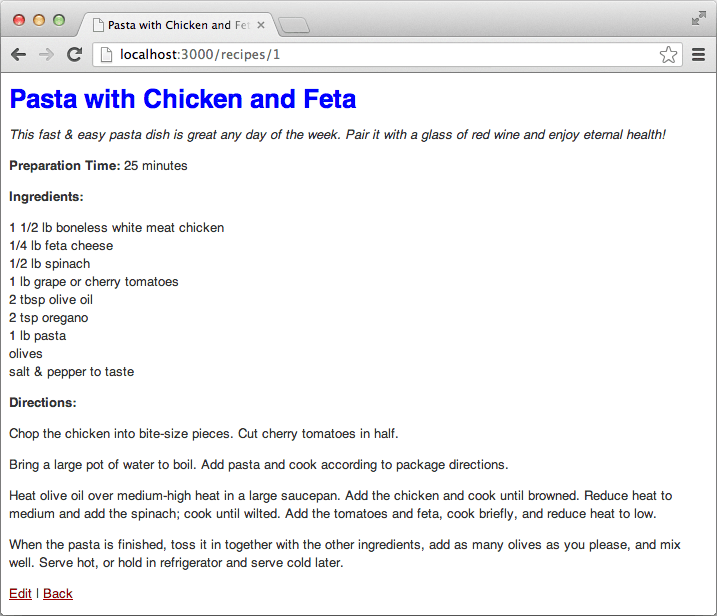
    recipe header

  6. Delete the label <strong>Description:</strong> to maintain clean visual flow.

  7. Add semantic emphasis to the description by wrapping it in italic tags:

    <em><%= @recipe.description %></em>
  8. Enhance the time label for clarity by changing Prep time: to Preparation Time:

  9. Save and refresh to see your improvements taking effect.

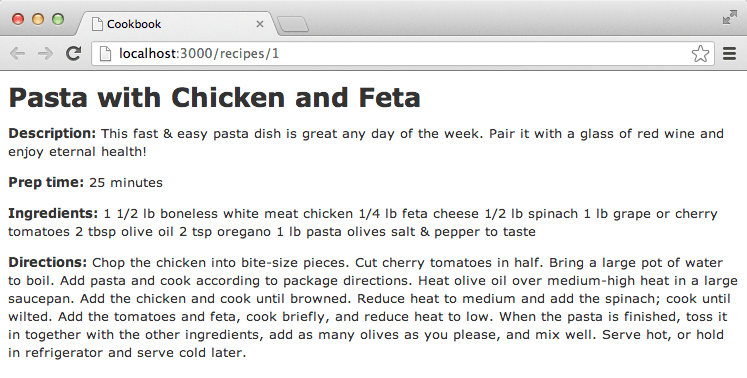
  10. Notice that ingredient lists appear as continuous text rather than properly formatted lists. To investigate, right-click in the browser and select View Page Source.

  11. In the HTML source, observe that ingredient text contains line breaks in the code but lacks proper <br> tags for browser rendering.

    Rails provides an elegant solution through the simple_format helper method, which automatically converts plain text line breaks into proper HTML formatting—essential for user-generated content.

  12. In your code editor, locate the ingredients Ruby tag and add the simple_format helper:

    <%= simple_format(@recipe.ingredients) %>
  13. Save and refresh your browser to see properly formatted ingredient lists.

  14. Apply the same formatting enhancement to directions for consistent presentation:

    <%= simple_format(@recipe.directions) %>
  15. Save and refresh to see the complete transformation. Your recipe pages now display professional formatting that enhances readability and user experience.

Implementing Dynamic Title Bar Management

Professional web applications provide contextual browser tab titles that improve user navigation and SEO performance. We'll implement dynamic titles that reflect the current recipe being viewed.

  1. Open cookbook > app > controllers > recipes_controller.rb in your editor.

    NOTE: You're now working with Rails' controller layer—the component responsible for processing requests, fetching data from models, and preparing information for views. Controllers contain actions (methods) that handle specific user interactions.

  2. Locate the show action around line 12. This method handles individual recipe display requests.

  3. Add a title variable assignment within the show method:

    def show
       @title = @recipe.title
    end

    This creates an instance variable accessible to the view template, enabling dynamic title generation based on the current recipe.

  4. Save the controller file.

  5. Open the application layout template: app > views > layouts > application.html.erb. This file serves as the master template that wraps all page content—similar to a base template in other frameworks.

  6. Modify the title tag to include dynamic recipe titles:

    <title><%= @title + ' | ' if @title %>Cookbook</title>

    NOTE: The vertical bar (|) character is typed using Shift+Backslash, typically located above the Return key. Include spaces around the pipe for proper formatting.

    This Ruby code implements conditional title generation: when a recipe title exists, it displays "Recipe Title | Cookbook"; otherwise, it shows just "Cookbook". This approach enhances both user experience and search engine optimization.

  7. Save the layout file and refresh your browser.

  8. Examine your browser tab or title bar—it should now display "Pasta with Chicken and Feta | Cookbook" or similar, depending on your recipe content. This contextual information helps users navigate multiple tabs and creates more meaningful bookmarks.

Configuring Site Root Page Routing

Currently, your application displays Rails' default welcome page at the root URL. Professional applications should immediately present relevant content to visitors.

  1. Navigate to localhost:3000 in your browser to see the default Rails welcome screen.

    We'll redirect this root path to display your recipe index, creating a more engaging homepage experience.

  2. Open cookbook > config > routes.rb—Rails' routing configuration file that maps URLs to controller actions.

  3. Add a root route definition above the final end statement:

    root 'recipes#index'

    This routing declaration tells Rails to render the recipes index page when users visit your application's root URL—a common pattern for content-driven applications.

  4. Save the file and refresh your browser. Your homepage now immediately displays the recipe collection, providing instant value to visitors.

Customizing Application Stylesheets

Rails includes sophisticated CSS preprocessing capabilities that enable modern styling workflows. We'll customize your application's visual design using Sass, a powerful CSS extension language.

  1. Open app > assets > stylesheets > scaffolds.scss in your editor.

    NOTE: The .scss extension indicates a Sass stylesheet—an enhanced CSS preprocessor that supports variables, nesting, mixins, and other advanced features. Rails automatically compiles Sass into standard CSS for browser compatibility. As of 2026, Sass remains the preferred styling solution for Rails applications.

  2. Improve typography by updating the font stack. Locate and modify the body font declaration:

    body, p, ol, ul, td {
       font-family: helvetica, arial, sans-serif;
       font-size: 13px;
       line-height: 18px;
    }

    This change implements a more modern font hierarchy that prioritizes Helvetica's clean readability.

  3. Enhance link styling for better visual contrast and user interaction feedback. Update the link color scheme around line 21:

    a {
       color: #f00; }
    
       a:visited {
          color: #900; }
    
       a:hover {
          color: #fff;
          background-color: #900; }

    These modifications create clear visual states for link interaction, improving accessibility and user experience through better visual feedback.

  4. Save your changes and refresh the browser to see improved typography and link styling.

  5. Add visual hierarchy through heading color styling. Insert a new CSS rule above the link declarations:

    h1 {
       color: #00f;
    }
    
    a {
       color: #f00; }
  6. Save and refresh to see blue headings that create clear content hierarchy. This demonstrates how Rails' asset pipeline seamlessly processes Sass while maintaining full CSS compatibility—any valid CSS code works perfectly in Sass files, allowing gradual adoption of advanced features.

Implementing Essential Security Measures

Security is paramount in web application development. Even development applications should implement basic access controls to prevent unauthorized modifications and understand authentication patterns used in production systems.

  1. Open app > controllers > application_controller.rb—the master controller that provides shared functionality across your entire application.

  2. Implement site-wide HTTP basic authentication by adding the following code above the final end statement:

    class ApplicationController < ActionController::Base
       http_basic_authenticate_with name: 'student', password: 'student'
    end
  3. Save and refresh your browser. The system now requires authentication for all access. Enter student for both username and password to continue.

    While effective for complete protection, site-wide authentication may be too restrictive for applications that need public reading access with protected editing capabilities.

  4. Remove the application-level authentication line to implement more granular security:

    http_basic_authenticate_with name: 'student', password: 'student'
  5. Save the application controller file.

  6. Open app > controllers > recipes_controller.rb to implement action-specific security.

  7. Add selective authentication that protects modification actions while allowing public viewing. Insert this line after the existing before_action declaration:

    class RecipesController < ApplicationController
       before_action :set_recipe, only: [:show, :edit, :update, :destroy]
       http_basic_authenticate_with name: 'admin', password: 'student', except: [:index, :show]

    This sophisticated approach allows public access to viewing recipes while requiring authentication for creating, editing, or deleting content—a common pattern in content management systems.

  8. Save and refresh your browser. Test the security by attempting to click Edit—authentication should be required (username: admin, password: student), while viewing remains unrestricted.

    You've successfully created a professional Rails application with proper formatting, dynamic features, and essential security measures!

  9. Return to Terminal and stop the development server using Control+C when you're finished testing.

Key Takeaways

1ERB files combine HTML with Ruby code to create dynamic web templates that can display database content
2Rails scaffolding provides a functional starting point that can be extensively customized by modifying views and controllers
3The simple_format helper automatically converts line breaks in text to HTML break tags for proper formatting
4Dynamic page titles improve SEO and user experience by showing relevant content in browser tabs and bookmarks
5SCSS preprocessor enhances CSS with features like nesting while maintaining full CSS compatibility
6HTTP basic authentication provides a simple security layer that can be applied application-wide or to specific controller actions
7Rails follows MVC architecture where controllers fetch data, views display content, and models handle data logic
8Route configuration determines how URLs map to controller actions, enabling custom homepage setup

RELATED ARTICLES