April 1, 2026Kalika Kharkar Sharma/10 min read

The Interview: Color Correction & Exporting in Premiere Pro

Master Professional Color Correction and Export Workflows

Essential Premiere Pro Skills Covered

Lumetri Color Correction

Learn to use Lumetri Color effects in Effect Controls to balance color temperature and exposure across different camera sources.

Attribute Pasting

Master the efficient workflow of copying color correction settings and applying them to multiple clips with matching characteristics.

Professional Export Settings

Configure H.264 exports with optimal bitrate settings and maximum render quality for professional delivery.

Topics Covered in This Premiere Pro Tutorial:

Mastering Lumetri Color in Effect Controls for Professional Color Matching

Exercise Preview

ex prev 2c

Exercise Overview

In this exercise, we'll elevate your Interview video by mastering professional color correction techniques. Multi-camera shoots inevitably present color matching challenges—different cameras, varying color profiles, and inconsistent lighting conditions can fragment your visual narrative. We'll use Premiere Pro's Lumetri Color tools to create visual cohesion that transforms disparate footage into a polished, professional piece.

This color correction workflow represents industry-standard practices for digital content creation. While these techniques are perfectly suited for web, streaming, and social media distribution, it's worth noting that broadcast television requires additional considerations. Television's restricted color gamut (Rec. 709 standards) and specific broadcast-safe requirements mean that high-stakes TV projects typically involve dedicated colorists working in controlled environments. However, the fundamentals you'll learn here form the foundation of all professional color work.

Professional Broadcast Standards

While these color correction techniques work well for web and social media, television broadcast requires professional colorist services due to strict color range limitations for safe TV display.

Getting Started

Before diving into color correction, let's ensure your project environment is properly configured.

  1. You should still have yourname-TheInterview open in Premiere Pro. If you closed it, re-open it now by going to File > Open Project then Desktop > Class Files > Premiere Pro Class > Multicam Interview. We strongly recommend completing the previous exercises (5C–6A) before proceeding, as they establish the essential multicam edit structure. If you haven't finished the previous section, follow the sidebar instructions below.

If You Did Not Do the Previous Exercises (5C–6A)

  1. If a project is open in Premiere Pro, go to File > Save, then File > Close Project.
  2. Go to File > Open Project and navigate to Desktop > Class Files > Premiere Pro Class > Multicam Interview > Finished Projects.
  3. Double–click on Interview-Ready for Color Correction.prproj.
  4. Go to File > Save As. Name the file yourname-TheInterview.prproj and save it back into the Multicam Interview folder.

Quick Start Setup Process

1

Close Current Project

Save and close any open Premiere Pro project to start fresh

2

Open Template Project

Navigate to Finished Projects folder and open Interview-Ready for Color Correction.prproj

3

Save As New Project

Save the project with your name back into the Multicam Interview folder

Lumetri Color in Effect Controls

Now we'll begin the color correction process by analyzing and adjusting our footage. The key to successful color matching lies in understanding the color characteristics of each camera and systematically bringing them into harmony.

  1. From the Project panel, open the Interview-Multicam-edit sequence (if it isn't already open).

  2. Move the playhead over the first interview clip, then scrub to the second clip and compare them carefully.

    You'll immediately notice the color temperature differences: the first clip exhibits a cooler color cast (blue-shifted), while the second displays warmer tones (yellow-shifted). This temperature variance is typical when mixing camera brands or when automatic white balance settings create inconsistencies. Professional colorists always begin by identifying these foundational differences.

  3. Let's establish visual consistency while enhancing the overall color aesthetic. Select the first interview clip and position the playhead over it for real-time preview.

  4. Navigate to the Effects panel and clear any existing search terms to ensure you see all available effects.

  5. Locate Video Effects > Color Correction and find Lumetri Color—Premiere Pro's most comprehensive color correction tool.

  6. Drag Lumetri Color onto the first interview clip on V1. This applies the effect as an adjustable layer that won't permanently alter your source footage.

  7. Access the effect controls by going to the Effect Controls panel and expanding Lumetri Color > Creative. This section houses Premiere's LUT (Look-Up Table) options and creative color grading tools.

  8. Click the Look dropdown menu and select Fuji ETERNA 250D Kodak 2395 (by Adobe). This particular LUT emulates classic film stock characteristics and works exceptionally well for interview content, providing natural skin tones and pleasing color separation. LUTs serve as starting points—think of them as digital film stocks that establish your color foundation.

    NOTE: Consider collapsing other effects in Effects Controls to streamline your workspace and focus on the active adjustments.

  9. Still in Effect Controls, expand Lumetri Color > Basic Correction. This panel contains your primary color correction tools—the digital equivalent of a traditional color timer's controls.

  10. Locate and click the Auto button. Premiere's auto-correction analyzes the image histogram and makes initial adjustments to optimize exposure and color balance. While auto-correction rarely produces perfect results, it provides an excellent starting point for manual refinement.

  11. Under Tone, set Exposure to 0.5. This brightens the overall image by half a stop, improving the subject's visibility and creating a more engaging presentation.

  12. Under White Balance, adjust Temperature to 12.2. This warms the image by shifting it toward yellow/orange tones, countering the cool cast and creating more flattering skin tones. Temperature adjustments are measured in Kelvin shift values—positive numbers add warmth, negative numbers add coolness.

  13. To evaluate your cumulative adjustments, click the fx icon fx icon beside Lumetri Color. This toggles the effect on and off, allowing you to compare your corrected image with the original. This before/after comparison is crucial for maintaining perspective on your adjustments.

  14. Reactivate the effect by clicking the fx icon fx icon again when you've finished reviewing your changes.

Color Temperature Differences

The first interview clip has a cold color cast while the second has a warm cast. Visual matching requires balancing these temperature differences across all shots.

Lumetri Color Adjustment Settings

Creative Look

Apply Fuji ETERNA 250D Kodak 2395 preset for consistent color grading foundation across clips.

Basic Correction

Use Auto button for initial correction, then fine-tune Exposure to 0.5 and Temperature to 12.2 for optimal results.

Pasting Attributes

Efficiency in post-production often determines project profitability. Rather than manually recreating these color settings for each clip, we'll use Paste Attributes—a powerful workflow tool that transfers effects between clips instantly.

  1. In the Timeline, ensure the first interview clip remains selected. If Premiere has automatically selected the linked audio track, disable Linked Selection linked selection icon at the Timeline's top-left, then select only the video clip.

  2. Copy the clip using Cmd–C (Mac) or Ctrl–C (Windows). You're copying the entire clip, including all applied effects and adjustments.

  3. Now we'll apply these settings to all matching camera angles. Select the next wide shot clip (MC1) in your timeline.

  4. Extend your selection to include the final wide shot by Shift-clicking the last MC1 clip. This selects all clips of the same camera angle simultaneously.

  5. Ctrl-click (Mac) or Right-click (Windows) on any selected clip and choose Paste Attributes. This command is also available under the Edit menu for keyboard workflow users.

  6. The Paste Attributes dialog allows precise control over which properties transfer between clips. Check only these options (uncheck all others):

    • Effects
    • Lumetri Color

    This selective approach prevents unintended changes to timing, audio levels, or other clip properties.

  7. Click OK to execute the transfer.

  8. Scrub through your Timeline to verify the color correction has been successfully applied to all wide shots. Notice how the previously disparate shots now maintain visual consistency.

  9. Zoom in on any wide shot clip in the Timeline. The fx icon fx purple icon now appears purple instead of gray, indicating active effects. This visual feedback system helps track which clips have been processed during complex editing sessions.

Efficient Color Correction Workflow

1

Copy Source Clip

Select the first corrected interview clip and copy it with Cmd-C or Ctrl-C

2

Select Target Clips

Select multiple wide shots using Shift-click to apply corrections to all matching camera angles

3

Paste Attributes

Right-click and choose Paste Attributes, then select only Effects and Lumetri Color options

Visual Confirmation

Clips with applied effects show a purple fx icon instead of gray, providing instant visual confirmation of successful attribute pasting.

Color Correction for the Interviewee Close-up

Close-up shots require special attention in color correction, as viewers scrutinize facial tones more carefully. We'll apply similar techniques while fine-tuning for optimal skin tone reproduction.

  1. Select the first Shanarra close-up clip (MC2) and position the playhead for real-time preview.

  2. Clear any search terms from the Effects panel to ensure full visibility of available effects.

  3. Navigate to Video Effects > Color Correction and locate Lumetri Color.

  4. Apply Lumetri Color to the first Shanarra clip on V1 by dragging and dropping.

  5. In Effect Controls, expand Lumetri Color > Creative to access the creative grading tools.

  6. Set the Look to Fuji ETERNA 250D Kodak 2395 (by Adobe), maintaining consistency with your wide shots.

  7. Adjust Intensity to 50 to reduce the LUT's impact. Close-up shots often benefit from subtler color treatment, as aggressive grading can create unnatural skin tones that immediately catch the viewer's eye.

  8. Under Lumetri Color > Basic Correction, click Auto to establish baseline exposure and color balance.

  9. As a practical exercise, copy these settings and apply them to the remaining Shanarra clips using the Paste Attributes workflow you learned earlier. This reinforces the technique while building efficiency.

Close-up vs Wide Shot Settings

FeatureWide ShotsClose-up Shots
Look Intensity100%50%
Color PresetFuji ETERNA 250DFuji ETERNA 250D
Auto CorrectionAppliedApplied
Recommended: Reduce look intensity for close-ups to avoid over-processing facial details

Adjusting the Interviewer Close-up

The interviewer's close-up presents additional challenges: different camera positioning, lighting angles, and potentially different camera settings. We'll address both color correction and framing to create seamless intercutting between subjects.

  1. Begin by applying the foundational color correction established in previous steps. In the Effects panel, clear the search field and navigate to Video Effects > Color Correction > Lumetri Color.

  2. Apply Lumetri Color to the Laune clip on V1 (the third interview clip).

  3. In Effect Controls, expand Lumetri Color > Creative and set Look to Fuji ETERNA 250D Kodak 2395 (by Adobe) for consistency across all interview segments.

  4. Under Lumetri Color > Basic Correction, apply Auto correction to establish the baseline color balance.

  5. Now address the framing inconsistency. Scrub between Shanarra's and Laune's close-ups, observing the significant difference in shot size. Shanarra's tight framing creates intimacy, while Laune's looser framing feels distant by comparison. This disparity can disrupt viewer engagement during dialogue exchanges.

  6. Ensure Laune's clip remains selected in the Timeline.

  7. In Effect Controls, expand the Motion parameters to access scaling controls.

  8. Set Scale to 122 to achieve closer framing parity. However, this digital zoom introduces a critical trade-off: image resolution decreases proportionally to the scale increase. The resulting softness becomes noticeable, particularly when compared to natively shot close-ups.

  9. To counteract the scaling softness, search for sharpen in the Effects panel.

  10. Under Video Effects > Blur & Sharpen, double-click Sharpen to apply it to the selected clip.

  11. In Effect Controls, locate Sharpen and set Sharpen Amount to 39. This value provides noticeable improvement without creating artificial-looking edge enhancement.

  12. For detailed evaluation, hover over the Program Monitor and press the tilde (~) key to maximize the preview window.

  13. Compare the processed Laune clip with the previous Shanarra clip, evaluating both sharpness and color consistency. The improvements should be significant, though some refinement remains necessary.

  14. Return to normal monitor size by pressing tilde (~) again.

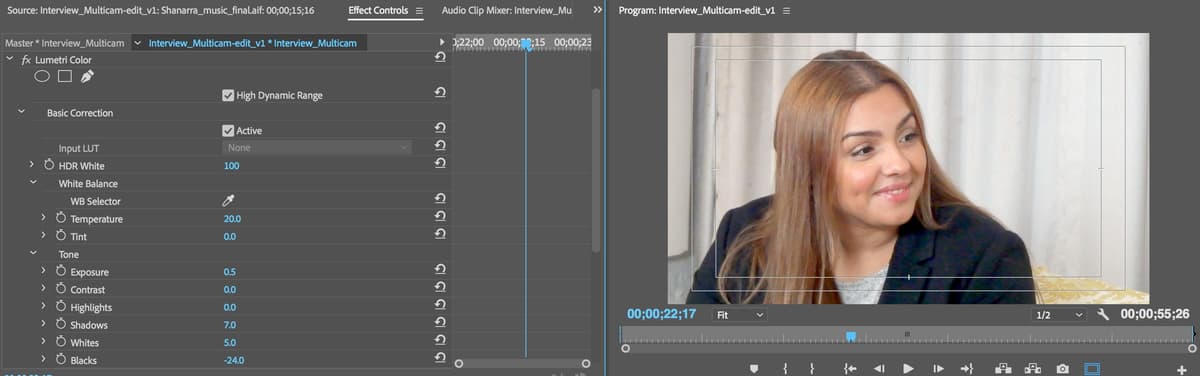
  15. Fine-tune the color balance under Lumetri Color > Basic Correction > White Balance. Set Temperature to 20 to add warmth and better match the overall interview aesthetic.

  16. Under Tone, adjust Exposure to 0.2 for subtle brightness enhancement without compromising highlight detail.

  17. Play through the complete sequence from beginning to end, evaluating the color consistency and overall visual flow. Your interview should now exhibit professional-level color continuity.

  18. Save your project using File > Save to preserve all corrections and adjustments.

Advanced Correction Techniques

Scale Adjustment

Set Motion Scale to 122% to match the tighter cropping of the interviewee's close-up shots for visual consistency.

Sharpening Compensation

Apply Sharpen effect with Amount set to 39 to counteract softness from upscaling lower resolution footage.

Final Color Balance

Adjust Temperature to 20 and Exposure to 0.2 for optimal warmth and brightness matching between subjects.

Exporting

The final step transforms your carefully crafted edit into a deliverable file. Modern export settings must balance quality with file size while considering your intended distribution platform.

  1. Initiate the export process via File > Export > Media.

  2. In the Export Settings window, set Format to H.264—the current standard for most distribution platforms including YouTube, Vimeo, and social media.

  3. Set Preset to Match Source—High bitrate via the dropdown menu. This maintains your source resolution while applying optimized compression settings.

  4. Click the blue text next to Output Name to specify your export destination.

  5. Navigate to Desktop > Class Files > Premiere Pro Class > Multicam Interview > Exports to organize your rendered files.

  6. Name the file Interview.mp4 and click Save.

  7. In the Video tab, locate Bitrate Settings and set Bitrate Encoding to VBR, 2 pass. Two-pass encoding analyzes the entire video twice: first to determine optimal bit allocation, then to apply precise compression. This process takes longer but produces superior quality, especially for content with varying complexity.

  8. Enable Use Maximum Render Quality near the window's bottom. This setting processes effects and scaling at higher precision, essential when you've applied sharpening and scaling adjustments.

  9. Click Export to begin rendering. Export time varies based on sequence length, effects complexity, and computer performance.

  10. Once export completes, navigate to Desktop > Class Files > Premiere Pro Class > Multicam Interview > Exports to review your finished interview. Pay particular attention to how your color corrections enhance the professional presentation and maintain visual consistency throughout the piece.

Professional Export Configuration

0/4
Export Location

Save exports to the dedicated Exports folder within your project directory to maintain organized file structure and easy access to finished videos.

Key Takeaways

1Lumetri Color in Effect Controls provides comprehensive color correction tools for matching footage from different cameras with varying color temperatures and exposure settings
2Paste Attributes workflow allows efficient application of color correction settings across multiple clips, saving significant time when working with matching camera angles
3The Fuji ETERNA 250D Kodak 2395 look provides excellent color grading foundation, but intensity should be reduced to 50% for close-up shots to avoid over-processing
4Multi-camera interviews require careful attention to visual consistency, including matching crop levels between subjects through strategic scaling adjustments
5Upscaling lower resolution footage requires sharpening compensation to maintain image quality, with optimal settings around 39 for sharpen amount
6Color temperature adjustments are crucial for visual matching, with cold clips requiring warming through positive temperature values up to 20 degrees
7Professional export settings include H.264 format with VBR 2-pass encoding and Maximum Render Quality enabled for optimal web delivery
8Web and social media color correction differs significantly from broadcast standards, which require professional colorist services due to strict TV-safe color ranges

RELATED ARTICLES