March 23, 2026Tziporah Zions/6 min read

The Premiere Pro Interface

Master Premiere Pro's Essential Interface Components

Interface Mastery is Key

Understanding Premiere Pro's panel system is the foundation for efficient video editing. Once you grasp how panels work, you'll be able to customize your workspace for maximum productivity.

Introduction to Premiere Pro

Premiere Pro stands as the industry standard for video editing, wielding comprehensive capabilities that serve everyone from independent creators to Hollywood studios. Adobe's flagship editing platform strikes an exceptional balance: sophisticated enough for professional workflows, yet intuitive enough for newcomers to achieve broadcast-quality results.

Mastering Premiere Pro begins with understanding its fundamental architecture—specifically, the panel-based interface that forms the backbone of your editing environment. These modular workspaces aren't just windows; they're your command centers for every aspect of post-production, from media management to final output.

While Premiere Pro's feature depth might initially appear overwhelming, its logical interface design actually accelerates your learning curve. Once you grasp how panels function and interconnect, you'll navigate projects with confidence and efficiency that scales with your ambitions.

Panels

Premiere Pro's panel system represents a masterclass in interface design—each panel serves as a specialized workspace that can be repositioned, resized, and customized to match your editing style. This modular approach means your interface evolves with your workflow, whether you're cutting a quick social media clip or assembling a feature-length documentary.

The beauty lies in the flexibility: simply click and drag any panel's title bar to relocate it, dock it alongside others, or float it independently. This adaptability becomes crucial during long editing sessions where different tasks demand different screen real estate priorities.

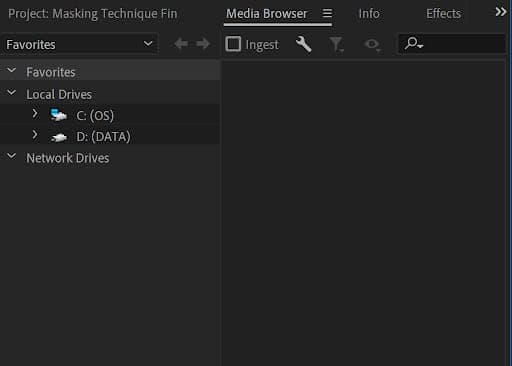
Media Browser Panel: Your project's entry point, the Media Browser serves as your digital asset gateway. Beyond simple file importing, it provides essential metadata preview, allowing you to evaluate footage quality, frame rates, and technical specifications before committing to your project timeline. Modern workflows often involve managing hundreds of clips across multiple drives and cloud storage locations—this panel keeps everything organized and accessible.

Media Browser Panel Premiere Pro

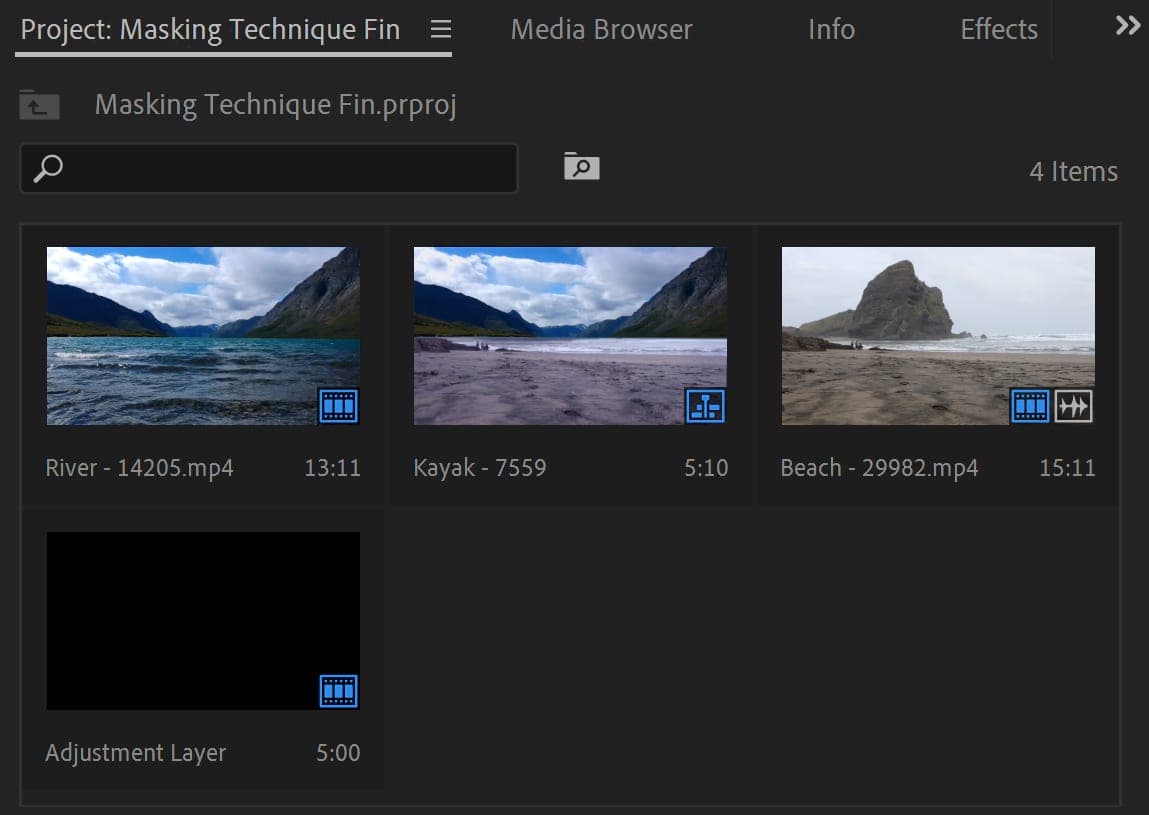
Project Panel: Think of this as your project's digital filing cabinet, but far more sophisticated. The Project Panel excels at media organization through its bin system—collapsible folders that can be color-coded, labeled, and nested for complex project hierarchies. The viewing options (List, Icon, and Freeform views) aren't just aesthetic choices; they serve different editorial functions. List view provides detailed metadata at a glance, Icon view offers visual thumbnails for quick recognition, and Freeform view enables creative clustering of related assets. Professional editors often maintain multiple bin structures: one for raw footage organized by shooting day, another for music and sound effects, and a third for graphics and titles.

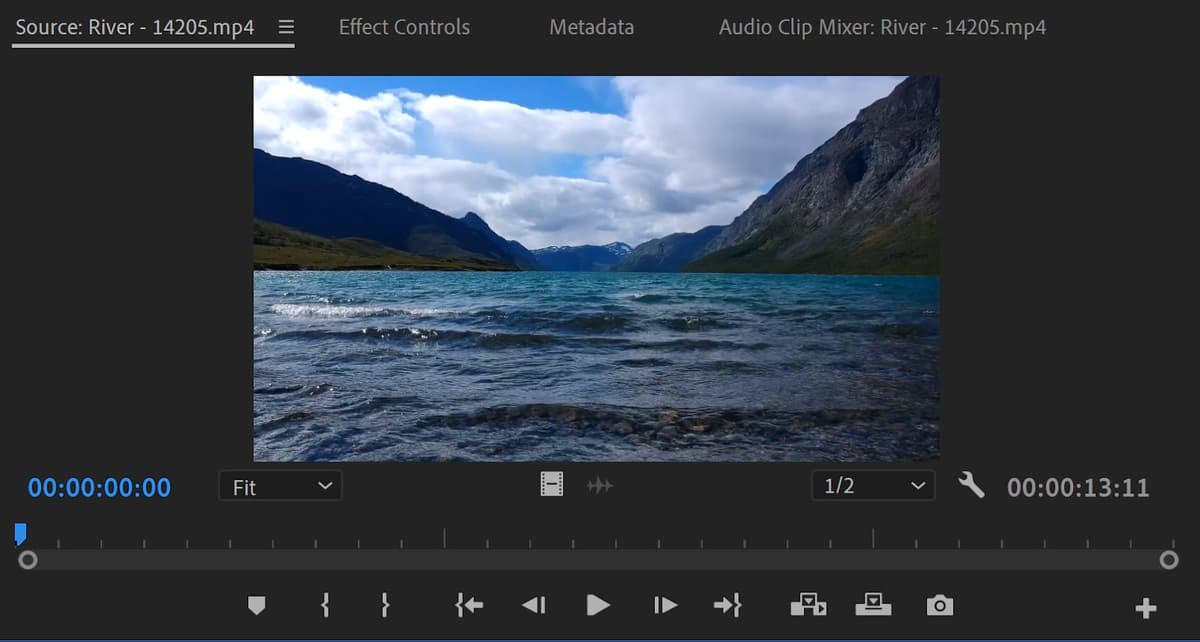
Project Panel Premiere Pro Source Monitor Panel: This is where precision editing begins. The Source Monitor transforms raw footage into purposeful clips through careful in and out point selection. Beyond basic trimming, this panel offers advanced features like slip and slide editing, allowing you to adjust clip timing without affecting overall sequence length. The source track selection controls (A1, A2, V1, etc.) become critical when working with multi-camera footage or complex audio setups. Professional tip: use the frame export feature to create custom thumbnails or reference stills for client communications.

The Source Monitor also provides crucial playback controls for analyzing footage quality, identifying the best takes, and making frame-accurate editorial decisions that separate professional work from amateur cutting.

Source Monitor Panel Premiere Pro

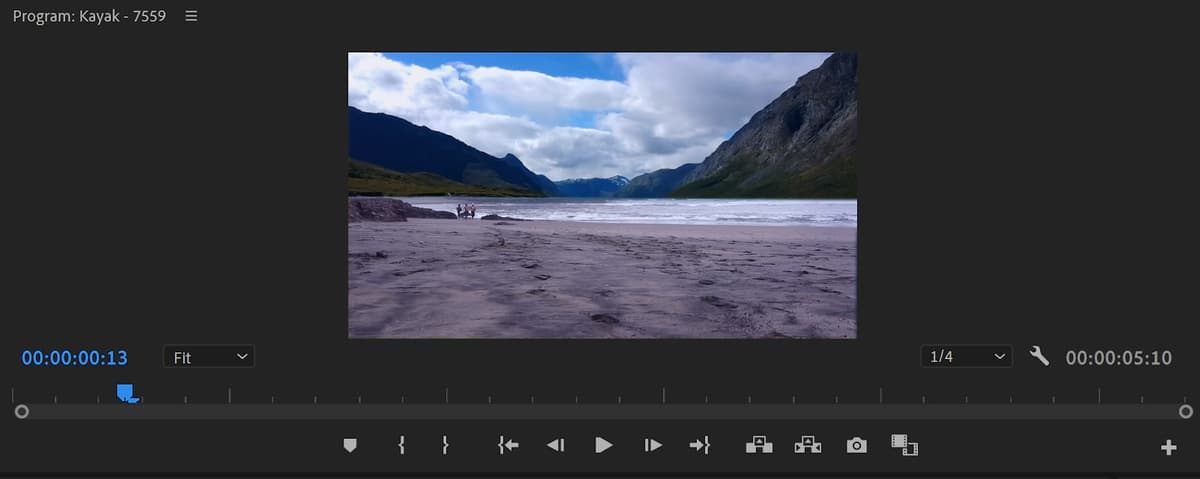
Program Monitor Panel: Your project's visual heartbeat, the Program Monitor displays your assembled sequence in real-time. This panel goes beyond simple playback—it's your quality control center, offering resolution scaling options, safe area guides for broadcast compliance, and color space indicators for professional delivery standards. The integrated playback engine leverages modern GPU acceleration, enabling smooth preview of complex effects and 4K+ timelines that would have required expensive hardware just a few years ago.

Program Monitor Panel Premiere Pro

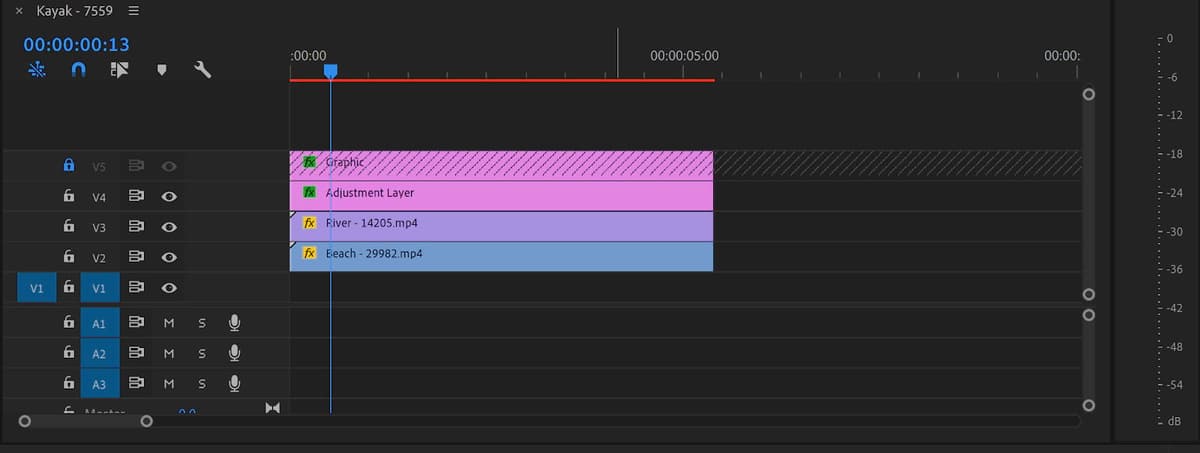
Timeline Panel: The Timeline represents your project's DNA—every edit decision, transition, and effect lives here in chronological order. Modern Timeline workflows accommodate dozens of video and audio tracks, essential for contemporary projects involving multiple camera angles, layered graphics, and complex sound design. The playhead scrubbing provides frame-accurate navigation, while track targeting ensures your edits land exactly where intended. Advanced features like track locking prevent accidental changes during intensive editing sessions, and the zoom controls let you work at both macro and micro levels—pulling back to see overall pacing or zooming in for precise audio sync adjustments.

Timeline Panel Premiere Pro

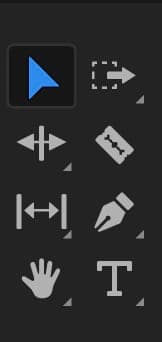
Tool Panel: Despite its compact footprint, the Tool Panel houses Premiere Pro's most essential editing instruments. Each tool serves specific editorial functions: the Selection tool for basic clip manipulation, Ripple Edit for maintaining sync while trimming, Rolling Edit for adjusting cut points between clips, and the Razor tool for precise splitting. The Pen tool enables keyframe animation directly in the Timeline, while the Text tool provides quick title creation. Professional editors develop muscle memory for these tools' keyboard shortcuts, dramatically accelerating their editing velocity.

Tool Panel Premiere Pro

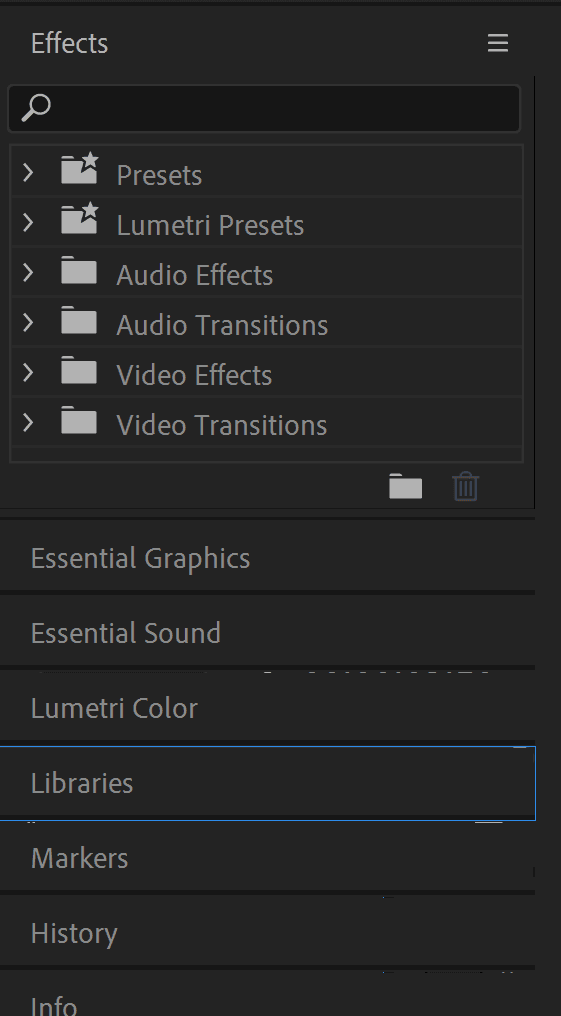
Effects Panel: Your creative arsenal, the Effects Panel organizes hundreds of built-in effects, transitions, and generators into logical categories. Beyond Adobe's extensive library, this panel integrates third-party plugins from industry leaders like Red Giant, Boris FX, and FilmConvert. The search functionality becomes invaluable when working under deadline pressure—simply type partial effect names to quickly locate specific tools. Drag-and-drop application means effects can be applied instantly, with most providing real-time preview on modern systems.

Effects Panel Premiere Pro

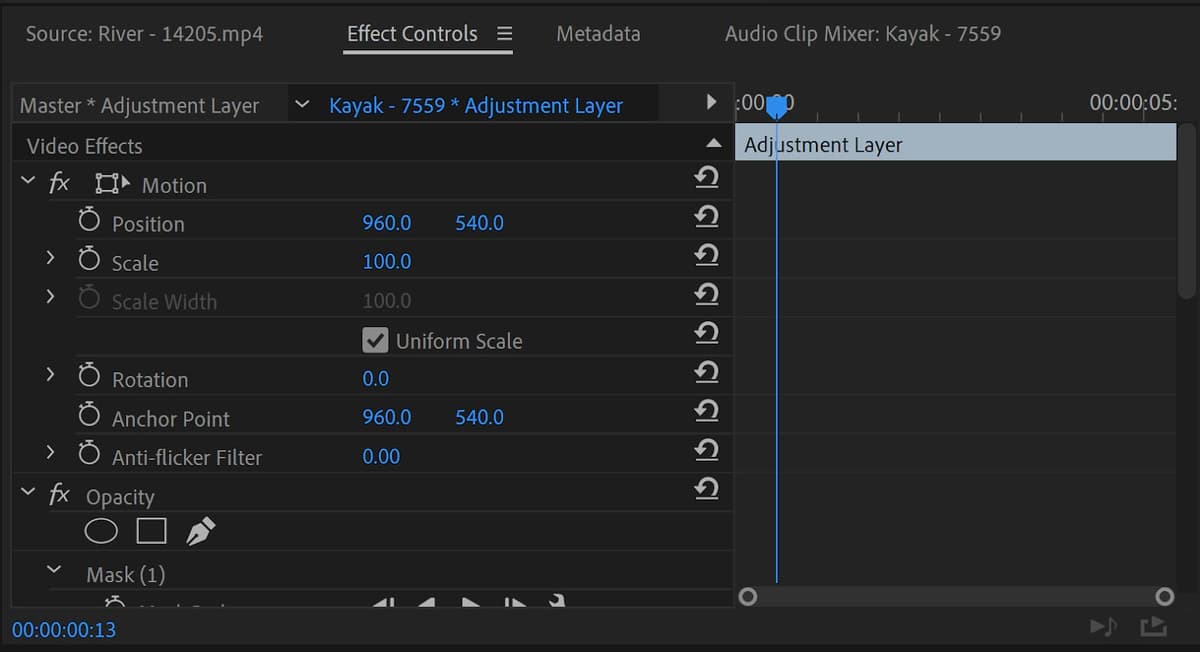
Effect Controls Panel: Where creative vision becomes technical reality, the Effect Controls Panel provides granular adjustment capabilities for every applied effect. This panel's strength lies in its keyframe animation system, enabling complex motion graphics and sophisticated color correction over time. The panel automatically displays relevant controls based on your Timeline selection, streamlining the adjustment process. Professional colorists and motion graphics artists often dedicate entire monitor displays to this panel during intensive effects work.

Core Premiere Pro Panels

Media Browser Panel

Your starting point for importing project files. All media assets begin their journey here before moving into the project workflow.

Project Panel

Organize imported files using Bins and customize views with List, Freeform, or Icon layouts. Your project's central filing system.

Source Monitor Panel

Edit individual clips by setting In and Out points, selecting source tracks, and exporting single frames for detailed work.

Advanced Editing Panels

Program Monitor Panel

Preview your complete project timeline in real-time. This is where you see all clips and layers working together as a cohesive video.

Timeline Panel

The comprehensive overview of your entire project. Use the Playhead to navigate, lock layers, mute audio tracks, and resize labels as needed.

Tool Panel

Access all editing tools including Select, Ripple Edit, Rolling Edit, Crop, Razor, Pan, Pen, and Text tools from this compact interface.

Panel Workflow Process

1

Import Media

Start by bringing your video files into the Media Browser Panel where they become available for editing

2

Organize in Project Panel

Create Bins to organize your media files and choose your preferred view format for easy navigation

3

Edit Individual Clips

Use the Source Monitor Panel to set In and Out points and prepare clips for the timeline

4

Build Your Timeline

Drag clips to the Timeline Panel and use the Program Monitor to preview your complete project

Panel System Benefits and Considerations

Pros
Highly customizable workspace arrangement
Click and drag functionality for easy repositioning
Multiple view options for different editing needs
Real-time preview capabilities
Organized tool access through dedicated panels
Cons
Initial interface can appear intimidating to beginners
Requires time to learn optimal panel arrangements
Many options may overwhelm new users

Effect Controls Panel Premiere Pro

Conclusion

Mastering Premiere Pro's panel system unlocks the software's full potential and transforms your editing efficiency. The beauty of this modular approach means your workspace evolves with your skills and project demands—what begins as a basic cutting environment can expand into a sophisticated post-production suite.

Start with the essentials: import your media through the Browser, organize it in the Project Panel, make your selects in the Source Monitor, and assemble your story in the Timeline while monitoring results in the Program Monitor. As your projects grow more complex, incorporate the Effects Panel and Controls for visual enhancement, and customize your Tool Panel workflow for maximum efficiency.

Remember that the most powerful editing setup is the one that feels intuitive to your creative process. Experiment with different panel arrangements, save custom workspaces for different project types, and don't hesitate to adapt your interface mid-project as your needs evolve. The goal isn't just technical proficiency—it's creating an editing environment that amplifies your storytelling capabilities.

Happy editing!

Getting Started Checklist

0/5
Ready to Edit

With panel familiarity, imported footage, and a creative idea, you have everything needed to start creating professional videos. The interface will become second nature with practice.

Key Takeaways

1Premiere Pro's interface is built around a flexible panel system that can be customized by clicking and dragging
2The Media Browser Panel is your starting point for importing all project files and assets
3Project Panel organizes imported files using Bins and offers multiple view options including List, Freeform, and Icon views
4Source Monitor Panel allows detailed editing of individual clips with In/Out points and source track selection
5Program Monitor Panel provides real-time preview of your complete project timeline with all layers combined
6Timeline Panel serves as the comprehensive overview where you can navigate, lock layers, and manage audio tracks
7Tool Panel provides compact access to all essential editing tools from Select to Text tools
8Effects Panel and Effect Controls Panel work together for applying and adjusting visual effects through drag-and-drop functionality

RELATED ARTICLES