Office Man: Greenscreen Removal in Premiere Pro
What This Tutorial Covers
Ultra Key
Premiere's built-in chroma key plugin.
Spill Suppression
Remove green color contamination from talent edges.
Edge Refinement
Clean up tricky areas like hair and motion blur.
Noble Desktop's Video Editing & Motion Graphics Certificate teaches Premiere Pro alongside After Effects, DaVinci Resolve, and the full motion design toolkit.
Master the advanced skills of video editing in Premiere Pro with this comprehensive tutorial, which includes greenscreen keying, creating a subsequence, adding motion blur, and more, as you create a video of a man rolling across an office background.
Exercise Preview
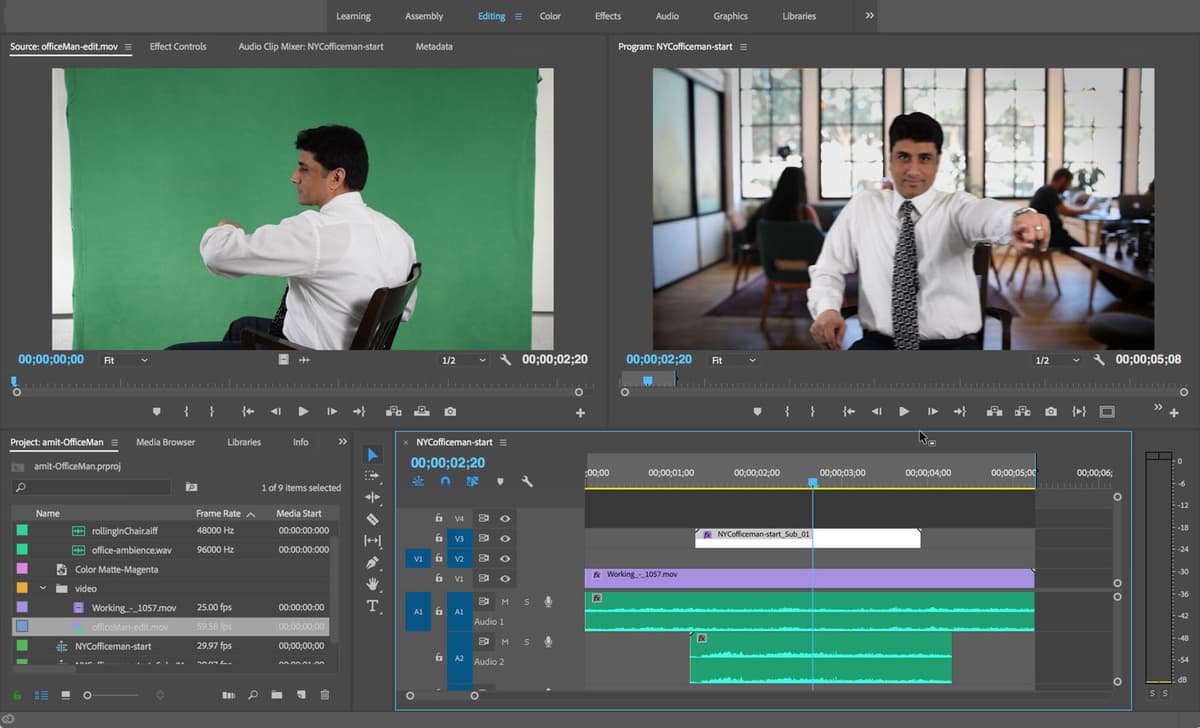
Getting Started
In Premiere Pro, go to File > Close All Projects to close any open projects.
Go to File > Open Project.
Navigate to Desktop > Class Files > Premiere Pro Class > Office Man and double–click on OfficeMan-Start.prproj.
Go to File > Save As. Name the file yourname-OfficeMan.prproj and save it into Desktop > Class Files > Premiere Pro Class > Office Man.
Make sure you’re in the Editing workspace and you reset to the default layout.
Notice that we’ve already created a NYCofficeman sequence for you (if it isn’t open in the Timeline, double–click it to open it).
Notice that we have an officeMan-edit.mov clip on V2.
Move the playhead so that it’s over the clip.
Next to V2, click on the eye icon
 to hide this track and see that it’s sitting above an office background clip. Our goal is to remove the green background so that we see the office behind the subject.
In the Timeline, you’ll also see that we have one audio track for the ambient noise, and one track for the wheels of the chair.
More Greenscreen Keying
We’ll start with keying out the greenscreen behind the guy in the office chair first. To make sure we’re doing a good job keying the subject–which can be hard to see against a complex background–we should start with creating a background color first. In the Timeline, drag officeMan-edit.mov up to V3.
Turn off the visibility
for all of your video tracks (V1, V2, V3), and notice that the default background color for Premiere is black.Turn on the visibility
for all the video tracks again.To create a different background color, we’ll create a new clip that’s a solid color. At the bottom of the Project panel, click on New Item
 and select Color Matte.
In the New Color Matte window, leave all the settings as is, and just click OK.
In the Color Picker window that opens, we’ll choose a magenta—a color that’s in stark contrast to our subject and the color of the key. At the bottom of the window, enter #C30EEF and click OK.
In the Choose Name window, set the name to Color Matte-Magenta and click OK.
From the Project panel, drag Color Matte-Magenta to V2, aligning the end of the clip with the officeMan clip above.
Move the playhead to around 2;19 so that the actor is centered on screen.
To remove the green background, we’ll be using the Ultra Key effect, so open the Effects panel.
In the search field, type in ultra.
- Drag Ultra Key onto the officeMan-edit.mov clip.
- Switch to the Effect Controls panel.
- Close up the Motion and Opacity sections so we can focus on the Ultra Key controls.
To the right of Key Color, click on the eyedropper
 .
.We want to select an average color of green, so hold the Cmd (Mac) or CTRL (Windows) key and click to the right of the guy’s head.
NOTE: Holding the Cmd (Mac) or CTRL (Windows) key gives you the larger eyedropper, which is the average calculation of the color.
Notice that this has removed most of the green background color.
Set the Output to Alpha Channel.
To the right of Key Color, click on the color box to open the Color Picker window.
Set the color to #4A7D5C, a green we found works well.
Click OK.
In the Effect Controls panel, change the Setting to Aggressive.
Expand the Matte Generation section, and set the following:
- Transparency: 46
- Highlight: 30
- Shadow: 72
- Tolerance: 90
- Pedestal: 90
Notice that these adjustments are already giving a more contrasting key. To learn more about these settings, take a look at the section about Ultra Key’s effect parameters in Adobe Help: tinyurl.com/keying-effects
- Close the Matte Generation section.
Expand Matte Cleanup to set the following:
- Choke: 10
- Soften: 10
- Contrast: 100
- Mid Point: 35
Set Output back to Composite again.
This is looking pretty good so far. Notice that this has removed most of the screen, except for the upper right and lower right corners.
NOTE: As you key, it’s a good idea to set your Playback Resolution to Full and setting the Select Zoom Level to 100%. Both of these settings are located at the bottom of your Program Monitor.
- To remove the areas that weren’t completely keyed, we’ll use an opacity mask. In the Effect Controls close up Ultra Key.
- In the Effect Controls expand Opacity.
- Under Opacity, click on the Create 4-point polygon mask button
 .
. You should see a rectangular mask appear on the Program Monitor. We’re going to pull out the four points to include most of the screen, except for the areas that are getting a little dark (the top and sides).
Drag out the points so that you end up with a shape similar to the one below (to add points, click on the blue mask frame):
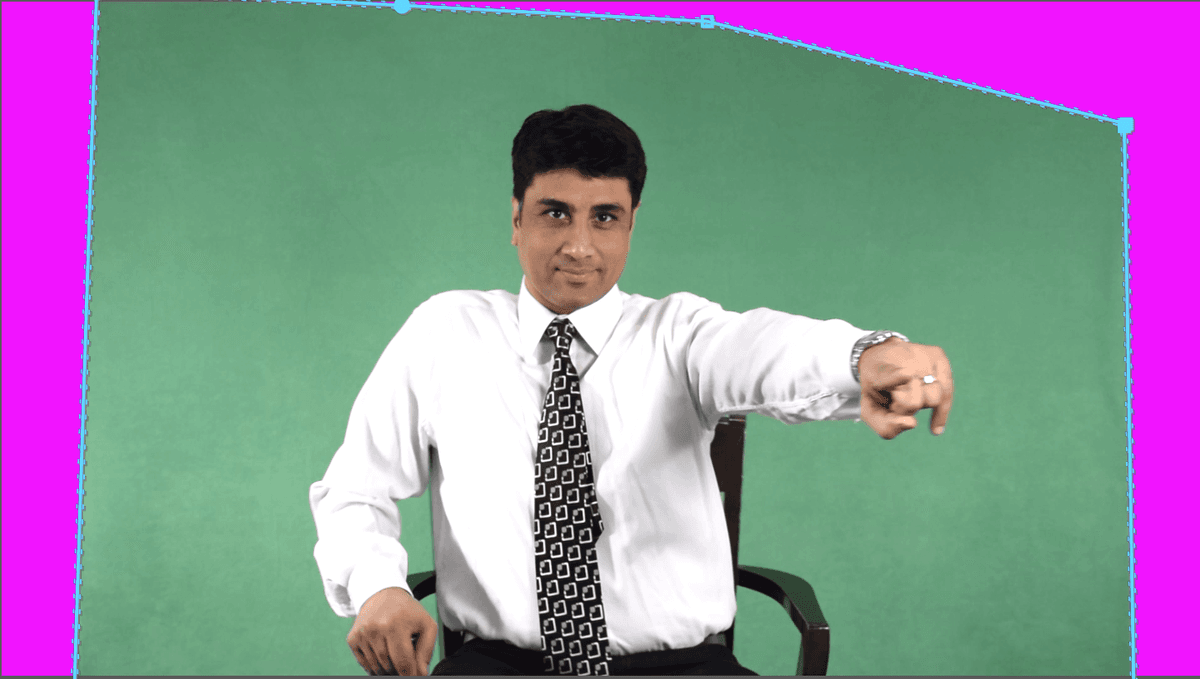
Scrub through your sequence to make sure the mask is not cutting out anything important.
It should be looking pretty good but you may have noticed that around 2;13, there’s still some shading in the lower right corner.
To fix this, in the Effect Controls panel, click on the word Mask to see the mask again and adjust the points further.
We want to make sure we’re not cutting off anything at the bottom, so zoom out to 25%.
Add an extra point to the right of the chair at the bottom of the shape, and pull up the bottom right-corner point so that you end up with the following shape (we found this shape to work well for what we need):
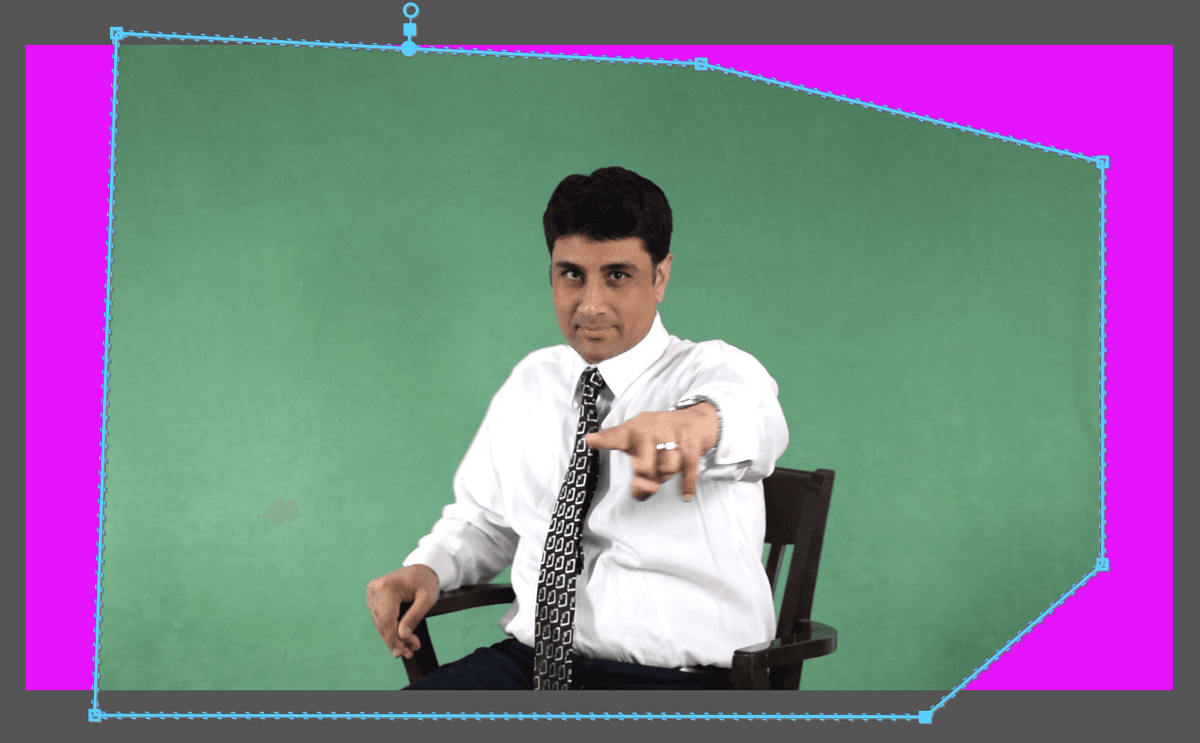
Zoom back into Fit.
Scrub through again to make sure we’re not cutting anything off, and adjust the mask as needed.
NOTE: Remember that to see the actual mask frame, you’ll need to click on the word Mask in the Effect Controls panel.
We could continue to adjust the key, but once we add motion blur and move the actor across screen, it should improve. For now, we’re done with keying and we no longer need the color matte, so in the Timeline, select Color Matte-Magenta and hit Delete.
To keep our Timeline tidy, move the officeMan-edit.mov clip, down to V2.
Moving the Actor Across Screen
Move the playhead over the first frame of officeMan-edit.mov at 1:09 and make sure the clip is selected.
We’ll use the Motion section to move the actor, so in Effect Controls, close the other sections and expand the Motion section.
Set the Position to -457, 540 so he’s fully off screen to the left.
To the left of Position, click on the stopwatch
 to keyframe it.
In the Timeline, move the playhead to the last frame of the clip at 3:27.
To move him all the way to the right, set the Position to 2356, 540.
Scrub through the clip to see him roll across the screen. Not bad, but he’s looking very crisp, and missing some motion blur for a more natural look.
NOTE: In most programs that have motion, you would already see motion blur when adding a similar position animation. The workaround for this in Premiere is to apply an effect called Transform, instead of using the Motion tab.
Open the Effects panel.
Search for transform.
Under Distort, drag the Transform effect onto officeMan-edit.mov in the Timeline.
We can use the same values that we used previously in the Motion section. Make sure the playhead is at 1:09.
In the Effect Controls under Transform, click the Position stopwatch
.Set the Position values to -457, 540.
Move to the last frame at 3;27.
Set the Position to 2356, 540.
- We no longer need the Motion keyframes so expand the Motion section.
Under Motion, next to Position click the stopwatch
to delete them.When you get a warning about deleting keyframes, click OK.
Under Motion, to the far right of Position, click the Reset Parameter button
 to reset the values to the default.
Scrub through to see how it looks. Oh no! It looks terrible!
The reason it looks like that is the Transform effect is happening after our mask. We know this because in the Effect Controls panel, the Transform effect is listed below the Motion section. Unfortunately, we can’t just drag it above the Motion section in the Effect Controls.
To fix this, we’ll need to change this clip into a subsequence.