April 1, 2026Noble Desktop Publishing Team/9 min read

Creating a Database/MySQL/SELECT

Master PHP MySQL Database Integration and Data Management

Core Database Technologies Covered

PHP Integration

Learn to connect PHP applications with MySQL databases for dynamic web development. Master the essential skills for data-driven websites.

MySQL Database

Work with one of the world's most popular databases. Fast, free, stable, and feature-rich with excellent PHP compatibility.

SQL Operations

Master SELECT statements and data retrieval techniques. Build foundation for comprehensive database management skills.

Topics Covered in This PHP & MySQL Tutorial:

Creating a New Database, Connecting to the Database, SQL Basics, the SELECT Statement, Display the Number of Rows Returned, Making a Reusable Connection Script, MySQL Vs. MySQLi Vs. PDO

Exercise Overview

Database connectivity represents the cornerstone of modern web development. PHP's robust database integration capabilities enable you to build sophisticated applications that manage customer relationships, e-commerce platforms, content management systems, user authentication systems, and countless other data-driven solutions that power today's digital economy.

MySQL remains the world's most widely adopted open-source database management system, powering everything from startup MVPs to enterprise-scale applications. Its combination of performance, reliability, and cost-effectiveness—coupled with seamless PHP integration—makes it the de facto standard for web development. This ubiquity means you'll find MySQL support on virtually every hosting platform, making your applications highly portable and deployable.

In this comprehensive exercise, you'll master the fundamentals of database creation using phpMyAdmin's intuitive interface, establish secure database connections, and implement data retrieval patterns that form the foundation of professional web applications. These skills will serve as building blocks for more advanced database operations you'll encounter in production environments.

Why PHP and MySQL Work Together

PHP and MySQL almost always go hand-in-hand because MySQL is fast, free, stable, and feature-rich. It works great with PHP and is available on almost every single host, making it the ideal combination for web development.

Creating a New Database

Mac vs Windows Database Setup

FeatureMac (MAMP)Windows (XAMPP)
Application LocationHard Drive > Applications > MAMPC:/xampp
Start MethodOpen MAMP Pro.appDouble-click xampp-control.exe
Access URLVia WebStart buttonhttp://localhost
Services RequiredAutomaticStart Apache and MySQL
Recommended: Both platforms provide similar functionality through phpMyAdmin interface

Mac

  1. Launch MAMP Pro by navigating to Hard Drive > Applications > MAMP and opening MAMP Pro.app. MAMP Pro provides a complete local development environment that mirrors production server configurations.

  2. Click the WebStart button to initialize your local server environment.

  3. This launches the MAMP start page in your default browser, serving as your development dashboard.

  4. Navigate to the Tools menu at the top of the page and select phpMyAdmin—MySQL's web-based administration interface.

  5. Click the Databases tab to access database management functions.

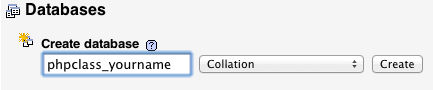
  6. In the Create database field, enter phpclass_yourname. Using descriptive database names with your identifier helps maintain organization in development environments with multiple projects.

    new database

  7. Click the Create button to instantiate your new database.

Windows

  1. If XAMPP isn't running, navigate to C:/xampp, double-click xampp-control.exe, and start both Apache and MySQL services. Ensure both services show "Running" status before proceeding.

  2. Open your browser and navigate to http://localhost to access the XAMPP dashboard.

  3. In the Tools section, click phpMyAdmin to launch the database administration interface.

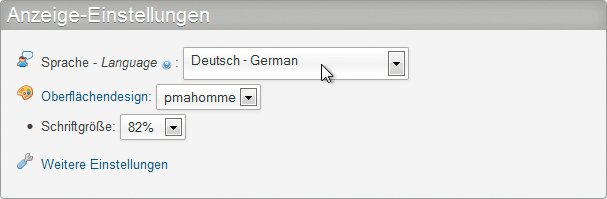
  4. If the interface appears in German, locate the Language dropdown in the center of the page and select English for optimal usability.

    german

  5. Click the Databases tab at the top navigation bar.

  6. Under Create database, enter phpclass_yourname in the Database name field.

  7. Click Create. Your newly created database will appear in the databases list, confirming successful creation.

Database Creation Process

1

Access phpMyAdmin

Navigate through your local server interface to reach the phpMyAdmin control panel for database management.

2

Create Database

Click the Databases tab and enter 'phpclass_yourname' under Create database field, then click Create button.

3

Verify Creation

Confirm the database appears in the list of databases below, indicating successful creation.

Adding Some Information to the Database

With your database established, the next step involves creating a table structure to organize your data effectively. We'll create a users table—a fundamental component in most web applications that handles user management, authentication, and profile information.

  1. Ensure you're still in phpMyAdmin and click on the phpclass_yourname database link to select it as your active database.

  2. Locate the Create table section. Enter users for the table Name and 4 for Number of columns. This creates a table optimized for basic user information storage.

    new table

  3. Click Go to proceed to the table structure definition interface. You'll see four empty field configurations where we'll define columns for id, firstName, lastName, and email.

    Every professional database table requires an id field serving as the Primary Key—a unique identifier that ensures each record can be distinctly referenced and retrieved. We'll implement Auto Increment functionality, which automatically generates sequential unique numbers for each new record, eliminating manual ID management and preventing duplicate key errors.

  4. Configure the table structure with the following specifications:

    Name Type Length/Values Attributes Index A_I
    id INT UNSIGNED PRIMARY checked
    firstName VARCHAR 255
    lastName VARCHAR 255
    email VARCHAR 255

    Understanding these configuration choices:

    • The id field uses INT data type, providing integer values ranging from −2,147,483,648 to 2,147,483,647—more than sufficient for most applications.
    • Length defaults to 10 digits for INT fields, providing ample capacity without specifying custom length values.
    • UNSIGNED restricts values to positive numbers only, effectively doubling the useful range to 0-4,294,967,295. For applications expecting extreme scale, consider BIGINT for virtually unlimited capacity.
    • PRIMARY designates this field as the table's primary key, ensuring uniqueness and optimal query performance through automatic indexing.
    • A_I (Auto Increment) automatically generates sequential ID values for new records, streamlining data insertion processes.
    • VARCHAR(255) accommodates variable-length text up to 255 characters, ideal for names and email addresses while maintaining storage efficiency.
  5. Click Save in the bottom right corner to create your table structure. MySQL will generate the table with your specified configuration.

Primary Key Best Practice

Every new table should have an id field as a Primary Key. This unique identifier makes it easy to keep track of each row in the database, and Auto Increment ensures each id number is unique automatically.

Data Type Ranges

INT Standard Range
2,147,483,647
INT Unsigned Range
4,294,967,295

Adding Some Data

Now we'll populate your newly created table with sample data that will demonstrate the database connection and retrieval functionality in subsequent steps.

  1. Click on the users table in the left sidebar to select it as your active table.

  2. Navigate to the Insert tab at the top of the interface to access the data entry form.

  3. In the first row of input fields, enter your personal information:

    Field Value
    firstName Your First Name
    lastName Your Last Name
    email Your Email Address

    Leave the id field empty—the auto-increment functionality will automatically assign a unique identifier.

  4. In the second row of input fields, add this sample data:

    Field Value
    firstName Noble
    lastName Desktop
    email noble@nobledesktop.com
  5. Click Go (either button works) to insert both records simultaneously. You'll see confirmation that two new rows have been successfully created.

Data Entry Checklist

0/5

Connecting to the Database

Understanding PHP's database connectivity options is crucial for making informed architectural decisions. Let's examine the three primary approaches and why modern development standards have evolved.

PHP offers three distinct methods for database interaction: MySQL (Original), MySQLi (MySQL Improved), and PDO (PHP Data Objects). The original MySQL extension, while historically significant, has been deprecated and officially removed from PHP 7.0+. You'll still encounter legacy code using this approach, but it poses security vulnerabilities and lacks modern features—avoid it entirely in new projects.

MySQLi represents the evolution of MySQL connectivity, offering both procedural and object-oriented programming paradigms. It provides enhanced security through prepared statements, improved debugging capabilities, and support for advanced MySQL features like transactions and enhanced prepared statements. MySQLi remains MySQL-specific but leverages every feature the database offers.

PDO takes a database-agnostic approach, providing a consistent interface across multiple database systems including PostgreSQL, SQLite, Oracle, and SQL Server. While this flexibility is valuable for applications that might migrate between database platforms, the reality is that such migrations are rare in practice. PDO can sometimes lag behind in supporting the newest MySQL-specific features due to its generalized approach.

For this tutorial, we'll focus on MySQLi using object-oriented syntax. This choice aligns with PHP's official recommendations and provides direct access to MySQL's full feature set. Once you master MySQLi, transitioning to PDO becomes straightforward if your project requirements demand database flexibility.

  1. Open MySQL.php from the phpclass folder in your code editor. This file contains a basic HTML structure with an empty table that we'll populate with database content.

    Database connections require four essential parameters: server hostname, MySQL username, MySQL password, and target database name. Note that MAMP and XAMPP use different default authentication credentials for local development environments.

  2. Add the following code at the top of the document, selecting the appropriate line for your development environment:

    <?php
    
       Mac: $conn = new mysqli('localhost', 'root', 'root', 'phpclass_yourname');
    
       Windows: $conn = new mysqli('localhost', 'root', '', 'phpclass_yourname');
    
    ?>

    This instantiates a new MySQLi connection object with environment-specific credentials: localhost as the server (your local machine), root as the username (default administrator account), password set to root (Mac) or empty string (Windows), and your custom database name as the target database.

  3. Next, we'll construct our SQL query using industry-standard SQL syntax. Add the following code:

    <?php 
    
       $conn = new mysqli('localhost', 'root', 'root', 'phpclass_yourname');
       $SQL = 'SELECT * FROM users';
    
    ?>

    Breaking down this SQL statement:

    • We store the query string in the $SQL variable for clarity and reusability.
    • SELECT initiates a data retrieval operation from the database.
    • The * wildcard character selects all available columns. In production code, explicitly listing required columns (e.g., SELECT id, email FROM users) improves performance and security.
    • FROM users specifies the target table for the query operation.
  4. Now we'll execute the query and handle potential errors gracefully. Add this code:

    <?php 
    
       $conn = new mysqli('localhost', 'root', 'root', 'phpclass_yourname');
       $SQL = 'SELECT * FROM users';
       $result = $conn->query($SQL) or die($conn->error);
    
    ?>
    • The $result variable stores the query result set for subsequent processing.
    • $conn->query($SQL) executes the SQL statement against the established database connection.
    • or die($conn->error) implements basic error handling: if the query fails, execution halts and displays the specific database error. In production environments, implement more sophisticated error logging and user-friendly error messages instead of exposing technical details.
  5. Test your connection by saving the file and navigating to it in your browser:

    • Mac: localhost:8888/phpclass/MySQL.php
    • Windows: localhost/phpclass/MySQL.php

    You should see an empty table structure without error messages, indicating successful database connectivity.

  6. Now we'll implement the data display logic. Locate the empty <tr> element around line 31 and wrap it with this PHP loop:

    <?php while ($row = $result->fetch_assoc()):?>
       <tr>
          <td></td>
          <td></td>
          <td></td>
          <td></td>
       </tr>
    <?php endwhile;?>

    This implements PHP's alternative syntax for control structures, which integrates cleanly with HTML markup. The fetch_assoc() method retrieves each database row as an associative array, with column names serving as array keys.

  7. Complete the implementation by outputting the actual data in each table cell:

    <?php while ($row = $result->fetch_assoc()):?>
       <tr>
          <td><?php echo $row['id']; ?></td>
          <td><?php echo $row['firstName']; ?></td>
          <td><?php echo $row['lastName']; ?></td>
          <td><?php echo $row['email']; ?></td>
       </tr>
    <?php endwhile;?>

    Each $row['fieldname'] reference accesses the corresponding database column value for the current row iteration.

  8. Save your changes and refresh the browser page. You should now see both data records displayed in a properly formatted table, demonstrating successful database integration.

PHP Database Connection Methods

FeatureMethodStatusRecommendation
MySQL (Original)DeprecatedDo Not Use
MySQLiActivePHP Recommended
PDOActiveMulti-Database
Recommended: Use MySQLi as the official PHP-recommended method for MySQL databases
Connection Parameters Differ by Platform

MAMP and XAMPP have different default passwords. Mac uses 'root' as password, while Windows uses blank password for the root MySQL user.

Display the Number of Rows Returned

Displaying result counts enhances user experience and provides valuable feedback for search operations, pagination systems, and data validation processes. This functionality is particularly important for user interfaces where people need immediate feedback about query results.

  1. Insert the following code between the <body> opening tag and the <table> element:

    <p>
       <?php echo $result->num_rows; ?> rows found.
    </p>

    The $result->num_rows property returns an integer representing the total number of records returned by your SELECT query, providing immediate feedback about the result set size.

  2. Save the file and refresh your browser:

    • Mac: localhost:8888/phpclass/MySQL.php
    • Windows: localhost/phpclass/MySQL.php

    The page now displays the count of returned records above the data table.

  3. Return to your code editor and keep MySQL.php open for continued development in subsequent exercises.

  4. You've successfully implemented a complete database connection and data retrieval system—a fundamental skill that powers countless web applications. The patterns you've learned here scale from simple personal projects to enterprise-level systems processing millions of records.

    In upcoming exercises, we'll expand these capabilities to include data insertion, updates, deletions, and advanced filtering techniques that enable sophisticated data management functionality.

It may seem like a lot of work, but you've just learned an immensely powerful tool.
This foundational knowledge of PHP-MySQL integration opens doors to insert, update, delete operations and advanced filtering techniques.

What You've Accomplished

Database Creation

Successfully created a MySQL database with proper table structure including primary keys and auto-increment fields.

PHP Connection

Established MySQLi connection between PHP and MySQL database with proper error handling and security considerations.

Data Display

Implemented SELECT queries with row counting and dynamic HTML generation for database content presentation.

Key Takeaways

1MySQL is one of the world's most popular databases because it is fast, free, stable, and feature-rich, making it ideal for PHP integration
2Every database table should include an id field as Primary Key with Auto Increment to ensure unique row identification
3MySQLi is the PHP-recommended method for MySQL database connections, replacing the deprecated original MySQL extension
4The SELECT statement is fundamental for data retrieval, with syntax 'SELECT * FROM tablename' to get all columns and rows
5Connection parameters differ between development environments: MAMP uses 'root' password while XAMPP uses blank password
6PHP's mysqli object provides query() method for SQL execution and error property for debugging connection issues
7The fetch_assoc() method converts database rows into associative arrays for easy PHP data manipulation
8Row counting with num_rows property provides valuable feedback for search results and data validation processes

RELATED ARTICLES