April 1, 2026Dan Rodney/4 min read

Lifestyle Shot: Selecting the Shirt

Master Professional Photo Editing Selection Techniques

Tutorial Prerequisites

This tutorial assumes basic familiarity with Photoshop's interface and tools. You'll need the yourname-lifestyle.psd file to follow along with the exercises.

Topics Covered in This Photoshop Tutorial:

Loading Selections, Creating Another Channel, Using Hue/Saturation to Colorize the Shirt, Making Rough Selections with the Lasso Tool

Key Skills You'll Master

Selection Techniques

Learn to create rough selections with the Lasso Tool and refine them using channel operations. Master the art of reusing existing selections for efficiency.

Channel Operations

Understand how to load, save, and manipulate selection channels. Practice subtracting one selection from another to create precise masks.

Color Adjustment

Apply Hue/Saturation adjustments with colorize mode to transform shirt colors. Learn professional color grading techniques for lifestyle photography.

Exercise Preview

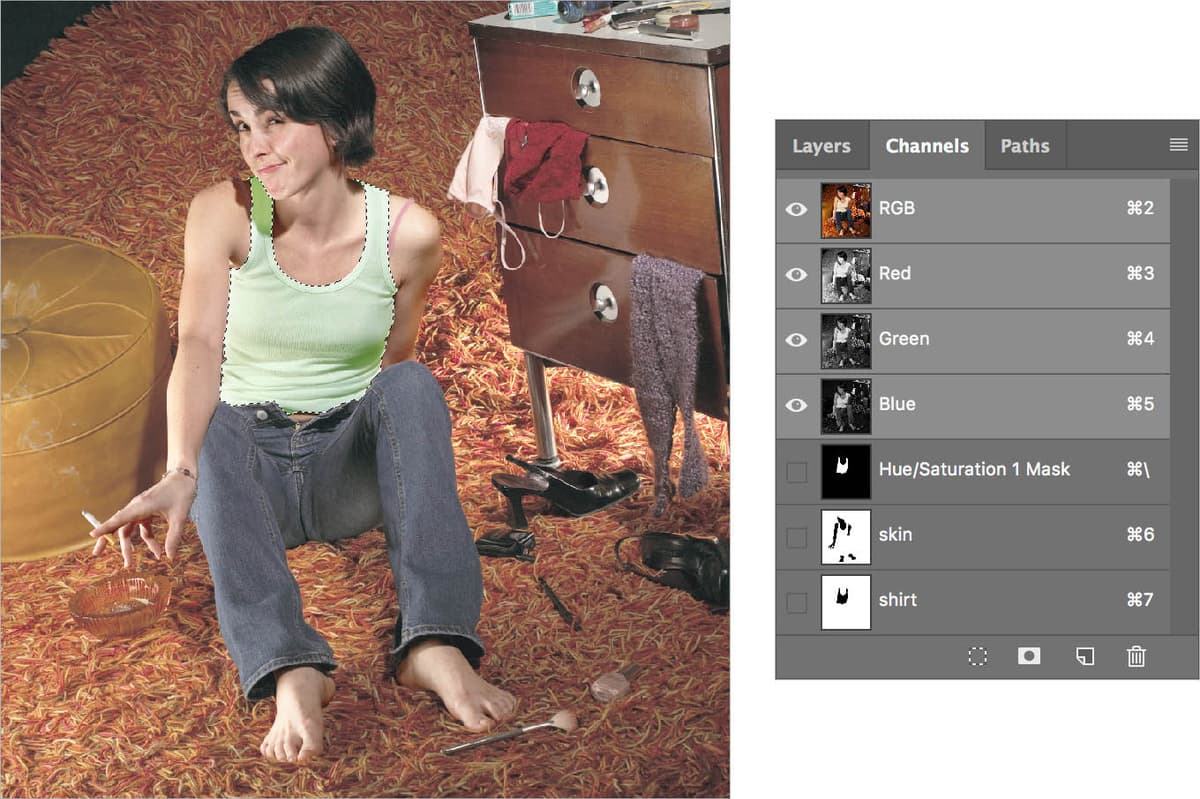
lifestyle selecting shirt channels

Exercise Overview

In this exercise, we'll create a precise shirt selection by leveraging the skin channel we built in the previous lesson. Since the shirt and skin share numerous edge boundaries, this technique demonstrates how professional retouchers maximize efficiency by reusing existing selections. This approach not only saves time but maintains consistency across your masking workflow—a crucial skill when working under tight client deadlines.

Workflow Overview

1

Leverage Existing Work

Use the previously created skin selection as a foundation since it shares edges with the shirt selection area

2

Create Rough Selection

Make an initial selection around the shirt using the Lasso Tool without worrying about perfect edges

3

Subtract Skin Channel

Remove the skin area from your selection using channel operations to isolate just the shirt

4

Refine and Save

Clean up the selection by painting in the channel and save it for future use

5

Apply Color Changes

Use Hue/Saturation adjustment layers to colorize the shirt with professional results

Roughing Out the Selection

We'll begin by creating a rough selection of the shirt area, then refine it using our existing skin channel. This two-step approach ensures accuracy while maintaining speed.

  1. If it's not still open, re-open yourname-lifestyle.psd.

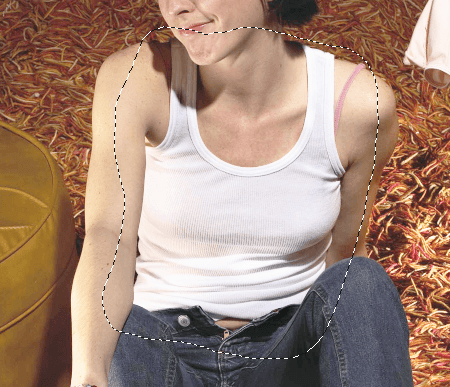
  2. Because the skin selection shares extensive edge boundaries with the shirt, we can intelligently repurpose it for our shirt selection. As shown below, use the Lasso lasso tool to create a rough selection around the entire shirt area. Don't worry about precision at this stage—slightly sloppy edges are perfectly acceptable since we'll refine them in the next steps.

    lifestyle select shirt

  3. Now we'll subtract the skin channel from our rough shirt selection to create clean boundaries. Go to Select > Load Selection.

  4. Configure the Load Selection dialog with the following settings:

    Channel: skin
    Operation: Subtract from Selection
  5. Click OK.

    NOTE: For faster workflow, you can accomplish this same operation using keyboard shortcuts. Hold Cmd–Option (Mac) or CTRL–ALT (Windows) and click directly on any channel in the Channels panel to subtract that selection from your current active selection. This shortcut becomes invaluable when working with complex, multi-layered selections in professional Photoshop workflows.

Keyboard Shortcut Alternative

Speed up your workflow by holding Cmd-Option (Mac) or CTRL-ALT (Windows) and clicking on a channel to subtract it from the current selection, bypassing the Load Selection dialog entirely.

Selection Methods Comparison

FeatureMenu MethodKeyboard Shortcut
SpeedSlowerFaster
Precision ControlFull Dialog OptionsDirect Action
Best ForComplex OperationsQuick Subtractions
Recommended: Use keyboard shortcuts for simple channel operations and the menu for complex selections requiring specific settings.

Refining the Selection

With our basic shirt selection established, we'll now save it as a channel and refine the edges using targeted painting techniques.

  1. To preserve this selection for future refinement, navigate to the Channels panel and click the Save selection as channel button layer mask button at the bottom of the panel.

  2. Name the new channel shirt to maintain clear organization in your project.

  3. Deselect the current selection by pressing Cmd–D (Mac) or CTRL–D (Windows). This allows us to work directly on the channel without active selection boundaries interfering with our view.

  4. Select the shirt channel in the Channels panel and show eye hide show icon the composite RGB channel. This gives you a clear overlay view for precise refinement work.

  5. Using a soft brush, carefully paint away any unwanted areas where the selection captured too much of the surrounding image. Focus particularly on areas where fabric meets skin or background elements.

    Remember the fundamental channel painting rule: painting with white removes areas from the selection, while painting with black adds areas to the selection. Use varying brush opacities for subtle edge transitions that will create more natural-looking results in your final colorization.

Channel Painting Logic

Remember the inverse relationship: painting with WHITE removes areas from the selection, while painting with BLACK adds areas. This is opposite to typical mask behavior.

Channel Refinement Process

0/4

Colorizing the Shirt

Now we'll apply our refined selection to colorize the shirt using Hue/Saturation adjustment layers—a non-destructive approach that maintains maximum flexibility for future edits.

  1. Hide eye hide show icon the shirt channel to return to normal RGB viewing mode.

  2. Hold Cmd (Mac) or CTRL (Windows) and click the shirt channel to load it as an active selection. You'll see the familiar marching ants indicating your selection is now active.

  3. In the Layers panel, add a new Adjustment layer adjustment layer button and choose Hue/Saturation. The adjustment layer will automatically inherit your shirt selection as its layer mask, ensuring the color changes affect only the shirt area.

  4. In the Properties panel, check the Colorize option to enable color replacement mode. Experiment with the Hue, Saturation, and Lightness sliders to achieve your desired shirt color. The Colorize function replaces the original colors entirely rather than simply shifting them, making it ideal for dramatic color changes. For a natural-looking result, try these starting values:

    Hue: 36
    Saturation: 35
    Lightness: –25
  5. Save and close the file. Your shirt colorization is now complete, and because you used adjustment layers, you can return to modify the color at any time without degrading the original image quality.

Hue/Saturation Adjustment Layer Benefits

Pros
Non-destructive editing preserves original image data
Easily adjustable settings allow for experimentation
Colorize mode provides natural-looking color changes
Layer masks automatically applied from active selections
Cons
May require fine-tuning for optimal color matching
Limited to hue shifts rather than complete color replacement
Can affect image luminosity if not carefully adjusted

Recommended Starting Values

Hue: 36

Sets the base color tone in the orange-yellow spectrum. Adjust this value to shift between different color families for varied shirt colors.

Saturation: 35

Controls color intensity and vibrancy. Lower values create muted tones while higher values produce more vivid colors that may appear unnatural.

Lightness: -25

Darkens the shirt slightly for more realistic results. Positive values lighten while negative values darken the selected area.

Key Takeaways

1Reuse existing selections to speed up workflow when objects share common edges, such as skin and clothing boundaries
2The Lasso Tool is perfect for rough initial selections that will be refined later through channel operations
3Channel subtraction using Load Selection or keyboard shortcuts efficiently removes unwanted areas from complex selections
4Saving selections as named channels preserves work and enables non-destructive refinement using paint tools
5White paint removes areas from channel selections while black paint adds areas - opposite to typical mask behavior
6Hue/Saturation adjustment layers with Colorize enabled provide natural-looking color changes for clothing items
7Starting values of Hue 36, Saturation 35, and Lightness -25 offer a professional baseline for shirt colorization
8Keyboard shortcuts like Cmd-Option-click (Mac) or CTRL-ALT-click (Windows) dramatically speed up channel operations

RELATED ARTICLES