April 1, 2026Dan Rodney/3 min read

Creating Paths with the Pen Tool

Master Photoshop's Essential Path Creation Tool

Core Skills You'll Master

Pen Tool Fundamentals

Learn the essential tool for creating precise vector paths in Photoshop. Master the interface and basic controls.

Bézier Curve Techniques

Understand how to create smooth, professional curves using mathematical precision. Essential for all vector work.

Path Management

Discover how to create, edit, and manage complex path combinations for professional design work.

Topics Covered in This Photoshop Tutorial:

Master the Pen Tool and create precise Bézier curve paths with professional accuracy

What Are Bézier Curves?

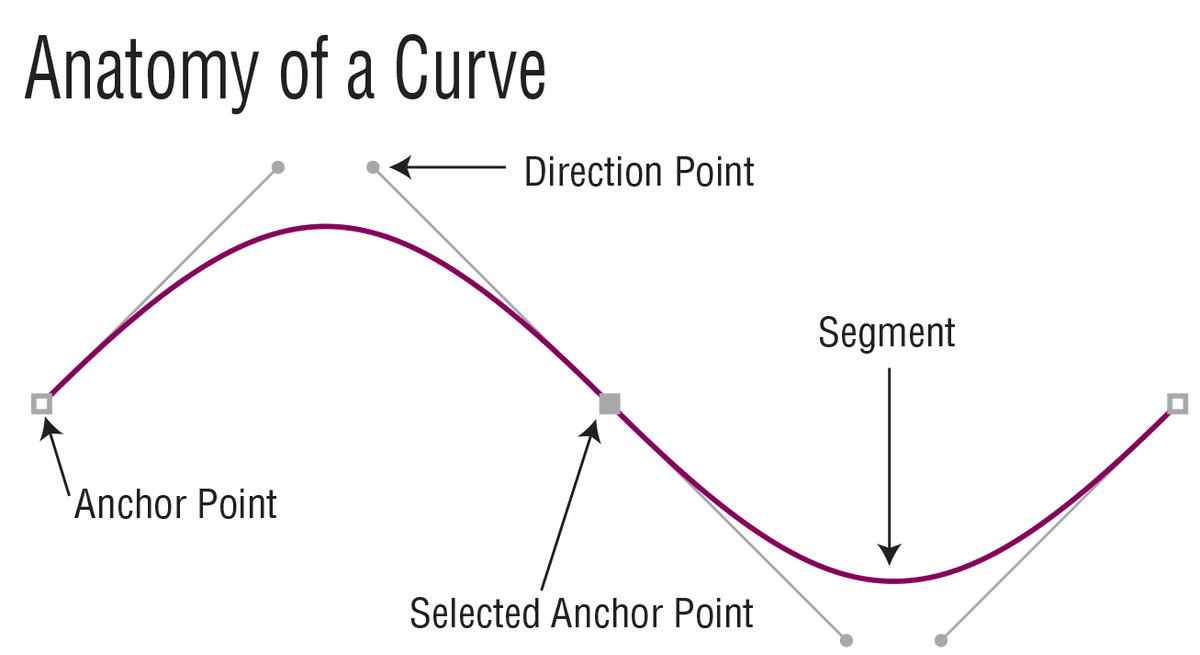
Bézier curves are mathematical curves used in computer graphics and vector design. Named after Pierre Bézier, they allow precise control over smooth curves using anchor points and control handles.

Exercise Preview

curves template large

Getting Started with the Exercise

1

Open Template File

Navigate to your Photoshop Class folder and open Curves Template.psd to begin practicing with pre-designed curve guides.

2

Select Pen Tool

Choose the Pen tool from the toolbar to access Photoshop's primary vector drawing instrument.

3

Configure Path Mode

In the Options bar, select Path from the dropdown menu to create vector paths rather than shape layers.

Exercise Overview

This hands-on exercise demystifies Photoshop's Pen tool—one of the most powerful yet underutilized features in the creative professional's toolkit. You'll master the fundamentals of drawing Bézier curves using our carefully designed template, building the muscle memory essential for precise selections, custom shapes, and vector-quality paths. While the Pen tool may seem intimidating at first, this structured approach will have you drawing smooth, professional curves with confidence.

The techniques you'll learn here form the foundation for advanced Photoshop work, from creating custom logos and illustrations to making pixel-perfect selections for compositing and retouching projects.

  1. From the Photoshop Class folder, open the file Curves Template.psd.
  2. Select the Pen tool pen tool from the toolbar (keyboard shortcut: P).
  3. In the Options bar, ensure Path is selected in the dropdown menu on the left. This creates a work path rather than a shape layer—perfect for learning the fundamentals without additional complexity.
Master the One-Motion Technique

The key to successful Bézier curves is the single fluid motion: press down on the black point and drag to the red circle without releasing. This creates the control handle that defines your curve's shape.

Path Deselection Methods

FeatureMethodWhen to Use
Escape KeyQuick keyboard shortcutWhen hands are on keyboard
Path Selection ToolSwitch tools and click offFor precise control
Cmd/Ctrl ShortcutTemporary Direct SelectionMost efficient workflow
Recommended: Use Cmd/Ctrl shortcut for the fastest workflow when drawing multiple curves

Bézier Curve Drawing Tips

The template provides a progressive learning experience, starting with guided reference points and gradually building your ability to judge curve direction and magnitude independently. These professional techniques will serve you throughout your design career:

  1. In section A, click and drag from each numbered black point toward the corresponding red circle in one fluid motion. Press down on the black point, hold, and drag to the red circle without releasing the mouse button. This drag motion determines both the direction and intensity of your curve's tangent handles.
  2. Mistakes are part of the learning process—simply press Cmd+Z (Mac) or Ctrl+Z (Windows) to undo and try again. Don't hesitate to experiment with different drag distances and angles.
  3. After completing each curve, you must deselect the current path before starting the next one. Choose any one of these methods:

    • Press the Escape key—the quickest option for most users.
    • Switch to the Path Selection tool path selection tool and click in an empty area to deselect.
    • Hold Cmd (Mac) or Ctrl (Windows) to temporarily access the Direct Selection tool, then click away from the path to deselect.
  4. As you progress through sections B and C, you'll notice the visual guides become more minimal. This deliberate progression builds your intuitive understanding of how drag distance and direction affect curve shape—skills that separate novice users from design professionals.
  5. To reset the exercise and practice again, navigate to File > Revert. This returns the document to its saved state, giving you a fresh template for additional practice sessions.

    Professional Tip: For comprehensive guidance on advanced path techniques, including corner points, smooth points, and complex path editing, consult the Drawing Paths reference section at the back of this book. These fundamentals you're learning here scale up to professional logo design, precise photo cutouts, and custom illustration work.

Progressive Learning Structure

Foundation

Part A - Guided Practice

Follow numbered points to red circles with full guidance and visual cues

Skill Building

Intermediate Sections

Gradually reduced assistance to build muscle memory and spatial judgment

Mastery

Advanced Practice

Independent curve creation with minimal training wheels for mastery

Essential Drawing Checklist

0/5
Reset and Repeat for Mastery

Use File > Revert to erase your practice work and start fresh. Repetition with the same template helps build consistent muscle memory and improves your curve judgment skills.

Key Takeaways

1The Pen Tool is Photoshop's primary instrument for creating precise vector paths and Bézier curves
2Successful Bézier curve creation requires a single fluid motion from anchor point to control handle
3Always select Path mode in the Options bar to create vector paths rather than shape layers
4Three methods exist for deselecting paths: Escape key, Path Selection tool, or Cmd/Ctrl shortcuts
5The template uses progressive difficulty, removing guidance as you advance through sections
6Proper deselection between curves prevents unwanted connections in your path work
7File > Revert allows you to reset the template for repeated practice sessions
8Building spatial judgment for drag distance and direction is essential for mastering Bézier curves

RELATED ARTICLES