April 1, 2026Dan Rodney/9 min read

Viewing & Managing Images

Master Lightroom's Essential Image Organization and Navigation Tools

Core Lightroom Skills You'll Master

Grid and Loupe Views

Navigate between thumbnail grid view and detailed single-image loupe view for efficient image browsing and inspection.

Image Comparison

Use Compare View and Survey View to evaluate multiple images side-by-side for better selection decisions.

Photo Organization

Flag important photos, reject unwanted ones, and stack similar images to maintain a clean, organized workflow.

Topics Covered in This Lightroom Tutorial:

Master Grid View & Loupe View navigation, Compare images side-by-side for critical selection, Flag & reject photos using professional workflows, Stack related photos for optimal organization

Exercise Preview

lightroom preview1B

Exercise Overview

This exercise establishes the foundation of efficient photo management in Lightroom Classic. You'll master the essential navigation modes—Grid View and Loupe View—while learning professional techniques for comparing, evaluating, and organizing images. These skills form the backbone of any serious photography workflow, enabling you to process hundreds or thousands of images with confidence and precision. The flagging, rejection, and stacking techniques you'll learn here are used daily by working photographers and digital imaging professionals worldwide.

Prerequisites Required

Before starting this exercise, ensure you have completed Exercise 1A and are working in Lightroom's Library module. The top panel should be visible and accessible.

Looking at Images in Grid View & Loupe View

  1. If you have not completed the previous exercise (1A), finish it before proceeding with this exercise. This foundational work ensures your catalog is properly configured for the techniques we'll cover.

  2. To get started, make sure you're working in the Library module. In the panel at the top of the screen, click on Library if it isn't already highlighted in white. The Library module is your command center for all organizational tasks.

    NOTE: If the top panel is hidden, click on the arrow at the top center of Lightroom to anchor it and make it visible.

  3. At the bottom of the Library, click the Grid View button grid view button or press G to enter Grid View if you are not already there. Grid View provides the optimal overview for initial photo selection and organization tasks.

  4. Press Tab to hide the side panels. This maximizes your viewing area—a technique professionals use when they need to focus entirely on image content without interface distractions.

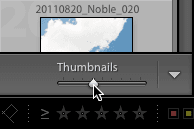
  5. As shown below, adjust the thumbnails slider in the lower-right corner to change the size of the thumbnails in Grid View to your liking. Find a size that balances overview with detail—typically larger thumbnails work better for detailed evaluation, while smaller ones are ideal for broad organizational tasks. (If you don't see it, go to View > Show Toolbar.)

    thumbnails slider

  6. Press Tab again to make the side panels reappear.

  7. Let's configure the metadata display for professional workflow efficiency. Go to View > View Options. Proper metadata visibility is crucial for managing large image libraries.

  8. Under Compact Cell Extras, make sure Top Label is checked. This ensures critical file information remains visible at all times.

  9. From the Top Label menu, choose Copy Name or File Base Name if it isn't already selected. Filename visibility is essential for asset tracking and client delivery workflows.

  10. Close the window.

  11. Notice that the filenames are shown at the top of each thumbnail. This professional setup enables rapid file identification during editing and delivery phases.

  12. Click on the second lighthouse image (20090503_YourName_002) to select it.

  13. Press E or double–click the image to enter Loupe View. Loupe View is your primary tool for detailed image evaluation and quality assessment.

  14. Let's master the Navigator panel located in the left side panels to experiment with different zoom levels. Expand the Navigator panel if it is not already open. Professional image evaluation requires examining photos at multiple magnification levels to assess sharpness, noise, and fine detail.

  15. At the top of the Navigator panel, click on the triangles zoom level triangles to the far right and select 8:1. This changes the zoom level to 8 times the original size, allowing for pixel-level inspection—essential for detecting camera shake, focus issues, or digital artifacts.

  16. Click on the zoom level triangles zoom level triangles again and select 3:1. Notice the image zoomed out and is now only 3 times the original size. This intermediate magnification level is ideal for evaluating local adjustments and retouching quality.

  17. In the Navigator panel, move the box over the image around to view different parts of the enlarged image. This navigation technique allows you to systematically inspect every area of your photograph without losing your zoom level—a critical skill for thorough quality control.

  18. At the top of the Navigator panel, click on 1:1 to view the image at 100%. This is the gold standard for sharpness evaluation and the zoom level most professionals use for final quality assessment before delivery.

  19. At the top of the Navigator panel, click on FIT to fit the whole image on the screen. This overview mode is perfect for evaluating overall composition, exposure, and color balance.

  20. Return to Grid View by clicking the Grid View button grid view button or pressing G.

Now that you've mastered basic navigation, let's explore Lightroom's powerful comparison tools—features that separate professional workflows from amateur approaches.

Setting Up Grid View for Optimal Workflow

1

Enter Grid View

Click the Grid View button at the bottom of the Library or press G to enter Grid View mode

2

Adjust Thumbnail Size

Use the thumbnails slider in the lower-right corner to set your preferred thumbnail size for comfortable viewing

3

Configure File Names

Go to View > View Options and ensure Top Label is checked, then select Copy Name or File Base Name from the menu

Grid View vs Loupe View Comparison

FeatureGrid ViewLoupe View
Best forBrowsing multiple imagesDetailed single image inspection
Zoom capabilityThumbnail size adjustmentNavigator panel zoom controls
Keyboard shortcutGE or double-click
Primary use caseSelection and organizationQuality assessment and navigation
Recommended: Use Grid View for initial image selection and organization, then switch to Loupe View for detailed quality assessment.

Comparing Images

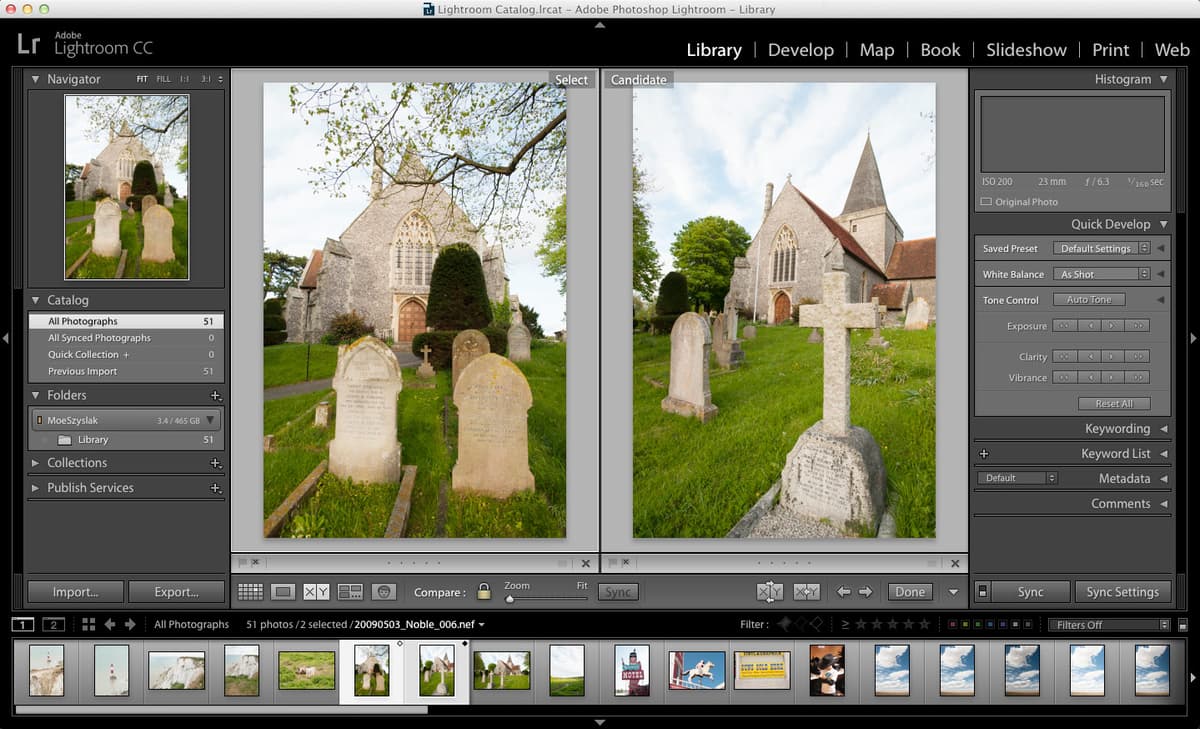
  1. Click on the first image of the graveyard (20090503_YourName_006) to select it.

  2. Cmd–click (Mac) or CTRL–click (Windows) on the second graveyard image (20090503_YourName_007) to select both. This multi-selection technique is fundamental to efficient photo editing workflows.

  3. At the bottom of the Library, click the Compare View button compare view button or press C.

    Now you can view the two images side by side. Compare View is indispensable for selecting the best image from similar shots—a daily challenge for professional photographers dealing with burst sequences or bracketed exposures.

  4. In the Navigator panel, click FIT if it isn't already highlighted. This ensures both images are displayed at the same scale for accurate comparison.

    NOTE: If clicking on FIT took you back to the Library, it had already been selected before you clicked it. In that case, press C to return to Compare View. FIT will be highlighted.

  5. Press Tab to hide the side panels. Now you have more space to compare photos—maximizing your viewing area eliminates distractions and allows for more accurate visual assessment.

  6. Press G to go back to Grid View.

  7. Press Tab to get the side panels back.

  8. Click on the first sky photo (20110820_YourName_014). We'll now explore Survey View, perfect for comparing multiple related images simultaneously.

  9. Shift–click on the fourth sky photo (20110820_YourName_017). A total of four photos should be selected. Shift-clicking creates contiguous selections—essential for efficient batch operations.

  10. At the bottom of the Library, click the Survey View button survey view button or press N to compare the selected images. Survey View excels when choosing between multiple variations—particularly useful for bracketed exposures, different poses, or compositional variations.

  11. Press Tab to maximize viewing space.

  12. Press L to dim the lights making everything but our images slightly darker. This lights-out mode reduces visual distractions and helps your eyes focus on tonal relationships within the images.

  13. Press L one more time to completely turn off the lights, making the background fade completely so you only see the photos. This full blackout mode is preferred by many professionals for critical color and exposure evaluation.

  14. Press L again to return to normal Lightroom interface lighting.

  15. Click the Grid View button grid view button.

  16. Press Tab to redisplay the side panels.

With comparison mastered, let's implement the flagging and rejection system that forms the backbone of professional photo selection workflows.

Lightroom's Image Comparison Tools

Compare View

Select two images using Cmd-click or Ctrl-click, then press C to view them side-by-side for direct comparison.

Survey View

Select multiple images using Shift-click, then press N to view all selected images simultaneously in a grid layout.

Lighting Controls for Better Focus

Press L repeatedly to cycle through lighting modes: normal view, dimmed lights, and lights out. This helps you focus on image details by reducing interface distractions.

Flagging & Rejecting Photos

  1. Select the first lighthouse photo (20090503_YourName_001).

  2. Notice there is a flag at the top-left corner of the box that contains the image. This flag system is Lightroom's primary method for rapid image selection—a workflow adopted by professional photographers worldwide for its speed and reliability.

  3. Click the flag to mark this photo as flagged. Flagged images represent your "selects"—the photographs worthy of further development and potential client delivery.

  4. Select the second cliff image (20090503_YourName_004) and click on its flag.

  5. Select and flag the second graveyard image (20090503_YourName_007).

  6. Select the photo of the sheep (20090503_YourName_005) and press P. This keyboard shortcut dramatically speeds up the selection process—professional editors often flag hundreds of images per hour using this technique.

  7. Click the second lighthouse image (20090503_YourName_002) and press X to mark it as rejected. The rejection system helps you definitively eliminate unusable images—whether due to technical problems, poor composition, or client specifications. This creates a clear separation between keepers and rejects.

  8. Go to Photo > Delete Rejected Photos. In the dialog box that appears, hit Cancel. We didn't really want to delete the rejected photos. We only wanted to show you the option. In professional workflows, this function safely removes failed images from your catalog, helping maintain clean, organized libraries while preserving hard drive space.

Finally, let's explore stacking—a powerful organizational tool that transforms cluttered image libraries into streamlined, manageable collections.

Photo Flagging and Rejection Workflow

1

Flag Important Photos

Click the flag icon in the top-left corner of an image thumbnail or press P to mark photos as flagged

2

Reject Unwanted Photos

Select poor quality or unwanted images and press X to mark them as rejected

3

Delete Rejected Photos

Use Photo > Delete Rejected Photos to permanently remove rejected images from your catalog

Deletion is Permanent

When you delete rejected photos, this action cannot be undone. Always review your rejected photos carefully before confirming deletion.

Stacking Photos

When a group of photos is similar it may be preferable to stack them to declutter the thumbnail window. The sky photos, for example, are all the same picture taken at different exposures and will be stacked. Professional photographers routinely create stacks for HDR brackets, focus stacks, burst sequences, and compositional variations. This organizational approach is essential when dealing with shoots that generate thousands of similar images—wedding photographers, sports shooters, and commercial photographers rely heavily on stacking to maintain workspace clarity.

  1. Select the first sky photo (20110820_YourName_014) in the group.

  2. Shift–click the last sky photo (20110820_YourName_020) in the group to select all of the sky photos. This selection technique works efficiently for any contiguous group of related images.

  3. CTRL–click (Mac) or Right–click (Windows) and select Stacking > Group into Stack.

    The selected photos are now displayed as a stack with the first photo in the group on top and vertical lines to the left and right of the photo. The number of photos in the stack is displayed in the upper-left corner of the top image—in this case there are seven. This visual system allows you to see at a glance how many variations you have of each scene.

  4. To unstack the photos CTRL–click (Mac) or Right–click (Windows) the stack and select Stacking > Unstack. Unstacking is useful when you need to apply different processing to individual images or when client requirements change.

  5. To restack the photos, select all the photos again and CTRL–click (Mac) or Right–click (Windows) and select Stacking > Group into Stack.

  6. To expand the stack and see all of the photos, click either of the vertical lines to the left or right of the photo. This expansion capability lets you quickly review all variations without losing your organizational structure.

  7. To choose a new top photo, CTRL–click (Mac) or Right–click (Windows) the photo you would like to be at the top of the stack and select Stacking > Move to Top of Stack. This moves the selected photo to the top of the stack. Smart stack management means promoting your best or most representative image to the top position—this becomes the face of your image group and should represent the highest quality or most client-appropriate option.

  8. To collapse the stack, click the vertical line to the left of the photo. Collapsed stacks maintain clean workspace organization while keeping related images logically grouped and instantly accessible.

Photo Stacking Benefits and Considerations

Pros
Declutters thumbnail view by grouping similar images
Maintains organization for bracketed exposures or similar shots
Allows easy access to all images in the group when expanded
Shows stack count in upper-left corner for quick reference
Cons
Hidden images in collapsed stacks may be forgotten
Requires manual organization and grouping decisions
Stack order can be accidentally changed during editing

Complete Photo Stacking Workflow

0/5

Key Takeaways

1Grid View provides efficient thumbnail browsing while Loupe View enables detailed single-image inspection with zoom capabilities
2The Navigator panel in Loupe View offers precise zoom control from 8:1 magnification down to FIT view for complete image assessment
3Compare View allows side-by-side evaluation of two images, while Survey View displays multiple selected images simultaneously
4Photo flagging workflow uses click-to-flag or P key for important images, and X key to mark photos for rejection and potential deletion
5Image stacking groups similar photos to reduce visual clutter, with expandable access and customizable top image selection
6Keyboard shortcuts significantly speed up workflow: G for Grid View, E for Loupe View, C for Compare View, and N for Survey View
7Lighting controls accessed with L key help focus attention on images by dimming or hiding interface elements
8File name display can be configured in View Options to show Copy Name or File Base Name above each thumbnail for better organization

RELATED ARTICLES