Fundamentals of JavaScript Code
What This Tutorial Covers
Variables & Types
Declare data with let and const.
Operators & Logic
Math, comparison, and boolean operators.
Statements & Blocks
Control flow with if, for, and while.
Noble Desktop's JavaScript Development Certificate teaches modern JavaScript and React.
Learn the basics of JavaScript and jQuery with this tutorial, covering topics such as JavaScript methods, variables, strings, and numbers, and providing exercises to apply your newfound knowledge.
Topics Covered in This JavaScript & JQuery Tutorial:
JavaScript Methods (such As Alerts), Variables, the Importance of Quotes, Numbers Vs. Strings, Concatenation
Exercise Preview
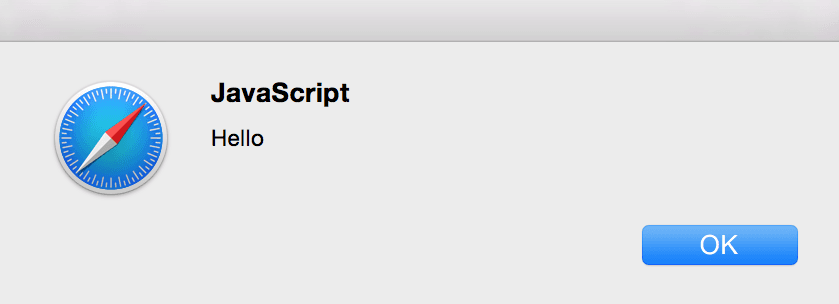
Exercise Overview
Before we see real-life examples of how JavaScript is used, we must first learn some foundational concepts and syntax. First, you’ll learn about alerts. You may not use them often on a finished website, but they’re a useful way to test your code when you’re first getting started. You’ll then learn about variables, strings, and numbers. These are core concepts used throughout even the most complicated scripts.
Getting Started
- Launch your code editor (Visual Studio Code, Sublime Text, etc.). If you are in a Noble Desktop class, launch Visual Studio Code.
- In your code editor, hit Cmd–O (Mac) or CTRL–O (Windows) to open a file.
- Navigate to the Desktop and go into the Class Files folder, then yourname-JavaScript jQuery Class folder, then JavaScript-Fundamentals.
- Double–click on index.html to open it.
- Notice that this is just a blank HTML page. It will be the perfect canvas for us to start learning the syntax.
Writing JavaScript Alerts & Variables
JavaScript code needs to be wrapped in a script tag, which we’ll put in the head section.
Add the following bold code before the closing
</head>tag (on line 6):<title>JavaScript Fundamentals</title> <script> </script> </head>Inside the script tag, add the following bold code:
<script>
   alert('Hello');
</script>
alert() is a JavaScript method that will pop up a dialog containing whatever message you type into the parentheses. Methods can be thought of as the verbs of JavaScript. They are actions. They do things, like open an alert in this example. Methods are written as methodName followed by parentheses in which additional options are typically written.
- Go to File > Save.
- Navigate to the Desktop and go into Class Files > yourname-JavaScript jQuery Class > JavaScript-Fundamentals.
CTRL–click (Mac) or Right–click (Windows) on index.html, go to Open With and select Google Chrome, Safari, or Firefox.
You should see a dialog that says Hello. Notice that it does not have quotes, even though there were quotes in the code. We’ll explain that more in a moment. Click OK to close the alert.
Leave index.html open in the browser, so later you can reload the page to see the changes you make in your code.
Switch back to index.html in your code editor.
Make the following changes shown in bold. Pay close attention to capitalization—JavaScript is case-sensitive!
<script>
   var myMessage = 'Hello';
   alert(myMessage);
</script>
Let’s break that down. The var in front of the variable name says we are declaring (or creating) a new variable. We made up a variable named myMessage into which we stored the message ‘Hello’. The alert is then told to display the contents of that variable. Notice that there are no longer quotes around the alert message.
Notice the semi-colons (;) at the end of each line of code. Semi-colons indicate the end of a statement. If multiple statements are on one line, then semi-colons must separate them. However, if they are on separate lines, JavaScript’s official specs say that semi-colons are optional. This is a highly-debated topic, and some people leave them out. If you’re ever going to minify your code (to reduce the file size) you’ll need the semi-colons. Our personal preference is to use semi-colons, so we are going to add them in this workbook.
Go to File > Save.
Return to the browser and click the Reload button to refresh the new code. You should get the same Hello message. Click OK to close the message.
NOTE: If you closed the file, navigate to yourname-JavaScript jQuery Class > JavaScript-Fundamentals and CTRL-click (Mac) or Right-click (Windows) on the file, then select Open With and choose your favorite browser. Alternatively your code editor may have a keystroke or other way to make previewing a page in a web browser easier.
Back in your code editor, put single quotes around myMessage in the alert, as shown below:
alert(' myMessage');Save the file and preview in a browser. Now the alert should say myMessage.
This text within quotes is called a string.
Quotes are important because they tell JavaScript that text should be read literally as a string of characters. If there are no quotes, JavaScript understands it’s not just a series of characters, but a variable. JavaScript doesn’t care about single vs. double quotes. It’s mostly a personal preference (except in a few cases). We prefer single quotes because they’re faster to type because you don’t have to hold the Shift key!
Switch back to your code editor.
We don’t need this code anymore because we’re moving on to something else. We’d like to keep the code in the file, but have it ignored by the browser. As shown below, add double slashes // to comment out the code (it will turn gray).
// var myMessage = 'Hello';
// alert('myMessage');
Save the file and preview in a browser. The alert code is ignored, so nothing will happen.
Strings Vs. Numbers & Variables
Let’s further explore how quotes work. Switch back to your code editor.
Below the commented lines, type:
//alert('myMessage');
   alert( 2 + 2 );
   alert( '2' + '2' );
</script>
Save the file and preview in a browser.
The first alert is doing basic math. The plus is working as an addition sign. Click OK to see the second alert.
The second alert is doing something different. The quotes indicate a string. The plus sign is now putting one string of characters after another (a process called concatenation). Click OK to close the alert.
Back in your code editor, delete everything between the script tags.
Add the following bold code:
<script>
   var firstName = 'Dan';
   var lastName = 'Rodney';
   alert('firstName' + 'lastName');
</script>
Save the file and preview in a browser. The alert will say firstNamelastName. Click OK to close the alert.
The quotes in the alert treat those words as strings, or as literal characters. We’ve concatenated (or combined) these two strings. But that’s not what we want.
Switch back to your code editor.
Remove the quotes in the alert:
<script>
   var firstName = 'Dan';
   var lastName = 'Rodney';
   alert(firstName + lastName);
</script>
Save the file and preview in a browser. The alert will say DanRodney. Click OK to close the alert.
Without quotes, JavaScript treats firstName and lastName as variables, so it looks for their value outside the alert. There were no spaces between the names in the alert. To output a space, we’ll need to CONCATENATE a string (containing a space character) between the firstName and lastName variables.
Switch back to your code editor. Add the following quote space quote space plus shown in bold:
alert(firstName + ' ' + lastName);NOTE: Spaces outside the quotes don’t matter, but spaces inside the quotes do!
Save the file and preview in a browser.
Notice that it now outputs Dan Rodney (with a space). Click OK to close the alert.
In your web browser, close the page.
These examples may seem basic, but they are laying a very important foundation for the more complex scripts you’ll soon be writing.
NOTE: For each exercise in this book, we have the completed code in a folder named Done-Files. Go to Desktop > Class Files > yourname-JavaScript jQuery Class > Done-Files > JavaScript-Fundamentals if you want to refer to our final code.