April 1, 2026Dan Rodney/10 min read

Professional Typesetting Techniques

Master Advanced InDesign Typography Like a Professional

Core Typesetting Skills Covered

Hanging Bullets

Learn professional list formatting techniques using the Indent to Here character and InDesign's built-in list features for polished typography.

Hyphenation Control

Master both global hyphenation settings and discretionary hyphens for precise control over text flow and readability.

Special Characters

Utilize forced line breaks and column breaks to control text layout without creating unwanted paragraph breaks.

Topics Covered in This InDesign Tutorial:

Bulleted Lists, Hanging Bullets, Hyphenation, Discretionary Hyphens, Special Break Characters

Exercise Preview

professional typesetting exercise preview

Exercise Overview

Professional typography isn't just about making text look good—it's about creating publications that command authority and enhance readability. These advanced typesetting techniques distinguish industry professionals from casual users. You'll master the subtle art of hanging bullets, sophisticated list formatting, strategic line and column breaks, and the precision tool every typographer relies on: the discretionary hyphen. These skills are essential for corporate reports, marketing materials, and any publication where presentation quality directly impacts credibility.

  1. Open the InDesign file called BigBook.indd by choosing File > Open.

    If you encounter a message about missing or modified links, click Update Links. InDesign's intelligent linking system will automatically locate the images in the same folder and reestablish the connections—a time-saving feature that keeps your workflow moving smoothly.

File Setup Required

This tutorial uses the BigBook.indd file. If you encounter missing or modified links messages, simply click Update Links as InDesign will locate images in the same folder automatically.

Hanging Bullets/Check Marks

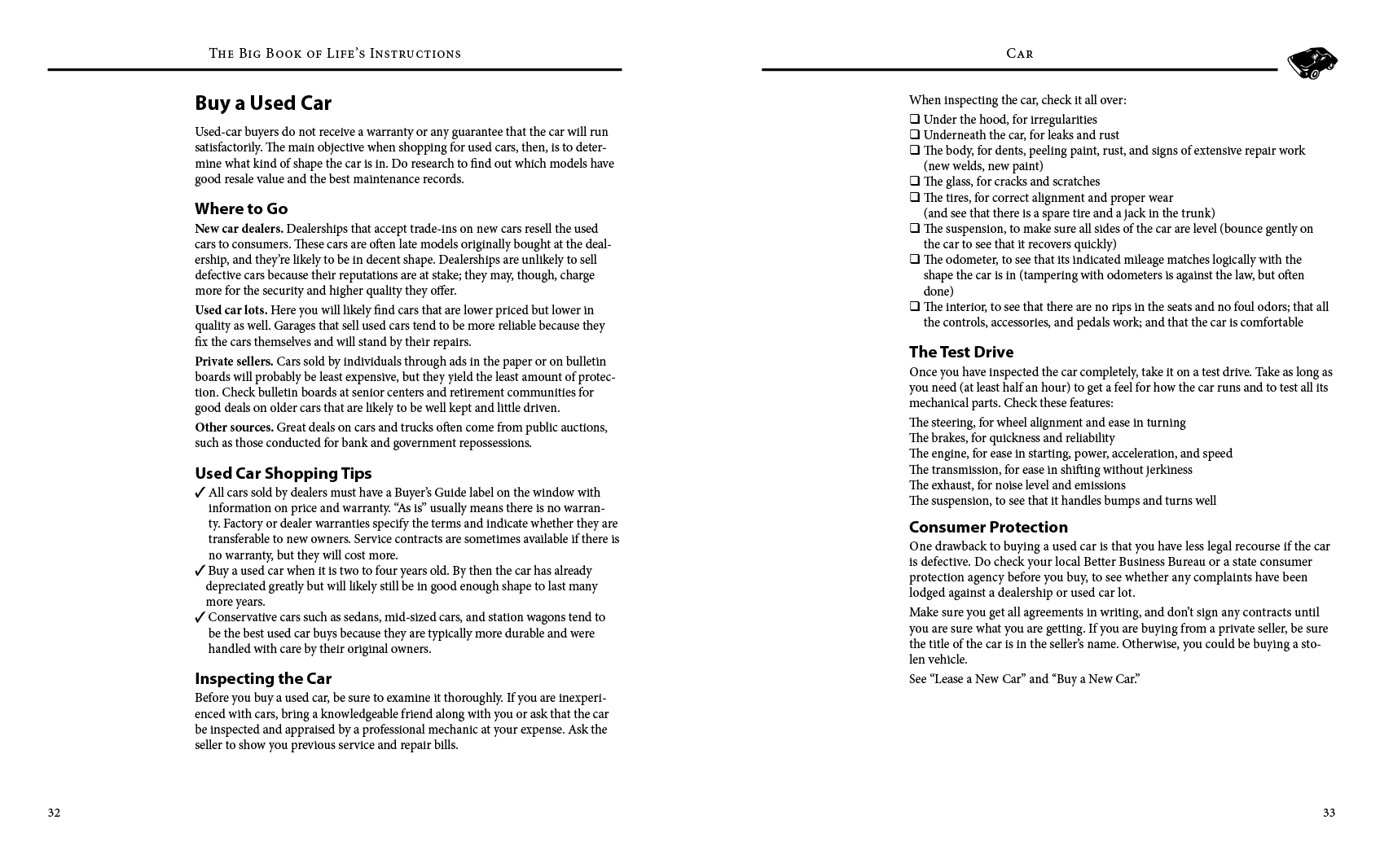
You'll see that this is a 2-page spread for The Big Book of Life's Instructions. Hanging bullets create a clean, professional appearance by allowing bullet points to extend into the margin while maintaining consistent text alignment. We'll use InDesign's Indent to Here character—a powerful but underutilized formatting tool that gives you precise control over paragraph indentation.

  1. On the left page (pg 32), locate the three paragraphs near the bottom that begin with check marks. To achieve the hanging bullet effect, we'll insert Indent to Here commands immediately before the first letter following each check mark. This technique ensures that wrapped text aligns perfectly with the first line of text, not with the bullet itself.

  2. Select the Type tool type tool and position your cursor precisely before the A that follows the first check mark "bullet."

  3. Execute the Indent to Here command by pressing Command–\ (Mac) or CTRL–\ (Windows). Note that the backslash key is typically located above the Return (Mac) or Enter (Windows) key.

    You'll immediately see the paragraph text indent from that insertion point, creating the professional hanging bullet effect used in high-end publications.

  4. Apply the same technique to the remaining two paragraphs. Consistency in formatting is crucial for maintaining professional credibility throughout your document.

Creating Hanging Bullets with Indent to Here

1

Position Cursor

Place the Type tool cursor before the first letter after each check mark bullet

2

Apply Command

Press Command-\ (Mac) or CTRL-\ (Windows) to create the hanging indent

3

Repeat Process

Apply the same technique to all remaining paragraphs in the bulleted list

Another Technique to Make Lists/Hanging Bullets

While manual formatting works well for simple cases, InDesign's automated list features become invaluable when working with complex documents or when consistency across multiple publications is paramount. Let's explore how to leverage InDesign's built-in list functionality for more efficient workflow management.

At the top of the right page (pg 33), under "When inspecting the car…" there is a list with multiple items. We'll transform this into a properly formatted list using InDesign's automated bullet system, which not only saves time but ensures consistent spacing and formatting that can be easily modified globally.

  1. Select all the paragraphs in the list, from "Under the hood…" through the end of the list items, but stop before the "The Test Drive" heading that follows. Proper selection is critical for achieving uniform formatting.

  2. In the Control panel, ensure you're viewing Paragraph formatting options controlpanel paragraphformatting by clicking the paragraph button on the panel's left side. This switches from character-level to paragraph-level formatting controls.

  3. Click the Bulleted List button bulleted list button. InDesign will automatically convert your selected paragraphs into a formatted bulleted list with default spacing and bullet styling.

  4. Open the Tabs panel by navigating to Type > Tabs. This panel provides precise control over bullet positioning and text alignment—essential tools for professional typography.

  5. Position the Tabs panel above your bulleted list as shown in the reference image below. Precise positioning isn't critical here; approximate alignment will suffice for this adjustment process.

    bulleted list tabs alignment

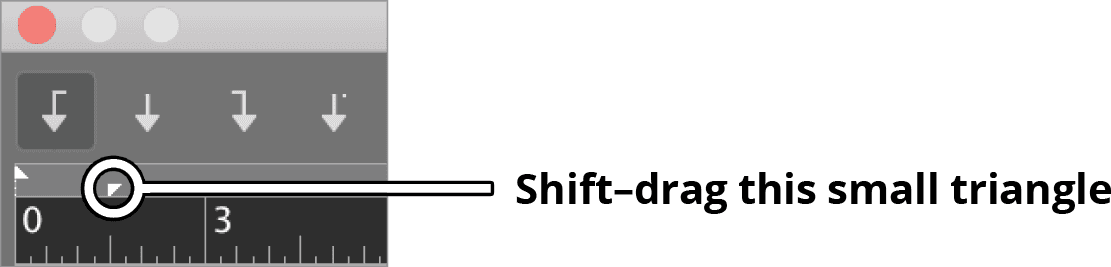
  6. To fine-tune the spacing between bullets and text, hold Shift and drag the small triangular indicator shown below to the left. This reduces the gap and creates a tighter, more professional appearance.

    decrease bullet spacing

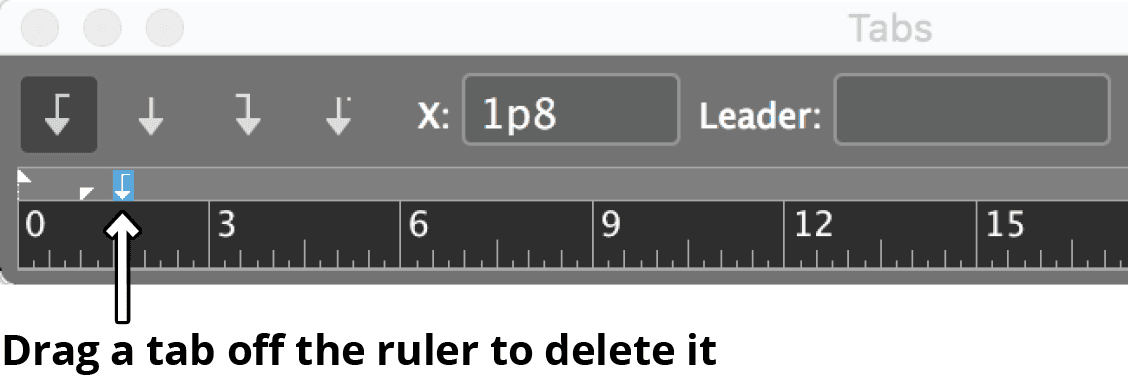
    IMPORTANT: This triangle control is quite small, making it easy to accidentally create an unwanted tab stop tab stop left instead of adjusting bullet spacing. If you inadvertently create a tab stop, simply drag it off the Tabs panel completely, as demonstrated below:

    delete tab

  7. Once you've achieved the desired spacing between bullets and text, close the Tabs panel to declutter your workspace.

  8. To customize the bullet style, verify that all list paragraphs remain selected. Consistent selection ensures uniform formatting across all list items.

  9. Access the panel menu control panel menu at the right side of the Control panel and select Bullets and Numbering. This opens InDesign's comprehensive list formatting controls.

  10. To expand your bullet options beyond the default selections, click the Add button. This allows you to incorporate custom symbols that align with your publication's visual identity.

  11. At the bottom of the dialog window, change the Font Family to Wingdings. This symbol font provides numerous professional bullet options suitable for business and technical publications.

  12. Select any icon that complements your document's design aesthetic and click OK. Consider your audience and publication context when making this choice—corporate documents typically require more conservative symbols than creative materials.

  13. Select your newly added bullet character from the top section of the window, then enable Preview at the bottom to see real-time changes in your document.

  14. Evaluate the new bullet style in context with your overall design. The bullet should enhance readability without drawing excessive attention to itself. When satisfied with your selection, click OK.

Using InDesign's Built-in List Feature

1

Select Text

Highlight all paragraphs in the list from beginning to end, excluding following headings

2

Apply Bullets

Click the Bulleted List button in the Control panel's Paragraph options

3

Adjust Spacing

Use the Tabs panel to drag the small triangle left, reducing space between bullets and text

4

Customize Bullets

Access Bullets and Numbering to add custom bullet characters from fonts like Wingdings

Precision Required

The triangle in the Tabs panel is very small. Clicking the wrong area accidentally creates a tab - simply drag any unwanted tabs off the panel to remove them.

Controlling the Number of Hyphens

Hyphenation control is one of the most critical yet overlooked aspects of professional typesetting. Poor hyphenation can destroy the visual flow of a publication and reduce reader comprehension. InDesign's hyphenation engine provides sophisticated controls that allow you to balance optimal spacing with readability—a skill that separates amateur layouts from professional-grade publications.

  1. Navigate to View > Fit Spread in Window to gain a comprehensive view of your layout. This perspective is essential for evaluating hyphenation decisions across the entire spread.

  2. Select the Type tool type tool and click anywhere within the body text to establish your text cursor.

  3. Execute Edit > Select All to select all text in the current story thread. This ensures consistent hyphenation settings throughout the document.

  4. Access the Control panel menu control panel menu and choose Hyphenation. This opens InDesign's comprehensive hyphenation controls.

  5. Enable Preview on the right side of the dialog to see real-time changes as you adjust settings. This immediate feedback is crucial for making informed typographic decisions.

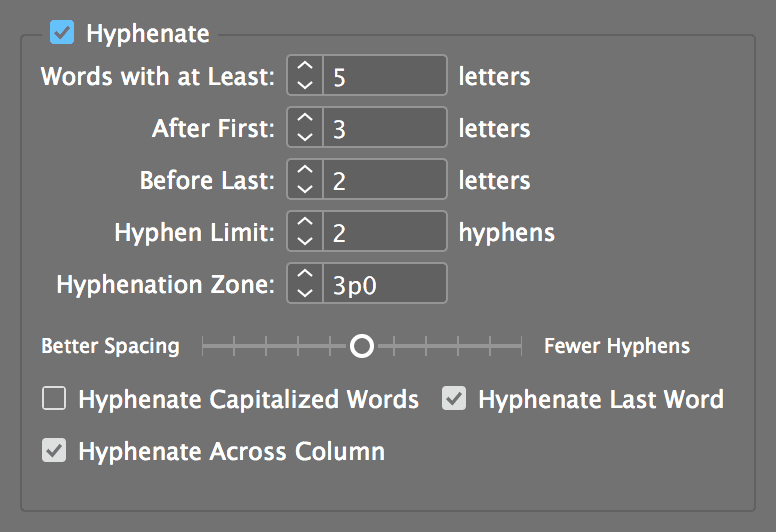
  6. At the top of the window, check Hyphenate to activate the feature, then configure the settings as shown below. Do NOT click OK yet—we'll explore the effects of different settings first.

    hyphenation setting big book

  7. To understand the impact of hyphenation choices, experiment by moving the slider between different positions while observing how your document changes. This hands-on exploration reveals the relationship between hyphenation and overall text appearance.

    typesetting hyphenation

    Better Spacing prioritizes even word spacing and consistent line lengths but results in more hyphenated words. Fewer Hyphens reduces hyphenation but may create uneven spacing and awkward line breaks that compromise readability.

  8. Position the slider toward Better Spacing. For professional publications, consistent spacing typically outweighs concerns about hyphen frequency, as readers adapt quickly to well-executed hyphenation.

  9. Click OK to apply your hyphenation settings across the selected text.

Global Hyphenation Settings

1

Select All Text

Use View > Fit Spread in Window, then Edit > Select All to apply settings document-wide

2

Access Hyphenation

Go to Control panel menu and choose Hyphenation, ensuring Preview is checked

3

Experiment with Settings

Move the slider between Better Spacing (more hyphens) and Fewer Hyphens to find the optimal balance

Hyphenation Balance Trade-offs

FeatureBetter SpacingFewer Hyphens
Visual AppealMore uniform spacingLess consistent spacing
ReadabilityMore interruptionsSmoother reading flow
Professional LookCleaner justified textPotential spacing issues
Recommended: Choose Better Spacing for professional publications where visual consistency is paramount

Discretionary Hyphens

Even InDesign's sophisticated hyphenation engine occasionally makes choices that don't align with your specific design goals or readability requirements. Discretionary hyphens provide the surgical precision needed to override automatic hyphenation decisions. This technique is invaluable when working with technical terms, proper nouns, or when optimizing specific paragraphs for maximum visual impact. Master typographers use discretionary hyphens sparingly but strategically, understanding that local adjustments can significantly improve overall page composition.

Keep in mind that InDesign's composition engine is remarkably sophisticated—when you make a local hyphenation change, the software may recompose the entire paragraph to maintain optimal spacing and readability throughout.

  1. On the left page, locate the third paragraph under the subheading "Where to Go" and find the hyphenated word protection at the end of the second line. This will serve as our first example of strategic hyphenation adjustment.

  2. Position your cursor between "tec" and "tion" on the line following "pro-" and press Cmd–Shift–Hyphen (Mac) or CTRL–Shift–Hyphen (Windows). Notice how "protec" moves to the line above. InDesign maintained this change because it improved spacing without compromising paragraph composition—an example of successful local adjustment.

  3. For our second example, navigate to the right page and locate the first paragraph under "Consumer Protection." Find the hyphenated word consumer at the end of the second line.

  4. Position your cursor between "con" and "sum" and press Cmd–Shift–Hyphen (Mac) or CTRL–Shift–Hyphen (Windows).

    Here you'll observe InDesign's sophisticated composition engine in action. Rather than simply moving the hyphen as requested, InDesign analyzes the entire paragraph and determines that bringing the word "car" up from the second line to the first creates superior overall spacing, eliminating the need to hyphenate "consumer" at all. This demonstrates why understanding InDesign's composition philosophy is crucial for effective typography.

  5. Experiment with these hyphenation techniques in other paragraphs to develop your understanding of how local changes affect global paragraph composition. Each adjustment teaches you more about balancing micro-typography decisions with macro-layout concerns.

    NOTE: To limit hyphenation settings to a single paragraph rather than the entire document, click within only that paragraph before accessing the Control panel menu control panel menu and choosing Hyphenation. This granular control is essential when different sections of a document require different typographic treatment.

InDesign's Smart Decision Making

Discretionary hyphens aren't always applied exactly where placed. InDesign analyzes the entire paragraph and may make different adjustments to optimize overall spacing and readability.

Applying Discretionary Hyphens

1

Locate Target Word

Find the hyphenated word you want to modify in your text

2

Position Cursor

Place cursor at your preferred hyphenation point within the word

3

Apply Command

Press Cmd-Shift-Hyphen (Mac) or CTRL-Shift-Hyphen (Windows) to suggest the new break point

The New Line Character (Forced Line Break)

The forced line break is an essential tool for maintaining paragraph integrity while controlling line endings. Unlike a paragraph return, which creates a new paragraph (and in lists, a new bullet point), the forced line break keeps text within the same paragraph while moving it to the next line. This technique is particularly valuable in lists, addresses, poetry, or any situation where you need line breaks without paragraph breaks.

  1. In the bulleted list at the top of the right page, locate the fifth bullet point beginning with "The tires, for correct…" and click immediately before the parentheses in "(and see…". This text would read better if the parenthetical information started on a new line.

  2. If you press Return (Mac) or Enter (Windows), InDesign will interpret this as a request for a new paragraph, automatically creating another bulleted item in the list. Try this now to see how InDesign adds a bullet and treats it as a separate list item.

  3. Immediately use Undo to reverse this action and return to the original formatting.

  4. To create a line break while maintaining paragraph integrity, ensure your cursor is positioned before the parentheses and press Shift–Return (Mac) or Shift–Enter (Windows). This inserts a forced line break character.

  5. The text now moves to the next line while remaining part of the same bulleted paragraph—exactly what we wanted. To visualize this formatting choice, go to Type > Show Hidden Characters and observe the blue forced line break symbol forced linebreak character at the end of the line. Understanding these invisible characters is crucial for troubleshooting formatting issues and maintaining precise typographic control.

Line Break Methods Comparison

FeatureReturn/EnterShift-Return/Shift-Enter
CreatesNew paragraphLine break within paragraph
In ListsNew bullet pointContinues same bullet
Use CaseSeparate thoughtsFormat within same idea
Recommended: Use Shift-Return for line breaks that maintain paragraph formatting and list structure
Visibility Check

Enable Type > Show Hidden Characters to see forced line breaks as blue symbols, helping you track your formatting choices.

The New Column Character (Column Break)

Column breaks provide absolute control over text flow in multi-column layouts. Unlike other break characters that work within the current column, the column break forces text to jump to the top of the next available column. This technique is essential for controlling the placement of headlines, starting new sections, or ensuring that related content appears together in complex layouts.

  1. Examine the bottom of the left page carefully—you'll notice a small blue invisible character new column character (you may need to zoom in to see it clearly). This is the Column Break character, inserted by pressing the Enter key located in the numeric keypad on the far right of your keyboard—not the main Return/Enter key.

    Column breaks are particularly valuable in newsletters, magazines, annual reports, and any multi-column publication where you need precise control over content placement. Use this technique when automatic text flow doesn't position content optimally, or when you need to ensure that headings or important information appears at the top of a fresh column for maximum visual impact.

    These advanced typesetting techniques represent the difference between competent and exceptional publication design. Master them, and you'll have the tools to create publications that not only communicate effectively but command professional respect and enhance your organization's credibility.

Professional Break Characters

New Line Character

Shift-Return creates a line break within the same paragraph, perfect for maintaining list formatting while controlling text flow.

Column Break Character

Enter key from the number pad forces text to start in a completely new column, essential for multi-column layouts.

Professional Distinction

These advanced typesetting techniques separate professional designers from average users. Mastering these details elevates the quality and sophistication of your layouts.

Key Takeaways

1Master the Indent to Here character (Command/CTRL + backslash) for professional hanging bullet formatting
2Use InDesign's built-in Bulleted List feature combined with Tabs panel adjustments for consistent list spacing
3Balance hyphenation settings between Better Spacing and Fewer Hyphens based on your document's priorities
4Apply discretionary hyphens for local control, understanding InDesign may optimize the entire paragraph
5Distinguish between Return/Enter (new paragraph) and Shift-Return/Shift-Enter (forced line break within paragraph)
6Utilize column break characters from the number pad Enter key for multi-column layout control
7Enable Show Hidden Characters to visualize special formatting characters and maintain consistency
8These advanced techniques are what separate professional typographers from casual InDesign users

RELATED ARTICLES