April 1, 2026Dan Rodney/4 min read

Kerning & Tracking: Free InDesign Tutorial

Master Professional Typography in Adobe InDesign

Typography Fundamentals

Kerning

Adjusts spacing between specific pairs of letters to improve visual balance and readability.

Tracking

Modifies spacing uniformly across all selected text for overall spacing control.

Optical vs Metric

Two automated kerning methods with different approaches to letter spacing optimization.

Topics Covered in This InDesign Tutorial:

Optical Vs. Metric Kerning, Kerning Vs. Tracking, Manual Kerning

Tutorial Prerequisites

0/3

Exercise Preview

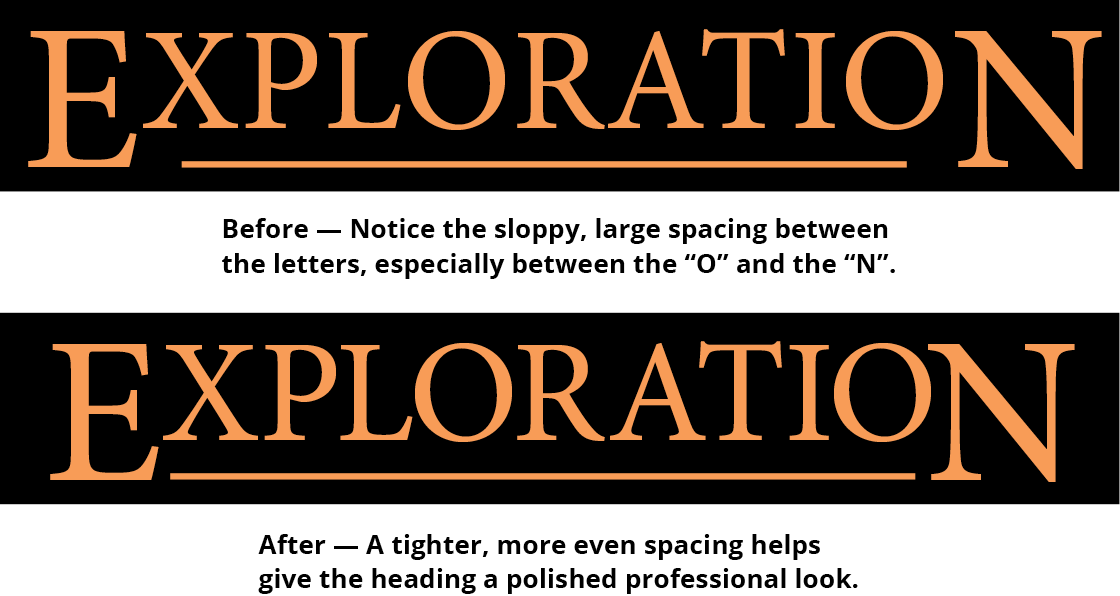
kerning tracking exercise preview

Exercise Overview

Mastering kerning and tracking separates professional typographers from amateurs. These refined adjustments—often invisible to untrained eyes—dramatically impact readability and visual hierarchy. In this exercise, you'll refine the spacing in headline typography, transforming ordinary text into polished, publication-ready design. The subtle art of letter spacing is what gives premium brands their distinctive, authoritative appearance.

  1. Open the file yourname-uninspirational poster.indd. If you didn't complete this poster in an earlier exercise, open uninspirational poster—done.indd as your starting point.

  2. Zoom to at least 200% magnification on the headline text. Proper kerning assessment requires close examination—spacing issues that seem minor at normal viewing distances become glaringly obvious in print or high-resolution displays.

  3. Analyze the character spacing systematically. Look for problematic letter pairs: gaps that create visual holes or characters that appear to collide. For instance, the O and R in Exploration likely show excessive spacing; in the 2-line subtitle, the W and a combination in Way typically creates awkward gaps that disrupt reading flow.

Common Spacing Issues to Identify

Look for letters with excessive gaps like the O and R in 'Exploration', or letters too close together like the W and a in 'Way' from the subtitle.

Initial Setup Process

1

File Preparation

Open your uninspirational poster file or use the completed version provided

2

Visual Inspection

Zoom in significantly to examine letter spacing in headlines and subtitles

3

Problem Identification

Mark areas where letters appear too far apart or uncomfortably close

Optical Vs. Metric Kerning

Every professional font includes built-in kerning pairs called metrics—predetermined spacing adjustments for common letter combinations. However, font quality varies dramatically, and metrics may fail when mixing typefaces or working with display sizes. InDesign's Optical kerning uses advanced algorithms to analyze character shapes and calculate optimal spacing in real-time. This computational approach often surpasses manual kerning pairs, especially for headlines and custom typography combinations.

  1. Select the Exploration text frame using the Selection tool selection tool.

  2. Switch to the Type tool type tool to activate text formatting options in the Control panel.

  3. Locate the Kerning option kerning in the Control panel's Character formatting section controlpanel characterformatting. Select Optical from the Kerning kerning dropdown menu. Notice the immediate improvement in character spacing—InDesign's optical analysis typically produces more balanced results than default metrics.

  4. Select the 2-line subtitle text frame using the Selection tool selection tool.

  5. Switch to the Type tool type tool and apply Optical kerning to this text block as well.

  6. Evaluate the results critically. In this instance, optical kerning may overcorrect—the spacing around the W characters might become too loose, creating visual inconsistency. This demonstrates why professional typographers test both approaches: optical kerning isn't universally superior. Revert to Metrics kerning for the 2-line subtitle if the optical version appears less balanced.

Kerning Methods Comparison

FeatureOptical KerningMetric Kerning
Data SourceCharacter shape analysisBuilt-in font metrics
FlexibilityWorks with mixed fontsLimited to single font
ReliabilityInconsistent resultsFont-dependent quality
Best Use CaseMixed typographyStandard text blocks
Recommended: Test both methods and choose based on visual results for each specific text element
Optical Kerning Limitation

Optical kerning can sometimes create worse results, as seen with the W gaps in the subtitle. Always compare results visually before committing to a kerning method.

Manual Kerning

Even with sophisticated automatic kerning, manual fine-tuning remains essential for professional typography. The human eye detects spacing irregularities that algorithms miss, particularly in display typography where every detail matters. Before making adjustments, optimize InDesign's kerning increments for precise control.

  1. Configure InDesign's kerning precision for professional-level adjustments. Navigate to Preferences through the InDesign menu (Mac) or Edit menu (Windows), then select Units & Increments.

  2. Under Keyboard Increments, set the Kerning/Tracking value to 5 and click OK. This creates manageable adjustment increments for subtle refinements.

    Professional insight: InDesign measures kerning in 1/1000 em units. Setting increments to 5 provides precise control without over-adjustment. Former Quark users should note the conversion: InDesign's 5 units equal Quark's 1 unit, so traditional values of 1, 2, 3 in Quark translate to 5, 10, 15 in InDesign.

  3. Systematically examine both headline elements for spacing inconsistencies. Position your cursor between letter pairs that appear poorly spaced, then apply the following keyboard shortcuts for precise adjustments. Focus on the most visible elements—the disclaimer text is too small to warrant detailed kerning attention.

    Fine kerning adjustments:

    Mac: Opt–Left Arrow (tightens spacing) or Opt–Right Arrow (loosens spacing)
    Windows: ALT–Left Arrow (tightens spacing) or ALT–Right Arrow (loosens spacing)

    Substantial kerning adjustments:

    Mac: Cmd–Opt–Left Arrow (significantly tightens) or Cmd–Opt–Right Arrow (significantly loosens)
    Windows: CTRL–ALT–Left Arrow (significantly tightens) or CTRL–ALT–Right Arrow (significantly loosens)

    Professional technique: Distinguish between kerning and tracking applications. Use kerning to correct problematic letter pairs (like "AV" or "To"). Apply tracking—using identical keystrokes on selected text—when you need uniform spacing adjustments across entire words or phrases. Tracking affects overall text density and color, while kerning addresses specific character relationships.

  4. After completing your kerning adjustments, you may need to resize the decorative rule beneath "Exploration" to maintain visual alignment. Use the Selection tool selection tool to adjust the rule's width proportionally.

  5. Save your refined document as yourname-uninspirational poster.indd to preserve these professional typography adjustments.

Preference Configuration

1

Access Preferences

Navigate to InDesign menu (Mac) or Edit menu (Windows) and select Preferences

2

Units & Increments

Choose Units & Increments from the preferences menu

3

Set Kerning Value

Under Keyboard Increments, change Kerning/Tracking to 5 and click OK

Quark to InDesign Conversion

For former Quark users: 5 in InDesign equals 1 in Quark. Kerning values of 1, 2, 3 in Quark translate to 5, 10, 15 in InDesign.

Keyboard Shortcuts for Manual Kerning

Small Increments (Mac)

Option + Left Arrow decreases space. Option + Right Arrow increases space between letters.

Small Increments (Windows)

Alt + Left Arrow decreases space. Alt + Right Arrow increases space between letters.

Large Increments

Add Cmd (Mac) or Ctrl (Windows) to the above shortcuts for bigger spacing adjustments.

Kerning vs Tracking Application

Use kerning for fixing bad letter pairs. For overall spacing corrections across multiple letters, select all text and use tracking instead for even distribution.

Key Takeaways

1Proper kerning and tracking are essential elements of professional typography that give designs a polished, finished appearance
2InDesign offers two automatic kerning methods: Optical (based on character shapes) and Metric (using built-in font data)
3Optical kerning works well for mixed fonts but can sometimes produce worse results than metric kerning, requiring visual comparison
4Manual kerning preferences should be set to 5 increments for precise control, with keyboard shortcuts providing efficient adjustment methods
5Kerning addresses spacing between specific letter pairs, while tracking adjusts spacing evenly across all selected text
6Focus kerning efforts on larger text elements like headlines where spacing issues are most noticeable to readers
7The same keyboard shortcuts work for both kerning and tracking, but their effect differs based on cursor placement versus text selection
8Always save work with a descriptive filename to maintain project organization and version control

RELATED ARTICLES