Creating an Index
What This Tutorial Covers
Index Markers
Tag terms throughout the document.
Topic Hierarchy
Nested entries with primary and sub-terms.
Generate Index
Auto-build the alphabetized index page.
Noble Desktop's Graphic Design Certificate covers InDesign alongside Photoshop and Illustrator.
Learn how to manually compile an index in InDesign by following this comprehensive tutorial that covers the Index panel, creating index references, building an index, and updating an index.
Exercise Preview
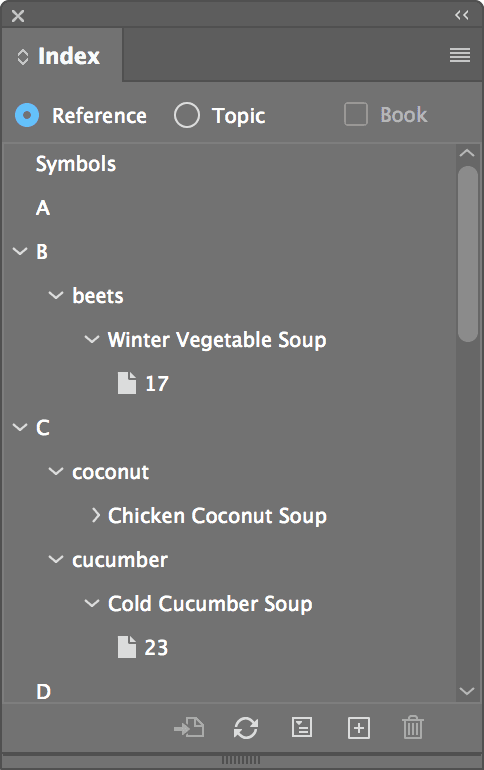
Exercise Overview
An index is compiled manually by adding entries to a list. For an index you must have paragraph styles for the different level heads of the index. You can either create these ahead of time, or let the index feature create them for you. If you let InDesign create them for you, you’ll still have to customize their look afterward. You may also want a master page created specifically for the index, but that is optional.
Open the file Cookbook.indd.
In this file we’ve taken the liberty of creating the styles and even an index master page for you, so that you may be better able to concentrate on compiling the index.
Look in the Pages panel and notice that you are working on a 10-page document.
Open the Index panel (Window > Type & Tables > Index).
There are already index entries in the Index panel. You can tell this because of the arrows next to some letters. Click an arrow
 to expand it and see some entries.
Compiling the Index
We need to add more entries to this index we’ve started. We’re going to have you go through the document and add more entries to the Index panel.
On page 15, highlight the chapter title Soups.
At the top of the Index panel, select Reference.
NOTE: The difference between References and Topics, as you’ll soon see, is:
- References refer you somewhere, like to a page, to “see also” another subject, etc.
- Topics are just the words, or titles, without any further information.
In the Index panel, click the New entry button
 .
.The text Soups should already be entered under Topic Levels: 1.
Under Type, choose To End of Story and click OK.
In the Index panel, you’ll see the entry and its corresponding page numbers under S.
Go to page 18.
Here we have a White Bean Soup recipe. Since there are several recipes that use white beans, we’d like to make this a topic. We have to do that before we add this recipe to the index.
At the top of the Index panel, select Topic.
Click the New entry button
.Under Topic Levels: 1 type the text: white beans
Notice how there is no Type to set? That’s because topics don’t reference pages; they’re just topic sections.
Click OK.
In the Index panel, scroll down to W and expand it. You’ll notice that the text appears with no reference (since it’s a topic).
On the page, highlight the text White Bean Soup.
We want this to be a reference in the “white beans” topic you just created, so at the top of the Index panel, select Reference.
Click the New entry button
.Currently White Bean Soup is level 1. Next to it, click the down arrow
 to move it down to level 2.
At the bottom of the window, scroll to W and expand it so you see white beans.
Double–click white beans so it gets added as level 1 (at the top of the window).
Under Type, choose Current Page.
Click OK.
Check out the Index panel. The listing should appear as shown below:
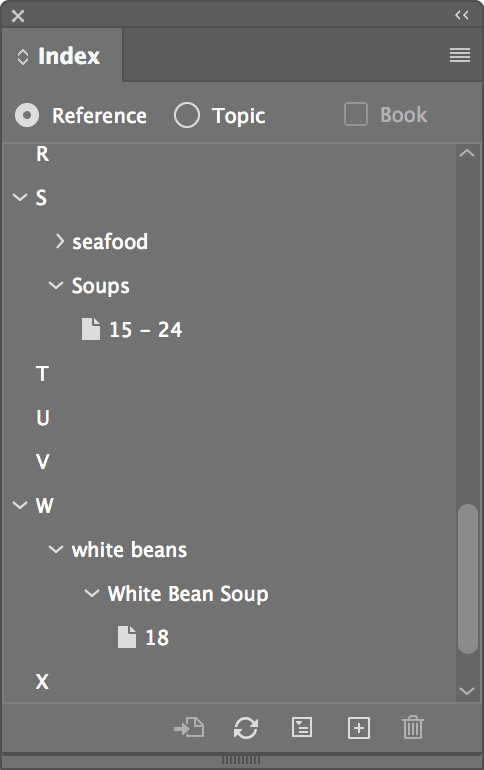
On page 24, highlight the text Cold Carrot and Mace Soup.
In the Index panel, click the New entry button
.To the right of Cold Carrot and Mace Soup, click the down arrow
to move it down to level 2.At the bottom of the window, scroll to C and expand it so you see coconut.
Double–click coconut so it gets added as level 1 (at the top of the window).
Under Type, choose: Current Page.
Click OK.
Making a Place in the Document for the Index
Before you build the index, let’s create a page for it.
Go into the Pages panel menu
 and choose Insert Pages.
Choose the following options:
Pages: 1 Insert: At End of Document Master: I-Index Click OK.
You should now be at the new blank page 25, which is based on the I-Index master page we set up for you. Now you can go about building the index.
Building the Index
Now you are going to build the Index, using the entries in the Index panel.
In the Index panel, click the Generate index button
 .
.You’ll keep most of the settings, but we’ve pointed out some below that you need to change. If you don’t see all these options, click the More Options button on the right. (Don’t click OK till we say):
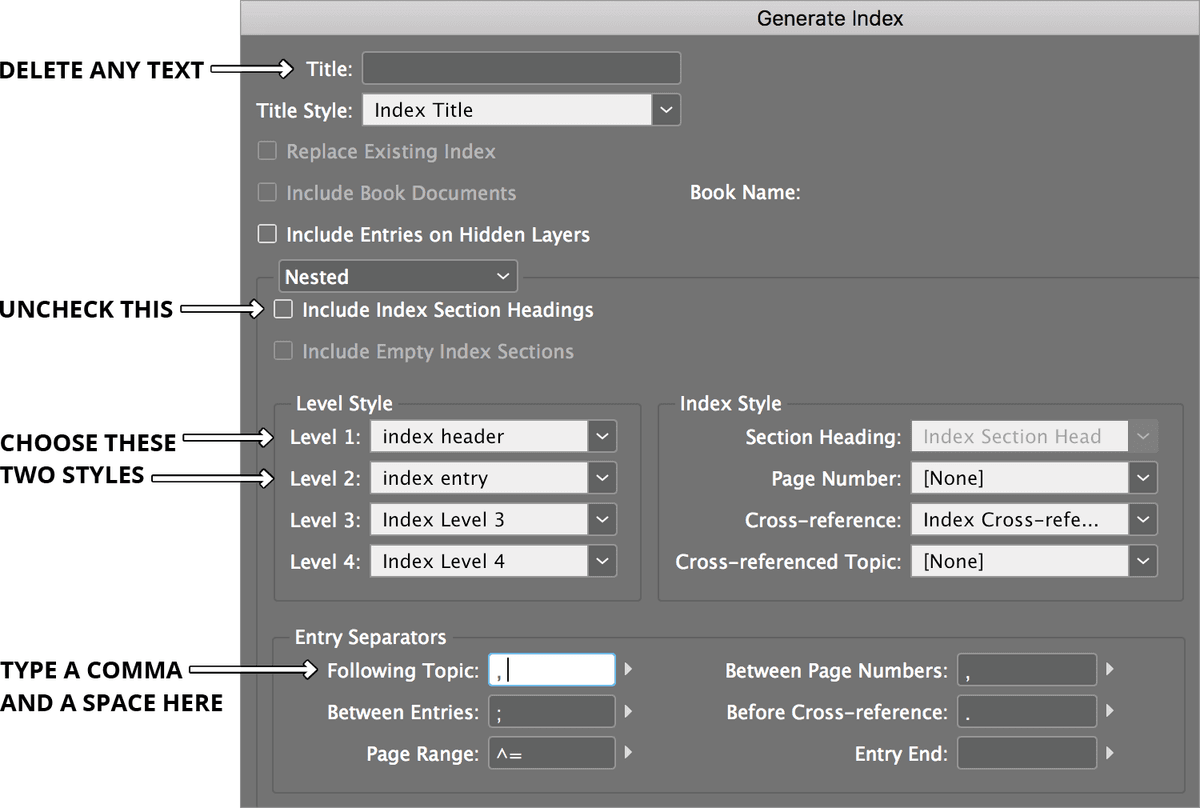
Now click OK but DON’T click anything else yet! The index text is loaded up in your cursor, waiting for you to place it somewhere.
Position the cursor over the primary text frame on the index page, page 25, so the cursor looks like this
 with some text around it.
Click once to flow the index into that page.
Making Changes to the Index
Now that we can see our index, we realize it would make more sense for the white beans topic to be listed under “B” for beans instead of “W” for white. Let’s change it.
In the Index panel, double–click the white beans topic. Change it to: beans, white.
Click OK. You’ll notice the change in the Index panel. We’ll update the actual text later.
Notice also that the topics are not capitalized. Let’s have InDesign fix that for us.
In the Index panel, click the beans, white topic.
Go into the Index panel menu
and choose Capitalize. (If Capitalize is grayed out, select any of the topics in the Index panel. Then go back into the menu.)In the window that appears, select All Topics and click OK.
Sweet! Now we just need to update the index.
Regenerating the Index
In the Index panel, click the Generate index button
again.Keep all the previous settings, but near the top of the window, make sure Replace Existing Index is checked and click OK.
Appreciate the new and improved index. Now you’re really cookin’!