April 1, 2026Dan Rodney/5 min read

Wavy Line Blend: Free Illustrator Tutorial

Master Illustrator's blend tool for stunning line effects

Core Illustrator Tools You'll Master

Blend Tool

Create smooth transitions between objects with precise control over spacing and steps. Essential for creating repeating patterns and gradient effects.

Reflect Tool

Mirror objects horizontally or vertically while maintaining perfect symmetry. Critical for creating balanced design compositions.

Group Selection Tool

Select individual elements within complex groups without ungrouping. Allows precise editing of blend components.

Topics Covered in This Illustrator Tutorial:

Blending Lines, the Reflect Tool, the Rotate Tool

Exercise Preview

blendy spiral done

Exercise Overview

In this exercise, you'll master one of Illustrator's most powerful and underutilized features: the Blend tool blend tool. Starting with two simple wavy lines, you'll create a sophisticated repeating line effect that demonstrates the tool's capability for generating complex geometric patterns. This technique is particularly valuable for creating dynamic backgrounds, textile patterns, and intricate logo elements that would be time-intensive to create manually. We'll guide you through the complete process, including how to strategically edit anchor points to achieve the perfect spiral form.

The blend feature creates live, editable transitions between objects, meaning any modifications to your original lines will automatically update the entire pattern. This non-destructive workflow is essential for professional design projects where client revisions are inevitable.

Tutorial Workflow Overview

1

Prepare Base Elements

Open the wavy.ai file and create a reflected copy of the original wavy line using the Reflect tool

2

Create Line Blend

Use the Blend tool with 50 specified steps to generate smooth transitions between the two wavy lines

3

Apply Color Styling

Set stroke colors using white for top line and custom CMYK values for bottom line

4

Fine-tune Curves

Use Direct Selection tool to adjust anchor points for more dynamic line shapes

Blending Lines

  1. In the Illustrator Class folder, open wavy.ai.

  2. Save it as yourname-wavy.ai to preserve the original file and establish proper version control—a critical practice in professional design workflows.

  3. In the dialog that appears, leave the default options checked and click OK. These settings maintain compatibility while preserving all vector data.

  4. Select the wavy line using the Selection tool. Notice how the line's anchor points and direction handles become visible—these will be crucial for fine-tuning your final design.

  5. Double–click the Reflect tool reflect tool. If you cannot locate it in the toolbar, click and hold the Rotate tool rotate tool to reveal the hidden tools flyout menu.

  6. Under Axis, choose Horizontal. This creates a mirror image that will serve as the foundation for your blend pattern.

  7. Click the Copy button, NOT the OK button. This crucial distinction creates a duplicate while preserving your original line—clicking OK would simply reflect the existing line in place.

  8. Select the new reflected line and move it up and slightly to the left as shown below. The positioning doesn't need to be exact at this stage; you'll refine the relationship between these lines to control the final spiral effect.
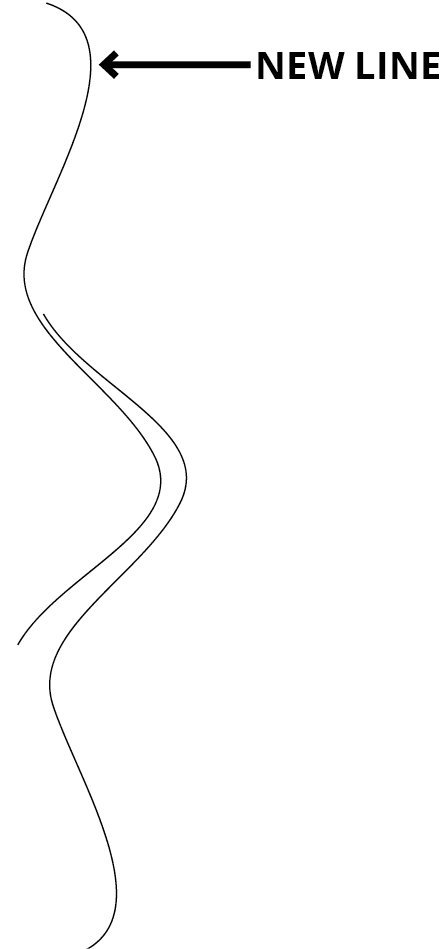
    blend spiral lineup

  9. Select both lines by dragging a selection marquee around them or by clicking one line, then holding Shift while clicking the second.

  10. Go to Object > Blend > Make. Illustrator will instantly create a blend using the default settings, which may not yet produce the desired density of intermediate steps.

  11. Double–click the Blend tool blend tool to access the Blend Options dialog, where you'll control the interpolation between your two lines.

  12. Set Spacing to Specified Steps. This option gives you precise control over the number of intermediate lines, essential for achieving consistent, professional results.

  13. Enter 50 in the steps field. This creates 50 evenly-spaced intermediate lines between your two originals, producing a smooth, dense pattern ideal for this spiral effect.

  14. Click OK to apply the blend settings.

  15. Do a Select > Deselect to clear the selection and better visualize your blend result.

Now that you've created the basic blend structure, you'll enhance it with strategic color choices that will make the spiral effect more dramatic and visually compelling.

Blend Tool Configuration

Setting the blend to 50 specified steps creates smooth transitions while maintaining performance. Higher step counts create smoother blends but may impact system performance with complex shapes.

Essential Setup Steps

0/4

Adding Some Color

  1. Choose the Group Selection tool group selection tool. This specialized tool allows you to select individual components within grouped objects—perfect for targeting specific elements within your blend.

  2. Click and drag a selection box over the very top of the blend to select just the top line. Precision is key here; you want to target only the uppermost line without affecting the entire blend group.

  3. In the Properties panel, change the Stroke to white using the Color Mixer. The blend is a live effect, so any modifications to the original lines will automatically propagate through all intermediate steps—this is the power of non-destructive editing in action.

  4. Click and drag a selection box over the very bottom of the blend to select just the bottom line. This will serve as the opposite end of your color gradient.

  5. Let's create a vibrant contrast with the bottom line. In the Color Mixer panel, enter 50m (magenta), 100y (yellow) and ensure the cyan and black values remain at zero. This produces a rich orange-red that will create a stunning gradient transition from white to warm orange across your spiral.

With your color foundation established, you're ready for the final refinements that will transform this geometric exercise into a sophisticated design element.

Live Blend Effects

Blends in Illustrator are live effects, meaning any changes to stroke color, width, or other properties automatically update across all blend steps in real-time.

Color Application Technique

Top Line Styling

Apply white stroke using Color Mixer panel through Properties panel. This creates the lightest point of the gradient effect.

Bottom Line CMYK Values

Set to 50m, 100y with other values at zero. This creates a vibrant yellow-green that contrasts beautifully with white.

Finishing It Off

  1. Select both original lines (not the entire blend) so their anchor points become visible and easily accessible. These strategic adjustments will introduce organic variation that elevates the design beyond simple geometric repetition.

  2. Choose the Direct Selection tool direct selection tool. This tool provides precise control over individual anchor points and path segments, essential for fine-tuning complex shapes.

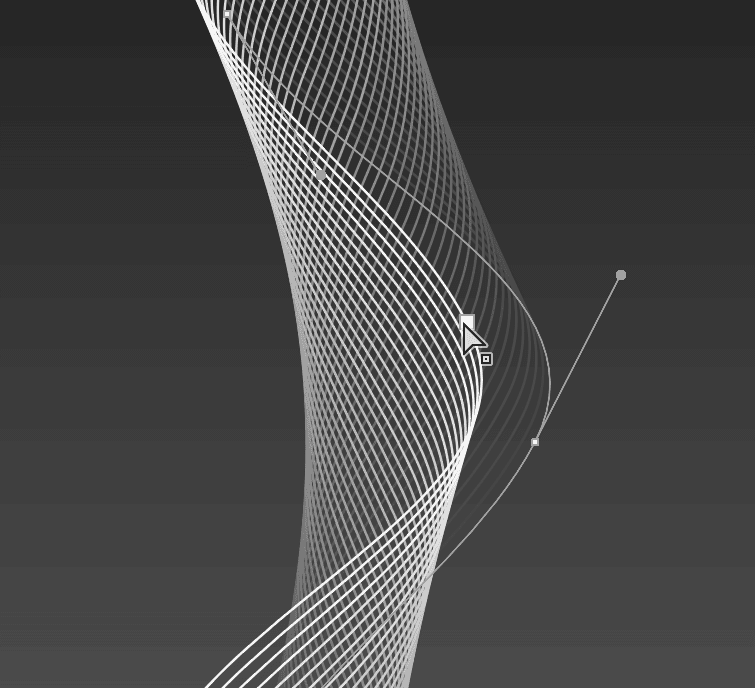
  3. Click once to select the middle anchor point of the left line, as highlighted in the reference image below. This central point will serve as your primary control for adjusting the spiral's curvature.

    blend spiral point bw

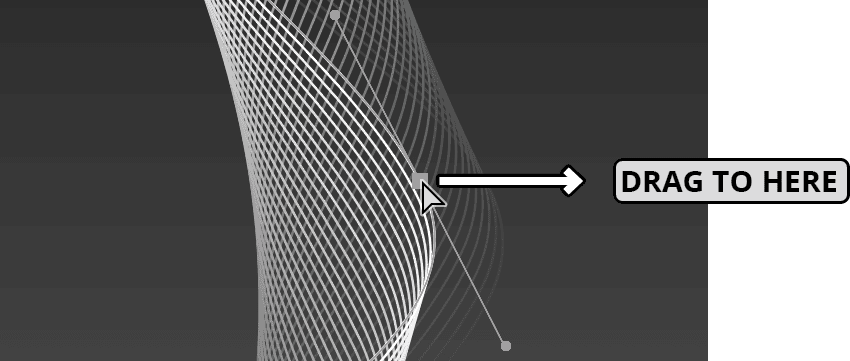
  4. Click and drag this point to the right, extending it slightly past the opposing curve. This creates asymmetrical tension that breaks the predictable pattern and adds visual interest. Watch how the entire blend updates in real-time as you make this adjustment.

    blend spiral point move bw

  5. Select the bottom anchor point of this same line. This adjustment will further enhance the spiral's organic feel and create more dynamic negative space.

  6. Click and drag this point to the left, approximately one inch. This creates a more pronounced curve that enhances the spiral illusion and adds sophisticated variation to the pattern flow.

  7. Go to View > Fit Artboard in Window or Fit All in Window to see your complete creation in context. Take a moment to appreciate how these subtle anchor point adjustments have transformed a simple blend into a complex, professional-quality design element.

  8. Save and close the file when finished. Consider saving an additional copy in a different format (such as SVG or high-resolution PNG) for use in other applications or client presentations.

Final Shape Refinements

1

Select Both Lines

Make anchor points visible for precise editing with the Direct Selection tool

2

Adjust Middle Point

Drag the middle point of left line to the right, past the other curve for dynamic flow

3

Modify Bottom Point

Move bottom point of the line approximately one inch to the left for enhanced visual interest

4

Final Review

Use Fit Artboard in Window to see complete composition before saving

Professional Finishing Touch

The Direct Selection tool allows you to modify individual anchor points while maintaining the live blend effect. Small adjustments to curve positions can dramatically improve the overall visual impact.

Key Takeaways

1The Blend tool with 50 specified steps creates smooth transitions between objects while maintaining optimal performance
2Using the Reflect tool's Copy option preserves original elements while creating perfect mirror duplicates
3Live blend effects automatically update when you modify stroke colors, allowing real-time design adjustments
4The Group Selection tool enables precise editing of individual elements within complex blend groups
5CMYK color values of 50m, 100y create vibrant yellow-green tones that contrast effectively with white
6Direct Selection tool modifications to anchor points enhance visual dynamics without breaking live effects
7Proper positioning of reflected elements is crucial for creating visually appealing blend foundations
8Professional workflow includes saving working copies and using Fit Artboard commands for final review

RELATED ARTICLES