April 1, 2026Dan Rodney/8 min read

Stylin’ Effects: Free Illustrator Tutorial

Master Illustrator's Advanced Styling Effects and Appearance Panel

Core Skills You'll Master

Appearance Panel Mastery

Learn the advanced controls beyond the Properties panel for complete design flexibility. Access professional-grade styling options.

Advanced Transparency Effects

Control opacity of individual elements like fills and strokes separately. Create sophisticated layered visual effects.

Professional Drop Shadows

Apply realistic shadow effects with precise control over blur, offset, and opacity settings for polished designs.

Topics Covered in This Illustrator Tutorial:

Using the Appearance Panel, Transparency, More Blending Modes, More Drop Shadows, Arrowheads

Exercise Preview

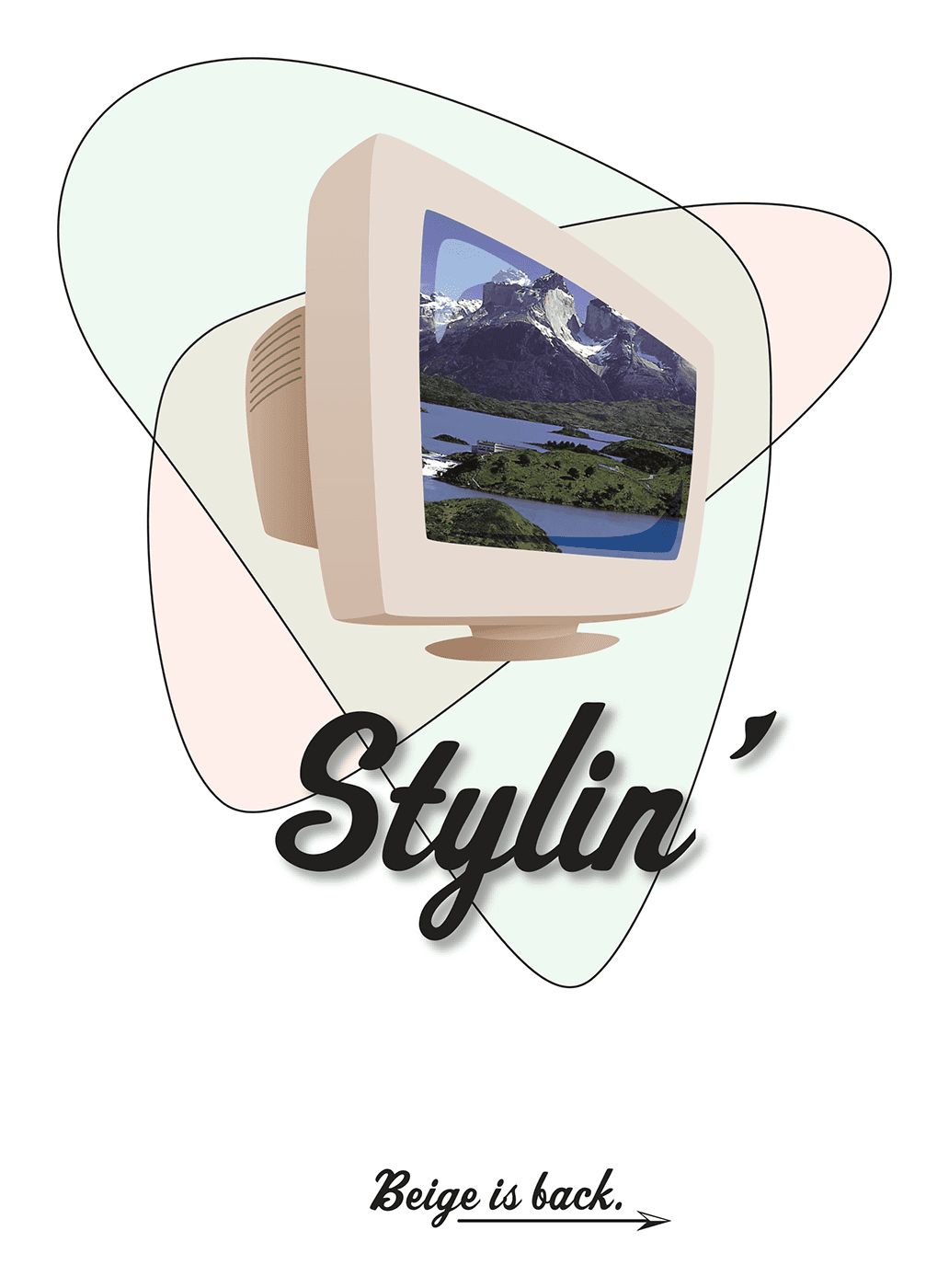
stylin effects done

Exercise Overview

In this exercise, you'll master some of Illustrator's most powerful styling effects to transform a basic graphic into a polished, professional design. You'll dive deep into the Appearance panel—Illustrator's command center for visual effects—which offers significantly more control than the Properties panel's basic Appearance section. This panel becomes essential for complex projects where you need granular control over individual fill and stroke properties. You'll learn to manipulate opacity at both the object and individual element level, a crucial distinction that separates novice users from seasoned professionals.

  1. In the Illustrator Class folder, open the stylin-effects.ai file.

    The foundational artwork is complete, but we'll elevate it using sophisticated effects that demonstrate industry-standard techniques for creating visual depth and professional polish.

Design Workflow Insight

The Appearance panel provides additional controls not available in the Properties panel, including the ability to modify fill and stroke opacity simultaneously - a crucial technique for professional design work.

Swatches & Strokes

The Appearance panel serves as your central hub for applying and fine-tuning colors, strokes, and visual properties. Unlike the basic Properties panel, it provides granular control over every visual aspect of your objects, making it indispensable for professional design work.

  1. Locate the two large background shapes: one white and one gray. Select the white shape first.

  2. At the bottom right of the Properties panel's Appearance section, click the Open the Appearance panel button more options button. Alternatively, navigate to Window > Appearance for direct access.

  3. In the Appearance panel, click to select the Fill attribute.

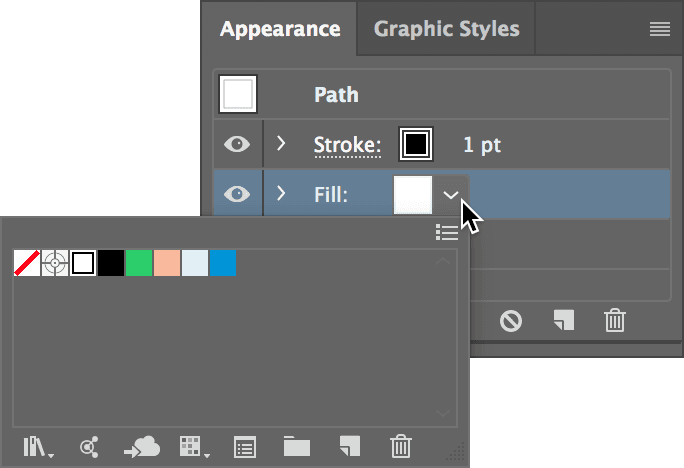
  4. Access the color options by clicking the Fill's Color Picker color picker appearance panel to reveal the Swatches picker, as shown below:

    effects appearance open swatches

  5. Choose the Green swatch to apply the color change instantly.
  6. Press Return (Mac) or Enter (Windows) to close the Swatches picker.
  7. Now select the second background shape to continue the color transformation.
  8. In the Appearance panel, select the Fill attribute.
  9. Click the Fill's Color Picker color picker appearance panel to access the Swatches picker.
  10. Apply the Salmon swatch and press Return (Mac) or Enter (Windows) to confirm.
  11. The monitor's glass contains two white shapes that need attention. Select the shape positioned at the top left.
  12. Using the Appearance panel workflow you've just learned, apply the Light Blue swatch and press Return (Mac) or Enter (Windows).
  13. The color looks good, but the stroke creates visual clutter. The Appearance panel excels at this kind of fine-tuning. Click on the Stroke weight value (1 pt) to make it editable.
  14. Set the Stroke weight to 0 and press Return (Mac) or Enter (Windows) to eliminate the border entirely.
  15. Select the remaining white shape on the monitor display.
  16. Apply the Dark Blue swatch using the Appearance panel method.
  17. Complete the clean look by setting the Stroke weight to 0, then press Return (Mac) or Enter (Windows) to apply the change.

With the basic colors established, we'll now explore transparency effects that add sophisticated visual depth to your design.

Color Application Process

1

Access Appearance Panel

Open through Properties panel button or Window menu for advanced styling controls

2

Select Fill Element

Click Fill in Appearance panel to access color picker and swatches

3

Apply Colors

Choose from available swatches like Green, Salmon, Light Blue, and Dark Blue

4

Remove Stroke

Set stroke weight to 0 for clean, borderless shapes when needed

Transparency

Transparency effects can transform heavy, solid colors into subtle, sophisticated elements that enhance rather than dominate your design. The key is understanding the difference between object-level and attribute-level transparency—a distinction that gives you precise control over every visual element.

  1. Select the large green background shape and ensure the Appearance panel is visible.
  2. Click on the word Opacity to reveal the Transparency controls.
  3. Adjust the Opacity to 8% and press Return (Mac) or Enter (Windows) to apply the change.
  4. Click elsewhere to deselect and observe the result. Notice that both the fill and stroke have become nearly transparent—you've just controlled the entire object's opacity simultaneously, something impossible to achieve through the Properties panel's basic controls.
  5. While this demonstrates the Appearance panel's power, we need a more refined approach for this design. The shape requires an opaque stroke for definition, so press Cmd–Z (Mac) or CTRL–Z (Windows) to undo.
  6. Reselect the large green background shape to continue with a more targeted approach.
  7. In the Appearance panel, click the Arrow arrow beside Fill to expand and reveal its individual properties.
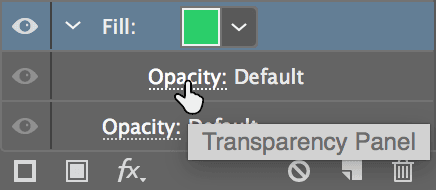
  8. Locate the Opacity setting nested under Fill and click it to open the Transparency controls, as illustrated below. This targets only the fill, leaving the stroke unaffected—a crucial distinction for professional results.

    effects appearance opacity

  9. Set the Opacity to 8%. Observe how this creates a subtle background tint while maintaining the crisp, dark border that provides essential visual structure.
  10. Select the salmon-colored background shape to apply similar treatment.
  11. Ensure the Fill is expanded in the Appearance panel so you can access its individual Opacity control.
  12. Adjust the Fill's Opacity to 15% for a slightly stronger presence that complements the green shape.

Now we'll enhance the monitor's glass elements using blending modes—advanced techniques that simulate realistic light interaction.

Opacity Control Methods

FeatureObject OpacityFill-Only Opacity
ControlsEntire shapeFill only
Stroke EffectAlso transparentRemains opaque
Use CaseComplete fade effectColored overlay with border
Recommended: Use fill-only opacity when you want to maintain strong borders while creating subtle color overlays.

Recommended Opacity Settings

Green Background Fill
8
Salmon Background Fill
15

Blending Modes

Blending modes replicate how light behaves in the real world, making highlights truly brighten and shadows authentically darken underlying elements. This creates more convincing, professional-looking effects than simple opacity adjustments alone.

  1. Click on the light blue highlight shape to begin creating a realistic glass reflection effect.

  2. In the Appearance panel, click the bottom Opacity setting to open the Transparency controls.

    NOTE: Since this shape has no stroke, both opacity controls produce identical results. We're using the bottom option for convenience, as it's immediately visible without expanding the Fill section.

  3. Set Opacity to 55%, then change the blending mode from Normal to Screen using the dropdown menu.

    NOTE: Screen mode ensures this highlight only lightens underlying elements, mimicking how light reflects off glass surfaces in reality. This prevents the muddy colors that result from normal transparency.

  4. Select the darker blue shadow shape to create the complementary shadow effect.

  5. Access the Transparency controls by clicking the bottom Opacity setting in the Appearance panel.

  6. Set Opacity to 65%, then change the blending mode from Normal to Multiply.

    NOTE: Multiply mode ensures this shadow only darkens underlying elements, replicating authentic shadow behavior. This creates depth without the artificial appearance of simple transparency.

With realistic lighting established, we'll add dimension to the typography using professional drop shadow techniques.

Essential Blending Modes

Screen Mode

Used for highlights at 55% opacity. Only lightens underlying elements, creating realistic highlight effects on glass surfaces.

Multiply Mode

Applied to shadows at 65% opacity. Only darkens underlying elements, simulating how real shadows interact with surfaces.

Drop Shadows

Drop shadows add essential depth to text elements, making them appear to float above the background. When configured properly, they enhance readability while adding visual sophistication to your designs.

  1. Select the word Stylin' to enhance its visual impact with a carefully crafted drop shadow.

  2. Navigate to the Effect menu, expand Illustrator Effects, select Stylize (eighth option), then choose Drop Shadow.

  3. Configure the shadow with these professional settings for optimal visual impact:

    Mode: Multiply (should be preset)
    Opacity: 75%
    X Offset: 7 pt
    Y Offset: 7 pt
    Blur: 5 pt
    Darkness: 50%

    Click OK to apply. (Dismiss any spot color warnings with OK if they appear.)

  4. For professional output quality, we must configure the raster effects resolution. Go to Effect > Document Raster Effects Settings.

  5. Set Color Model to CMYK and change the Resolution to High (300 ppi)—the industry standard for print-quality graphics that ensures crisp, professional results.

  6. Click OK to confirm these settings.

To complete the design, we'll add directional elements and final refinements that guide the viewer's eye through the composition.

Professional Drop Shadow Settings

75%
Opacity percentage
7 pt
X and Y Offset
5 pt
Blur radius
300 ppi
Print resolution
Resolution Settings Matter

Always set Document Raster Effects Settings to 300 ppi for print graphics and 72 ppi for web graphics. This ensures effects render at appropriate quality without wasting processing time.

Adding Arrowheads & One Last Touch

Arrowheads serve as powerful visual cues that direct attention and create movement within your design. Combined with subtle transparency effects, they add professional polish without overwhelming the composition.

  1. Select the straight line beneath the words Beige is back to transform it into a directional element.

  2. Access stroke options through either the standalone Stroke panel (Window > Stroke) or the Appearance panel's stroke controls (by clicking the word Stroke).

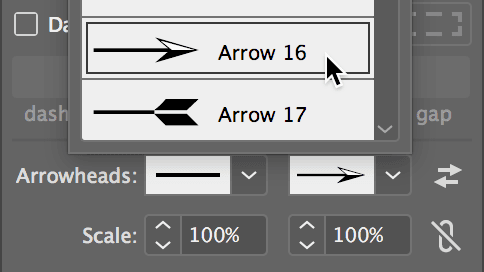
  3. Locate the rightmost Arrowhead control and select Arrow 16 from the options, as demonstrated below:

    effects stroke arrowhead

  4. For the final refinement, select the grille lines on the monitor's back section.

  5. In the Appearance panel, set the Opacity to 35% and change the blending mode to Multiply, then press Return (Mac) or Enter (Windows). This creates subtle depth while maintaining the technical aesthetic.

  6. Save your completed work as yourname-stylin-effects.ai. Accept the default options in the dialog and click OK.

Final Design Polish

0/3

Effects Settings

While Illustrator excels at creating crisp vector graphics, many visual effects require rasterization—conversion to pixels—for proper rendering. Understanding this distinction is crucial for professional workflow management and output quality control.

Rasterization renders vector effects as pixel-based elements at a specified resolution. This resolution directly impacts both file performance and final output quality, making proper configuration essential for professional results.

For web graphics destined for screens, 72 ppi provides adequate quality while maintaining fast performance and reasonable file sizes. Print projects demand 300 ppi to ensure sharp, professional reproduction on high-resolution output devices. Using unnecessarily high resolutions for web projects wastes processing time and creates bloated files, while insufficient resolution for print results in pixelated, unprofessional output.

Configure these settings through the Effect menu under Document Raster Effects Settings. Follow these industry-standard guidelines:

Web graphics: 72 ppi
Print graphics: 300 ppi

Modern versions of Illustrator automatically configure appropriate resolution settings when you select Web or Print document presets during file creation. To verify these settings in the New Document dialog, expand More Settings and locate Raster Effects under the Advanced section—a small detail that prevents major headaches during final output.

Resolution Guidelines by Output

FeatureWeb GraphicsPrint Graphics
Resolution72 ppi300 ppi
File SizeSmallerLarger
Render TimeFasterSlower
Quality NeedScreen displayPrint reproduction
Recommended: Choose resolution based on final output medium. Web documents automatically set to 72 ppi, print documents to 300 ppi.

Key Takeaways

1The Appearance panel offers advanced controls beyond the Properties panel, including the ability to modify fill and stroke opacity independently for professional design flexibility.
2Strategic use of low opacity settings (8-15%) on background elements creates subtle color overlays while maintaining strong structural borders through opaque strokes.
3Screen blending mode at 55% opacity creates realistic highlights that only lighten underlying elements, while Multiply mode at 65% produces authentic shadows that only darken.
4Professional drop shadows require specific settings: 75% opacity, 7pt X/Y offset, 5pt blur, and Multiply blending mode for optimal visual impact.
5Document Raster Effects Settings must match output medium: 72 ppi for web graphics and 300 ppi for print to ensure appropriate quality without wasting processing resources.
6The Stroke panel provides precise arrowhead controls, with Arrow 16 being ideal for directional elements and visual hierarchy enhancement.
7Combining transparency effects with blending modes creates sophisticated layered visuals that simulate real-world light and shadow interactions.
8Proper file naming conventions and organized workflow practices are essential for professional design project management and collaboration.

RELATED ARTICLES