April 1, 2026Dan Rodney/9 min read

Straight Lines: Free Illustrator Tutorial

Master Illustrator's Essential Pen Tool and Drawing Fundamentals

Core Skills You'll Master

Pen Tool Mastery

Learn the fundamental tool that forms the heart of Adobe Illustrator. Master drawing precise lines and basic shapes with professional accuracy.

Workspace Control

Understand how to adjust your Illustrator workspace for optimal workflow. Organize panels and tools for maximum efficiency.

Object Management

Master arranging, layering, and organizing design elements. Learn proper file management and saving techniques for professional projects.

Topics Covered in This Illustrator Tutorial:

Mastering the Pen Tool fundamentals, optimizing your workspace for efficiency, strategic object arrangement, and professional color application techniques

Exercise Preview

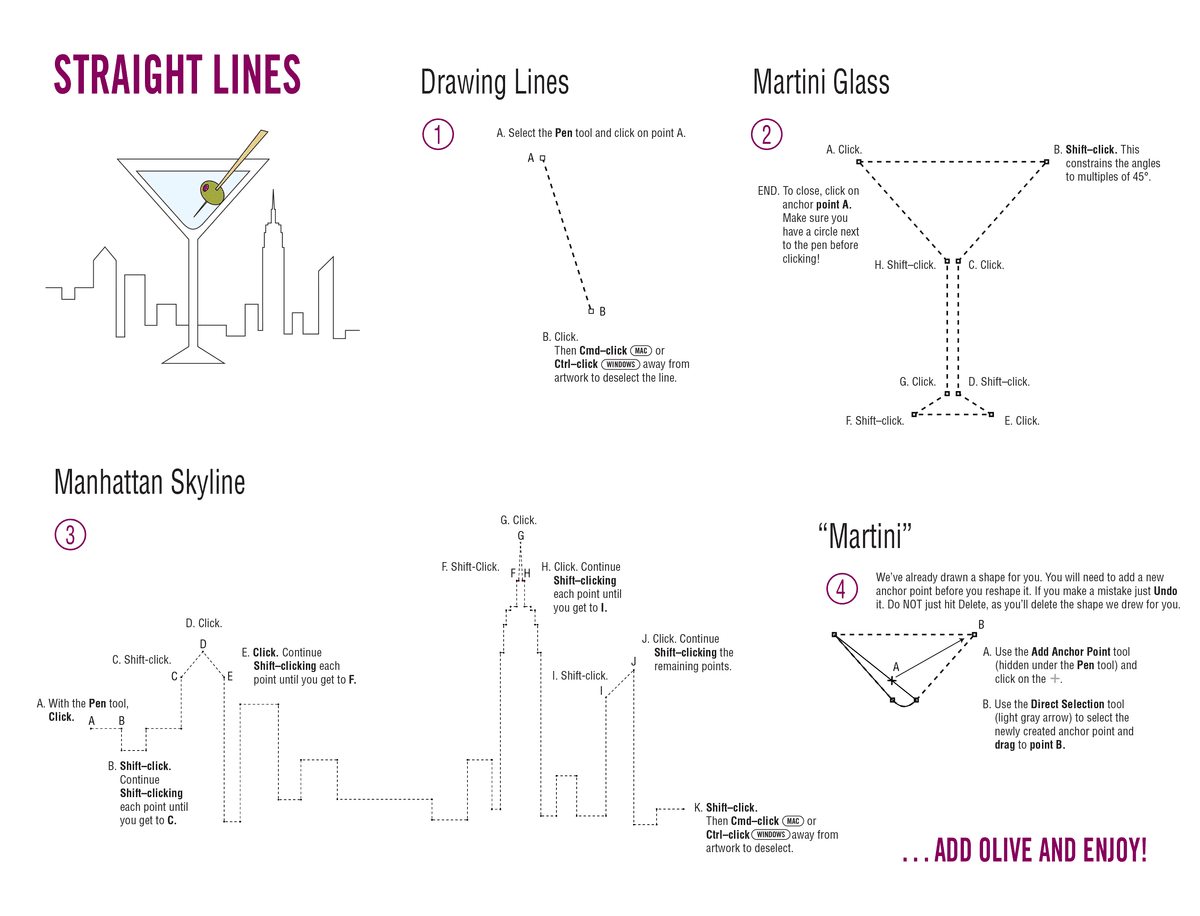
straight lines template

Project Goal

You'll create a complete Manhattan Martini illustration by drawing simple geometric shapes and arranging them into a cohesive design. This exercise introduces fundamental Illustrator concepts through hands-on practice.

Exercise Overview

The Pen tool pen tool is the cornerstone of professional vector design in Illustrator. While intimidating to newcomers, it's the tool that separates amateur designers from professionals. This foundational exercise introduces you to drawing precise lines and shapes—skills that will form the backbone of every design project you'll tackle. By mastering these basics now, you'll build the confidence and muscle memory needed for complex illustrations later.

Getting Started

Let's begin by setting up your workspace properly. File management might seem mundane, but establishing good habits now will save you countless hours and prevent project disasters down the road.

  1. Go to File > Open.
  2. Navigate to the Desktop, then into the Class Files folder, then into the Illustrator Class folder. Open the Straight Lines Template.ai file.

  3. Select File > Save As immediately. This preserves your original template for future use—a best practice that prevents accidentally overwriting source files.

  4. At the bottom, make sure Format (Mac) or Save as type (Windows) is set to Adobe Illustrator (ai). This native format preserves all editability and ensures compatibility across different versions.

  5. Navigate into the same Illustrator Class folder you opened it from. Keeping project files organized within their respective folders prevents the chaos that plagues many design workflows.

  6. Name the file yourname-Straight Lines.ai. Descriptive naming conventions become critical when managing multiple projects and revisions.

  7. Click Save.

  8. In the dialog that appears, leave the default options checked and click OK. These settings optimize your file for both quality and compatibility.

File Setup Process

1

Open Template File

Navigate to Desktop > Class Files > Illustrator Class folder and open Straight Lines Template.ai

2

Save Your Working Copy

Use File > Save As, ensure Adobe Illustrator format is selected, and name it yourname-Straight Lines.ai

3

Confirm Save Settings

Accept default dialog options and click OK to finalize your working file

Selecting Colors & Using the Template

Color management is where many beginners stumble. Understanding fills and strokes from the start will prevent confusion as your designs become more complex.

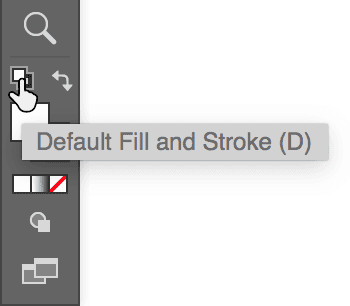
  1. As shown below, toward the bottom of the Tools panel, click the Default Fill and Stroke button default fill and stroke. This resets your colors to the standard white fill with black stroke—a reliable starting point that prevents unexpected color results.

    default fill and stroke in tools panel

  2. As shown below, click the Fill icon to make it active. The active color indicator (the icon that appears in front) determines which attribute—fill or stroke—will be modified by your color choices.
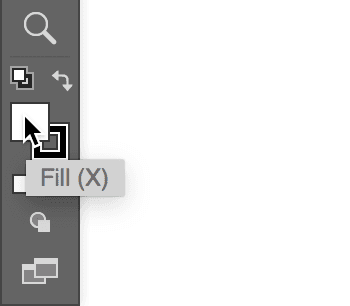
    fill placement in tools panel

  3. Click the None button no color tools panel just below that. For line drawing exercises, removing the fill prevents visual clutter and lets you focus on line quality and precision.

  4. Follow the on-screen directions in the file. Take your time with each step—precision matters more than speed when learning the Pen tool. When you have completed the directions, save your changes and move on to the next steps below.

Color Setup Checklist

0/4

Finishing up Once You're Done with the Template

Now comes the rewarding part—assembling your individual elements into a cohesive design. You've drawn all the shapes for the Manhattan Martini image, so let's arrange them with professional precision.

  1. Using the Selection tool selection tool, click on the Glass you drew. Notice how the selection tool switches you from creation mode to editing mode—a fundamental workflow concept in Illustrator.

  2. Shift–click the Martini and the Manhattan Skyline shape. This multiple selection technique is essential for efficient workflow—master it now and you'll use it in every project.

  3. Now that all three shapes are selected, copy them (Edit > Copy). This transfers your artwork to the clipboard for placement in the final composition.

  4. Go to File > Open and from the Illustrator Class folder, choose Manhattan Martini.ai. This is your final composition document where all elements will come together.

  5. Paste the objects (Edit > Paste). Your shapes appear in the same relative positions they occupied in the original document—Illustrator's intelligent pasting system at work.

  6. We've included the Olive and Toothpick for you. You will learn how to draw curved lines in an upcoming exercise, but we've provided these shapes for now. This preview of curved elements shows where your Pen tool skills are heading.

  7. Click away from the artwork to deselect it. This clears your selection and prevents accidental modifications as you work with individual elements.

  8. Let's arrange things starting with the Glass. With the Selection tool selection tool, click and hold directly on one of its lines and drag it to the center of the page. Positioning the primary element first provides an anchor point for arranging secondary elements.

Object Transfer Process

1

Select All Drawn Elements

Use Selection tool to click Glass, then Shift-click Martini and Manhattan Skyline shapes

2

Copy and Open Target File

Copy selected objects, then open Manhattan Martini.ai from Illustrator Class folder

3

Paste and Position

Paste objects into new file and drag Glass to center of page using Selection tool

Coloring the Martini Glass

Professional color application requires understanding both the tools and the logic behind color choices. A martini glass should appear transparent yet defined—achieving this effect demonstrates fundamental Illustrator color principles.

  1. In the docked panels at the right of the screen, make sure you are in the Properties panel. If you aren't, click on the tab name or go to Window > Properties. The Properties panel centralizes the most commonly needed controls, streamlining your workflow compared to hunting through multiple panels.

  2. This shape needs a white fill to simulate glass transparency against varied backgrounds. With the Glass still selected, go to the Properties panel and under Appearance, click on the swatch next to Fill. (It should look like no color tools panel.)

    NOTE: In older versions there was no Properties panel. Activate the Fill in the Tools panel and use the Color panel (Window > Color) instead. While the interface has evolved, the underlying color principles remain consistent.

  3. At the top middle of the panel that appears, click the Color Mixer button color mixer icon if it isn't already selected. The Color Mixer provides more precise control than swatches alone.

  4. Choose white by clicking on the white swatch towards the bottom left of the Color Mixer panel above the color bar. White creates the illusion of transparency while maintaining the glass shape's definition.

  5. To close the Color Mixer panel, press Return (Mac) or Enter (Windows). This keyboard shortcut is faster than clicking and keeps your hands on the keyboard for efficient workflow.

  6. Click on the Martini shape and place it inside the glass… and while it's still selected, choose Object > Arrange > Bring to Front. Layer management is crucial for realistic object relationships—the liquid should appear in front of the back wall of the glass.

    A light blue color would make a refreshing-looking "Martini." Let's fill it with a color that suggests the classic cocktail's sophisticated appeal.

  7. In the Properties panel next to Appearance, click on the Fill icon. This activates the fill attribute for color modification.

  8. We want to have maximum precision when choosing colors, so we will use the CMYK color sliders. If the Color Mixer panel isn't showing CMYK color sliders, go into the panel menu panel menu at the top right of the panel and choose CMYK. CMYK values provide consistency across different devices and ensure predictable results in professional printing.

  9. The first line is C (C stands for Cyan). Type 7 in the box at the end of this line and press Tab. This subtle cyan tint creates a believable martini color without overwhelming the design.

  10. If the other 3 colors (MYK) don't all become 0, then make them 0. Pure cyan produces the cleanest, most refreshing appearance for the cocktail.

  11. To close the Color Mixer panel, press Return (Mac) or Enter (Windows).

Properties Panel Alternative

For older Illustrator versions without the Properties panel, activate Fill in the Tools panel and use the Color panel (Window > Color) to achieve the same results.

Color Application Workflow

Glass Fill Setup

Select glass shape and use Properties panel to apply white fill. Access Color Mixer for precise color selection.

Martini Color Precision

Use CMYK sliders for accurate color matching. Set Cyan to 7 and ensure Magenta, Yellow, and Black values are 0.

Arranging the Other Elements

The final arrangement requires understanding both visual hierarchy and layer management. Each element must occupy its logical position in three-dimensional space, even within a two-dimensional design.

  1. Click on the Manhattan Skyline and place it behind the glass. This creates the backdrop that gives context to your cocktail illustration.

  2. Notice that the line of the Skyline is on top of the glass—this breaks the illusion of spatial relationships. With the Skyline still selected, choose Object > Arrange > Send to Back. Proper layering makes the difference between amateur and professional-looking illustrations.

  3. The Skyline is too big compared to the glass, creating proportion issues that distract from the overall composition. With the shape still selected, go to the Tools panel and double–click the Scale tool scale tool. Double-clicking tools often reveals dialog boxes with precise numerical controls.

  4. In the dialog box that appears, for Uniform Scale, enter 75% and click OK. This reduction creates better visual balance while maintaining the skyline's recognizable proportions.

  5. Reposition the Skyline if needed. Make sure to choose the Selection tool selection tool first. Switching tools deliberately prevents accidental modifications to your carefully scaled artwork.

  6. On the top-right corner of the page, find the three shapes that make up the Olive and Toothpick. These finishing touches will complete the cocktail's authentic appearance.

  7. Stay in that corner and use the Selection tool selection tool to assemble the shapes so the toothpick is touching/poking through the olive. This realistic interaction between elements adds credibility to your illustration.

  8. Shift–click all three shapes and go to Object > Group. Grouping related elements prevents accidental separation and allows you to move complex objects as single units.

  9. With the olive and pick still selected, choose Object > Arrange > Bring to Front. The garnish should appear in front of all other elements, just as it would in a real cocktail.

  10. Move the olive and pick onto the Martini Glass. Position it where a bartender would naturally place the garnish for both visual appeal and practical access.

  11. Select File > Save As and name it yourname-Manhattan Martini.ai. This creates your final version while preserving your work-in-progress files.

  12. Hit Save. In the dialog that appears, leave the default options checked and click OK. These settings ensure maximum compatibility and editability for future revisions.

Layer and Scale Management

1

Position Manhattan Skyline

Place skyline behind glass and use Object > Arrange > Send to Back for proper layering

2

Scale Skyline Proportionally

Double-click Scale tool and enter 75% for Uniform Scale to resize appropriately

3

Assemble Olive Components

Group olive and toothpick shapes, bring to front, and position on martini glass

Saving Illustrator Files

Understanding save options prevents compatibility issues and ensures your work remains accessible across different systems and versions. Once you click the Save button, an Options dialog will appear. You should keep the Version set to the version of Illustrator you are currently using (in our case, that's Illustrator). In 2026, most professionals work with the latest Creative Cloud version, but legacy compatibility remains important for agency workflows.

If you will need to edit the file with an older version of Illustrator, you can save back to an older version, but exercise caution. Newer features may not translate properly to older versions, potentially breaking advanced effects or typography. Test thoroughly when downgrading versions for client compatibility.

Create PDF Compatible File should be checked on (as it is by default) to ensure the best compatibility with other Creative Cloud applications such as InDesign and Photoshop. This embedding creates seamless workflows across the entire Creative Suite, essential for professional design environments.

Embed ICC Profiles relates to color-managed workflows—an advanced topic that becomes critical when your work reaches print production. For now, don't worry about the technical details and stick with whatever your default setting is (on or off). However, as your career progresses, understanding color management will distinguish you from designers who struggle with color consistency.

Use Compression should be checked on to reduce file size without quality loss. Modern Illustrator files can become surprisingly large with complex artwork, and compression helps with cloud storage and email transfers while maintaining full editability.

File Compatibility Considerations

Pros
Current version maintains all features and capabilities
PDF Compatible File ensures integration with other Creative Cloud apps
Compression reduces file size without quality loss
Cons
Saving to older versions may lose newer features
Version compatibility issues can affect workflow
Advanced color management requires specific knowledge

Optimal Save Settings

0/4

Key Takeaways

1The Pen Tool is Illustrator's fundamental drawing instrument, essential for creating precise lines and shapes in professional design work.
2Proper file management includes saving working copies with descriptive names and maintaining Adobe Illustrator format for full editability.
3Color precision is achieved through CMYK values rather than visual approximation, with specific numerical inputs ensuring consistent results.
4Object arrangement using layering commands like Send to Back and Bring to Front controls visual hierarchy in complex illustrations.
5The Properties panel provides centralized access to appearance settings, replacing multiple scattered panels for more efficient workflow.
6Template-based learning accelerates skill development by providing structured practice with immediate visual feedback.
7Professional file saving requires attention to version compatibility, PDF integration, and compression settings for optimal workflow.
8Systematic approach to design assembly - from individual shapes to grouped elements to final composition - ensures organized, manageable projects.

RELATED ARTICLES