April 1, 2026Dan Rodney/8 min read

Illustrating a Shirt Design

Master Creative Workflows with Adobe Design Software

Core Skills You'll Master

Cross-Platform Integration

Learn how to seamlessly combine Photoshop and Illustrator workflows for professional design projects. Master file linking and format compatibility.

Advanced Masking Techniques

Create and edit clipping masks for complex pattern applications. Understand compound paths and their practical applications.

Pattern Design Implementation

Apply plaid patterns to clothing designs with precise control. Master the art of realistic textile visualization.

Topics Covered in This Illustrator Tutorial:

Seamlessly integrating Photoshop with Illustrator workflows, advanced clipping mask techniques, and compound path manipulation for professional design outcomes.

Software Requirements

This tutorial requires both Adobe Photoshop and Adobe Illustrator. You'll also need the provided class files including plaidpattern.psd, tankshirt.psd, and other supporting graphics.

Exercise Preview

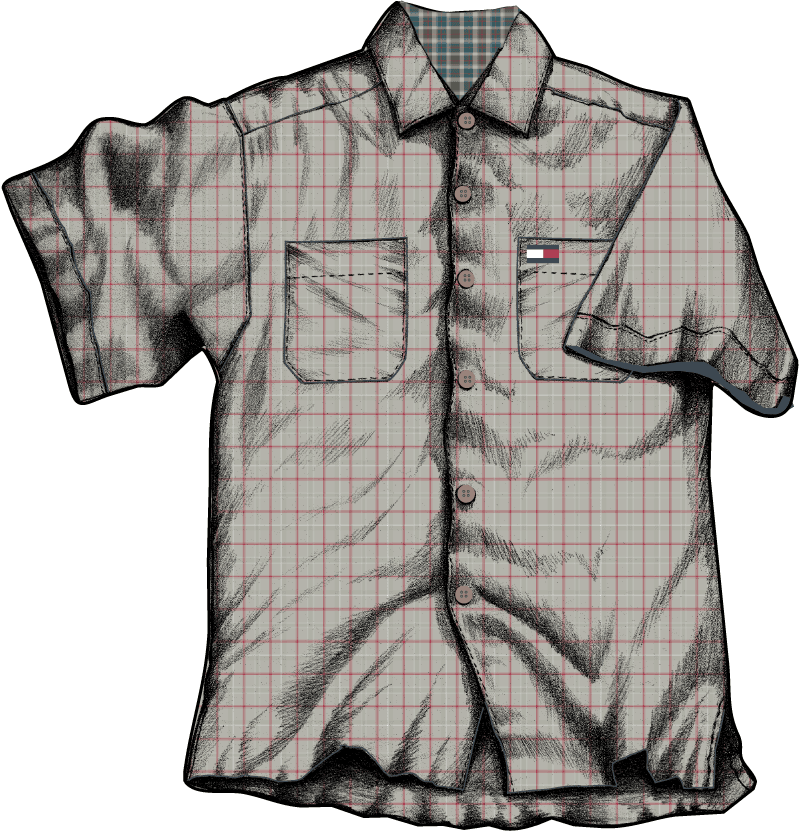
tank shirt composite

Exercise Overview

This exercise demonstrates the powerful synergy between Photoshop and Illustrator—a workflow mastered by today's top design professionals. You'll learn to strategically combine raster and vector assets, leveraging Photoshop's superior tracing capabilities to create precise vector paths without manual illustration. This cross-application approach mirrors real-world design scenarios where efficiency and precision are paramount.

By the end of this tutorial, you'll understand how to create complex composite designs that would be time-prohibitive to execute manually, setting the foundation for scalable design workflows that modern agencies and in-house teams depend on.

Tutorial Workflow Overview

1

Import Pattern and Shirt

Place plaid pattern and shirt graphics using proper linking techniques to maintain file integrity

2

Trace in Photoshop

Use Magic Wand tool and path creation to automatically trace the shirt outline for precise masking

3

Apply Pattern Mask

Create clipping masks to apply the plaid pattern only to the shirt shape

4

Enhance Design

Add buttons, seams, and collar elements to create a realistic shirt illustration

Importing the Plaid Pattern & Shirt Drawing

We'll begin by establishing our workspace and importing the foundational assets. This methodical approach ensures proper file organization—a critical aspect of professional design workflows.

  1. Go to File > New to create a new document.
  2. At the top of the dialog that opens, click on the Print tab.
  3. Double–click the Letter preset.
  4. Go to File > Place.
  5. From the Illustrator Class folder, select plaidpattern.psd BUT ensure the Link option is checked before clicking Place (Mac users may need to click the Options button).

    Professional insight: Linking rather than embedding maintains smaller file sizes and allows for non-destructive updates—essential for client work where patterns may require last-minute modifications.

  6. Click once on the artboard to place the file at its actual size. (Do NOT click and drag, which will resize the file you're placing.)

    NOTE: This pattern was created in Photoshop, but the same masking principles apply to native Illustrator patterns. The cross-application workflow shown here demonstrates industry-standard flexibility.

  7. Drag it so that it's centered on the artboard.

  8. Open the Layers panel (Window > Layers).

  9. Double–click on the name Layer 1 and rename it Shirt.

  10. Hit Return (Mac) or Enter (Windows) to apply.

  11. While examining the Layers panel, access its panel menu panel menu oldstyle and verify that Paste Remembers Layers is NOT checked. If checked, select it to uncheck it.

    Why this matters: Controlling layer behavior during paste operations prevents unwanted layer proliferation—a common source of file bloat in complex projects.

  12. Execute another File > Place command.

  13. From the Illustrator Class folder, select tankshirt.psd BUT confirm the Link option is checked before clicking Place (Mac users may need to click the Options button).

  14. Click once on the artboard to place the file at its actual size. (Do NOT click and drag, which will resize the file you're placing.)

    NOTE: This graphic imports without a white background because it was processed as a bitmap (pure black and white, no gray values)—a technique that ensures clean integration with underlying elements.

    PROFESSIONAL TIP: When working with grayscale images containing white backgrounds, apply the Multiply blend mode via the Transparency panel to eliminate white areas. Access this quickly through the Properties panel's Opacity controls—a time-saving technique used extensively in production environments.

  15. Position the shirt so it completely overlays the plaid pattern.

  16. Select File > Save As. Name it yourname-plaidshirt.ai.

    In the dialog that appears, ensure Include Linked Files remains unchecked to maintain the linking structure we've established.

Critical File Linking Setting

Always ensure the Link option is checked when placing files. This maintains connection to original files and keeps your document size manageable while preserving quality.

Document Setup Checklist

0/4

Using Photoshop to Trace the Shirt

Now we'll leverage Photoshop's superior selection and path-generation capabilities to create a precise vector outline. This workflow exemplifies how professional designers maximize each application's strengths rather than forcing inefficient single-application solutions.

  1. Navigate to your Desktop—do NOT use Illustrator's File > Open or Place commands. We're intentionally switching applications to utilize Photoshop's advanced selection tools.

  2. Access the Class Files folder and open the Illustrator Class folder.

  3. Double–click the tankshirtgrayscale.psd file.

    The file should launch in Photoshop, giving us access to its sophisticated selection algorithms.

  4. Select the Magic Wand tool Photoshop magic wand tool. (If not visible, click and hold the Quick Selection tool Photoshop quick selection tool to access it.)

  5. Configure the Options bar at the top with these critical settings:
    • New selection Photoshop new selection activated
    • Tolerance: 32 (balances precision with selection continuity)
    • Both Anti-alias and Contiguous enabled for smooth, connected selections
  6. Click on the white background area surrounding the shirt. The Magic Wand should capture the entire white region.

  7. Execute Select > Inverse to select the shirt itself rather than the background.

  8. Open the Paths panel (Window > Paths).

  9. Click the Paths panel menu panel menu oldstyle and select Make Work Path.

  10. Set Tolerance to 5 pixels and click OK. This creates a vector path that follows the shirt's contours with mathematical precision.

  11. Switch to the Path Selection tool Photoshop path selection tool.

  12. Click away from the shirt to deselect the work path.

  13. Click directly on the shirt's edge to select the generated path (click within the image window, not the Paths panel).

  14. Copy the path with Edit > Copy.

  15. Return to Illustrator.

  16. Execute Edit > Paste.

  17. In the Paste Options dialog, choose Compound Shape (fully editable) and click OK. This maintains full editability of the pasted path.

  18. Position the outline to precisely match the shirt using both mouse manipulation and Arrow keys for pixel-perfect alignment. Ensure the plaid pattern is completely covered.

Magic Wand Tool Settings

Set Tolerance to 32 pixels with Anti-alias and Contiguous checked. These settings ensure clean selection of white areas while maintaining smooth edges.

Photoshop Tracing Process

1

Select Background

Use Magic Wand with 32 pixel tolerance to select white areas around the shirt

2

Invert Selection

Apply Select > Inverse to select the shirt itself instead of the background

3

Create Work Path

Convert selection to path with 5 pixel tolerance for smooth vector edges

4

Copy and Transfer

Copy path and paste into Illustrator as Compound Shape for full editability

Masking the Pattern

With our precise vector outline in place, we'll now create a clipping mask—a fundamental technique that allows selective visibility of underlying artwork. This non-destructive approach maintains design flexibility while achieving the desired visual effect.

  1. Before proceeding with the mask, examine the object hierarchy in the Layers panel. Click the Arrow arrow beside the Shirt layer to reveal its contents.

    You should see: <Compound Path>, tankshirt, and plaidpattern.

  2. Double–click the <Compound Path> and rename it Shirt Mask for clearer project organization—a practice essential in collaborative environments.

  3. Select all objects with Select > All. Remember: the outline must be the topmost object for proper mask function—this stacking order is crucial for clipping mask success.

  4. Create the mask via Object > Clipping Mask > Make.

  5. Observe how the shirt takes its final form. Illustrator automatically groups the masked objects, as reflected in the Layers panel structure.

  6. To enhance the design with a professional border, first deselect everything (Select > Deselect).

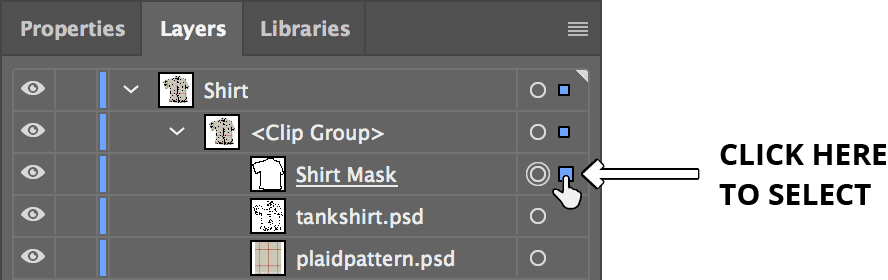
  7. In the Layers panel, expand the <Clip Group> by clicking its Arrow arrow.

  8. Select the Shirt Mask using the Layers panel by clicking in the area to the right of the target circle, as shown:

    shirt select using layers

  9. In the Properties panel, apply a 3 pt black stroke to create a polished border that defines the shirt's silhouette.

Layer Organization Tip

Rename the Compound Path to Shirt Mask for clarity. This makes it easier to identify and modify mask elements later in the design process.

Masking Fundamentals

Object Hierarchy

The outline must be on top for masking to work properly. Illustrator uses the topmost object as the mask shape.

Clipping Mask Creation

Select all objects and use Object > Clipping Mask > Make. This creates a group with the pattern visible only within the shirt shape.

Adding Extra Graphic Elements to Enhance the Shirt

Professional designs rarely rely on single elements. We'll now incorporate additional graphic components that transform our basic shirt into a sophisticated, publication-ready design. This workflow demonstrates how to manage complex multi-layered compositions efficiently.

  1. From the Illustrator Class folder, open shirtelements.ai.

  2. Examine the Layers panel to understand the file's structure: neck masking object, button and logo, and shirt seams. This organization demonstrates professional file structure.

  3. Select all elements using Select > All or the keyboard shortcut Cmd–A (Mac) or Ctrl–A (Windows).

  4. Copy the elements using Cmd–C (Mac) or Ctrl–C (Windows).

  5. Close the file without saving changes and return to yourname-plaidshirt.ai.

  6. Access the Layers panel menu panel menu oldstyle and enable Paste Remembers Layers to maintain the original layer structure.

  7. Paste the elements with Cmd–V (Mac) or Ctrl–V (Windows). The objects appear on their designated layers, preserving the organizational structure.

  8. Align the seam elements precisely using mouse positioning combined with Arrow keys for fine adjustments or Shift–Arrow keys for larger movements.

  9. Deselect all objects before proceeding.

  10. Zoom in to facilitate accurate button placement.

  11. Position the new button over one of the scanned buttons.

  12. Create button copies using Option–drag (Mac) or Alt–drag (Windows), positioning them over each remaining button in the scan. This technique ensures consistent button appearance across the design.

  13. Select the neck masking object layer in the Layers panel.

  14. Execute File > Place.

  15. Select neckie.psd with the Link option enabled before clicking Place (Mac users may need to click Options).

  16. Click once at the artboard center to place the file at actual size—avoid clicking and dragging, which would alter the file dimensions.

  17. Position the placed image to cover the collar's center area.

  18. With the pattern selected, execute Object > Arrange > Send to Back. Note that this command only affects stacking within the current layer, revealing the triangle that will serve as our mask.

  19. Select both the triangle and the pattern.

  20. Apply the mask using Object > Clipping Mask > Make.

  21. The neck masking object may require shape refinement. Use your path editing skills to adjust the shape, ensuring the collar's upper portion remains visible—this attention to detail distinguishes professional work.

  22. Return to full view using View > Fit Artboard in Window or Fit All in Window.

  23. Deselect all elements and review your completed professional-grade composite design.

This exercise demonstrates the sophisticated workflows that define contemporary design practice—strategic application integration, non-destructive editing techniques, and meticulous attention to visual hierarchy. These skills form the foundation of efficient, scalable design processes essential in today's fast-paced creative industry.

Paste Remembers Layers Setting

Turn on Paste Remembers Layers when copying from shirtelements.ai. This preserves the organized layer structure with separate layers for neck masking, buttons, and seams.

Enhancement Process

1

Import Elements

Open shirtelements.ai and copy all three layers: neck masking object, buttons and logo, and shirt seams

2

Position Elements

Align seams with shirt structure using mouse and arrow keys for precision placement

3

Duplicate Buttons

Use Option-drag (Mac) or ALT-drag (Windows) to create copies of buttons for all positions

4

Add Collar Pattern

Place neckie.psd pattern and create clipping mask with triangle shape for realistic collar design

Key Takeaways

1Cross-software workflows between Photoshop and Illustrator enable more efficient and precise design processes than using either program alone
2Proper file linking when placing images maintains document organization and keeps file sizes manageable while preserving image quality
3The Magic Wand tool in Photoshop with 32 pixel tolerance and proper settings can automatically create clean selections for complex shapes
4Converting Photoshop selections to work paths with 5 pixel tolerance creates smooth vector outlines suitable for Illustrator masking
5Clipping masks require the masking object to be positioned on top of the objects being masked for proper functionality
6Organized layer naming and structure significantly improves workflow efficiency and makes complex designs easier to modify
7Option-drag (Mac) or ALT-drag (Windows) duplication technique speeds up the process of creating multiple identical elements
8The Paste Remembers Layers setting controls whether copied objects maintain their original layer structure or merge into current layers

RELATED ARTICLES