April 1, 2026Dan Rodney/7 min read

Bulletproof Buttons in Outlook

Master Cross-Platform Email Button Design Techniques

Tutorial Learning Outcomes

VML Implementation

Learn to use Vector Markup Language for Outlook compatibility. Master Microsoft's proprietary solution for email rendering issues.

Cross-Client Buttons

Create buttons that work consistently across all email clients. Ensure professional appearance in desktop Outlook versions.

Best Practices

Understand when to use images versus code for buttons. Apply industry-standard techniques for maximum compatibility.

Topics Covered in This HTML Email Tutorial:

VML, Bulletproof Buttons in Outlook

Exercise Preview

bulletproof buttons

Exercise Overview

In this exercise, we'll master one of the most critical elements of effective email marketing: creating bulletproof buttons that drive action across all email clients. Your call-to-action button is often the make-or-break element of your campaign—it needs to be visually compelling, technically reliable, and functionally consistent whether your recipient opens your email in Gmail, Apple Mail, or the notoriously finicky Outlook desktop application. While CSS-styled buttons work beautifully in modern web-based email clients, they often fall flat in Outlook's desktop versions, potentially costing you valuable conversions from a significant portion of your audience.

Exercise Focus

This hands-on exercise addresses the common challenge of button styling inconsistencies between web email clients and desktop Outlook versions.

Getting Started

  1. We'll be switching to a new folder of prepared files for this exercise. Close all open files in your code editor to avoid confusion and ensure you're working with the correct assets.

  2. For this exercise we'll be working with the Bulletproof Buttons folder located in Desktop > Class Files > yourname-Responsive HTML Email Class. If your code editor supports project folders (like Visual Studio Code, Sublime Text, or Atom), open the entire folder to streamline your workflow.

  3. In your code editor, open dogr-launch-email.html from the Bulletproof Buttons folder. This file contains a typical promotional email with a CSS-styled button that we'll enhance for cross-client compatibility.

File Setup Process

1

Close Existing Files

Close all open files in your code editor to avoid confusion between different exercise folders.

2

Navigate to Exercise Folder

Open the Bulletproof Buttons folder located in Desktop > Class Files > yourname-Responsive HTML Email Class.

3

Open Working File

Launch dogr-launch-email.html from the Bulletproof Buttons folder in your code editor.

Button Best Practices

When you see how underwhelming the Sign Up button appears in desktop Outlook, your first instinct might be to replace it with a polished button image. While this approach can deliver pixel-perfect results, it comes with significant trade-offs that can hurt your campaign performance:

  • Image blocking: Most email clients disable images by default as a security measure, leaving only ALT text visible. Your beautifully designed button becomes invisible, and your call-to-action loses its visual impact entirely.
  • Maintenance complexity: Every button change requires design software, asset updates, and re-uploading—turning simple copy tweaks into production bottlenecks.
  • Performance impact: Each image requires an additional HTTP request and bandwidth, particularly problematic for mobile users with limited data plans or slow connections.
  • Accessibility concerns: Screen readers and assistive technologies handle HTML text far more reliably than image-based content.

Throughout the email development community, you'll encounter numerous button methodologies, each with distinct advantages and limitations. Earlier in our project, we implemented a popular approach using thick borders and background colors applied directly to anchor tags. This technique creates fully clickable buttons with reasonable fallback appearance in Outlook—a solid foundation that balances functionality with visual appeal:

button outlook

However, if your audience demographics show significant Outlook usage—common in enterprise environments and certain geographic regions—you may need buttons that more closely match your intended design, complete with proper padding, rounded corners, and consistent sizing. This is where VML becomes invaluable.

Image Buttons vs Code Buttons

Pros
Perfect visual consistency across all clients
Complete design control with graphics software
No coding complexity for visual elements
Cons
Many email clients disable images by default
Call to action becomes unclear with only ALT text
Updates require design software and file management
Additional downloads strain mobile data connections
Recommended Approach

Use thick borders and background colors on anchor tags to create fully clickable buttons that maintain reasonable appearance in Outlook while avoiding image dependency issues.

VML (Vector Markup Language)

Here's where email development gets particularly challenging: Outlook versions 2007, 2010, 2013, and 2016 all rely on the Microsoft Word rendering engine instead of a proper web browser engine. This architectural decision, made for security reasons, means that standard web technologies like CSS background images, border-radius, and modern layout properties simply don't work as expected in these Outlook versions.

The professional solution involves VML (Vector Markup Language)—Microsoft's proprietary XML-based language for describing vector graphics. While VML was officially deprecated in Internet Explorer over a decade ago, it remains the most reliable method for creating sophisticated design elements in Outlook's Word-based rendering engine. Think of VML as a specialized drawing language that lets you programmatically create shapes, apply fills, and control positioning in ways that Outlook's limited CSS support cannot handle.

This dual-rendering approach—modern CSS for web clients, VML fallbacks for Outlook—is what email developers mean when they talk about "bulletproof" techniques. You're essentially building two versions of the same element, each optimized for its target environment.

Outlook Rendering Challenge

Microsoft Word Engine

Outlook 2007, 2010, 2013, and 2016 use Word's rendering engine instead of standard web browsers. This causes significant styling limitations.

Design Limitations

Background images and border-radius properties do not work as expected in Word engine versions. Standard CSS techniques fail.

VML Solution

Vector Markup Language provides Microsoft-specific drawing capabilities. Though deprecated, it remains essential for email development.

Technology Status

VML is officially deprecated from Internet Explorer but remains commonly used in HTML email development due to Outlook's continued reliance on the Word rendering engine.

Creating "Bulletproof" Buttons

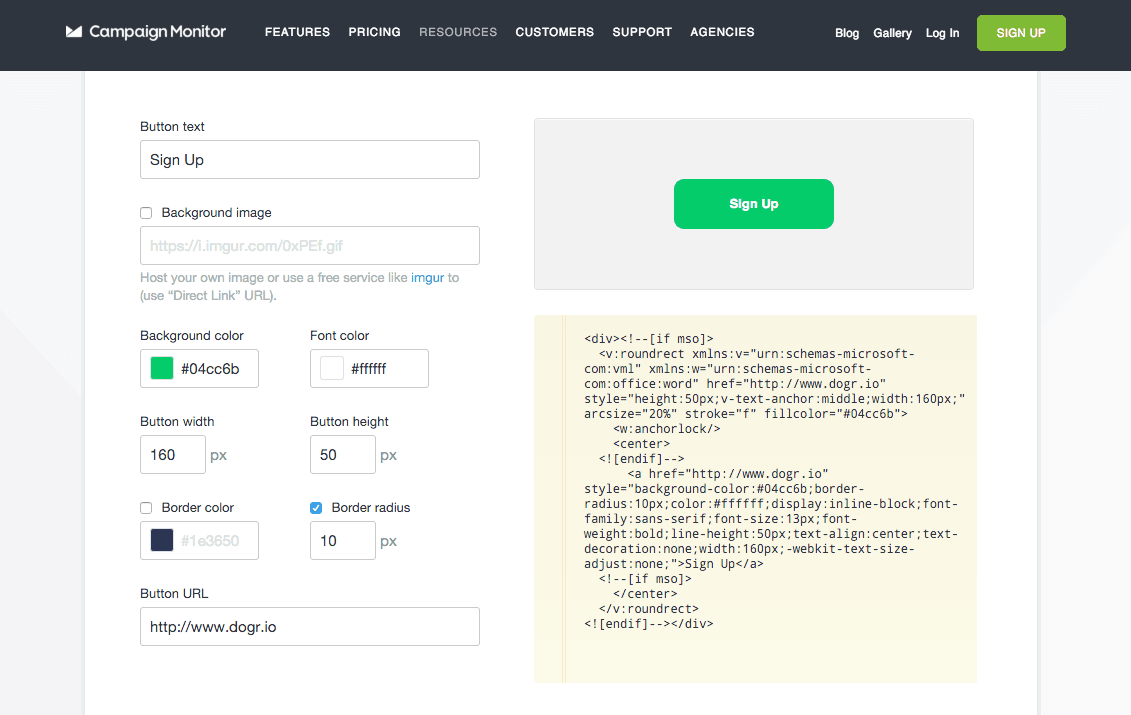
Fortunately, you don't need to become a VML expert from scratch. The email development community has created excellent tools that generate production-ready code automatically. Campaign Monitor's button generator remains one of the most reliable options, having been refined through years of real-world testing:

  • buttons.cm - For creating VML-enhanced buttons
  • backgrounds.cm - For implementing bulletproof background images

Let's put this into practice with our Dogr launch email:

  1. In a browser, navigate to buttons.cm. The interface is straightforward, but precision in your specifications is crucial for professional results.

  2. Enter the following button specifications exactly as shown. These values are carefully chosen to match our email's design system:

    Button text: Sign Up
    Background image: Uncheck
    Background color: #04cc6b
    Font color: #ffffff
    Button width: 160 px
    Button height: 50 px
    Border color: Uncheck
    Border radius: 10 px
    Button URL: http://www.dogr.io
  3. Watch as the VML code generates automatically in the right panel. This sophisticated code generation handles the complex mathematics required to translate your design specifications into VML shapes and properties.

  4. Take a moment to examine the generated code structure. You'll recognize familiar elements like conditional comments (), which ensure the VML renders only in Microsoft Office applications. The VML itself uses XML namespace declarations and specialized tags like v:roundrect to create vector-based button shapes that Outlook can properly render.

  5. Click anywhere in the code area to select all generated markup, then copy it to your clipboard.

  6. Return to dogr-launch-email.html in your code editor and locate the anchor element with the class of button, approximately around line 112.

  7. Position your cursor at the end of the button line and press Enter to create a new line where we'll insert our VML enhancement.

  8. Paste the generated code directly below the existing button, as shown in this example:

    <h1>Schedule playdates<br> for your dog with Dogr</h1>
    <a class="button" href="https://www.dogr.io/">Sign Up</a>
    <div><!—[if mso]>
       <v:roundrect xmlns:v="urn:schemas-Microsoft-com:vml" xmlns:w="urn:schemas-Microsoft-com:office:word" href="https://www.dogr.io" style="height:50px;v-text-anchor:middle;width:160px;" arcsize="20%" stroke="f" fillcolor="#04cc6b">
          <w:anchorlock/>
          <center>
       <![endif]—>

    Code Omitted To Save Space

    </v:roundrect>
    <![endif]—></div>
  9. The button generator created inline CSS optimized for web email clients, but we want to maintain our existing CSS architecture for consistency and easier maintenance across our email templates.

  10. Select and cut the entire anchor tag line with the button class (around line 112). Remove any extra whitespace to keep your code clean.

  11. Now locate the generated anchor tag embedded within the VML conditional comments (approximately line 117). It should look similar to this:

    <a href="https://www.dogr.io" style="background-color:#04cc6b;border-radius:10px;color:#ffffff;display:inline-block;font-family:sans-serif;font-size:13px;font-weight:bold;line-height:50px;text-align:center;text-decoration:none;width:160px;-webkit-text-size-adjust:none;">Sign Up</a>
  12. Replace this generated anchor tag with your original button code that uses our CSS class system. Your final structure should look like this:

    <div><!—[if mso]>
       <v:roundrect xmlns:v="urn:schemas-Microsoft-com:vml" xmlns:w="urn:schemas-Microsoft-com:office:word" href="https://www.dogr.io" style="height:50px;v-text-anchor:middle;width:160px;" arcsize="20%" stroke="f" fillcolor="#04cc6b">
          <w:anchorlock/>
          <center>
       <![endif]—>
          <a class="button" href="https://www.dogr.io/" target="_blank">Sign Up</a>
       <!—[if mso]>
          </center>
       </v:roundrect>
    <![endif]—></div>
  13. Save your file and preview it in a web browser. The button should appear unchanged from the previous version—this is exactly what we want. The VML code is completely invisible to web browsers and only activates when Microsoft Outlook processes the email.

  14. For the ultimate validation, if you have access to Outlook 2016 or newer (or can test through tools like Litmus or Email on Acid), re-inline your CSS and send a test email. The transformation should be dramatic—your button will now display with proper rounded corners, consistent sizing, and professional appearance that matches your design specifications:

    outlook vml button

    This bulletproof approach ensures visual consistency across the entire email client ecosystem, protecting your conversion rates regardless of your recipients' email software preferences. Save an inlined copy of your enhanced email for future reference—you now have a professional-grade template that handles one of email development's most persistent challenges.

Campaign Monitor Tools

Email Buttons Generator

Available at buttons.cm, this tool generates complete VML code for cross-compatible email buttons with customizable styling options.

Background Images Tool

Located at backgrounds.cm, this utility handles background image compatibility issues across different email clients using VML techniques.

Button Configuration Process

1

Set Button Properties

Configure text as 'Sign Up', background color #04cc6b, font color #ffffff, dimensions 160x50px, and 10px border radius.

2

Generate VML Code

The tool automatically creates conditional comments and VML markup that renders only in Outlook's Word engine versions.

3

Integrate with Existing CSS

Replace the generated inline anchor tag with your existing button class to maintain consistent styling across all email clients.

Final Result

The completed implementation ensures visual consistency between web email clients and desktop Outlook versions while maintaining full clickability and professional appearance.

Key Takeaways

1VML (Vector Markup Language) is essential for creating consistent button designs in Outlook desktop versions that use the Microsoft Word rendering engine
2Image-based buttons create dependency issues including disabled images by default, unclear call-to-actions, difficult updates, and increased mobile data usage
3Outlook 2007, 2010, 2013, and 2016 do not support standard CSS properties like background images and border-radius due to Word engine limitations
4Campaign Monitor's button generator at buttons.cm automatically creates the necessary VML code with conditional comments for Outlook compatibility
5Bulletproof buttons combine VML markup for Outlook with standard CSS styling for web email clients, ensuring cross-platform consistency
6Conditional comments ensure VML code only renders in Microsoft Outlook versions, preventing conflicts with web-based email clients
7Thick borders and background colors on anchor tags provide a fallback solution that maintains reasonable appearance across all email clients
8Professional email development requires understanding both modern web standards and legacy Microsoft technologies to achieve universal compatibility

RELATED ARTICLES