April 1, 2026Dan Rodney/5 min read

Alt Text on Banner Swap

Master HTML Email Banner Accessibility Techniques

Background Image Limitations

Unlike regular images in HTML emails, background images cannot be assigned ALT text, creating accessibility challenges when images fail to load in mobile email clients.

Topics Covered in This HTML Email Tutorial:

Adding an Invisible Shim Image, Assigning ALT Text to a Shim

Exercise Preview

preview ALT banner swap

Key Concepts You'll Learn

Invisible Shim Technique

Learn to use 1x1 pixel transparent GIFs to create ALT text for background images. This technique provides accessibility when images are disabled.

Mobile-Specific Display

Understand how to show ALT text only on mobile devices using CSS media queries and display properties.

Cross-Client Compatibility

Implement solutions that work across different email clients while maintaining proper image fallbacks.

Exercise Overview

In this exercise, you'll tackle one of the most persistent challenges in HTML email development: providing meaningful ALT text for background images. Unlike standard images in an email, CSS background images cannot be assigned ALT attributes. This creates accessibility issues and leaves subscribers in the dark when images fail to load—a common occurrence in mobile email clients with strict image-blocking policies. You'll learn a proven workaround that ensures your banner's message reaches subscribers regardless of their image settings.

Getting Started

Before diving into the ALT text solution, let's set up your workspace with the exercise files.

  1. Open your code editor if it isn't already open.

  2. We'll be switching to a new folder of prepared files for this exercise. Close all open files in your code editor to avoid confusion.

  3. Open date-night-exclusive-picks.html from the Desktop > Class Files > yourname-Responsive HTML Email Class folder.

Environment Setup Process

1

Close Existing Files

Close all open files in your code editor to avoid confusion between different project files

2

Open Target File

Navigate to Desktop > Class Files > yourname-Responsive HTML Email Class folder and open date-night-exclusive-picks.html

3

Disable Browser Images

Access Chrome Settings > Site Settings > Images and toggle off 'Show all' to simulate email clients with images disabled

Adding an Invisible Image

The solution involves strategically placing a transparent 1x1 pixel GIF inside the table cell containing your background image. This "shim" image acts as a carrier for your ALT text, creating the illusion of having ALT text on the background image itself. While shim images fell out of favor in modern web development, they remain a necessary tool in the email developer's arsenal for achieving accessibility compliance.

  1. Preview date-night-exclusive-picks.html in Chrome.
  2. Let's disable images to simulate what subscribers experience when they don't load images—a reality for many mobile users and privacy-conscious recipients. We can control this through Chrome's settings. Keep this page open, and create a new tab in Chrome.
  3. At the top right of Chrome's window click the Settings button chrome settings menu and from the menu choose Settings.
  4. At the top, in the Search settings field type in image
  5. Click on Site Settings.
  6. Click on Images.
  7. Click the toggle button to the right of Show all (recommended).
  8. Keep this tab open, but switch back to the tab for your email.
  9. Reload the page and all the images should disappear.
  10. Resize the browser window smaller to trigger the media query, showing the mobile phone style (you'll have to open the DevTools to get the viewable area small enough).

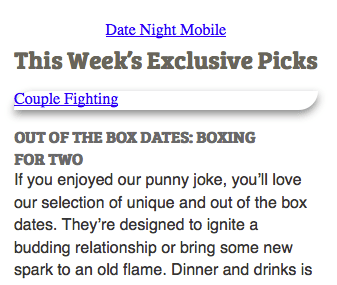
Note how there is no ALT text for the banner—this is exactly the user experience gap we need to fill.

Now let's implement the shim image solution:

  1. Return to your code editor.
  2. Scroll down to the mobileBanner table cell (around line 128), noting the header.png image. We are going to add a tiny, invisible image that will hold our ALT text.

  3. Directly before the header image, add the following code in bold:

    <td class="mobileBanner" align="center" width="100%">
       <p class="preheader">Punch-drunk in love? Go boxing with your sweetheart. This and more great dates inside!</p>
       <a href="https://www.example.com" target="_blank"><img src="http://www.nobledesktop.com/nl-date-night/img/shim.gif" width="1" height="1" ALT="Date Night Mobile" align="center" class="shim"><img class="resImage" src="http://www.nobledesktop.com/nl-date-night/img/header.png" width="680" ALT="Date Night"></a>

    NOTE: A 1x1 pixel GIF is often called a shim or spacer. While they've fallen out of favor in modern web development and are not recommended as a best practice for general use, they remain necessary in email development for achieving specific functionality like ALT text on background images. This technique is widely accepted in the email marketing industry as a legitimate accessibility solution.

    Notice that the ALT description is applied to the shim image. By placing the descriptive text here, we create the appearance of having an ALT description on the background image, ensuring accessibility compliance.

  4. Let's create CSS rules for this new image. Although it's nearly invisible at 1x1 pixels, we want to hide the shim completely in desktop view to maintain a clean presentation.

  5. At the bottom of the general styles, around line 59, add the following rule as shown in bold below:

    img.shim {
       display: none;
    }
Shim GIF Best Practices

While 1x1 pixel GIFs were popular in early HTML email development, they have fallen out of favor and are not recommended as best practice. Use this technique only when necessary for ALT text accessibility.

Regular Image vs Shim Image Approach

FeatureRegular ImageShim Image Method
ALT Text SupportDirect ALT attributeALT via invisible image
Background ImageNot applicableProvides ALT text solution
File Size ImpactNoneMinimal (1x1 pixel)
AccessibilityBuilt-inRequires CSS control
Recommended: Use shim images only when background images require ALT text for accessibility compliance

Making the ALT Text Appear in Mobile View

With the shim image hidden by default, we now need to reveal it strategically in mobile view when images are disabled. This ensures the ALT text displays prominently when subscribers need it most.

  1. Scroll down to max-width: 480px media query. At the bottom of the media query, add the following rule as shown below in bold:

    img.shim {
       display: block!important;
       width: 100%!important;
    }

    NOTE: Make sure you do not have a space between block and !important to avoid rendering issues in Yahoo Mail, which remains particularly sensitive to CSS formatting.

  2. Save the file.
  3. Reload the page in Chrome.
  4. The browser window should still be narrow to show the mobile view, but take some time to resize the window in and out again to compare the mobile view to the desktop view. The ALT text should read Date Night Mobile on the mobile view, demonstrating that our technique is working correctly.
  5. Return to your code editor.
  6. Now that we've confirmed the functionality works, we can refine the ALT text for the final implementation. In the shim image (around line 137), delete the word Mobile from the ALT text so it reads as follows:

    <img src="http://www.nobledesktop.com/nl-date-night/img/shim.gif" width="1" height="1" ALT="Date Night" align="center" class="shim">
  7. Save the file.
  8. Reload the page in Chrome to see the correct ALT text in action.
  9. We're finished with testing, so let's restore normal image display. Switch back to the Settings tab that should still be open in Chrome.
  10. Click the toggle button to the right of Do not show any images.
  11. Switch back to the tab with your email.
  12. Reload the page and you should be able to see all the images again, confirming that your email works perfectly in both scenarios.

CSS Implementation Steps

1

Hide Shim by Default

Add 'display: none' rule for img.shim class in general styles around line 59 to hide the invisible image on desktop

2

Show on Mobile

Add 'display: block!important' and 'width: 100%!important' rules within the max-width: 480px media query

3

Avoid Spacing Issues

Ensure no space between 'block' and '!important' to prevent display issues in Yahoo email client

Yahoo Email Client Compatibility

Make sure you do not have a space between 'block' and '!important' in your CSS to avoid display issues specifically in Yahoo email client.

Testing and Validation Checklist

0/4

Key Takeaways

1Background images in HTML emails cannot have ALT text, creating accessibility challenges when images fail to load in mobile email clients
2Invisible 1x1 pixel transparent GIFs (shims) can provide ALT text functionality for background images, though this technique is not considered best practice
3CSS media queries combined with display properties allow ALT text to appear only on mobile devices while remaining hidden on desktop
4Yahoo email client requires specific CSS syntax without spaces between values and !important declarations to avoid display issues
5Testing with disabled images in browsers simulates real-world scenarios where email clients block image loading by default
6The shim technique requires careful CSS implementation with display: none for general styles and display: block!important for mobile queries
7Proper ALT text implementation improves email accessibility for users with visual impairments or when images fail to load
8File organization and closing existing files before starting new exercises prevents confusion and coding errors during development

RELATED ARTICLES