April 1, 2026Dan Rodney/8 min read

Revolution Travel: Page Layout

Master HTML Structure and Semantic Web Development

Key Learning Objectives

Semantic HTML Structure

Learn to organize content using proper semantic sections like header, nav, main, and footer for better accessibility and SEO.

Content Organization

Master the art of structuring web content logically and marking up headings for improved document hierarchy.

Image Integration

Understand how to properly add images with appropriate alt text and organize media assets in web projects.

Topics Covered in This HTML & CSS Tutorial:

Organizing Content into Semantic Sections, Adding Images, Tagging Headings

Exercise Preview

page layout ex preview

Exercise Overview

This marks the beginning of a comprehensive series where you'll construct a complete, production-ready website from the ground up. In this foundational exercise, you'll establish the structural backbone of a single page using modern HTML5 semantic elements. You'll learn to organize content logically, ensuring both accessibility compliance and search engine optimization through proper semantic markup. This approach mirrors current industry standards and prepares you for real-world development scenarios.

Series Foundation

This exercise serves as the foundation for a complete website layout series. You'll start with basic page structure and gradually build complexity in subsequent exercises.

Getting Started

  1. For this exercise, we'll work with a fresh project folder containing optimized images, partially completed templates, and reusable code snippets. This mirrors how modern development teams organize assets and collaborate on projects. Close any existing files in your code editor to maintain focus and prevent file conflicts.

  2. Navigate to the Revolution Travel folder located in Class Files > Web Dev Class. This project structure reflects contemporary web development best practices.

    TIP: Modern code editors work most efficiently when you open entire project folders rather than individual files. In Visual Studio Code:

    • Go to File > Open (Mac) or File > Open Folder (Windows).
    • Navigate to Class Files > Web Dev Class > Revolution Travel and hit Open (Mac) or Select Folder (Windows).
    • When prompted about trusting the author, check Trust the authors of all files in the parent folder and click Yes, I trust the authors. This security feature helps protect against malicious code in unknown projects.
  3. In your code editor, open sanfran.html from the Revolution Travel folder.
  4. Update the document title to improve SEO and user experience. A well-crafted title appears in browser tabs, search results, and social media shares:

    <head>
       <meta charset="UTF-8">
       <title>Travel Info for San Francisco, CA—Revolution Travel</title>
    </head>
  5. Save the file using Cmd+S (Mac) or Ctrl+S (Windows).

Visual Studio Code Setup Process

1

Open Project Folder

Navigate to File > Open Folder (Windows) or File > Open (Mac) to access the Revolution Travel directory

2

Trust Authors

When prompted about trusting authors, check the parent folder option and click 'Yes, I trust the authors'

3

Open HTML File

Open sanfran.html from the Revolution Travel folder to begin editing

Coding up the Sections

Now we'll implement the semantic HTML5 structure that forms the foundation of modern web development. These elements provide meaning to your content, improving accessibility and SEO performance.

  1. First, examine the completed version to understand our target outcome. Navigate to Desktop > Class Files > Web Dev Class > Revolution Travel Done.
  2. Ctrl–click (Mac) or Right–click (Windows) on sanfran.html, select Open with and choose your preferred browser.
  3. Analyze the page structure: it contains four distinct semantic regions—header (brand identity), navigation (site wayfinding), main content (primary information), and footer (supporting details). This layout pattern appears across millions of professional websites and provides users with intuitive navigation patterns.
  4. Return to sanfran.html in your code editor.
  5. Implement the semantic HTML5 structure by adding these sectioning elements inside the body tag:

    <body>
       <header></header>
       <nav></nav>
       <main></main>
       <footer></footer>
    </body>
  6. Previewing the file now would show nothing visible—this is expected behavior. These semantic containers have no visual styling by default; they exist purely to provide structural meaning. Browsers render them as block-level elements, creating the foundation for your CSS styling and accessibility features.

Main Website Sections

Header25%
Navigation25%
Main Content25%
Footer25%
Section Elements Behavior

Section elements are invisible by default with no border or background, appearing only as tall as their content. They render as block-level elements.

Block-level Elements

Block-level elements behave like building blocks, stacking vertically and claiming the full width of their container. Each element forces a new line break, creating distinct sections. The semantic elements we're using (header, nav, main, footer) are block-level by default, as are paragraphs, headings, divs, and lists. Understanding this concept is crucial for predicting how elements will flow on your page before applying CSS.

Block-level Element Characteristics

Stacking Behavior

Block-level elements stack vertically like building blocks, each starting on a new line without manual spacing.

Width Properties

These elements automatically take up 100% of their parent container's width, creating full-width sections.

Common Examples

Paragraphs, headings, divs, lists, and semantic sections all follow block-level element behavior patterns.

Adding Content to the Header

The header establishes your brand identity and should be immediately recognizable to users. Let's implement the company logo with proper accessibility considerations.

  1. Add the company logo to the header section:

    <body>
       <header><img src="images/revolution-logo.png"></header>
       <nav></nav>
       <main></main>
       <footer></footer>
    </body>
  2. Always include descriptive ALT text for accessibility compliance and SEO benefits. Screen readers rely on this information to describe images to visually impaired users:

    <img src="images/revolution-logo.png" ALT="Revolution Travel">
  3. Save the file.
  4. Preview the page in your browser to verify the logo displays correctly.

Accessibility Reminder

Always include ALT text for images to ensure screen readers can describe visual content to users with visual impairments.

Adding the Main Content

Rather than typing extensive content manually, we'll use a pre-formatted snippet—a common practice in professional development where teams share reusable code components.

  1. Open page-content.html from the snippets folder within the Revolution Travel directory. This file contains properly tagged content ready for integration.
  2. Select all content using Cmd–A (Mac) or Ctrl–A (Windows).
  3. Copy the content with Cmd–C (Mac) or Ctrl–C (Windows).
  4. Close the snippet file to maintain workspace clarity.
  5. Return to sanfran.html in your editor.
  6. Position your cursor between the <main> tags.
  7. Create clean, readable code structure by pressing Return (Mac) or Enter (Windows) to separate the closing tag:

    <main>
    
    </main>
  8. Paste the content using Cmd–V (Mac) or Ctrl–V (Windows) between the main tags.

  9. Save the file.

Adding the Nav Content

Proper navigation structure is critical for both user experience and SEO. We'll move the navigation items to their semantic location and mark them up correctly.

  1. Prepare the navigation section by positioning your cursor between the <nav> tags and creating clean spacing:

    <nav>
    
    </nav>
  2. In the main section, locate and select the first five lines of content (Featured Location through Contact). These represent your site's primary navigation links.

  3. Cut this text using Cmd–X (Mac) or Ctrl–X (Windows).

  4. Paste the navigation items into the nav section:

    <nav>
       Featured Location
       Tour Packages
       Travel Tips
       About Us
       Contact
    </nav>
  5. Remove any residual whitespace from the top of the main section to maintain clean code.
  6. Enhance the semantic meaning and accessibility by structuring the navigation as an unordered list. This provides screen readers with proper context and creates styling hooks for CSS:

    <nav>
       <ul>
          <li>Featured Location</li>
          <li>Tour Packages</li>
          <li>Travel Tips</li>
          <li>About Us</li>
          <li>Contact</li>
       </ul>
    </nav>
  7. Save your progress.

Navigation Setup Tasks

0/4

Adding the Footer Content

The footer provides essential legal and contact information. Proper footer implementation supports both user trust and legal compliance.

  1. Navigate to the bottom of your code and prepare the footer section with proper spacing:

    <footer>
    
    </footer>
  2. Locate the copyright paragraph at the end of your main content. Cut this text using Cmd–X (Mac) or Ctrl–X (Windows).
  3. Paste the copyright information into the footer:

    <footer>
       <p>© Revolution Travel</p>
    </footer>
  4. Clean up any remaining whitespace at the end of the main section.
  5. Save your file.
  6. Refresh your browser to see the updated structure. The content appears unstyled but properly organized—exactly what we expect before applying CSS. Each semantic section stacks vertically, demonstrating proper block-level element behavior.

Footer Implementation Process

1

Position Cursor

Place cursor between footer opening and closing tags, add line break for better code readability

2

Move Copyright Content

Select and cut the copyright paragraph from main section to relocate to footer

3

Paste and Clean

Paste content into footer section and remove any remaining empty lines for clean code structure

Marking up the Headings

Proper heading hierarchy is crucial for accessibility, SEO, and content organization. Search engines use heading structure to understand your content's importance and relationships.

  1. Return to your code and locate the first paragraph in the main section.
  2. Convert the primary heading to an h1 tag—there should be only one h1 per page, representing the main topic:

    <main>
       <h1>Featured Location: San Francisco, California</h1>
  3. Find the "Things to Do" section and convert it to an h2 tag, indicating a major subsection:

    <h2>Things to Do</h2>
    <p>San Francisco is filled with culture, fine eating, nightlife and more. From beaches and parks, museums, bike riding, cable cars, to street performers, there is always something to do. The hard part is deciding how you'll spend your time! Here are a few recommendations:</p>
  4. Locate "Local Travel Tips" and apply the same h2 treatment, maintaining consistent heading hierarchy:

    <h2>Local Travel Tips</h2>
    <p>San Francisco has pretty mild temperatures all year long. While that means you won't be too freezing or too hot, don't be fooled by the lore of "sunny California." San Fran does tend to be on the chilly side, especially at night or when the wind gets blowing. Bring some extra layers in case you need them. Most people are surprised to find it's colder than they expected.</p>
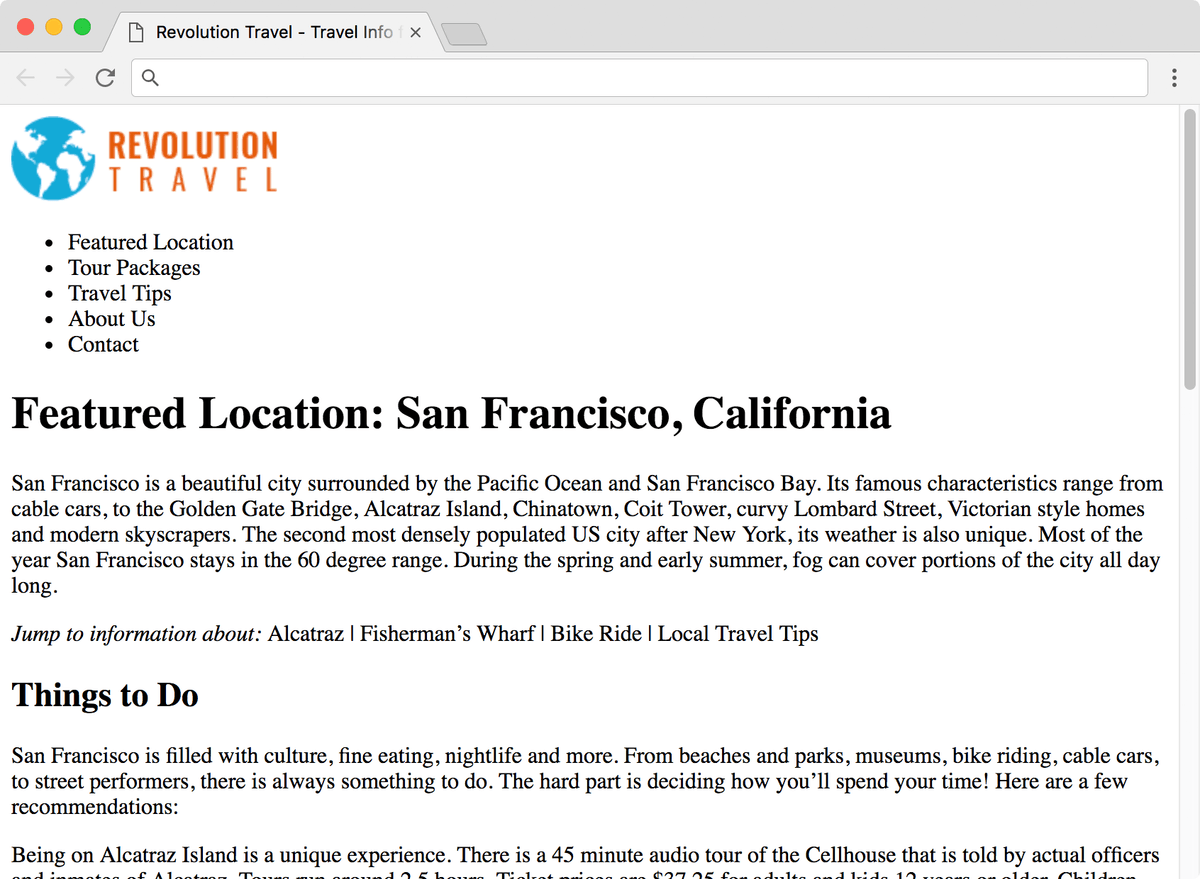
  5. Save the file and refresh your browser to see the improved semantic structure. The headings now appear larger and bolder, reflecting their hierarchical importance:

    real-world layout end ex

  6. Your page now contains a solid HTML foundation with proper semantic structure, accessibility features, and SEO optimization. While visually basic, this markup provides the essential framework for advanced CSS styling and interactive JavaScript functionality. Keep both your browser and code editor open—we'll build upon this structure in subsequent exercises.

Heading Hierarchy Structure

H1 - Page Title
1
H2 - Section Headers
2
Improved Document Structure

Proper heading markup creates better document hierarchy, improving both SEO performance and screen reader navigation for accessibility.

How to Create a Brand New HTML File

While this exercise provided a starter template, professional developers often create files from scratch. Here's the efficient approach using Visual Studio Code with Emmet (the current industry standard for rapid HTML development):

  1. Go to File > New File.
  2. Save immediately as filename.html (the .html extension enables proper syntax highlighting and tooling).
  3. Type an exclamation point (!) and press Tab. Emmet will generate a complete HTML5 document structure instantly.

NOTE: Visual Studio Code may include a deprecated meta tag: <meta http-equiv="X-UA-Compatible" content="IE=edge">. Delete this line—it's no longer needed in 2026 as Internet Explorer support has been discontinued.

Creating HTML Files in Visual Studio Code

1

Create New File

Go to File > New File to start with a blank document

2

Save with HTML Extension

Save the file with .html extension to enable HTML syntax highlighting

3

Use Emmet Shortcut

Type exclamation point (!) and press Tab to generate basic HTML structure automatically

4

Clean Up Generated Code

Remove the outdated X-UA-Compatible meta tag that Visual Studio Code adds by default

Key Takeaways

1Semantic HTML elements like header, nav, main, and footer provide meaningful structure that improves accessibility and SEO performance
2Block-level elements automatically stack vertically and take 100% of their parent container width, creating natural content flow
3Proper heading hierarchy using H1 and H2 tags creates better document structure for both users and search engines
4Always include ALT text for images to ensure screen readers can describe visual content to users with disabilities
5Moving content to appropriate semantic sections improves code organization and makes maintenance easier
6Visual Studio Code's Emmet feature can quickly generate basic HTML structure using the exclamation point shortcut
7Organizing navigation content within unordered lists provides additional semantic meaning for assistive technologies
8Clean code structure with proper indentation and spacing makes HTML documents easier to read and maintain

RELATED ARTICLES