Off-Screen Side Nav Using Only CSS
What This Tutorial Covers
Pure CSS Implementation
Toggle nav without any JavaScript.
Transform Performance
translateX is GPU-accelerated and smooth.
Mobile-First
Off-screen nav patterns optimize for mobile space.
Noble Desktop's Front-End Web Development Certificate teaches HTML, CSS, and JavaScript — the complete front-end foundation.
Deepen your understanding of HTML & CSS with our comprehensive tutorial, detailing the process of creating an off-screen navigation menu using CSS, with no JavaScript required.
Topics Covered in This HTML & CSS Tutorial:
Responsive Off-screen Navigation, Toggling the Navigation with a Checkbox, CSS Transitions
Exercise Preview
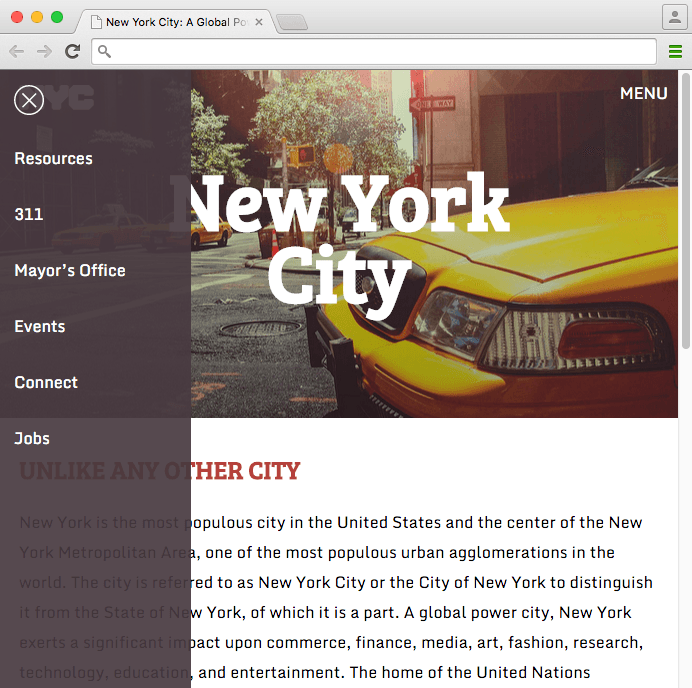
Exercise Overview
In this exercise you will learn how to create an off-screen navigation menu that is hidden from view until the user clicks a button to show it. You’ll create this functionality purely with CSS. No JavaScript is required!
Styling the Nav
- We’ll be switching to a new folder of prepared files for this exercise. In your code editor, close all open files to avoid confusion.
- For this exercise we’ll be working with the Off-Screen Nav folder located in Desktop > Class Files > Advanced HTML CSS Class. Open that folder in your code editor if it allows you to (like Visual Studio Code does).
- Open index.html from the Off-Screen Nav folder.
Preview index.html in a browser.
The navigation is already coded with some styling done. Leave the page open in your browser.
- We want to position the mobile menu first. In your code editor, open main.css from the css folder (in the Off-Screen Nav folder).
Scroll down to the Media Queries comment. Below that, add the following code:
@media (max-width: 700px) { nav { position: fixed; } }- Save the file.
- Reload your browser.
- Resize the window to a mobile phone size, and you should see that the nav is now sitting on top of the page, as we wanted. Let’s make it a bit wider and the full height of the screen.
- Return to main.css in your code editor.
Add the following width and height to the nav rule you just created:
nav { position: fixed; width: 12em; height: 100%; }- Save the file.
- Reload your browser. The nav looks pretty close to what we want on mobile.
- Resize the window very short, so some of the nav items get cut off.
- Try to scroll to see the missing nav items, and you’ll see that you can’t! This could easily happen on phones held horizontally, so let’s fix that.
Return to main.css in your code editor and add the following property to the nav rule as shown below in bold:
nav { position: fixed; width: 12em; height: 100%; overflow-y: auto; }- Save the file and reload the page in your browser. Now you should be able to scroll through the nav items that are cut off.
- Resize the browser to the large desktop view (the nav will jump back to the top of the page). Let’s style the nav for this size.
- Return to main.css in your code editor.
At the bottom of the styles, after the current media query, add the following new media query:
@media (min-width: 701px) { nav ul li { display: inline-block; } }- Save the file.
- Reload your browser. The nav is now a single line across the top of the page. That’s getting close, but we want the links aligned on the right.
- Return to your code editor.
In the min-width: 701px media query, add the following code shown below in bold:
@media (min-width: 701px) { nav { text-align: right; padding-right:.6em; } nav ul li { display: inline-block; } }- Save the file.
- Reload your browser.
Resize the browser window to see that the nav should look good in both screen sizes.
Adding a Clickable Element to Open & Close the Nav
How does a user open or close the menu? We could use a link, but that would require JavaScript to trigger the change. One way we can accomplish this (with just CSS) is by using a checkbox. A checkbox has a :checked pseudo-class selector that allows us to style an element based on whether the element is checked or not (which will translate to our menu being open or closed)!
- Let’s add the checkbox. In your code editor open index.html.
Directly below the opening body tag, add the following input tag as shown below:
<body> <input id="nav-checkbox" type="checkbox"> <img src="img/nyc-logo.svg" class="nyc-logo" ALT="NYC Logo">- Save the file.
- Go to main.css.
At the bottom of the general styles, below the nav li a:hover rule, add this new rule:
#nav-checkbox { position: absolute; left: 50%; }- Save the file.
- Reload your browser. You should see a small checkbox in the middle of the page at the top. We’ll hide it later, but for now we want the checkbox easy to find and see.
- Now we need to make the checkbox hide the menu. In your code editor, go to main.css.
In the max-width: 700px media query, below the nav rule, add the following rule as shown below in bold:
#nav-checkbox:checked ~ nav {
   display: none;
}
NOTE: Siblings are two elements that share a common parent such as our checkbox and nav. The sibling selector we are using targets the nav, but only if it comes after a checked checkbox with an ID of nav-checkbox. The order of our HTML is really important for this to work! In the HTML, the checkbox must be before the nav (and in the same parent element as the nav).
- Save the file.
- Reload your browser, making sure the window is smaller than 700px.
Check the checkbox, noticing how the nav disappears when the box is checked.
Moving the Nav Off-Screen
Rather than having the checkbox hide the menu, we want the checked state to show the menu. Additionally, we don’t want to rely on display: none to hide the nav. We want it to slide onto the screen. Let’s move the nav off-screen, so checking the box can bring it back onto the screen.
- In your code editor, return to main.css.
In the max-width: 700px media query, add the following properties to the nav rule, as shown below in bold:
nav {
   position: fixed;
   width: 12em;
   left: -12em;
   height: 100%;
   overflow-y: auto;
   z-index: 100;
}
NOTE: This pulls the nav off the screen with a negative left position. The left position value must be equal to the width of the element to ensure that the whole element is hidden off-screen. We also set a z-index to ensure that the nav is always on top.
Find the #nav-checkbox:checked ~ nav rule and edit the code as shown in bold, so it will make the nav appear:
#nav-checkbox:checked ~ nav { left: 0; }- Save the file.
Reload your browser. Toggle the checkbox to see that now the nav appears or disappears when the box is checked or unchecked!
The functionality works, but it could use some finesse. We can apply a CSS transition to slide the nav in from the side, rather than have it abruptly appear on the page.
- Return to main.css.
At the bottom of the nav rule, add the following transition:
nav { position: fixed; width: 12em; left: -12em; height: 100%; overflow-y: auto; z-index: 100; transition: all.2s ease; }- Save the file.
Reload your browser. Toggle the checkbox to see that the nav now slides in nicely from the side. Cool!
Adding a Proper Menu Button
We need something better for our users to click than a checkbox. We can use a form label. In a standard form, labels are used to describe a form element such as an email field. When you click a label, it focuses on the form element it targets, or in the case of a checkbox, it checks it!
- Return to index.html in your code editor.
Just under the opening body tag, add the code as shown below in bold:
<input id="nav-checkbox" type="checkbox"> <label for="nav-checkbox" class="menu-button">MENU</label>- Notice that the for attribute in the label is the same as the checkbox’s id. This builds the connection and allows us to use the label to control the checkbox.
- Save the file.
- Switch to main.css.
In the max-width: 700px media query, after the #nav-checkbox:checked ~ nav rule, add the following new rule:
.menu-button { position: absolute; top: 10px; right: 10px; color: #fff; }- Save the file.
- Reload your browser.
In the upper-right corner, click on MENU and:
- Notice that the checkbox changes to the checked state, even though we’re just clicking on the label. Cool!
- Notice that when you mouse over the label the cursor does not change to the hand icon that’s common for links. We should change the cursor to better indicate to users who they can click on the MENU button.
- If you double–click the MENU button it gets selected like text. This doesn’t happen on links or buttons, so it would be nice to prevent the text from being selected.
- Return to main.css in your code editor.
At the bottom of the .menu-button rule, add the new code as shown below in bold:
.menu-button { position: absolute; top: 10px; right: 10px; color: #fff; cursor: pointer; -webkit-user-select: none; -moz-user-select: none; -ms-user-select: none; user-select: none; }- Save the file.
- Reload your browser.
- Mouse over MENU to see the proper hand cursor.
- Double–click the MENU button to see we can no longer select it like text.
- Resize the window larger than 700px. We need to hide the MENU button here on desktop view.
- Return to main.css in your code editor.
At the start of the min-width: 701px media query, add the following new rule:
.menu-button { display: none; }- Save the file.
- Reload your browser. The MENU button should no longer appear in the desktop layout. The checkbox is still showing, but we’ll hide that later.
Resize the browser window to the mobile size.
Adding a Close Button
Once the menu is open, we want users to be able to clearly know how to close the menu again. Let’s add a close button inside the menu.
- Return to index.html in your code editor.
At the top of the nav add the code shown below in bold:
<nav>
   <label for="nav-checkbox" class="close-button">
      <img src="img/close.svg" ALT="close">
   </label>
   <ul>
Note again that we are giving this label the same for value as the MENU button. We can have multiple labels for the same checkbox, allowing us to create two different buttons that both control a single checkbox!
- Switch to main.css so that we can style the close button.
In the max-width: 700px media query, after the .menu-button rule, add the following new rule:
.close-button img {
   width: 30px;
   margin: 15px;
   cursor: pointer;
}
We also need to hide the close button on desktop (because the nav is always showing there). In the min-width: 701px media query, add a second selector to the .menu-button rule as follows. (Don’t miss the comma!)
.menu-button,.close-button img { display: none; }- Save the file.
- Reload your browser.
Click the MENU button to open the nav, then click the circular close button to close it.
Wow, it already works! That’s because it’s just another label that triggers the same checkbox. The functionality of the checkbox was already working, this is just a second way to trigger it.
Creating an Overlay
While it’s good that users have a close button, it would also be nice if they could click anywhere outside the menu to close it. Just as we did with the menu and close buttons, we can use another label to create a clickable element that controls the checkbox.
- Return to index.html in your code editor.
Just under the opening body tag, add the code shown below in bold:
<label for="nav-checkbox" class="menu-button">MENU</label> <label for="nav-checkbox" class="overlay"></label>- Let’s make the overlay visible with some styling. Switch to main.css.
In the max-width: 700px media query, after the .close-button img rule, add the following new rule:
.overlay { position: fixed; height: 100%; width: 100%; background: rgba(0,0,0,.5); }- Save the file.
- Reload your browser, noticing the slightly transparent black background over most of the page.
- Click anywhere on the dark overlay and notice that the menu opens! That’s because the overlay is a label for the nav-checkbox element, so it functions the same as the other buttons.
- We only want the overlay to be available when the menu is open, and invisible at all other times. Return to main.css.
Find the overlay rule and add the following property shown in bold:
.overlay {
   display: none;
   position: fixed;
   height: 100%;
   width: 100%;
   background: rgba(0,0,0,.5);
}
Below the overlay rule, add the following new rule:
#nav-checkbox:checked ~.overlay { display: block; }- Save the file.
- Reload your browser. Notice that the overlay is hidden.
- Click the MENU button to see that the nav appears, as well as the semi-transparent black background behind it.
- Click anywhere on the semi-transparent dark background to close the menu.
- Return to main.css.
- You could keep the dark overlay if you like it, but we want to hide the overlay (while keeping the functionality). In the .overlay rule, delete the background property.
- Save the file.
- Reload your browser.
Open the menu, then click anywhere outside the menu and it will still close.
Hiding the Checkbox with CSS
Our off-screen navigation works beautifully, with each label doing the correct function. All that’s left is to hide the checkbox, because we don’t need to see it any longer.
- Return to main.css.
- In the general styles, find the #nav-checkbox rule.
- Delete the left: 50% line of code.
Also make the following edits shows in bold:
#nav-checkbox {
   position: fixed;
   clip: rect(0,0,0,0);
}
Here are a few things to note:
- While display: none may have seemed more intuitive, the clip property is more accessible (allowing users to tab into the checkbox with the keyboard).
- Changing the position value to fixed prevents some browsers, like Chrome, from jumping back up to the top of the page when the checkbox is toggled.
- The clip property is deprecated and the W3C advises the use of clip-path instead. Clip-path, however, is not yet supported by internet Explorer or Edge, so we prefer to use clip in this instance despite its deprecated state.
- Save the file.
Reload your browser and test out the completed page!
Optional Bonus: Flipping the Nav to the Right Side
With a small tweak, we can make the nav come in from the right.
- Return to main.css.
In the max-width: 700px media query, change left to right in both of the following rules (changes are shown in bold). Don’t miss both places!
nav { position: fixed; width: 12em; right: -12em; height: 100%; overflow-y: auto; z-index: 100; transition: all.2s ease; } #nav-checkbox:checked ~ nav { right: 0; }- Save the file.
Reload your browser. Test out the nav and see that it comes in from the right side now.
If you get done early, check out the bonus exercise Slide-Down Top Nav Using Only CSS where you’ll learn how a few edits to the CSS can make this menu slide down from the top, instead of from the side.