Form Basics
What This Tutorial Covers
Form Element
The container for all form inputs and controls.
Input Types
text, email, password, checkbox, and many more.
Form Submission
GET vs. POST and the action attribute.
Noble Desktop's Front-End Web Development Certificate teaches HTML, CSS, and JavaScript — the complete front-end foundation.
Delve into the intricate details of coding and styling a basic form in HTML and CSS, with a comprehensive step-by-step tutorial covering form tags, input and label elements, name and ID attributes, and button elements.
Topics Covered in This HTML & CSS Tutorial:
The Form Tag, the Input & Label Elements, the Name & ID Attributes, the Button Element
Exercise Preview
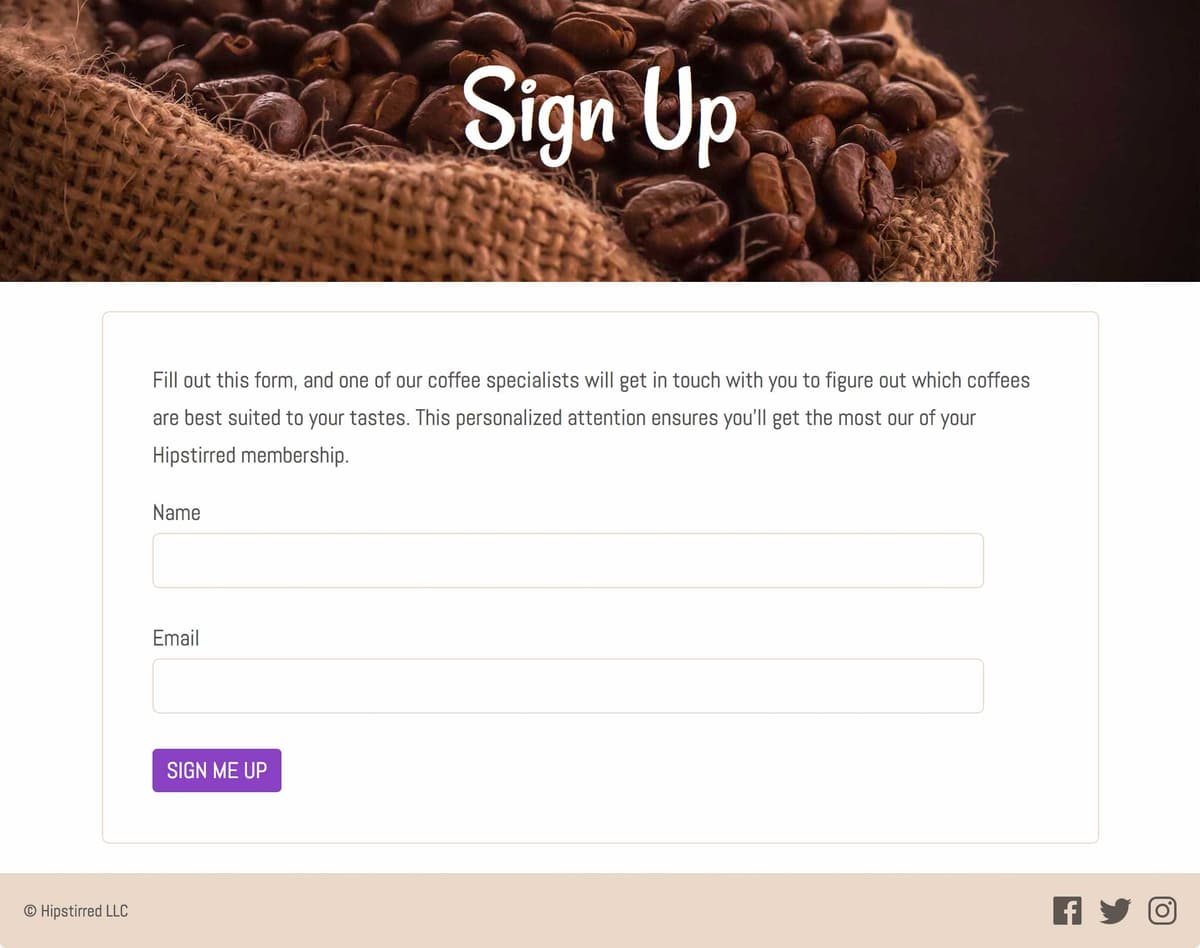
Exercise Overview
Forms allow you to collect information about your visitors so you can better serve their needs. In this exercise, you’ll learn to code and style a basic form to collect a user’s name and email.
Getting Started: the Form Tag
- We’ll be using a new folder of provided files for this exercise. Close any files you may have open in your code editor to avoid confusion.
- Navigate to the Desktop and go into the Class Files folder, then Web Dev Class folder, and find Hipstirred Form Style. Open the whole folder in your code editor if it allows you to (like Visual Studio Code does).
- Open signup.html from the Hipstirred Form Style folder.
Preview the file in a browser. Between the paragraph and the footer we’ll add form fields to ask for the user’s name and email.
NOTE: Leave the page open in the browser as you work, so you can reload the page to see the changes you make.
- Return to signup.html in your code editor.
Around line 26, wrap a form tag around the paragraph:
<main>
   <form action="">
      <p>Fill out this form, and one of our coffee specialists will get in touch with you to figure out which coffees are best suited to your tastes. This personalized attention ensures you’ll get the most our of your Hipstirred membership.</p>
   </form>
</main>
NOTE: For the form to be processed correctly, you must make sure to place all form elements inside the form tag. The action attribute specifies where to send the form data when the user hits the submit button. We’ll leave it blank for now.
Adding Name & Email Inputs to the Form
We create a text field with the input element. Let’s add a couple to our form so we can request a person’s name and email.
Below the paragraph inside the form tag, add the following code:
<form action="">
   <p>Fill out this form, and one of our coffee specialists will get in touch with you to figure out which coffees are best suited to your tastes. This personalized attention ensures you’ll get the most our of your Hipstirred membership.</p>

   <input type="text">
</form>
NOTE: The input element creates something a person can use to enter data. The type attribute specifies what kind of control the browser will create. In this case we want a text field, but here are a few other examples of other input types: checkbox, radio, submit, hidden, tel, time, and date.
Save the file, return to the browser, and reload the page.
You should see a small text field, but how is the user to know what they should type here? Let’s add a label.
- Return to signup.html in your code editor.
Add the following code above the input element, as shown in bold below:
<form action=""> <p>Fill out this form, and one of our coffee specialists will get in touch with you to figure out which coffees are best suited to your tastes. This personalized attention ensures you’ll get the most our of your Hipstirred membership.</p> <label>Name</label> <input type="text"> </form>- Save the file, return to the browser, and reload the page.
- Looks better, but click on the label that says Name. Nothing happens. For proper accessibility, the label should be associated with its input.
Return to the code and make the following changes:
<label for="nameField">Name</label> <input type="text" id="nameField"> </form>- Save the file, return to the browser, and reload the page.
- Click on the label that says Name and the cursor should automatically be placed in the input field! This is a nice usability improvement overall, but especially important for users with visual impairments so their screen readers will now know which text to announce for which input.
- Return to signup.html in your code editor.
Add the following new attribute to the input element:
<input type="text" id="nameField" name="nameField">While the ID you added earlier allows us to bind the label to the input, the name attribute will be used when sending the form data to a script that will process the form.
Now that we have this label and input functioning the way we want them to, let’s copy the code and create a second input for email.
Select the following two lines of code:
<label for="nameField">Name</label> <input type="text" id="nameField" name="nameField">- Copy the code.
Paste the code directly underneath like so:
<label for="nameField">Name</label>
<input type="text" id="nameField" name="nameField">

<label for="nameField">Name</label>
<input type="text" id="nameField" name="nameField">
Edit the code you just pasted to make the following changes (in bold):
<label for="nameField">Name</label>
<input type="text" id="nameField" name="nameField">

<label for="emailField">Email</label>
<input type="email" id="emailField" name="emailField">
NOTE: As we mentioned earlier, there are numerous values you can use for an input’s type. We’re using email here to improve the usability of this form. On a mobile device, you’ll see an on screen keyboard more appropriate for entering emails, and it will be easier to validate this field.
Save the file, return to the browser, and reload the page.
- You should have Name and Email labels, each with a text field.
- When you click on the Email label, the cursor should be placed into its appropriate text field.
- The labels and text fields are all on one line, but we’d rather have them stack. We’ll do that, and improve their appearance in a little bit.
Adding a Submit Button
We need an input that will allow a user to submit their info.
- Return to signup.html.
Inside the form, below the email input, add the following code shown in bold:
<input type="email" id="emailField" name="emailField">

   <button>Sign Me Up</button>
</form>
NOTE: We can use
<input type="submit" value="Sign Me Up">instead of the button. Both will submit the form, but a button is more flexible because it may contain HTML content. That gives us more options should we want to add img, em, strong, or other tags.Save the file, return to the browser, and reload the page. You should now have a Sign Me Up button.
Styling the Form, Input, & Label
Let’s make this form look a bit nicer.
- Return to your code editor and open main.css from the Hipstirred Form Style folder.
- Scroll down to the bottom to see the
/* form styles */comment we wrote. Below the comment is where you will write styles for the form you just coded. Let’s start by creating a visual delineation for the form, so it stands out a bit more. Add the following new rule:
/* form styles */
form {
   border: 1px solid #e9d8c8;
   border-radius: 6px;
   padding: 5%;
}
Save the file, return to the browser, and reload signup.html. Now the form has a slightly rounded corner border around it.
Next let’s make the Name and Email fields stack on top of each other. Currently they are inline elements, but we can change them to block and they will stack!
- Return to main.css in your code editor.
Add the following new rule below the form rule:
label, input {
   display: block;
}
NOTE: This rule applies the same styling to both the label and input elements.
- Save the file, return to the browser, and reload signup.html. All the labels and inputs in the form now stack. There are some issues though.
Click into one of the text inputs and type a few characters to see:
- The text is small and touches the edge of the input. It would look much better with some padding inside the element.
- The text you just typed is not the same font as the rest of the page.
- The Sign Me Up button is the wrong font as well.
- Return to main.css in your code editor.
Add the following new rule below the label, input rule:
input, button {
   font-family: 'Abel', sans-serif;
   font-size: 19px;
}
Let’s make the text inputs wider, add some padding inside them, add some extra space around them, and apply a border that matches our form’s border. Add the following new rule below the input, button rule:
input { width: 90%; padding: 10px; margin-top: 5px; margin-bottom: 30px; border: 1px solid #e9d8c8; border-radius: 6px; }- Save the file, return to the browser, and reload signup.html.
Click into one of the text inputs and type a few characters to see:
- The text is now bigger and the font matches the rest of the page.
- The padding opens up the text field so it’s easier to click/tap on, and the type is easier to read when it does not touch the edge.
- The wider text fields provide more space to see what you type.
- The bottom margin separates the text field from the element below.
Much better!
Styling the Button
Let’s make the button look better. We already have a .button class we’ve used for the main call to action on the home page and the Sign Up button in the navigation. Let’s reuse that for the form’s button.
- Return to your code editor and switch to signup.html.
Find the button element and edit it as follows:
<button class="button">Sign Me Up</button>Save the file, return to the browser, and reload signup.html.
- Look closely and you’ll probably see a border of some kind. That’s the browser’s default styling (which varies across browsers).
- Click on the button and in some browsers (such as Chrome) you may see an outline appear on the button. That’s more browser default styling.
- Notice that when you hover over the button, the cursor does not change to a pointer. Once again that’s browser default styling.
Luckily we can change all these things with CSS.
- Return to your code editor and switch to main.css.
Add the following new rule below the input rule:
button { border: 0; outline: none; cursor: pointer; }- Save the file.
Return to the browser to reload signup.html and enjoy the look and feel of your button and styled form.
NOTE: To make the form function would require some back-end coding such as back-end JavaScript, PHP, Ruby on Rails, etc. which is beyond the scope of this book.