April 1, 2026Dan Rodney/5 min read

Box Model: Content-Box vs. Border-Box

Master CSS Box Model for Better Layout Control

CSS Box Model Fundamentals

Content-Box (Default)

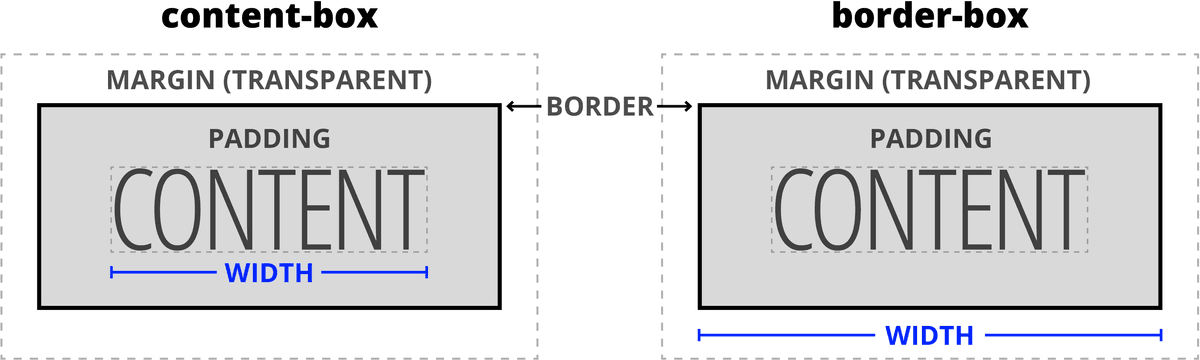
Width applies to content only. Padding and borders are added to the total width, making elements larger than expected.

Border-Box (Modern)

Width includes padding and borders. The visual size matches your CSS width value exactly.

Topics Covered in This HTML & CSS Tutorial:

Understanding the crucial differences between border-box and content-box models, plus industry best practices for implementing border-box as your default approach across all projects.

Exercise Preview

preview border box

Exercise Overview

In our previous exercise, we explored how CSS's default box model handles margins, padding, and widths—often in ways that can surprise developers. Now you'll master the border-box model, a more intuitive approach that has become the industry standard for modern web development. This isn't just a technical preference; it's a fundamental shift that makes responsive design more predictable and maintainable.

Content-Box vs Border-Box Behavior

FeatureContent-BoxBorder-Box
Width CalculationContent + Padding + BorderTotal Visual Width
PredictabilityLess PredictableMore Predictable
Layout ControlRequires MathDirect Control
Recommended: Border-box provides more intuitive and predictable layout behavior

Getting Started

We've prepared your starting files with enhanced text styling to build upon your previous work. Let's set up your development environment for this deep dive into CSS box models.

  1. In your code editor, close any files you may have open to start fresh.
  2. For this exercise we'll be working with the Tahoe Box Model folder located in Desktop > Class Files > Advanced HTML CSS Class. If you're using Visual Studio Code or another modern editor, open the entire folder in your workspace for better file management.
  3. Open index.html from the Tahoe Box Model folder.
File Structure Setup

This exercise builds on previous box model concepts with enhanced text styling. You'll work with the Tahoe Box Model folder containing HTML and CSS files.

Flexible Padding: Using Percentage Amounts

Before we dive into box models, let's explore how percentage-based padding creates responsive layouts that adapt seamlessly across devices—a technique that's become essential in our mobile-first world.

  1. Preview index.html in a browser to see your starting point.
  2. Currently there's 20px of padding in the header and three blue-bordered sections below it. The fixed padding works adequately on small screens, but modern responsive design calls for proportional spacing that scales with viewport size. Rather than managing multiple media queries for different breakpoints, we'll implement a more elegant solution using percentage-based padding.
  3. Keep the page open in the browser, but return to your code editor.
  4. Open main.css from the css folder.
  5. In the header rule (located near the bottom of the file), add percentage-based padding as shown below:

    header {
       background: url(../img/masthead-darkened.jpg) center / cover;
       color: #fff;
       text-align: center;
       padding: 7%;
    }

    NOTE: This technique calculates 7% of the element's width and applies that value as padding to all four sides. It's a powerful responsive design pattern that maintains proportional spacing across all screen sizes.

  6. Save main.css and reload index.html in Chrome. Observe these key behaviors:

    • Resize the browser window and watch how the header padding decreases on narrow viewports and increases on wider ones—this is responsive design working as intended.
    • On wider screens, notice that the header extends beyond the width of the blue-bordered sections below it. This reveals an important limitation of the default CSS box model.

    This width discrepancy occurs because both the header and sections have an identical 800px max-width, yet they render at different visual sizes. The culprit is CSS's default box model, known as content-box. In this model, your specified width applies only to the content area, with padding and borders added externally to create the final visual dimensions.

    Here's the math: 800px base width + 40px total padding (20px × 2 sides) + 8px total borders (4px × 2 sides) = 848px final visual width. When percentage padding exceeds the original 20px, the header grows even larger than the sections below.

    Fortunately, CSS provides a superior alternative: the border-box model. This approach treats your specified width as the final visual size, with padding and borders calculated inward from that boundary. As the diagram below illustrates, border-box delivers the intuitive behavior most developers expect.

    box models compared

Implementing Percentage Padding

1

Add Flexible Padding

Replace fixed 20px padding with 7% padding in the header rule for responsive spacing

2

Observe Responsive Behavior

Notice how padding adjusts based on viewport width - less on narrow screens, more on wide screens

3

Identify Width Issue

Header becomes wider than sections below due to content-box model adding padding to max-width

Content-Box Width Calculation Example

Content Width
800
Padding (both sides)
40
Borders (both sides)
8
Total Visual Width
848

Switching to Border-Box

Now let's implement border-box and see how it transforms your layout's behavior. We'll start by testing it directly in the browser before committing the changes to our CSS.

  1. In Chrome, CTRL–click (Mac) or Right–click (Windows) on the header's photo and choose Inspect to open Developer Tools.
  2. Ensure your browser window is wide enough to clearly see that the header extends beyond the sections below.
  3. Select the header element in the Elements panel on the left side of DevTools.
  4. In the Styles panel on the right, locate the top style rule labeled header.
  5. Find the header, section rule below it, which should show the max-width property. Click once on the 800px value to select it.
  6. Press Tab to create a new property field below the max-width declaration.
  7. Type box-sizing and press Tab to move to the value field.
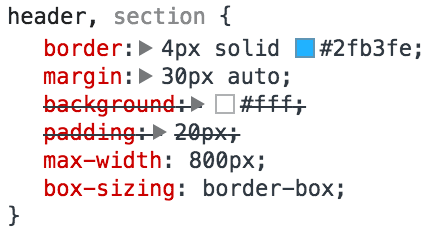
  8. Type border-box and press Enter to apply the change. Your DevTools should display:

    chrome inspect box sizing applied

  9. Observe the immediate visual changes in your page:

    • The sections have become slightly narrower because their padding and borders now fit within the 800px constraint instead of extending beyond it.
    • The header and sections now maintain identical widths—exactly the consistent layout we're aiming for.
  10. Now let's implement this improvement in our actual CSS file. Return to main.css in your code editor.
  11. While we could add box-sizing to individual elements, modern web development follows a more comprehensive approach. We'll implement the industry-standard technique for applying border-box globally. Navigate to the snippets folder and open border-box.css.
  12. Select all the code in the border-box file.
  13. Copy the selected code.
  14. Close the snippet file and return to main.css.
  15. Paste the code at the very top of your stylesheet, above all existing rules:

    *, *::before, *::after { box-sizing: border-box; }
    
    body {

    NOTE: This universal selector approach targets every element on the page, plus any pseudo-elements created with ::before and ::after. The result is comprehensive border-box behavior across your entire project. This single line has become a standard reset in professional web development because it eliminates the counter-intuitive behaviors of the default content-box model.

  16. Save main.css and reload index.html in your browser. With wider browser windows, the header and all three sections below should now maintain perfect width alignment.

    This border-box reset represents a fundamental best practice in modern CSS. We strongly recommend including this rule at the top of every stylesheet you create—it's become as essential as a CSS reset for professional web development in 2026.

Testing Border-Box in DevTools

1

Inspect Header Element

Right-click header and choose Inspect to open Chrome DevTools

2

Add Box-Sizing Property

In Styles panel, add box-sizing: border-box to see immediate width adjustment

3

Observe Uniform Widths

Header and sections now match in width as padding and borders fit within 800px

Universal Box-Sizing Best Practice

Apply border-box to all elements using the universal selector pattern: *, *::before, *::after. This ensures consistent behavior across your entire website.

We recommending including this code in every site you create.
The universal border-box declaration is considered a modern CSS best practice for predictable layouts.

Key Takeaways

1Content-box (default) adds padding and borders to the specified width, making elements larger than expected
2Border-box includes padding and borders within the specified width for predictable sizing
3Percentage padding creates responsive spacing that adapts to viewport width automatically
4The universal selector pattern (*, *::before, *::after) applies border-box to all elements efficiently
5DevTools inspection allows real-time testing of CSS properties before implementing in code
6Border-box eliminates the need for complex width calculations in responsive layouts
7Modern web development considers border-box the preferred box model for consistent results
8The 7% padding technique provides flexible spacing without media queries for basic responsiveness

RELATED ARTICLES